How to Use OBDLink Mx to Read and Clear Engine Codes
The OBDLink MX is a Bluetooth OBD2 adapter that reads and clears engine codes through the OBDLink app. Plug it into the diagnostic port, pair it with your phone, and you can see what triggered the check engine light before calling a shop.
Knowing how to use OBDLink MX starts with one simple idea: plug it into your car’s diagnostic port, pair it with your phone, and let the app translate what the engine computer is saying. This guide covers reading and clearing engine codes, live data, battery voltage checks, and knowing when a repair needs a professional.
- Compatibility: Verify your vehicle’s make, model, and year support standard OBD2 protocols before buying.
- Setup: Pair the adapter in the OBDLink app, update firmware, and complete the first connection.
- Code clearing: Record codes and freeze-frame data first; clearing codes does not fix the underlying fault.
- Safe use: Use ignition-on mode for reads, avoid clearing codes near an emissions test, and never.
- Ownership: No subscription is required for basic use; unplug the adapter when the car sits.
What the OBDLink MX Does and the Fastest Way to Use It
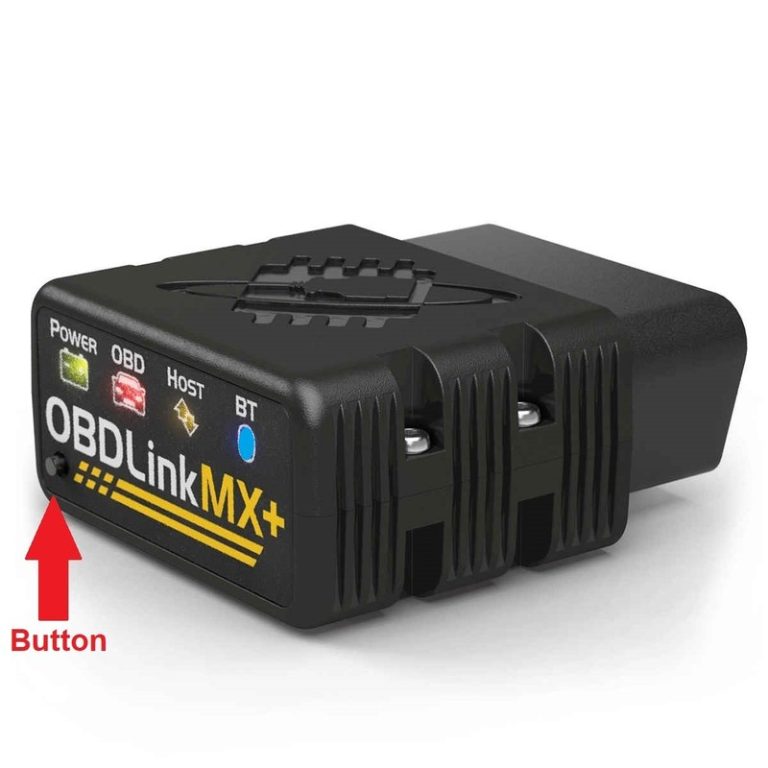
The OBDLink MX is a compact Bluetooth adapter that plugs into your car’s OBD2 port. It communicates with the engine computer and sends diagnostic data to the OBDLink app on your phone or tablet. That data includes diagnostic trouble codes (DTCs), live sensor readings, emissions readiness status, and system voltage.
The Five-Minute Workflow: Scan, Read, Clear, Verify
The fastest way to use the OBDLink MX follows five steps:
Locate the OBD2 port under the dashboard and press the MX firmly into place.
Open the OBDLink app, enable Bluetooth, and connect to the adapter.
Tap the Diagnostic Trouble Codes screen and note every code plus freeze-frame data.
Use the Clear DTCs button only after you have written down the codes and related data.
Drive through a full warm-up cycle and re-scan to confirm the code stays off.
What the OBDLink MX Can’t Tell You
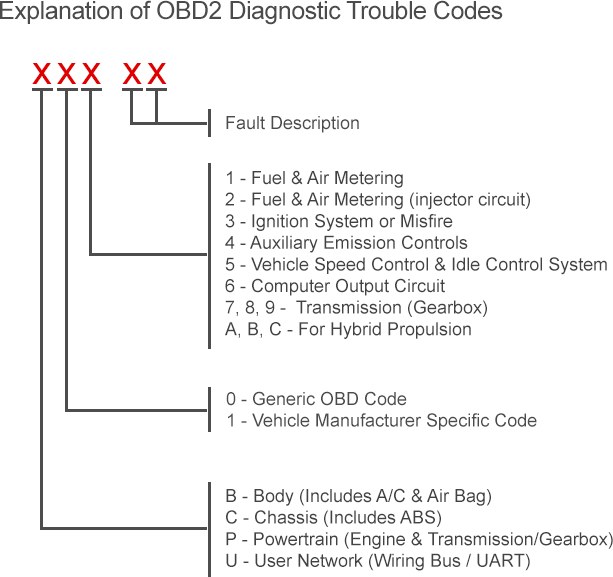
The OBDLink MX reads what the engine computer can see. It cannot measure fuel pressure at the rail, test compression, or inspect the inside of a catalytic converter. A code like P0420 tells you catalyst efficiency is below threshold, but it does not tell you whether the catalyst, an oxygen sensor, or an exhaust leak caused it. That difference matters when you decide whether to replace a part or call a shop.
OBDLink MX Compatibility: Protocols, Model Years, and Port Location
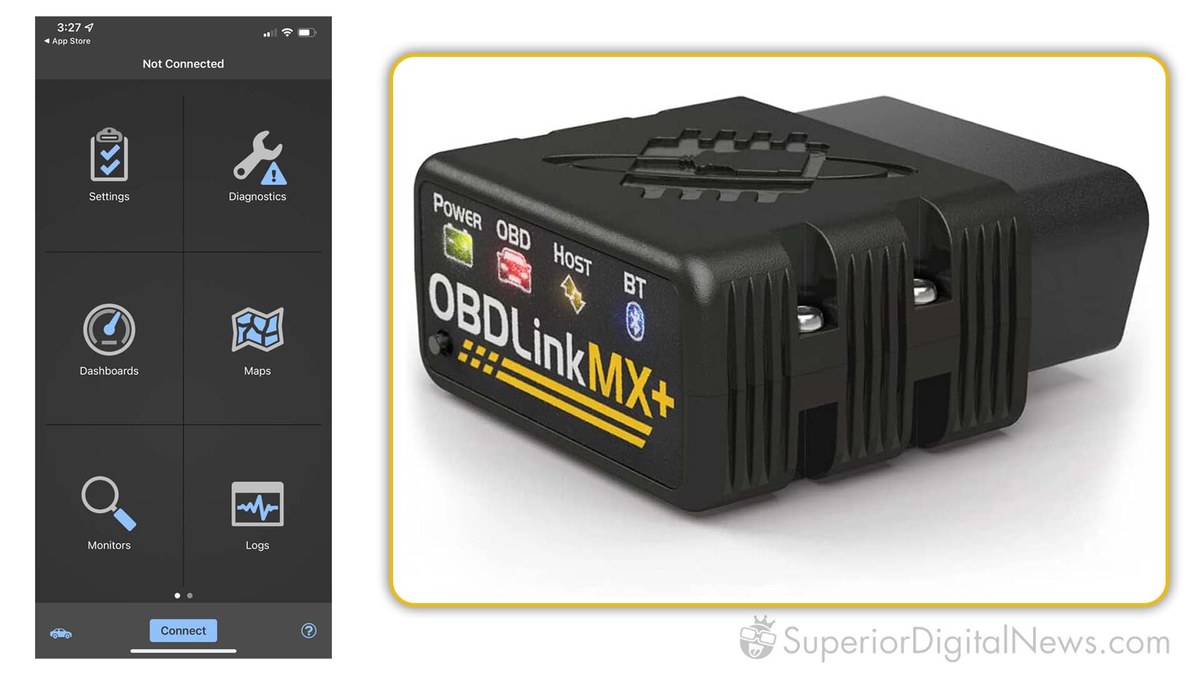
Check: Verify your vehicle’s make, model, year, and OBD2 port location before buying. The MX supports the five standard OBD2 protocols used on gasoline vehicles sold in the US since 1996.
Limitations: The MX does not replace a factory-level scan tool. Some enhanced manufacturer data, bidirectional controls, and module-specific functions are not available.
Supported Vehicles and OBD2 Protocols
Every gasoline vehicle sold in the United States since 1996 must have an OBD2 port. The OBDLink MX supports the five standard protocols: CAN, J1850 PWM, J1850 VPW, ISO 9141-2, and KWP2000. That covers most domestic, Asian, and European models from 1996 onward. It also reads MS-CAN and SW-CAN data on many Ford, GM, and Mazda vehicles, which unlocks extra module information.
For a model-year-specific list, check the manufacturer’s compatibility page or our OBDLink MX compatible vehicles guide before you order.
Finding the Port and Using the Right Ignition Mode
The OBD2 port usually sits under the driver’s side dashboard, near the steering column or fuse panel. Some vehicles hide it behind a small cover or above the pedals. If you cannot find it, check the owner’s manual.
Most code reading requires the ignition in the “on” position with the engine off. That powers the port and the engine computer without starting the engine. A few live-data tests, such as oxygen sensor response, need the engine running. For those, park safely, set the parking brake, and follow the app’s instructions.
Pairing the OBDLink MX and Setting Up the OBDLink App
Downloading the App and Reviewing Permissions
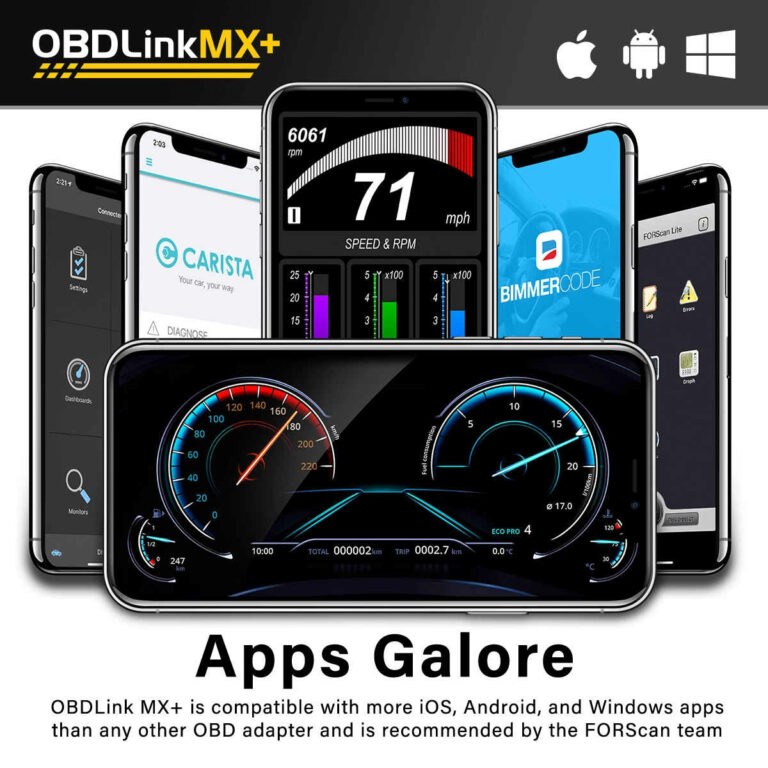
The OBDLink app is available for iOS and Android. Download it from the official app store, then review the permissions it requests. The app needs Bluetooth to talk to the adapter and location access on Android to complete Bluetooth pairing. It does not need access to your contacts, messages, or camera to read codes.
Pairing, Firmware Updates, and First Connection
Plug in the MX, turn the ignition on, and open the app. The app should detect the adapter and guide you through Bluetooth pairing. If the connection fails, check whether the adapter needs a firmware update. The OBDLink app includes an update tool that keeps the adapter current. If you run into trouble, our OBDLink MX not connecting guide covers common fixes.
After pairing, the app may run a short vehicle profile setup. Let it finish. That profile tells the app which protocols and enhanced data your vehicle supports. You only need to do this once, unless you move the adapter to a different vehicle.
How to Read and Clear Engine Codes Step by Step
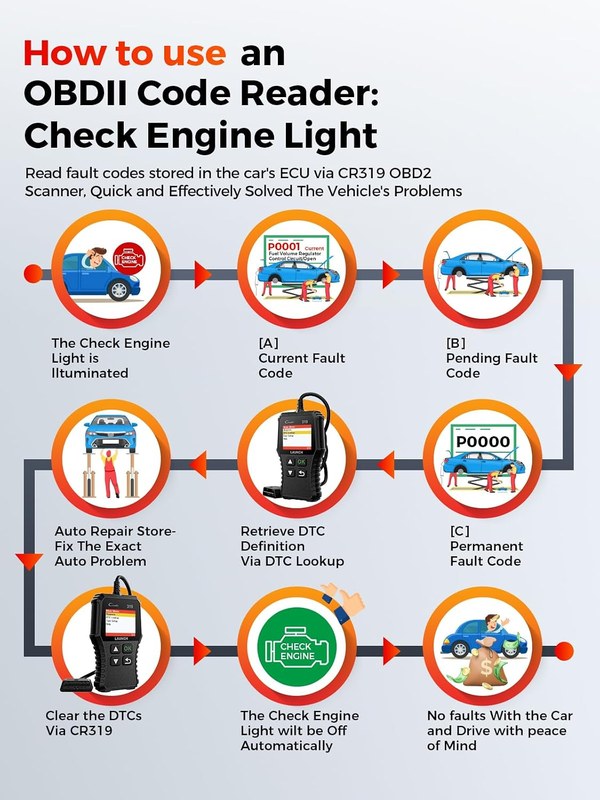
Reading Codes: Pending, Confirmed, and Permanent Codes
Open the Diagnostic Trouble Codes screen in the app. You will see three categories:
- Confirmed codes — stored faults that triggered the check engine light.
- Pending codes — faults detected once but not yet confirmed across two drive cycles.
- Permanent codes — emissions-related codes that cannot be cleared with a standard scan tool; they erase only after the vehicle completes its own monitor tests.
Write down every code and the freeze-frame data attached to it. Freeze-frame data records engine speed, coolant temperature, and fuel trim at the moment the fault was stored. That snapshot helps you diagnose the cause instead of guessing.
Clearing Codes: What It Does and What It Doesn’t Do
Clearing codes erases stored trouble codes and resets the emissions monitors. It does not repair the underlying fault. If the problem is still present, the code will return, often within a few drive cycles.
- Record all codes, freeze-frame data, and the date before clearing anything.
- Repair the root cause first, then clear the codes and verify with a re-scan.
- Check your state’s inspection rules before clearing codes near an emissions test.
- Clear codes just to hide a check engine light before selling a car.
- Expect the light to stay off if the fault is still active.
- Clear codes immediately before an emissions inspection; reset monitors can cause an automatic fail.
For a deeper look at this process, see our guide on how to pass emissions after clearing codes.
Live Data, Emissions Readiness, and Knowing Your Limits
Using Live Data to Confirm the Repair
Live data turns the OBDLink MX into a real-time dashboard. You can watch engine RPM, coolant temperature, fuel trims, oxygen sensor voltage, and calculated load as you drive. That helps confirm a repair actually worked. For example, fuel trims near zero after replacing a vacuum leak suggest the fix held. Long-term fuel trims still far from zero point to another issue. Set up the app before you start driving, and pull over safely before reviewing graphs or changing screens.
Emissions Readiness Monitors and Inspection Timing
The emissions readiness screen shows whether each monitor — catalyst, oxygen sensor, EVAP, and others — has completed its self-test. After clearing codes, all monitors reset to “not ready.” The vehicle must complete a specific drive cycle, which varies by make and model, before they run again. If you take the car for inspection too soon, it can fail for incomplete monitors even with no codes stored.
Battery Voltage Checks and Electrical Safety with the OBDLink MX
Reading System Voltage and Understanding State of Charge vs. Health
The OBDLink app shows system voltage in live data. With the engine off, a healthy 12-volt battery should read around 12.4 to 12.6 volts. With the engine running, alternator output typically lands between 13.5 and 14.5 volts. That reading tells you about state of charge and charging output, but it does not measure battery health. A battery can show normal voltage and still fail under load. For a true health check, use a battery tester that measures cold cranking amps.
Connection Order, Damaged-Battery Stop Conditions, and Current Limits
The OBDLink MX draws very little power from the vehicle, but the port itself connects directly to the vehicle’s electrical system. Before plugging in, inspect the OBD2 port for bent pins, corrosion, or damage. If the vehicle has a visibly damaged, swollen, or leaking battery, do not connect any diagnostic tool. Stop and address the battery issue first.
Hybrid and EV Cautions
Hybrid and electric vehicles have high-voltage systems that are dangerous to untrained people. The OBD2 port on a hybrid is typically low-voltage and safe to connect to, but you should never probe high-voltage components, orange cables, or battery service disconnects. If your hybrid shows a warning related to the high-voltage system, read the codes, then consult a dealer or qualified EV technician.
TPMS and Tire-Related Diagnostics: What the OBDLink MX Can Do
Reading TPMS Codes and Sensor Data
On many vehicles, the OBDLink MX can read tire pressure monitoring system (TPMS) data through enhanced manufacturer protocols. That may include individual tire pressures, sensor IDs, and TPMS fault codes. The exact data available depends on your vehicle make, model, and year.
Cold Pressure, Door-Jamb Placards, and TPMS Relearn Limits
When the TPMS light comes on, start with the door-jamb placard. It lists the correct cold tire pressure for your vehicle. Check pressures when the tires have been sitting for at least a few hours, because driving heats the tires and raises the reading. The OBDLink MX can show sensor-reported pressures, but it cannot inflate the tire. If a tire needs air often, inspect it for a slow leak before assuming the sensor is wrong.
If you replace a sensor or rotate tires, many vehicles require a relearn procedure. The OBDLink MX does not act as a TPMS programming tool on most vehicles. You may need a dedicated TPMS reset tool or a tire shop to complete the relearn.
Puncture Location, Temporary Repairs, and Professional Thresholds
A TPMS code tells you pressure is low; it does not tell you where the leak is. Inspect the tread and sidewall carefully. A puncture in the sidewall, at the edge of the tread, or larger than about a quarter-inch usually means the tire should be replaced, not patched. Temporary plug repairs are meant to get you to a shop, not to serve as a permanent fix. When in doubt, have a tire professional inspect the tire.
OBDLink MX vs. OBDLink MX+ vs. Generic Bluetooth Adapters
Side-by-Side Comparison: Speed, Protocol Support, and Price
| Option | Best for | Owner consideration | Driver consideration |
|---|---|---|---|
| OBDLink MX | Drivers who want broad protocol support and enhanced Ford, GM, and Mazda data | Uses classic Bluetooth; check that your phone supports it | Compact plug-in design stays out of the way under the dash |
| OBDLink MX+ | Newer phones and owners who want Honda and Toyota enhanced data | Adds Bluetooth Low Energy and a built-in battery voltage monitor | Same compact form factor with faster connection on modern phones |
| Generic Bluetooth adapter | Budget buyers who only need basic code reading | Lower upfront cost, but app quality and protocol support vary widely | Some generic adapters use weak Bluetooth chips that drop connection |
Which Adapter Fits Your Driving Style and Vehicle
If you own a Ford, GM, or Mazda and want module-level data, the MX is a strong fit. If you have a newer phone without classic Bluetooth support, or you own a Honda or Toyota and want enhanced data, the MX+ makes more sense. If you only need to read and clear basic engine codes a few times a year, a generic adapter can work, but expect fewer features and less reliable app support.
Ownership Costs, Privacy, and When to Call a Professional
App Permissions, Data Privacy, and Firmware Support
The OBDLink app is free to download and handles core functions like reading and clearing codes. Some advanced features, enhanced data packs, or logging tools may require in-app purchases. Review the app store listing and the manufacturer’s website for current pricing and feature tiers. Firmware updates are delivered through the app, which helps the adapter stay compatible with newer vehicles and phone operating systems.
Warranty, Storage, and the Real Cost of Ownership
The OBDLink MX is covered by a manufacturer warranty, but the exact term varies by region and retailer. Check the product listing or the manufacturer’s warranty page before buying. There is no subscription required for basic use, which keeps the long-term cost low. The main ongoing expense is the app’s optional paid features, if you choose to buy them.
Storing the OBDLink MX as a Roadside Tool
The MX is small enough to keep in a glove box or center console. If you leave it plugged in, it draws a small amount of power from the battery, which can drain a weak battery over weeks of sitting. If you do not use it daily, unplug it and store it in a dry place. For a closer look at this trade-off, read our guide on whether you can leave the OBDLink MX plugged in.
Signs Your Diagnosis Needs a Professional
Some situations call for a shop even when you have a scanner. If the code points to internal engine damage, if multiple modules fail to communicate, if you see metal shavings in the oil, or if the vehicle is unsafe to drive, stop. A professional scan tool with bidirectional controls and service information can diagnose what a code reader cannot.
- Best for: Daily drivers and DIY owners who want to read and clear engine codes, monitor live data, and check emissions readiness without paying for a shop visit.
- Think twice if: You need bidirectional controls, dealer-level programming, or TPMS sensor programming — the MX does not replace a professional scan tool.
- Next step: Confirm your vehicle’s compatibility and Bluetooth requirements, then download the OBDLink app and complete the first pairing while parked.
Frequently Asked Questions
The OBDLink MX works with most gasoline vehicles sold in the US since 1996 that use standard OBD2 protocols. Check the manufacturer’s compatibility page or our OBDLink MX compatible vehicles guide for your specific make, model, and year.
For most code reading, turn the ignition to the “on” position with the engine off. Some live data tests, like oxygen sensor response, require the engine running. Park safely and set the parking brake before starting the engine.
You can leave it plugged in, but it draws a small amount of power from the battery. On a weak battery or a car that sits for weeks, that draw can cause problems. Unplug it when you are not actively diagnosing.
No. Clearing codes resets the emissions readiness monitors, and many states will fail a vehicle with incomplete monitors. Fix the underlying issue, clear the codes, and complete the required drive cycle before inspection.
No subscription is required for basic use. The OBDLink app is free to download, and core functions like reading and clearing codes work without a paid plan. Some advanced features may require in-app purchases.
The MX uses classic Bluetooth and supports enhanced data for Ford, GM, and Mazda. The MX+ adds Bluetooth Low Energy, enhanced data for Honda and Toyota, and a built-in battery voltage monitor. The right choice depends on your phone and vehicle.