OBDLink MX+ not connecting: quick fixes and Bluetooth checks
OBDLink MX+ not connecting is usually fixed by checking Bluetooth, app permissions, ignition mode, and vehicle power in that order. If those are fine, the problem is often a weak battery, a loose OBD2 port, or a saved pairing conflict.
OBDLink MX+ not connecting is usually caused by a simple Bluetooth, app, ignition, or vehicle power issue—not a bad adapter. In most cases, you can narrow it down in a few minutes with the checks below.
- Start simple: Check Bluetooth, app permissions, ignition mode, and adapter power first.
- Watch for low voltage: A weak vehicle battery can block stable communication.
- Re-pair cleanly: Remove old Bluetooth records before trying again.
- Verify compatibility: Some vehicles and apps support more data than others.
- Stop if hardware looks damaged: Bent pins, a loose port, or battery damage need professional help.
OBDLink MX+ not connecting: the fastest fixes to try first
Start with the basics before you assume the adapter failed. Most connection problems come from a missing permission, a weak battery, the wrong ignition state, or an old Bluetooth pairing that needs to be cleared.
Confirm Bluetooth is on, the adapter has power, and the app has permission
Make sure Bluetooth is enabled on the phone and that the app is allowed to use it. On iPhone and Android, the app may also need location or nearby-device permission before it can find the adapter.
Next, check that the MX+ has power from the vehicle. If the adapter’s LED is off or unstable, the OBD2 port may not be supplying power, or the plug may not be seated fully.
Check the vehicle ignition mode, port fit, and adapter LED behavior
Many vehicles will not talk to a scanner unless the ignition is in accessory or run mode. If the car is in full off, the adapter may light up but still fail to connect to the app.
Press the adapter in firmly and confirm it sits straight in the port. A loose fit, a bent pin, or a partially blocked port can interrupt communication even when the tool appears powered.
Restart the phone, relaunch the app, and re-pair the adapter if needed
A quick phone restart often clears Bluetooth stack glitches. After that, close the app completely, reopen it, and try again before moving on to deeper troubleshooting.
If the adapter has already been paired in the phone’s Bluetooth menu, remove that pairing and let the app connect fresh. Some scan tools work best when the app handles the connection order instead of the phone’s general Bluetooth list.
Why the OBDLink MX+ may not connect in 2026 vehicles
Newer vehicles and newer phones can be more sensitive to pairing order, permissions, and power management. That does not mean the adapter is incompatible, but it does mean a connection that once worked can break after an OS update, app update, or vehicle battery event.
Bluetooth pairing conflicts, app settings, and phone OS restrictions
Bluetooth conflicts are common when a phone has too many remembered devices or when another scan app is trying to connect at the same time. If the MX+ was paired manually in the phone settings, the app may still fail until that saved pairing is removed.
Phone battery-saver settings can also block background discovery. On both major mobile platforms, aggressive power management may stop the app from scanning long enough to find the adapter.
Vehicle-side causes: dead battery, low voltage, sleep mode, or blown fuse
A weak vehicle battery can cause the adapter to power up but not communicate reliably. Low system voltage may let the LED turn on while the scan session drops out or never starts.
Some vehicles also go into sleep mode quickly, especially after the doors are opened and closed several times. If the OBD2 port fuse is blown, the adapter may not receive power at all.
Model-year and protocol coverage: OBD2, CAN, and older protocol limitations
For most U.S. gasoline vehicles, OBD2 coverage starts with model year 1996, but protocol behavior still varies by make and module. Older vehicles, specialty imports, and some diesel applications may need extra confirmation before you rely on any Bluetooth scanner.
Protocol support matters because the adapter can only connect to systems the vehicle exposes through the diagnostic link. If the vehicle uses a module the app does not support, the connection may succeed while the data you want never appears.
Check: Verify make, model, year, trim, voltage, ports, mounting space, and OEM requirements. Limitations: State verified exclusions. For OBD2 tools, confirm emissions-system coverage, app support, and protocol compatibility before buying.
Compatibility checklist for cars, trucks, hybrids, and EVs
Compatibility is more than “does it plug in.” A scanner can physically fit the port and still fail to read the data you need, especially on hybrids, diesels, or vehicles with limited aftermarket support.
Supported model years, emissions systems, and diesel considerations
Most U.S. passenger vehicles built for OBD2 use are easier to scan than older cars and trucks. Still, diesel vehicles may have different readiness behavior, module layouts, or app limitations depending on the engine and emissions package.
If you need emissions codes, readiness monitors, or freeze-frame data, confirm that the app and adapter support those functions on your exact vehicle. Some platforms read generic codes well but offer less complete manufacturer-specific coverage.
Hybrid and EV cautions: high-voltage systems, accessory power, and scan limits
Hybrids and EVs add another layer of caution because the high-voltage system is separate from the 12-volt accessory system that powers the OBD2 port. The adapter itself should only be used on the low-voltage diagnostic side, and you should follow the vehicle manual if any warning lights or startup issues are present.
What the MX+ can and cannot read: codes, live data, readiness, and resets
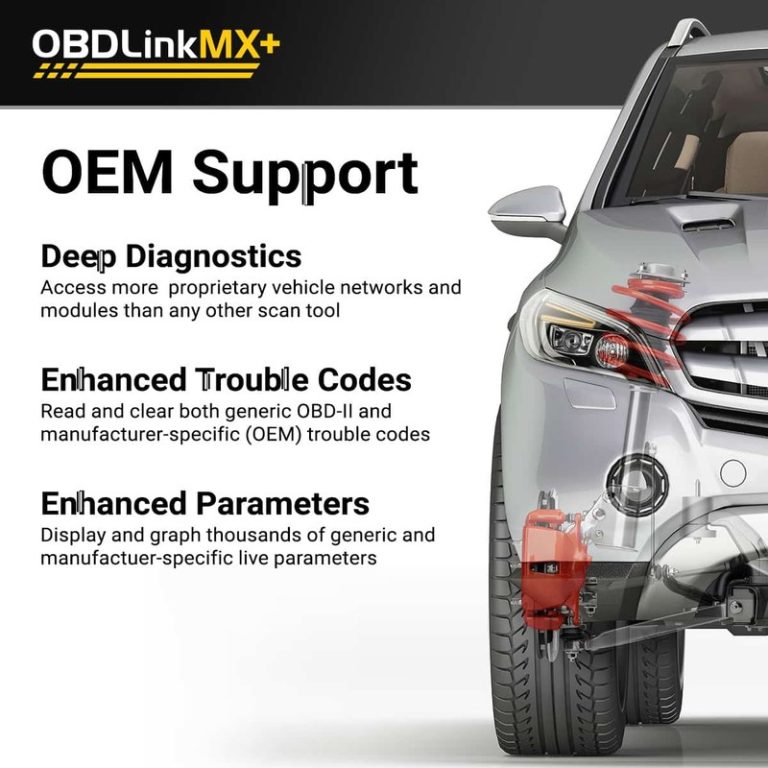
In general, a Bluetooth OBD2 adapter should help with stored and pending trouble codes, live data, and emissions readiness when the app and vehicle support it. Some reset functions, service procedures, and manufacturer-specific modules may be limited by software, not by the adapter alone.
That distinction matters because a successful Bluetooth connection does not guarantee full diagnostic access. If the app connects but key data is missing, the issue may be vehicle-side, app-side, or coverage-related rather than a hardware failure.
Bluetooth checks that solve most OBDLink MX+ pairing problems
When the adapter powers up but the app still cannot find it, the Bluetooth layer is usually the next place to look. This is where phone settings, app permissions, and firmware can make the difference between a quick fix and a long headache.
Phone Bluetooth stack issues on iPhone and Android
iPhone and Android handle Bluetooth differently, and both can keep old device records that interfere with new scans. If the MX+ appears in the phone’s Bluetooth list but still will not connect, forget the device and let the app discover it again.
Also check whether another device is already using the same phone connection path. A smartwatch, headset, or another diagnostic app can sometimes create a conflict that looks like an adapter problem.
App permissions, location access, and background restrictions
Some scanner apps need more than Bluetooth permission to work correctly. On Android especially, nearby-device and location access may be required for discovery, even if the app never uses maps or navigation.
Background restrictions can also interrupt a scan if the app is minimized or the screen sleeps too soon. Keep the phone awake while pairing, and temporarily disable battery optimization for the app if the manufacturer recommends it.
Firmware updates, adapter memory, and device re-pairing order
Firmware updates can fix connection bugs, but they can also expose old pairing records that need to be cleared. If the adapter has been used with several phones, start by removing previous pairings from the phone and the app before trying a fresh connection.
In troubleshooting, I would treat “pairing order” as a real variable, not a detail. Many Bluetooth OBD2 problems improve when the phone app, not the phone’s generic Bluetooth menu, is allowed to initiate the connection.
OBD2 port location, ignition mode, and installation basics
Before you blame software, make sure the tool is installed correctly. A scanner that is only half-seated or plugged into the wrong port can mimic a Bluetooth failure.
Finding the diagnostic port and verifying secure seating
The OBD2 port is usually under the dash on the driver side, but exact placement varies by vehicle. Use the owner’s manual if the port is hard to find, and avoid forcing the connector if it does not slide in cleanly.
Once connected, the adapter should feel snug and stable. If it moves easily, the port or connector may have wear, debris, or damage that needs inspection.
Keep your hands and cables clear of pedals, steering parts, seat tracks, and any sharp trim near the lower dash. If the port area is cramped, use the manual and work with the vehicle parked and off the roadway.
Correct connection order for adapter, app, and ignition
For many drivers, the safest order is: park, set the parking brake, plug in the adapter, switch the ignition to the needed mode, then open the app and connect. If the vehicle or app instructions say otherwise, follow those instructions first.
Do not rush the process. Some vehicles need a few seconds after key-on before the module network wakes up and starts responding.
When a loose port, bent pin, or fuse issue needs professional help
If the port feels loose, the pins look bent, or the adapter only works intermittently, the problem may be physical rather than digital. A damaged port can affect more than scanning and may need a technician’s inspection.
A blown OBD2 fuse or a wiring fault can also point to a deeper electrical issue. If multiple systems are acting strange, stop troubleshooting and consider a professional diagnosis instead of repeated reconnection attempts.
Battery and electrical checks before blaming the adapter
Low voltage is one of the most overlooked reasons a scanner will not connect. The adapter may draw very little power, but it still depends on a healthy vehicle electrical system to stay online and communicate.
System voltage, battery state of charge, and battery health are not the same
A battery can show enough voltage to light the adapter yet still be too weak to support stable communication. State of charge, battery age, and battery health are different things, and all three matter when a scan tool keeps dropping out.
If the vehicle has been sitting, has short-trip history, or shows slow cranking, assume low power may be part of the problem. A battery test is often more useful than repeated pairing attempts.
Damaged-battery stop conditions and safe jump-start cautions
If a battery is swollen, leaking, hot, or smells strongly of sulfur, stop and follow the vehicle manual. That is not a Bluetooth issue, and jump-starting a damaged battery can be dangerous.
Cold-weather voltage drop, parasitic drain, and low-power symptoms
Cold weather can reduce available battery performance and make borderline systems act worse. A vehicle that connects fine in mild weather may fail to connect on a freezing morning if the battery is already weak.
Parasitic drain is another possibility when a car has sat for days. If the battery keeps going low, the scan tool may not be the real problem; the car may need an electrical draw check.
What a successful connection should show: codes, live data, and readiness
Once the MX+ connects, the next step is to confirm that the app is actually reading useful information. A green Bluetooth icon does not mean the scan is complete if codes, live data, or readiness monitors are missing.
Reading stored and pending codes versus clearing them
Stored codes point to faults the vehicle has already confirmed, while pending codes may show problems that have not matured yet. Read both before clearing anything, because clearing too early can erase clues that help explain the symptom.
That is especially important if the check-engine light is intermittent. A short-lived code may be the only record you have before the problem disappears again.
Emissions readiness monitors and why reset limitations matter
Readiness monitors tell you whether the vehicle has completed its self-checks after a repair or battery event. If a monitor stays incomplete, the issue may be the driving cycle, the vehicle condition, or the app’s access level rather than the adapter itself.
Some tools can clear codes but cannot reset every system or service interval. That limitation is normal in the Bluetooth OBD2 world and should be checked before you buy, not after.
When live-data gaps point to vehicle-side faults instead of app issues
If the app connects but sensor values are blank, frozen, or obviously incomplete, the problem may be a module communication issue. In that case, the adapter is only the messenger and not the source of the failure.
Compare the missing data with the vehicle symptoms. If the engine runs poorly, the transmission shifts oddly, or warning lights stay on, a deeper scan may be needed.
Comparison guide: OBDLink MX+ versus cheaper Bluetooth OBD2 adapters
Cheaper adapters can work for basic code reading, but they often trade away connection reliability, app support, or update quality. The MX+ is usually considered when a driver wants fewer pairing headaches and broader app compatibility.
| Option | Best for | Owner consideration | Driver consideration |
|---|---|---|---|
| OBDLink MX+ | Drivers who want stronger app compatibility and more reliable pairing | May cost more up front, but can reduce troubleshooting time | Less frustration when you need quick checks before a commute or trip |
| Cheaper Bluetooth OBD2 adapter | Basic code reads on a tight budget | May have weaker firmware support or shorter useful life | More likely to need repeated pairing or app workarounds |
Connection reliability, protocol support, app compatibility, and speed
Connection reliability matters more than raw feature lists when you are standing in a driveway trying to get a reading. If an adapter drops pairing often, the time lost can outweigh the savings.
Warranty, support, firmware updates, and long-term ownership cost
Long-term ownership cost includes more than the sticker price. Support quality, firmware updates, and how often you need to replace a flaky adapter all affect the real cost over time.
Which option fits DIY owners, commuter drivers, and shop-level users
DIY owners who only need occasional generic codes may be fine with a lower-cost tool if they accept limits. Commuters, rideshare drivers, and anyone who wants quicker troubleshooting usually benefit from better connection stability and software support.
For a broader buying comparison, see our OBDLink MX+ vs BlueDriver comparison if you are deciding whether the MX+ is the better fit for your phone and scan habits.
Safety, tire, TPMS, and roadside-use limits every driver should know
OBD2 scanners are useful, but they are not a substitute for tire checks, safe roadside habits, or common-sense vehicle inspection. If your scan is happening because a warning light came on during a trip, make sure the problem is not something more immediate.
TPMS relearn limits, door-jamb placard pressure, and cold pressure checks
If a tire pressure light is on, verify the cold tire pressure against the door-jamb placard, not the sidewall. TPMS may warn you, but it does not replace a manual check with a gauge.
Some scan tools can read TPMS-related information only in limited ways. Relearn procedures vary by vehicle, so follow the manual instead of assuming the adapter can reset everything.
Puncture location, temporary-repair limits, and when to visit a tire shop
If the tire has sidewall damage, a large cut, or a puncture outside the repairable tread area, a temporary fix is not enough. In those cases, a tire shop should inspect it before you continue driving.
Roadside emergency-tool storage, cable condition, current limits, and post-use inspection
Keep the adapter and cable stored where they will not get crushed, overheated, or contaminated by moisture. Inspect the connector after use so debris or bent pins do not create the next connection failure.
Owner Maintenance
Wipe the connector clean, check for loose fit, and update firmware only through the manufacturer’s app or instructions. Good storage and occasional inspection help prevent avoidable connection problems later.
When the problem is bigger than Bluetooth: diagnosis limits and next steps
If you have already checked power, permissions, ignition mode, and re-pairing, the remaining issue may be vehicle-side or app-side. At that point, the goal is to avoid guessing and decide whether you need a deeper scan or a technician.
Signs the vehicle needs a professional scan or electrical diagnosis
Repeated connection failures across multiple phones, a dead OBD2 port, multiple warning lights, or unstable voltage point to a real vehicle problem. Those symptoms deserve more than repeated Bluetooth resets.
A professional scan tool can also help when manufacturer-specific modules are involved. That matters if the issue is not just emissions codes but a body, transmission, or network fault.
Privacy, app data permissions, and safe ownership practices
Connected diagnostic tools may store VINs, trouble codes, live-data logs, and account details inside an app or cloud account. Review the app’s privacy settings and only grant permissions that are needed for scanning.
Transparent verdict on the OBDLink MX+ for U.S. drivers in 2026
The MX+ makes the most sense for drivers who want a dependable Bluetooth OBD2 adapter and are willing to do a little setup correctly. If your issue is mostly pairing trouble, the fix is often in the phone settings, app permissions, or vehicle power—not the adapter itself.
If you want a cleaner, faster path to basic code reading and live data, the MX+ is still a strong choice, but only when your vehicle, app, and battery are all healthy enough to support it. If you need deeper module access or a tool for a damaged electrical system, step up to a more complete diagnostic plan.
- Best for: U.S. drivers who want a reliable Bluetooth OBD2 adapter for basic scans, live data, and emissions checks.
- Think twice if: Your vehicle has a weak battery, a damaged OBD2 port, or you need advanced dealer-level module access.
- Next step: Verify power, permissions, ignition mode, and vehicle compatibility before replacing the adapter or blaming Bluetooth.
Frequently Asked Questions
The most common causes are missing app permissions, a weak vehicle battery, or an old Bluetooth pairing that needs to be removed. Start with Bluetooth, ignition mode, and adapter power before assuming the unit is faulty.
Usually no, but many vehicles need the ignition in accessory or run mode. If the car is fully off, the adapter may power up without the vehicle modules waking up.
Yes. A weak battery can let the adapter light up but still prevent stable communication with the vehicle or app.
It depends on the vehicle and how much power the port supplies when parked. Check the vehicle and adapter instructions, and remove it if you notice battery drain or repeated electrical issues.
No. It usually handles generic OBD2 codes and live data, but some manufacturer-specific modules and reset functions depend on the app and vehicle support.
Confirm vehicle year, protocol support, app compatibility, firmware support, and return terms. If you need reliable pairing and regular use, connection quality matters as much as feature count.


2 Comments