foxwell nt301 software update: fix install issues fast
The foxwell nt301 software update is usually fixed by using the correct Foxwell download, a direct USB port, and the right driver order. If the scanner still fails, the problem may be a bad cable, blocked permissions, or a deeper firmware issue.
foxwell nt301 software update problems usually come down to the PC setup, cable connection, or the scanner not being detected in the right order. If you want the fastest safe fix, start with the download source, USB port, and drivers before you assume the scanner is bad.
- Fix order matters: Correct file, direct USB port, then drivers and activation.
- Compatibility still matters: The update will not turn the NT301 into an advanced scan tool.
- Stop on unstable power: Loose cables, sleep mode, or weak voltage can corrupt the install.
- Save evidence: Screenshots and error codes help support diagnose the failure faster.
- Know the limits: TPMS, service resets, and deep module work may need a different tool.
foxwell nt301 software update: how to fix install issues fast
Most failed installs are not mysterious. They often happen because the update file is wrong for the unit, Windows blocks a driver, or the scanner is connected before the software is ready.
What the update actually changes in 2026
For a scanner like the NT301, updates usually focus on firmware stability, device recognition, and internal bug fixes rather than adding major new scan functions. Manufacturer notes can also change how the tool communicates with a PC or how it handles code data and display behavior.
That matters because many owners expect an update to expand vehicle coverage, but the core OBD2 feature set usually stays the same. If your scanner already reads generic trouble codes, live data, and readiness status, the update is more about reliability than a new feature list.
Quick answer: the fastest safe fix path for failed installs
First, confirm you downloaded the correct Foxwell software package for the exact NT301 version you own. Then use a direct USB port on the computer, not a hub, and run the installer with admin rights if your system allows it.
If the scanner is not detected, reinstall the driver, try another USB cable if one is available, and temporarily pause aggressive antivirus software that may block the installer. If the update still fails, save the error message and contact Foxwell support with the model name, serial number, and a screenshot of the problem.
When an update problem points to a deeper scanner issue
If the unit freezes during every attempt, will not power on after an interrupted update, or no longer shows up on any computer, the issue may be beyond a simple reinstall. In that case, the scanner firmware may be corrupted, the cable may be faulty, or the device itself may need service.
Before you update: compatibility, model-year coverage, and what the NT301 can really do
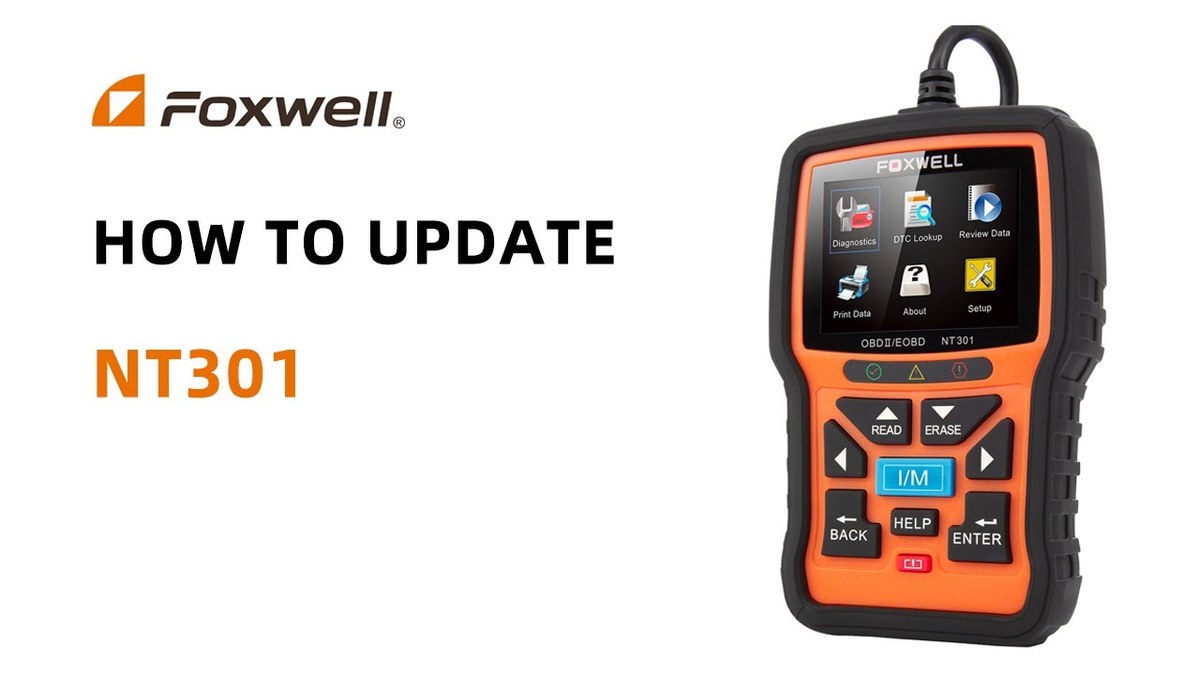
Before you spend time on software, make sure the NT301 is a good match for your vehicle and your goal. This is a generic OBD2 scanner, so it is best for basic diagnostics, not advanced module coding or full-system service work.
For a broader buying context, it helps to compare the tool with whether the Foxwell NT301 is worth buying and which vehicles are compatible with the Foxwell NT301.
Vehicle coverage by OBD2 protocol and model year
Check: Verify make, model, year, trim, voltage, ports, mounting space, and OEM requirements. Limitations: State verified exclusions.
In the US, most gasoline vehicles from model year 1996 and newer use OBD2 for generic emissions diagnostics, but support still varies by vehicle, engine, and protocol. Some older imports and specialty vehicles may have partial support or require a different tool.
Always confirm that the scanner supports your vehicle’s protocol before updating firmware. If the tool is not meant for your car in the first place, an update will not fix that mismatch.
OBD2 port location, ignition mode, and connection basics
For normal use, the OBD2 port is usually under the dash near the steering column, but location varies by vehicle. The ignition often needs to be in the ON position, but not necessarily with the engine running, depending on the test.
During an update, follow the Foxwell instructions exactly. Some units want the scanner connected to the PC first, while others need the software open before the device is plugged in.
Code reading, live data, and emissions readiness limits
The NT301 is useful for reading generic diagnostic trouble codes, viewing live data, and checking emissions readiness monitors. That makes it a practical tool for a check-engine light, pre-inspection review, or basic drivability triage.
It does not replace a full scan tool for brand-specific modules, bidirectional control, or deep system diagnostics. If you need ABS, airbag, transmission adaptation, or advanced relearn coverage, the NT301 may be too limited.
Reset limitations and when a professional scan tool is still needed
Some scanners can clear certain codes, but clearing a code is not the same as fixing the cause. If the fault returns, the scanner did its job by reporting the problem, not solving it.
If your vehicle has repeated faults, safety-system lights, or hybrid/EV warnings, a professional scan tool or qualified technician may be the safer next step. That is especially true if the repair involves steering, brakes, airbags, or high-voltage systems.
Step-by-step installation guide for Foxwell NT301 software updates
Download source, firmware files, and PC requirements
Use Foxwell’s official support or update source for the exact scanner model and revision. Avoid random download mirrors, because the wrong package can cause detection errors or incomplete installs.
Before you begin, check that your computer can run the installer smoothly. A stable USB port, current operating system support, and enough permissions to install drivers all matter more than most people expect.
Correct connection order for the scanner, USB cable, and computer
Connection order is one of the easiest places to go wrong. If the software expects the scanner to be connected after the program opens, plugging it in too early can prevent detection.
Use a direct USB port on the computer and avoid docking stations or unpowered hubs during the update. A loose or low-quality cable can interrupt the transfer and leave the scanner in a half-updated state.
Install flow: drivers, software, device detection, and activation
Verify the vehicle, power, ports, mounting space, hardware, and manufacturer instructions.
Keep cables and hardware away from airbags, pedals, controls, sensors, and moving parts.
Complete setup while parked, verify key functions, and secure all parts before driving.
Start by installing the Foxwell software, then the driver package if the installer includes one. After that, connect the scanner and wait for device detection before you try activation or firmware transfer.
If the software asks for a serial number or registration step, enter it carefully. A typo can look like a failed update when the real issue is simply an account or activation mismatch.
Common install blockers: permissions, antivirus, USB ports, and cable faults
- Confirm vehicle, tool, voltage, port, tire, or battery compatibility
- Follow the vehicle and tool instructions in the correct order
- Inspect, store, and maintain the tool after use
- Clear codes before recording useful diagnostic information
- Work near traffic, moving parts, heat, or damaged batteries without proper precautions
- Rely on an unverified specification or temporary repair as a permanent fix
Windows permissions, antivirus blocks, and outdated USB drivers are common problems. If the scanner is not recognized, try a different port, reinstall the driver, and restart the computer before repeating the update.
Some “software issues” are actually cable issues. If the installer runs but the scanner disconnects partway through, the cable or port may be unstable even if the scanner itself is fine.
Troubleshooting failed updates without risking the scanner
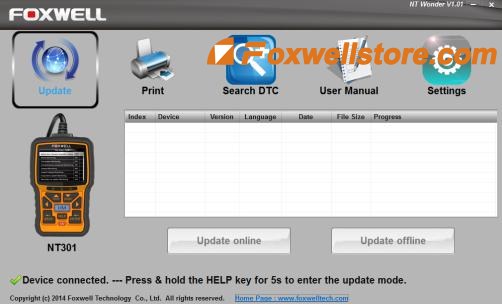
Frozen progress bars, error codes, and partial firmware installs
A frozen progress bar usually means the update transfer stopped, not that the scanner is dead. Partial installs are risky because the tool may still look powered on while the firmware is incomplete.
Do not unplug the scanner during an active write unless the manufacturer tells you to stop. If the software shows a specific error code, record it exactly so support can match the issue to the right fix.
Power stability, battery level, and safe stop conditions
Even though the NT301 is a handheld scanner, update stability still depends on steady power from the computer and cable. A sleep mode, loose USB connection, or power-saving setting can interrupt the process.
Stop immediately if the computer is about to shut down, the cable keeps slipping, or the scanner starts behaving unpredictably. A clean restart is safer than trying to force a corrupted update to finish.
When to retry, when to reinstall, and when to contact support
Retry once after you verify the basics: correct file, correct cable, direct USB port, and admin permissions. If the same error happens again, reinstall the software rather than repeating the same failed sequence.
Contact support if the scanner is no longer recognized, the firmware update will not complete after a fresh install, or the device cannot recover after a failed flash. At that point, the issue may need a vendor-level fix.
Warranty, support limits, and what evidence to save before escalating
Save screenshots, error messages, the software version, the scanner serial number, and the exact steps you took. That record helps support tell the difference between a user setup issue and a product fault.
Good documentation can shorten support time, reduce repeat troubleshooting, and protect you if the unit needs warranty review or replacement.
Battery and electrical checks that affect update success and scan reliability
System voltage basics and why low power can corrupt an install
Low system voltage can interrupt communication between the scanner and the computer, especially if the USB connection is already weak. That is one reason update problems sometimes look random even when the file itself is fine.
For vehicle diagnostics, weak voltage can also create false symptoms. A low battery or unstable charging system can trigger warning lights, odd codes, and poor scan behavior that point to the vehicle, not the tool.
Battery chemistry, state of charge, and battery health are not the same
State of charge tells you how full the battery is right now. Battery health tells you how much useful life it still has, and those two numbers are not the same thing.
A battery can show a decent charge and still fail under load. That matters because a scanner update, a code check, or a roadside diagnosis may be interrupted if the electrical system cannot stay stable.
Damaged-battery stop conditions and hybrid/EV cautions
Hybrid and EV systems can involve high-voltage components that require special procedures. If your issue touches those systems, use the factory service information or a qualified technician instead of guessing.
Why a weak charging system can mimic scanner failure
A failing alternator, poor ground, or weak battery can create unstable voltage that looks like a scanner problem. The tool may seem to disconnect, freeze, or report inconsistent data when the vehicle electrical system is the real source of the trouble.
That is why a basic battery and charging check can save time before you blame the scanner. It also helps separate a real firmware issue from a vehicle-side electrical fault.
TPMS and tire-related use cases: what the NT301 can and cannot help with
The NT301 is not a TPMS programming tool, but it can still be part of a tire-related troubleshooting routine when a warning light overlaps with engine or system diagnostics. For tire pressure work, the vehicle placard and a good gauge still matter more than any scanner.
Door-jamb placard, cold pressure, and gauge accuracy checks
Always start with the tire pressure listed on the door-jamb placard, not the sidewall maximum. Check pressure when the tires are cold for the most accurate reading.
If a tire seems low, confirm it with a trusted gauge before you add air. A scanner cannot replace a proper tire pressure check.
Inflator duty cycle, puncture location, and temporary-repair limits
If you are using an inflator after finding a low tire, follow the inflator’s duty-cycle limits and let it cool when required. A slow leak, sidewall damage, or a puncture near the shoulder may not be safe to inflate and drive on.
Temporary sealants and plug kits have limits. They can help in some emergencies, but they are not a universal permanent repair.
TPMS relearn limits and why some vehicles need a dedicated tool
Some vehicles need a TPMS relearn after tire service, but the NT301 is not designed to handle every relearn procedure. Many makes require a dedicated TPMS tool or a specific vehicle menu sequence.
If the tire light stays on after pressure is corrected, the problem may be a sensor, relearn step, or tire damage rather than a simple low-pressure event.
When tire damage or sensor faults require professional repair
Sidewall damage, repeated air loss, or a sensor fault that returns after service should be handled by a tire professional. The safest choice is the one that keeps the tire and wheel assembly within the manufacturer’s repair limits.
Roadside and emergency-tool best practices for safe scanner use
Safe location, traffic visibility, and working on the shoulder
If you are diagnosing a car on the shoulder, your first job is scene safety, not code reading. Use a safe location, keep clear of traffic, and avoid standing where passing vehicles can reach you.
Storage conditions, cable condition, and post-use inspection
After use, inspect the scanner, cable, and connector for wear or loose fit. A damaged cable can cause update failures later even if the tool still powers on today.
Tool completeness, current limits, and avoiding unsafe improvisation
Keep the scanner, cable, and any required software together so you are not hunting for missing parts when a warning light appears. Avoid improvised adapters or unknown cables unless Foxwell specifically supports them.
Quick roadside tools are only useful if they are complete and ready. If you cannot connect safely, it is better to wait for a safer location or professional help.
What to check after a roadside diagnostic session
After you finish, confirm the ignition state, remove the scanner carefully, and make sure no cables are left in the footwell. Then review the codes, freeze-frame data, and readiness status before you clear anything.
Foxwell NT301 vs alternatives: which driver gets the best value
The right choice depends on whether you want a simple code reader, a mid-level scanner, or a more advanced diagnostic tool. If you are comparing options, a broader look at what the Foxwell NT301 can clear and Foxwell NT301 vs BlueDriver can help narrow the fit.
Side-by-side comparison: update process, compatibility, live data, and support
| Option | Best for | Owner consideration | Driver consideration |
|---|---|---|---|
| Foxwell NT301 | Basic OBD2 code reading and live data | Simple ownership, limited advanced functions | Easy to use while parked, not a distraction tool |
| Basic code reader | Lowest-cost check-engine light use | Fewer features and less data | Fast for simple checks, but limited detail |
| Higher-end scan tool | Multi-system diagnostics and service work | Higher cost and more learning time | More capability, but more setup complexity |
NT301 vs basic code readers for budget-minded drivers
A basic code reader can be enough if you only want to know why the check-engine light came on. The NT301 generally makes more sense if you want live data and a more useful diagnostic workflow without moving into premium-tool pricing.
NT301 vs higher-end scan tools for DIY mechanics and multi-vehicle owners
DIY mechanics who work on multiple vehicles may outgrow the NT301 quickly. A higher-end tool is usually better if you need service resets, manufacturer-level coverage, or deeper fault analysis.
Best fit by vehicle type: daily drivers, older OBD2 cars, and light DIY users
The NT301 is a practical match for daily drivers, older OBD2 vehicles, and light DIY users who mainly need basic code reading and emissions checks. It is less compelling if you expect advanced programming or broad module access.
Ownership value, privacy, legal placement, and final verdict
Ownership cost, firmware maintenance, and long-term support expectations
Long-term value depends on whether Foxwell continues to support the model with usable firmware and driver downloads. A scanner that is easy to update and maintain tends to age better than one that becomes difficult to register or recover.
App permissions, data privacy, and safe device storage habits
If the update software asks for account access, keep your login information private and avoid using shared computers when possible. Store the scanner in a dry place away from heat and moisture so the connector and screen last longer.
Legal and emissions-readiness variation by state and inspection rules
Some states care about readiness monitors and inspection timing more than the code itself. Clearing a code right before inspection can leave monitors incomplete and create a failed test even if the check-engine light is off.
Transparent verdict: who should buy the NT301 in 2026 and who should skip it
- Best for: Drivers who want a simple, reliable OBD2 scanner for basic codes, live data, and emissions checks.
- Think twice if: You need advanced module access, TPMS programming, or deep service functions.
- Next step: Confirm your vehicle compatibility and follow the Foxwell update steps before you buy or troubleshoot.
Frequently Asked Questions
Common causes include the wrong download package, a blocked driver, a bad USB port, or a loose cable. Try a direct USB port, admin rights, and a fresh driver install before repeating the update.
Usually the update happens through a computer connection, not through the vehicle OBD2 port. Follow the Foxwell instructions for the exact connection order because it can vary by software version.
Yes. Low or unstable vehicle voltage can create false scanner problems, confuse live data, or interrupt diagnostics, especially if the vehicle electrical system is already weak.
Not for every vehicle. The NT301 is mainly a basic OBD2 code reader, so many TPMS relearn tasks still need a dedicated TPMS tool or vehicle-specific procedure.
There can be if the software stores VINs, fault codes, or account data on your computer. Use secure passwords, avoid shared PCs when possible, and review any app or account permissions.
Check your vehicle compatibility, the current update method, warranty terms, and whether the software is still supported for your scanner revision. Also confirm whether any accessories or replacement cables may be needed later.



3 Comments