Innova 5610 Check Engine Reset Procedure: Safe Steps
Last Updated: September 15, 2026
Innova 5610 Scanner Check Engine Reset Procedure
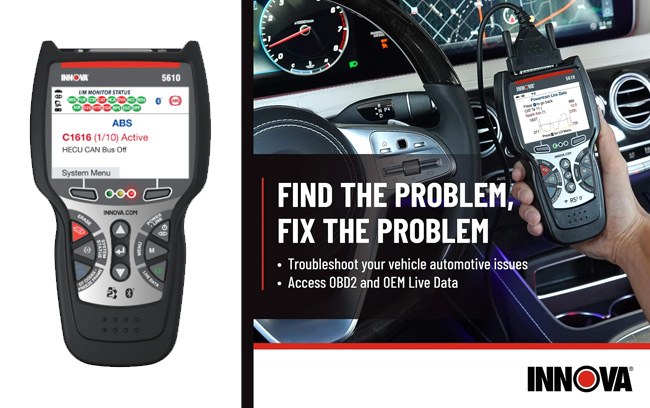
The safe Innova 5610 scanner check engine reset procedure is: scan the vehicle, write down the codes, fix or confirm the problem, clear the codes with the scanner, then drive long enough for monitors to reset. Do not erase codes just to hide an active problem; the warning can return and readiness monitors may show incomplete.
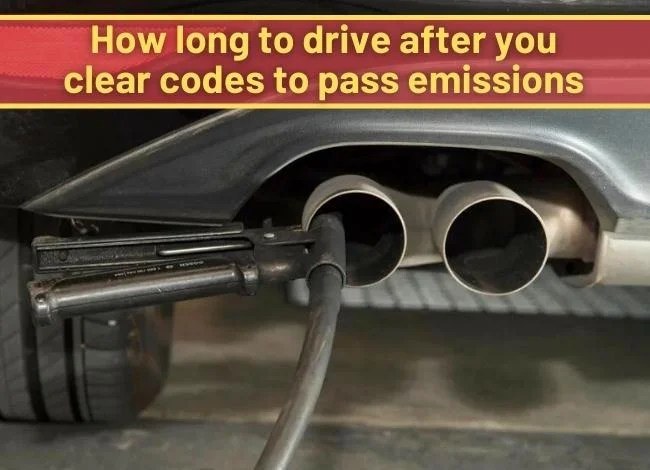
If you are preparing for inspection, clear codes only after the repair. Then complete the required drive cycle before testing emissions readiness.
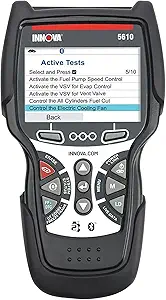
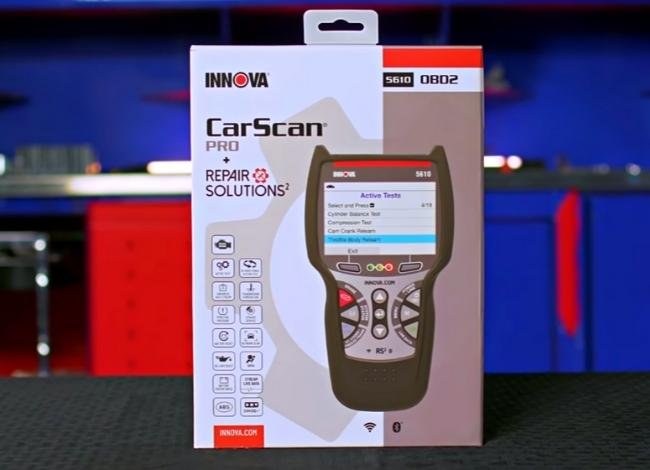
Best fit: Innova 5610 for reset plus deeper checks
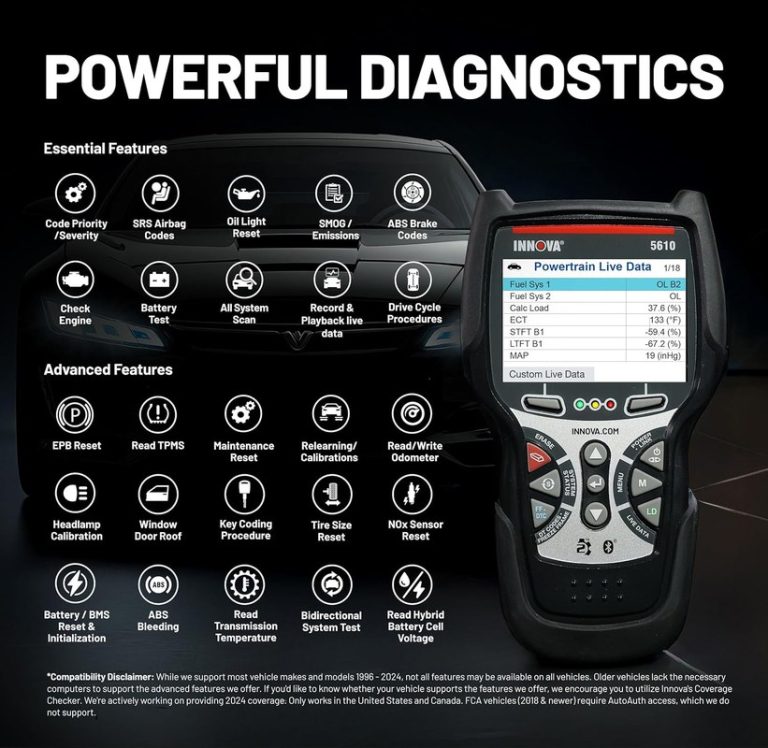
Use the 5610 when you want more than a basic code erase. It can help confirm the fault, view live data, and handle more advanced functions before you clear the light.
Check Engine Reset Steps With the Innova 5610
| Step | What to Do | Why It Matters |
|---|---|---|
| 1 | Plug in the scanner and turn ignition to ON. | Gives the tool access to OBD-II modules. |
| 2 | Read and save all codes first. | You need the code history before clearing anything. |
| 3 | Fix or confirm the cause. | Clearing before repair usually brings the light back. |
| 4 | Use erase/clear codes in the scanner menu. | Resets the check engine light after the issue is handled. |
| 5 | Drive and recheck readiness monitors. | Important before emissions inspection. |

If you only need simple check-engine reset
A lower-cost Innova scanner may be enough if you only need to read and erase engine codes without bidirectional controls or advanced system scans.

If you want a newer simpler workflow
If the 5610 feels like more scanner than you need, compare newer Innova tools with simpler app/workflow support before buying.
Innova 5610 Reset FAQ
What is the Innova 5610 scanner check engine reset procedure?
Read the codes, record them, repair or confirm the problem, use the scanner’s erase/clear-code function, then drive and recheck readiness monitors. If the fault is still active, the check engine light can come back.
Can clearing codes with the Innova 5610 make a car pass inspection?
Not by itself. Clearing codes resets readiness monitors. The vehicle usually needs a drive cycle and all required monitors must complete before inspection.
The safest reset is to reboot the scanner, then clear codes only after you record the fault information and confirm the vehicle is compatible. If the code returns right away, the problem is still in the car, not the scanner.
How to reset the Innova 5610 OBD2 scanner starts with knowing which kind of reset you actually need: a simple reboot, a code clear, or an app refresh. The safe approach is usually quick, but it should never replace proper diagnosis if the warning light comes back.
- Reset type matters: Rebooting the scanner is not the same as clearing vehicle codes.
- Battery health matters: Low voltage can cause failed links and false codes.
- Compatibility matters: Hybrids, EVs, and gateway-protected vehicles may limit resets.
- Do not guess: Record codes before clearing them so you do not lose useful diagnosis data.
How to Reset the Innova 5610 OBD2 Scanner Safely and Fast
Quick answer first: the safe reset sequence, when to power-cycle, and when not to reset
The safest reset is usually to unplug the scanner, wait a few seconds, plug it back in, and then reconnect with the ignition in the correct position. If you are trying to erase trouble codes, save the freeze-frame and code information first, because clearing too early can hide the clue you need.
Do not reset the scanner just to “see if the light goes away” when the vehicle is running rough, the battery is weak, or the code points to a serious fault. In those cases, a reset may only delay the real fix.
What “reset” means on the Innova 5610: device reboot, code clear, readiness reset, and app/account reset
On an OBD2 tool like the Innova 5610, “reset” can mean four different things. A device reboot restarts the scanner itself. A code clear erases stored diagnostic trouble codes from the vehicle. A readiness reset is not a scanner reset at all; it is the emissions monitor status that changes after codes are cleared or the battery is disconnected. An app or account reset may be needed if Bluetooth pairing, permissions, or login data are stuck.
If you need a broader walkthrough of scanner functions, our how to use a scan tool guide and OBDLink setup article can help you compare the same basic steps on different tools.
What the Innova 5610 Can and Cannot Reset on Modern Vehicles
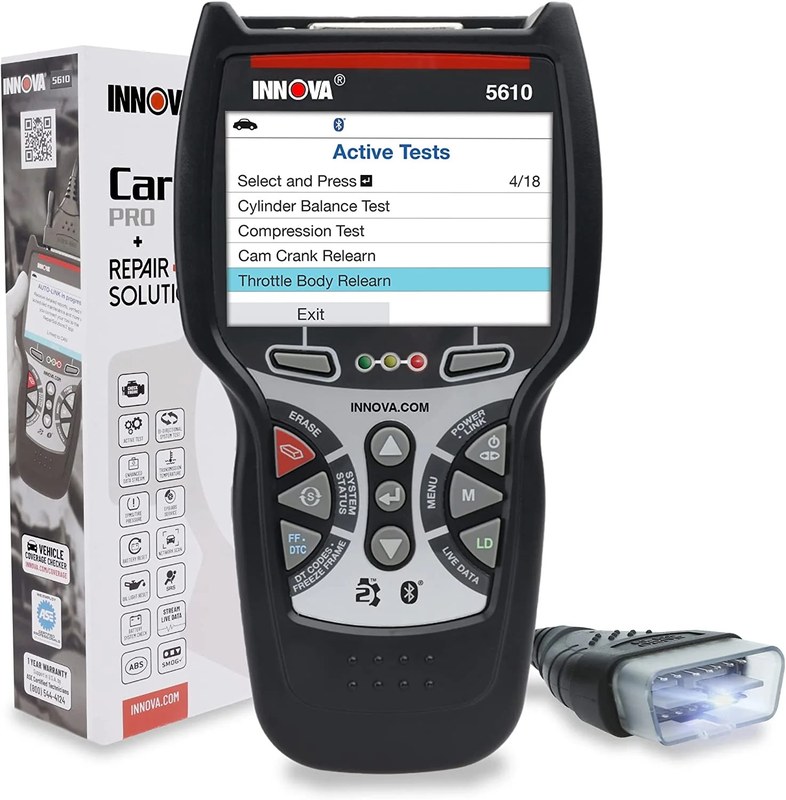
OBD2 model-year coverage in the U.S.: 1996-and-newer gasoline, diesel exceptions, and protocol support
In the United States, OBD2 generally applies to 1996-and-newer gasoline vehicles, with diesel coverage and exact support varying by vehicle type, engine, and protocol. The Innova 5610 may communicate with many compliant vehicles, but the scanner still depends on the car’s own diagnostic system and support for the protocol in use.
Check: Verify make, model, year, trim, voltage, ports, mounting space, and OEM requirements. Limitations: State verified exclusions.
Ignition mode, port location, and communication basics before you attempt any reset
Most OBD2 scanners need the vehicle in the correct ignition state, often key-on-engine-off or accessory mode, depending on the vehicle and task. The diagnostic port is usually under the dash on the driver’s side, but the exact location can vary. A poor connection at the port can look like a scanner problem when it is really a power or communication issue.
If you are still learning the basics of port access and live data, see our OBD2 scanner for cars guide for a simpler overview of what these tools can read.
Code clearing vs. live-data viewing vs. emissions readiness: what the scanner can affect and what it cannot
The Innova 5610 can usually read codes, view live data, and clear certain stored fault codes on supported vehicles. It cannot repair the cause of the fault. It also cannot force a vehicle to pass an emissions test if a monitor has not completed or if the underlying issue remains.
Reset limitations on hybrid, EV, and late-model vehicles with gateway security or manufacturer restrictions
Hybrid and electric vehicles often add extra safety rules and may use separate 12V support systems. Some late-model vehicles also use gateway security or manufacturer restrictions that limit what a generic scanner can clear. If the tool will not connect or the reset option is blocked, that does not always mean the scanner is broken.
Step-by-Step Reset Guide for the Innova 5610
Safe power-down and reboot procedure for the scanner itself
If the scanner freezes, loses communication, or shows a blank screen, start with a simple reboot. Unplug it from the OBD2 port, wait 10 to 30 seconds, and reconnect it firmly. If the unit has a removable cable or app link, check both ends for looseness before trying again.
- Disconnect the tool before handling the cable or port
- Make sure the connector seats fully
- Retry in the correct ignition position
- Force the plug into a damaged port
- Pull on the cable to remove it
- Assume a reboot fixes a vehicle fault code
How to clear stored trouble codes correctly without masking an active fault
Before clearing codes, write down the code numbers, note the symptoms, and save freeze-frame data if the tool allows it. Then use the scanner’s clear function only after you understand what the code means. If the code returns immediately, the vehicle still has an active problem.
For readers comparing reset behavior on other tools, our how to reset Ancel BD310 guide shows the same caution: clear after you document, not before.
When to update firmware before or after a reset
If the scanner is acting oddly, a firmware update may help, but it should not be used to avoid diagnosing a vehicle problem. Update first if the manufacturer says the update addresses connection, compatibility, or display issues. Update after a successful reboot if the tool is unstable but still usable long enough to complete the update process.
Keep the scanner’s firmware current, store the cable without sharp bends, and check the connector for dirt or bent pins before every use.
App permissions, pairing, and account settings that may need to be refreshed
If the 5610 uses a companion app or wireless pairing on your setup, refresh Bluetooth permissions, location permissions, and account login if the connection keeps dropping. A phone update can change permissions in the background and make the scanner seem faulty when the app settings are the real issue.
Safety, Voltage, and Battery Checks Before Resetting or Clearing Codes
System voltage basics: why low voltage can trigger false codes and failed resets
Low system voltage can cause communication errors, false trouble codes, and failed reset attempts. If the battery is weak, the scanner may not stay powered long enough to finish the job. A quick voltage check can save time and prevent repeated failed connections.
Battery chemistry, state of charge, and battery health: why they are not the same thing
State of charge tells you how full the battery is right now. Battery health tells you how well it can still deliver power under load. A battery can show decent charge and still be too weak to support a stable diagnostic session.
That difference matters because a scanner reset may fail even when the battery seems “okay” at a glance. If you need a better sense of battery-related tools, our battery tester guide explains what a basic diagnostic check can and cannot tell you.
Correct connection order, damaged-battery stop conditions, and when to stop and recharge first
For the cleanest result, connect the scanner with the vehicle parked, the parking brake set, and the ignition in the required position. If the battery is visibly damaged, leaking, swollen, or smoking, do not keep testing. Recharge or replace the battery safely first, or get professional help.
Hybrid and EV cautions: high-voltage systems, 12V support batteries, and professional-only situations
Even on hybrids and EVs, the 12V support battery often powers the diagnostic port and control modules. But the presence of a 12V battery does not mean the vehicle is simple or safe to treat like a standard gas car. High-voltage systems, orange cables, and manufacturer lockouts are reasons to stop and consult the manual or a qualified technician.
Troubleshooting Common Innova 5610 Reset Problems
No power, no link, or intermittent connection: cable, port, and fuse checks
If the scanner will not power on, check the OBD2 port, cable, and vehicle fuse related to the diagnostic connector. A loose plug, dirty pins, or a blown fuse can interrupt power. Try another compatible vehicle if you need to separate a tool issue from a vehicle issue.
Communication errors caused by ignition position, battery voltage, or protocol mismatch
Many “no communication” problems are really ignition-position problems. Some vehicles also need a brief wait after key-on before the modules wake up. If the scanner still fails, the vehicle may use a protocol or gateway setup that the tool cannot fully access.
When codes return immediately after reset and why that usually means diagnosis is not finished
If the same code comes back right away, the fault is still present. That may point to a bad sensor, wiring damage, vacuum leak, battery issue, or another live problem. A reset can confirm that a fault exists, but it cannot remove the cause.
For a practical comparison of scanner behavior and code-reading habits, our how to read codes with the Ancel BD310 article explains why code meaning matters more than clearing speed.
Emissions readiness monitors, failed inspection risk, and why repeated resets can create new problems
Repeatedly clearing codes can reset readiness monitors and make an emissions inspection fail even if the car seems to drive fine. In many cases, the better move is to diagnose the issue once, repair it, and then let the monitors complete naturally. Clearing codes over and over can create more hassle than it solves.
Compatibility, Placement, and Legal Considerations for U.S. Drivers
Where the OBD2 port is usually located and how to access it safely without damaging trim
The port is often below the steering column or near the lower dash, but some vehicles hide it deeper under trim. Use a light, look before you reach, and avoid prying panels with metal tools. Damaged trim or a broken connector can cost more than the scan itself.
State-by-state inspection and emissions rules: what a reset can affect legally
Clearing codes may be allowed, but it can still affect inspection readiness. Some states check monitor status, not just whether the check engine light is off. Always verify current rules with your state inspection program, especially if you are close to a registration deadline.
Privacy and app data: what vehicle data may be stored, shared, or synced
Connected scan tools can store VIN-related data, trouble codes, and usage history. If you share the scanner across family vehicles, review app accounts and saved vehicle profiles so one driver’s data does not mix with another’s. That matters for both privacy and future troubleshooting.
Using the scanner in a parked vehicle, roadside shoulder, or driveway: visibility and safety basics
Use the tool while parked whenever possible. If you must check a fault on the shoulder, stay visible, keep clear of traffic, and avoid leaning into the cabin longer than needed. A scan tool is helpful only if the setup itself stays safe.
Tire, TPMS, and Emergency Use: What Else Drivers Try to Reset or Check
Door-jamb placard pressure, cold inflation, and gauge accuracy before touching TPMS warnings
Some drivers use a scan tool while also dealing with a tire warning, but TPMS concerns should start with the door-jamb placard pressure and a cold tire pressure check. A warning light may appear because of temperature change, not a broken sensor. Use a reliable gauge before assuming the scanner can solve it.
Inflator duty cycle, puncture location, and temporary-repair limits that affect whether a reset is appropriate
If the tire has a puncture, the location of the damage matters more than any reset. Sidewall damage, large cuts, or repeated pressure loss usually mean the tire needs professional attention. A temporary repair or quick inflation is not a permanent solution.
TPMS relearn limits: what the Innova 5610 may not do and when a shop tool is required
The Innova 5610 may read some tire-related information depending on the vehicle, but it is not a universal TPMS relearn solution. Many vehicles need a relearn procedure, a manufacturer-specific scan tool, or a shop-level tool to finish the job correctly. If the warning stays on after proper inflation, do not keep guessing.
Roadside and emergency-tool checks: storage conditions, cable or pack condition, current limits, tool completeness, and post-use inspection
Keep the scanner and its cable stored where heat, moisture, and crushing pressure will not damage them. Before a roadside use, inspect the connector, phone link if applicable, and any accessory pack for wear. After use, wipe the tool clean and confirm it still powers up before putting it away.
Innova 5610 Review and Comparison: Is It the Right Scanner for Your Needs?
Evaluation criteria: ease of reset, code coverage, live data, build quality, firmware support, and owner value
For a reset-focused scanner, the most useful criteria are simple: can it read and clear the codes you need, does it show live data clearly, does it stay connected, and does the manufacturer support updates? Build quality and cable durability also matter because a diagnostic tool gets handled in tight spaces and sometimes in poor weather.
Side-by-side comparison: Innova 5610 vs. basic code readers vs. higher-end scan tools
| Option | Best for | Owner consideration | Driver consideration |
|---|---|---|---|
| Innova 5610 | DIY code reading, clearing, and live data on many OBD2 vehicles | Good middle-ground value if you want more than a basic reader | Useful when you want clear info without a complex setup |
| Basic code reader | Simple check-engine-light reads and clears | Lower cost, but fewer data options and less guidance | Easy to use, but limited for deeper diagnosis |
| Higher-end scan tool | Advanced diagnostics and broader system access | More capability, but higher cost and learning curve | Can be overkill for routine home use |
Ideal user and vehicle match: daily drivers, DIY owners, older OBD2 cars, and light-truck users
The 5610 makes the most sense for drivers who want a practical middle ground: enough function to clear codes, check live data, and support regular maintenance without paying for a shop-level tool. It is a strong fit for older OBD2 cars, many daily drivers, and light trucks when the vehicle is compatible.
If you are comparing scanner categories, our cheap vs expensive OBD2 scanner comparison can help you decide whether you need basic code clearing or deeper diagnostic coverage.
Drawbacks, evidence limits, warranty/support considerations, and transparent verdict
The main drawback is that no generic scanner can guarantee full access to every vehicle system, every model year, or every security gateway. Also, without verified first-hand testing evidence here, the safest editorial judgment is based on manufacturer-style function claims, owner expectations, and standard diagnostic workflow rather than lab results.
Before buying, confirm update support, return policy, and warranty terms directly with the seller or manufacturer. If you want to compare more options first, our best OBD2 scanner guide is a good starting point for broader shopping.
- Best for: DIY drivers who want a safe, straightforward way to reboot the tool, clear supported codes, and check live data on many OBD2 vehicles.
- Think twice if: You need hybrid, EV, gateway, or shop-level access, because a reset will not overcome vehicle restrictions or unresolved faults.
- Next step: Confirm vehicle compatibility, record the code before clearing it, and check battery voltage if the scanner will not connect cleanly.
Common Questions
Unplug it from the OBD2 port, wait a few seconds, and plug it back in firmly. Then retry with the ignition in the correct position.
No. Clearing codes only turns off the stored fault information until the vehicle detects the problem again.
Common causes include low battery voltage, a loose port connection, the wrong ignition mode, or a vehicle protocol mismatch.
Yes, it can reset readiness monitors. That may cause an emissions inspection to fail until the monitors complete again.
Sometimes, but not always for every function. Follow the vehicle manual and stop if the system has high-voltage warnings or access limits.
Frequently Asked Questions
Check the model year, engine type, and OBD2 protocol support before buying or resetting codes. U.S. OBD2 compatibility is common on 1996-and-newer gasoline vehicles, but diesel and late-model security features can change what the tool can access.
Write down the code number, note the symptoms, and save freeze-frame data if the scanner allows it. Clearing first can erase the best clues for diagnosis.
Yes. Low voltage can interrupt communication, cause false codes, or make the scanner drop out during a reset. Check the battery first if the tool keeps losing connection.
That depends on your setup and product revision. If you use a phone connection or companion app, refresh Bluetooth permissions, login status, and app settings if pairing fails.
State rules vary, and some inspections check readiness monitors, not just whether the light is off. Always verify current state requirements before clearing codes close to an inspection date.
Keep the cable clean, avoid sharp bends, store it dry, and check firmware or app updates when the manufacturer recommends them. A quick inspection before each use helps prevent connection problems later.