How to Use BlueDriver Pro Scan Tool: A Beginner’s Guide
A check engine light does not tell you whether the problem is a loose connection, an emissions fault, or something that needs immediate attention. The BlueDriver Pro scan tool helps you retrieve the diagnostic information stored by your vehicle and review it on a compatible phone or tablet.
The scanner is easy to connect, but getting useful results requires more than plugging it in and pressing “Clear.” You should select the correct vehicle, run the right scan, save every code, review freeze-frame information, and confirm the cause before replacing parts.
BlueDriver Pro is best for drivers who want more explanation than a basic code reader provides. It can read supported trouble codes, show repair information, display live data, and check emissions readiness. Its main limitation is that enhanced module coverage varies by vehicle, and a code still needs proper diagnosis before you buy parts.
How to Use BlueDriver Pro in 8 Steps
For a basic scan, park safely, turn on Bluetooth, plug the sensor into the OBD-II port, switch the ignition to the Key On, Engine Off position, connect through the BlueDriver app, select your vehicle, run a scan, and save the results before clearing anything.
Download the app from the Apple App Store or Google Play, then allow the Bluetooth and nearby-device permissions requested by your phone.
Park on level ground, apply the parking brake, and keep the vehicle outdoors or in a properly ventilated area if the engine will run.
Look below the driver-side dashboard, near the steering column, fuse panel, or lower dash cover. The port has a 16-pin trapezoid shape.
With the engine off, insert the sensor firmly without forcing it. The vehicle’s diagnostic port supplies power to the adapter.
Use the Key On, Engine Off position so the dashboard lights illuminate while the engine remains off, unless the app tells you otherwise.
Open BlueDriver and follow its connection prompt. Avoid pairing through the phone’s regular Bluetooth menu unless the app specifically instructs you to do so.
Confirm the year, make, model, engine, and region. Run a full-system scan when available instead of checking only the engine module.
Record the code number, status, description, freeze-frame data, and related codes. Do not erase anything until you have reviewed the information.
What BlueDriver Pro Can Do
BlueDriver is a Bluetooth OBD-II scanner that sends vehicle diagnostic data to its mobile app. Standard functions are available across compatible OBD-II vehicles, while access to ABS, airbag, transmission, TPMS, and other manufacturer-specific systems depends on the exact vehicle.
What to Prepare Before Connecting the Scanner
- A compatible vehicle with an accessible OBD-II port
- A BlueDriver sensor or another suitable OBD-II scanner
- A supported iPhone, iPad, or Android device
- The official app installed and updated
- Bluetooth and required app permissions enabled
- A charged phone and stable internet connection for setup or reports
- A safe, ventilated location if the engine must run
Close other diagnostic apps before connecting. Two apps or two nearby phones trying to use the same adapter can prevent a stable connection.
How to Locate the OBD-II Port
The OBD-II connector is normally within reach of the driver. Common locations include below the steering column, near the driver-side fuse panel, behind a small lower-dashboard cover, or near the center console.
The port has two rows of pins inside a trapezoid-shaped opening. Do not force the BlueDriver sensor into an unfamiliar connector. If the port is hidden, check your owner’s manual or a location diagram for the exact vehicle.
How to Connect BlueDriver to Your Phone
Insert the sensor, switch the ignition to the On position, and open the BlueDriver app. The adapter should receive power from the diagnostic port and appear inside the app’s connection screen.
Follow the app’s prompts rather than guessing at the pairing process. On many phones, BlueDriver connects from inside its own app instead of through the normal Bluetooth-device list.
How to Confirm a Successful Connection
A successful connection should allow the app to identify the sensor and communicate with the vehicle. You should then see options for scanning, reading or clearing codes, viewing live data, checking emissions readiness, or opening saved reports.
If the app identifies the wrong vehicle, correct the profile before continuing. Vehicle-specific repair information and enhanced module access may depend on accurate vehicle details.
How to Run a Full Vehicle Scan
Select the scan function and choose a complete or full-system scan when available. A basic engine scan may miss supported codes stored in the transmission, ABS, airbag, body, or other modules.
Keep the ignition on, leave the sensor connected, and avoid switching apps while the scan runs. A full scan can take longer because the app communicates with several control modules.
What the Scan Results Mean
You may see confirmed, pending, and permanent codes:
- Confirmed code: The vehicle detected the fault enough times to store it as an established problem.
- Pending code: The vehicle detected a possible problem that has not yet met the conditions required to become confirmed.
- Permanent code: An emissions-related record that normally remains until the vehicle verifies the repair through its own monitoring process.
Save the report before clearing anything. The code status, freeze-frame values, and related faults may be more useful than the dashboard light itself.
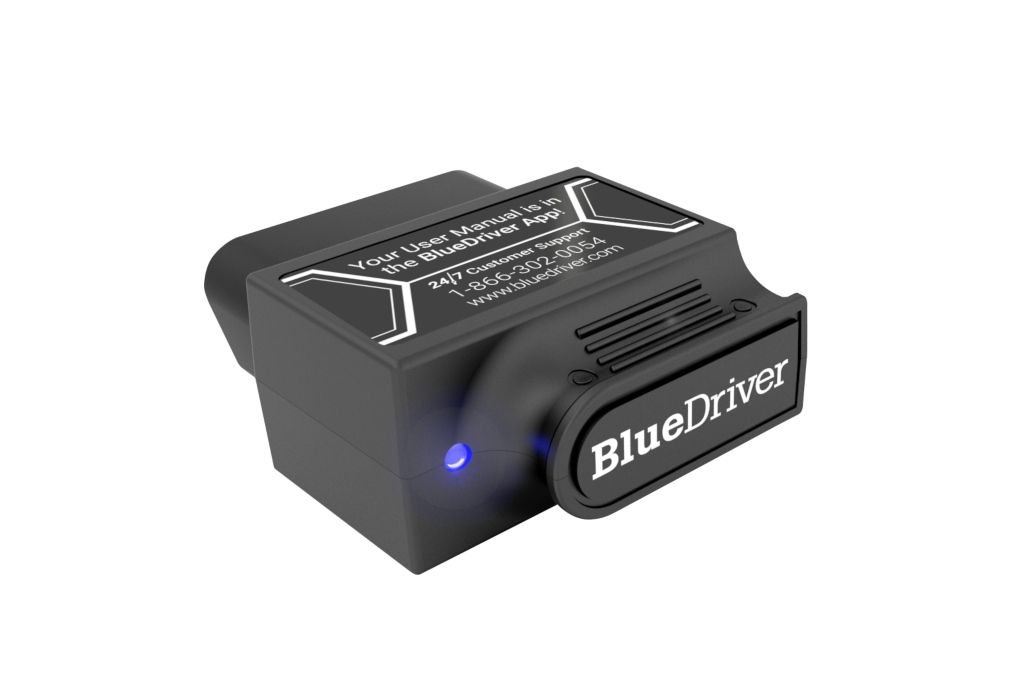
BlueDriver Pro OBD2 Scanner
The natural choice for this tutorial. It combines code scanning, repair reports, live data, freeze-frame information, and emissions-readiness tools in one mobile app. The main buying check is whether its enhanced diagnostics cover the specific modules on your vehicle.
- Good fit for everyday owners and DIY troubleshooting
- No separate handheld display required
- Repair information is easier to understand than a code number alone
How to Understand Diagnostic Trouble Codes
A diagnostic code points to a system or detected condition. It does not automatically identify the exact failed part.
Most codes begin with one of these letters:
| Letter | System | Typical Area |
|---|---|---|
| P | Powertrain | Engine, transmission, fuel, ignition, and emissions |
| B | Body | Interior, restraint, climate, and body-related systems |
| C | Chassis | Brakes, steering, suspension, and related systems |
| U | Network | Communication between control modules |
For example, P0301 indicates a misfire associated with cylinder one. It does not prove that the spark plug is the only possible cause. Ignition-coil problems, injector faults, wiring damage, vacuum leaks, compression issues, or other conditions can lead to the same code.
How to Use BlueDriver Repair Reports
Open an individual code and look for the repair-report option. When available, the report may show possible causes, commonly reported fixes, related information, and vehicle-specific context.
Use the report to organize your diagnosis:
- Read the complete code definition.
- Review related and pending codes.
- Check the freeze-frame conditions.
- Compare the suggested causes with the vehicle’s symptoms.
- Inspect simple items such as connectors, hoses, fuses, fluid levels, and wiring.
- Test the suspected component or circuit before purchasing parts.
Words such as “common fix” or “reported repair” describe patterns; they do not guarantee that the same part has failed on your vehicle.
How to View Live Data
Live data shows supported sensor and control-module values while the vehicle operates. Start the engine only in a safe, ventilated location, open the Live Data section, and select the parameters you need.
Depending on the vehicle, you may be able to view:
- Engine RPM
- Coolant temperature
- Vehicle speed
- Throttle position
- Intake-air temperature
- Manifold pressure
- Short- and long-term fuel trim
- Oxygen-sensor readings
- Battery or control-module voltage
Compare readings under repeatable conditions such as cold start, warm idle, steady cruising, or gentle acceleration. One unusual value does not prove that a sensor is defective; another problem can cause a normal sensor to report an abnormal condition.

OBDLink MX+
A strong alternative for enthusiasts who prioritize fast live-data collection, broader third-party app choices, custom dashboards, or specialized applications. It is less centered on BlueDriver-style repair reports, so the best choice depends on whether you value guided explanations or app flexibility.
- Supports iOS, Android, and Windows
- Works with numerous compatible third-party apps
- Useful for data logging and vehicle-specific app workflows
How to Check Emissions Readiness
Open the Smog Check, Emissions, or Readiness section after connecting. The app shows whether supported onboard monitors have completed their self-tests.
| Status | Meaning | What to Do |
|---|---|---|
| Ready | The monitor completed its required self-test. | Check for stored or pending codes and confirm local inspection requirements. |
| Not Ready | The monitor has not completed its test. | Complete the required drive cycle instead of repeatedly clearing codes. |
| Not Supported | The vehicle does not use or report that monitor. | No action is normally required for that monitor. |
Battery disconnection, low voltage, or clearing codes can reset several monitors to Not Ready. Your vehicle may need multiple cold starts, warm-up periods, city driving, or highway driving before the tests complete.
Inspection rules vary by state. A readiness screen helps you prepare, but it does not guarantee that the vehicle will pass every part of an emissions inspection.
How to Clear Codes Safely
Clearing a code switches off a warning only when the fault is no longer detected. It does not repair the underlying problem.
- Save the complete scan report first
- Record confirmed and pending codes
- Review freeze-frame and live data
- Repair or diagnose the cause
- Scan again after the repair
- Erase codes only to hide a dashboard light
- Clear information before an inspection without understanding the effect
- Assume the suggested part is definitely defective
- Repeatedly erase a returning safety-related code
- Ignore a flashing check engine light
After the repair, select Clear or Erase Codes, follow the app prompt, restart the vehicle, and scan again. Drive under the conditions that originally triggered the fault. Some problems return only during cold start, acceleration, braking, highway driving, or another specific operating condition.
BlueDriver Will Not Connect: Troubleshooting
Most connection failures involve power, ignition position, permissions, another connected device, or outdated software.
1. Confirm the Ignition Is On
The dashboard lights should be illuminated. For an initial scan, the engine can normally remain off unless BlueDriver requests otherwise.
2. Reseat the Sensor
Unplug the adapter, inspect the connector, and insert it firmly. If no light appears, check whether the diagnostic-port fuse also supplies another accessory that has stopped working.
3. Check App Permissions
Confirm that the BlueDriver app can access Bluetooth and nearby devices. Some Android versions may also require location permission for Bluetooth discovery.
4. Close Other OBD Apps
Another diagnostic app can capture the connection. Force-close other scanner, gauge, or logging apps before trying again.
5. Disconnect Other Phones
A previously paired phone may connect automatically. Temporarily disable Bluetooth on other nearby devices.
6. Restart the Connection
- Close the BlueDriver app
- Turn off phone Bluetooth
- Unplug the sensor for about 30 seconds
- Reconnect the sensor and turn the ignition on
- Enable Bluetooth
- Reopen the app and reconnect
7. Update the App and Firmware
Install the latest official app update. If a firmware update appears, keep vehicle power stable and do not unplug the scanner during the process.
8. Check for an Unsupported Module
If the engine module works but ABS, airbag, transmission, or another module does not, confirm the vehicle profile and BlueDriver’s enhanced coverage. “Unsupported” does not automatically mean the module is faulty.

ANCEL AD310
A lower-cost choice for drivers who mainly want basic engine-code reading, freeze-frame information, live data, and emissions-readiness checks without pairing a phone. It does not offer the same app-based repair-report experience or broad enhanced-module focus as BlueDriver.
- Built-in screen and physical buttons
- No phone, charging, or Bluetooth pairing required
- Better suited to occasional basic check-engine diagnosis
Common BlueDriver Mistakes to Avoid
- Clearing codes before saving them: This can remove freeze-frame information and reset emissions monitors.
- Selecting the wrong vehicle: Incorrect vehicle data can affect repair reports and module coverage.
- Replacing the first suggested part: A code often identifies a system condition, not one proven failed component.
- Ignoring pending codes: A pending fault can become confirmed after the problem repeats.
- Reading the phone while driving: Configure logging while parked and use a passenger when live monitoring is necessary.
- Expecting every professional function: BlueDriver is not a universal bidirectional, programming, or dealership-level tool.
- Leaving compatibility until after purchase: Verify the vehicle and desired systems before ordering.
Is BlueDriver Pro Worth Buying?
BlueDriver is most useful for owners who want to understand a warning before scheduling a repair, check whether a repair stopped a fault from returning, review emissions readiness, or save diagnostic information for a technician.
- Clear mobile interface
- Repair reports provide useful diagnostic context
- Live data and freeze-frame information
- Enhanced systems on supported vehicles
- Reports can be saved and shared
- No separate handheld display
- You only need a cheap basic engine-code reader
- You do not want to use a phone
- Your required enhanced module is unsupported
- You need bidirectional controls or module programming
- You prefer a specific third-party diagnostic app
- You need a professional shop platform
Frequently Asked Questions
BlueDriver is designed for compatible OBD-II vehicles, including many U.S.-market cars, SUVs, and light trucks from 1996 onward. Enhanced system coverage varies, so verify the exact vehicle before purchasing.
BlueDriver currently promotes its standard Pro functions without recurring subscription or add-on charges. Review the current product terms before ordering because software and service policies can change.
Yes, it can clear supported diagnostic codes. The light will return if the vehicle detects the unresolved fault again.
It can access ABS, airbag, transmission, and other enhanced systems on supported vehicles. Availability depends on the exact make, model, year, and module.
For an initial code scan, use the Key On, Engine Off position unless the app instructs you differently. The engine normally needs to run when you want operating live data.
No. BlueDriver relies on its mobile app. A standalone wired reader may be better when you want a built-in display and physical controls.
Clearing codes, disconnecting the battery, replacing the battery, or losing power can reset readiness monitors. The vehicle then needs to complete the required drive conditions.
No. It can provide possible causes and reported fixes, but the vehicle still needs proper inspection and testing before parts are replaced.
It can reveal stored, pending, and permanent codes and show emissions-readiness status. A clean scan does not replace a complete mechanical and safety inspection.
The adapter draws power from the diagnostic port. Removing it after use is a cautious choice, especially when the vehicle will remain parked for an extended period.
- Best for: Drivers and DIY owners who want code explanations, repair context, live data, and saved reports in one mobile app.
- Think twice if: You only need basic engine-code reading, do not want to use a phone, or require professional bidirectional and programming functions.
- Next step: Confirm your vehicle’s enhanced-system coverage, then run and save a complete scan before clearing any warning.
BlueDriver can help you understand what the vehicle has detected and decide what to test next. The best results come from preserving the scan information, comparing it with symptoms and live data, and treating repair suggestions as evidence to investigate rather than proof that one part must be replaced.