How Does BlueDriver Work: A Complete Guide
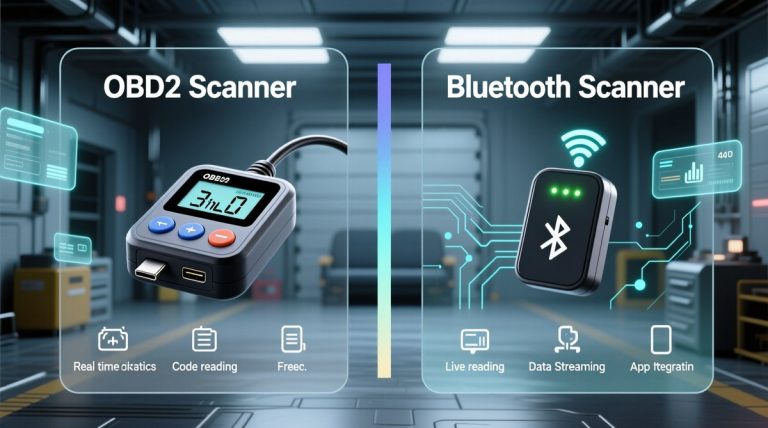
BlueDriver connects a small Bluetooth OBD-II sensor to a vehicle’s diagnostic port. Its mobile app reads data from the vehicle’s computers and displays trouble codes, live readings, and other available diagnostic information.
BlueDriver sends vehicle data to the app, which explains many fault codes and offers repair information based on the vehicle and detected problem. It can help identify issues before a mechanic visit, although it cannot replace professional testing for every fault.
The sensor works with compatible vehicles built after 1996, but enhanced features vary by make, model, and year. The setup usually takes only a few steps, making it useful for basic checks and guided troubleshooting.
Key Takeaways
- BlueDriver reads vehicle data through the OBD-II port.
- The app explains codes and provides repair guidance.
- Available features depend on the vehicle model and year.
BlueDriver System Overview
BlueDriver uses a small adapter, a vehicle’s OBD-II port, Bluetooth, and a mobile app. The adapter gathers diagnostic data from the vehicle, while the app displays codes, live readings, and repair information.
Bluetooth Connection Process
The BlueDriver adapter plugs into the vehicle’s OBD-II port, usually located beneath the dashboard near the steering column. After the vehicle turns on, the adapter communicates with the vehicle’s onboard computer and collects available diagnostic information.
The driver pairs the adapter with a compatible smartphone or tablet through Bluetooth. The BlueDriver app then connects to the adapter and requests information from the vehicle. The system can retrieve diagnostic trouble codes and, on supported vehicles, enhanced data from systems such as the engine, transmission, ABS, and airbags.
The adapter sends the collected information wirelessly to the mobile device. It does not provide a separate screen or controls, so the phone or tablet handles the display and user input. Bluetooth range is normally sufficient while the user sits inside or near the vehicle.
Mobile App Role
The BlueDriver mobile app controls the scanning process and presents the results in readable terms. It can show diagnostic trouble codes, explain their meaning, and provide possible causes or repair suggestions based on the vehicle and recorded code.
The app also supports live data on compatible vehicles. This feature can display changing values such as engine temperature, fuel-trim readings, and other sensor information while the vehicle runs. Live readings can help identify problems that do not appear during a single scan.
BlueDriver can clear certain stored codes after the user reviews them. Clearing a code does not repair the underlying problem, and the warning light may return if the vehicle detects the same fault again. Availability of enhanced functions depends on the vehicle’s make, model, year, and system support.
Diagnostic Data Retrieval
BlueDriver connects to a vehicle’s OBD-II port and sends diagnostic information to its mobile app through Bluetooth. The app organizes stored fault codes, manufacturer-specific results, and sensor readings so users can review vehicle data without a wired scan tool.
Reading Trouble Codes
When a fault occurs, a vehicle’s control module may store a diagnostic trouble code (DTC). BlueDriver retrieves these codes through the OBD-II port and displays the code number, system, and a plain-language description when available.
A code helps identify the system that detected a problem, but it does not always identify the failed part. For example, an oxygen-sensor code may result from a wiring fault, an exhaust leak, or a faulty sensor. The app can also show whether a code is current, pending, or stored, depending on the vehicle.
Users can save or share scan results through repair reports. Clearing a code removes it from the module’s memory, but it does not repair the cause. If the fault remains, the code may return after the vehicle completes its self-checks.
Accessing Enhanced Manufacturer Codes
Standard OBD-II scans mainly cover engine and emissions systems. On supported vehicles, BlueDriver can also retrieve enhanced codes from systems such as ABS, airbag, SRS, TPMS, and transmission control.
These systems use manufacturer-specific communication methods, so coverage depends on the vehicle’s make, model, year, engine, and market. North American vehicles often receive broader enhanced coverage. Some European vehicles may support engine and emissions scans but have limited access to other modules.
The app presents available codes with descriptions and repair information when its database contains matching data. It cannot access every module on every vehicle, and it cannot replace dealer-level equipment for functions such as coding, programming, or advanced system setup.
Viewing Live Vehicle Data
BlueDriver can display live readings while the engine runs or the vehicle moves. Common data includes engine speed, coolant temperature, vehicle speed, fuel-trim values, throttle position, oxygen-sensor readings, and engine load.
The app receives these values from the vehicle’s control modules and displays them as numbers or graphs. This allows users to compare sensor behavior over time instead of relying only on a stored code.
Live data requires careful interpretation. A reading may change with engine temperature, load, and driving conditions. A technician usually compares related values and checks manufacturer specifications before replacing a part. Some vehicles provide more data items than others, because module access and available parameters vary by vehicle.
Code Interpretation And Repair Guidance
BlueDriver links diagnostic trouble codes to plain-language descriptions and vehicle-specific details. It also helps users compare code data with live readings, system tests, and reported fixes before choosing a repair.
Code Definitions
After connecting to the vehicle’s OBD-II port, BlueDriver scans supported control modules and displays stored trouble codes. Depending on the vehicle, it can access more than the standard engine and emissions system, including ABS, airbag, transmission, and TPMS modules.
Each code identifies a fault area, not always a failed part. For example, an oxygen sensor code may result from wiring damage, an exhaust leak, a vacuum problem, or a faulty sensor. BlueDriver can show the code description and related vehicle information, but the user must still confirm the cause through testing.
The app may also display freeze-frame data, which records conditions such as engine speed, coolant temperature, and vehicle speed when the code appeared. Live data can help users check whether sensor readings change as expected. Clearing a code erases it from the module, but it does not repair the fault. If the problem remains, the code may return.
Repair Reports And Common Fixes
BlueDriver’s Repair Reports connect a vehicle’s code with repair information gathered from reported fixes. The report may list common causes, related parts, and steps that resolved the same or similar problem on that vehicle. This information can help users decide which checks to perform first.
Reports do not guarantee a specific repair. A common fix might involve a damaged wire, loose connector, vacuum leak, worn sensor, or failed component. The user should inspect connections and test the relevant system before replacing parts.
A practical process includes:
- Recording all codes and freeze-frame data.
- Checking whether several codes share one likely cause.
- Inspecting wiring, connectors, hoses, and fluid levels.
- Comparing live data with the vehicle’s service specifications.
- Clearing codes only after completing the repair, then rescanning.
Complex faults, safety-system warnings, and codes that return quickly may require a qualified technician.
Supported Vehicles And Features
BlueDriver connects to a vehicle’s OBD-II port and sends diagnostic data to its official mobile app through Bluetooth. Compatibility depends on the vehicle’s model year, fuel type, supported protocol, and the systems that the manufacturer makes available through the port.
Compatibility Requirements
BlueDriver supports most gasoline vehicles built in 1996 or later in the United States and Canada. It also supports many diesel vehicles and select light-duty trucks, but coverage can vary by model and year.
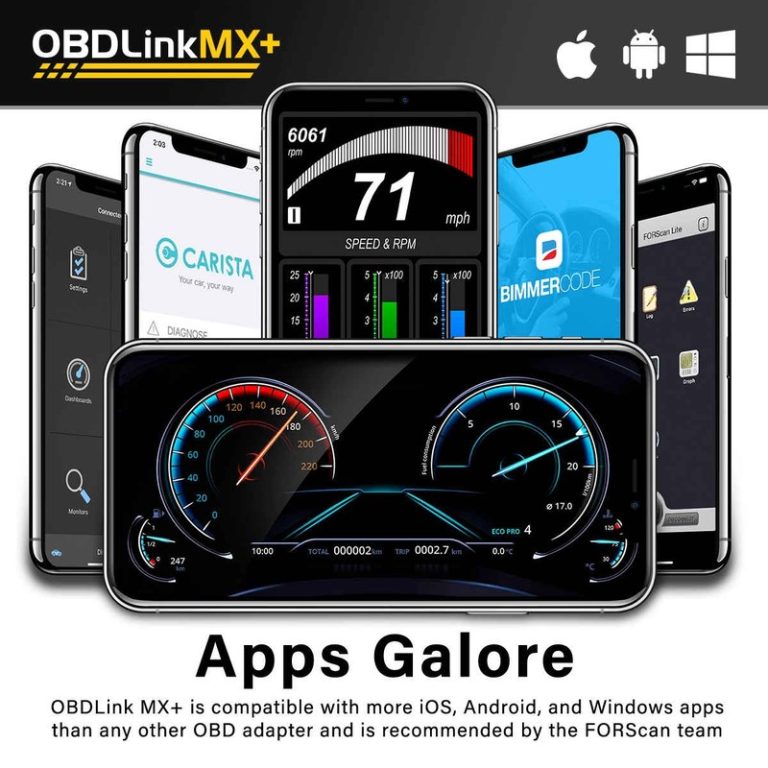
The vehicle must have a working OBD-II port, usually located beneath the dashboard near the steering wheel. The device does not work with Torque, Torque Pro, or other third-party apps; users must use the BlueDriver app.
Basic OBD-II functions generally include reading and clearing engine trouble codes, viewing live data, and checking emissions readiness. Enhanced functions depend on the vehicle’s manufacturer. Before buying, vehicle owners should check BlueDriver’s compatibility database for support for their exact make, model, year, and system.
Available Vehicle Systems
BlueDriver can read standard engine and emissions codes on compatible vehicles. The app can display code definitions, possible causes, and repair information, which helps users understand a warning light before seeking repairs.
Depending on the vehicle, enhanced diagnostics may include ABS, airbag, transmission, and body control systems. Coverage is not the same for every vehicle, so a scanner may read an engine code but lack access to a particular ABS or airbag module.
The device can also show live sensor readings and, on supported vehicles, manufacturer-specific self-test results. These results may include misfire information for some 2008 and newer vehicles. BlueDriver can report distance driven or engine operating time since a warning light turned on or since codes were cleared, when the vehicle provides that data.
Setup And First Scan
BlueDriver uses a small OBD-II sensor and a smartphone app to read vehicle data. The user plugs in the sensor, pairs it with the phone, selects the vehicle, and scans for stored diagnostic trouble codes.
Pairing The Sensor
The user should first install the BlueDriver app on an iPhone or Android phone. With the vehicle turned off, they can locate the OBD-II port, usually beneath the dashboard near the steering wheel, and plug in the BlueDriver sensor.
The user then turns the vehicle’s ignition to the On position without starting the engine, unless the app gives different instructions. The sensor receives power from the port. In the app, the user selects the connection option and follows the pairing steps.
Bluetooth permissions must be enabled on the phone. The phone should remain near the sensor during setup. If the app does not connect, the user can check that the sensor fits fully into the port, Bluetooth is active, and no other phone is connected to it.
Running A Diagnostic Scan
After pairing, the user enters the vehicle’s year, make, model, and engine details when the app requests them. Accurate vehicle information helps the app match the scan to the correct systems and code definitions.
The user selects the diagnostic scan option and lets the app communicate with the vehicle. BlueDriver can display stored trouble codes and provide code descriptions. Depending on the vehicle, it may also access enhanced information from systems such as ABS, airbags, or TPMS.
The user should record the codes before clearing them. Clearing a code turns off a warning light in some cases, but it does not repair the fault. The app can also show live data, such as engine speed and sensor readings, while the engine runs.
Frequently asked questions
How does BlueDriver work?
BlueDriver uses a Bluetooth adapter that plugs into a vehicle’s OBD-II port. The adapter sends diagnostic data to the BlueDriver app on an iOS or Android device.
What can it detect?
It can read standard trouble codes, show live data, and clear certain warning lights after repairs. On supported vehicle brands, it may also read enhanced codes from systems such as the airbag, ABS, or transmission.
Does BlueDriver work with every vehicle?
Basic OBD-II functions generally work with vehicles sold in the United States from 1996 onward, but enhanced features vary by make, model, year, and system. The manufacturer’s compatibility information should be checked before purchase.
Does it require a subscription?
The standard BlueDriver service does not require a recurring subscription. The user pays for the adapter and uses the app to access its main diagnostic features.
Can it fix a vehicle problem?
No. BlueDriver reports codes and related data, but a code does not identify a failed part by itself. A technician or experienced vehicle owner must test the system and complete the repair.
Can it monitor data while driving?
The app can display selected live readings, such as engine speed, coolant temperature, and fuel-trim values. Users should avoid handling the phone while driving and should record data only when it is safe.
Conclusion
BlueDriver works by linking a Bluetooth OBD2 adapter to a smartphone app. The adapter reads data from a vehicle’s onboard computer, while the app displays fault codes, live data, and other available information in a readable format.
The vehicle must have a working OBD2 port, which most cars and light trucks built after 1996 do. Available features can vary by vehicle make, model, year, and system.
BlueDriver can help drivers and technicians:
- Read and clear diagnostic trouble codes
- View live engine data
- Check some manufacturer-specific systems
- Review possible causes and repair information
It does not replace a full professional scan tool or physical inspection. The results identify stored data, but a qualified technician may still need to test wiring, sensors, and mechanical parts before making a repair.