How to use OBDLink MX+ for accurate DIY code reading
OBDLink MX+ is best used as a Bluetooth bridge between your vehicle and a compatible app, letting you read codes, view live data, and save diagnostic details safely while parked. It works best when you verify vehicle and app compatibility first and avoid clearing codes before you record them.
How to use OBDLink MX+ starts with one simple goal: read the car’s computer data safely, clearly, and without guessing. For most owners, that means pairing the adapter with a phone app, pulling trouble codes, checking live data, and only clearing codes after you understand what caused them.
That sounds easy, but the details matter. Vehicle year, app permissions, Bluetooth setup, and the difference between emissions codes and deeper drivetrain faults can change what you see and what you should do next.
- Read first, clear later: Save codes and freeze-frame data before erasing anything.
- Check compatibility: Vehicle year, app support, and firmware can change what the adapter can do.
- Use it parked: Keep the phone screen and adapter setup out of the way while driving.
- Expect limits: It helps with diagnosis, but it does not replace mechanical testing or professional repair.
- Watch ownership costs: App fees, subscriptions, and accessories can raise the total price.
Direct Answer: What How to use OBDLink MX+ Means for Owners and Drivers
In plain terms, using the OBDLink MX+ means plugging the adapter into your vehicle’s OBD2 port, connecting it to a compatible app, and using that app to read diagnostic trouble codes, view live sensor data, and check readiness monitors. It is most useful for drivers who want a fast first look at a check-engine light before heading to a parts store or repair shop.
For owners, the value is documentation and convenience. You can capture code numbers, see whether a fault is active or historic, and decide whether the problem is minor, urgent, or outside your comfort zone.
How It Works and What It Can Actually Do
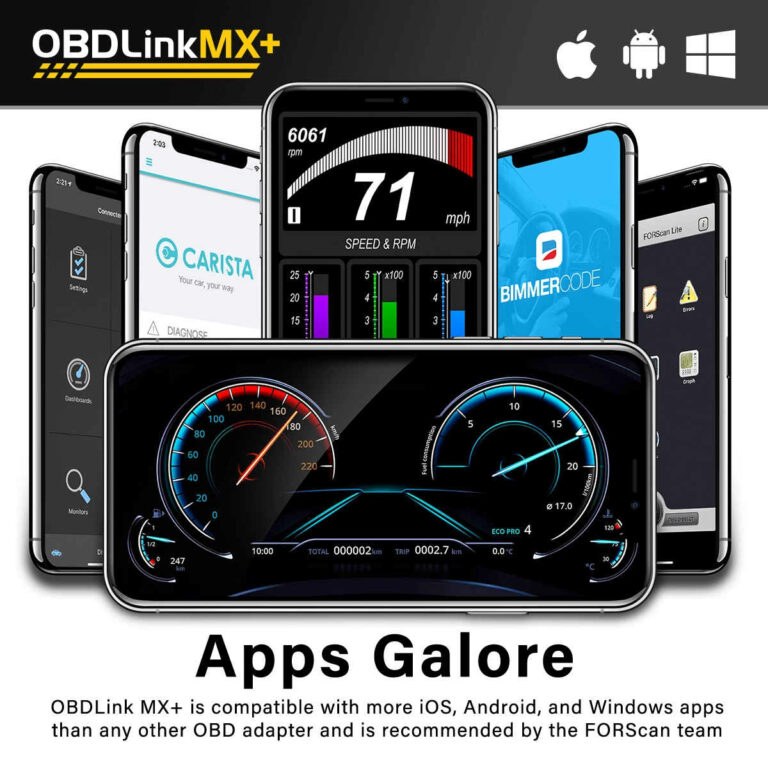
The MX+ is a Bluetooth OBD2 adapter, which means it communicates with the vehicle’s onboard diagnostic system and sends that information to a phone or tablet app. The app does the heavy lifting by translating raw data into readable codes, gauges, graphs, and readiness status.
Most drivers use it for three jobs: reading and clearing emissions-related trouble codes, checking live engine data, and confirming whether the vehicle is ready for an inspection. Depending on the app and vehicle, it may also show manufacturer-specific data, but that varies by model and software support.
It is important to separate what the adapter can read from what it can repair. It can help you identify a likely system problem, but it cannot replace a mechanical inspection, a smoke test, a multimeter, or a scan tool with deeper factory-level functions.
Vehicle and Tool Compatibility Requirements
OBDLink MX+ use depends on both the vehicle and the app. In general, OBD2 support is tied to the vehicle’s model year and diagnostic protocol, so you should verify coverage before buying rather than assuming every car will behave the same.
Check: Verify make, model, year, trim, voltage, ports, mounting space, and OEM requirements. Limitations: Some advanced functions vary by vehicle protocol, app, and firmware support.
For many US drivers, the main check is simple: make sure the car has a standard OBD2 port and that your chosen app supports the features you want. If you drive a newer vehicle, a hybrid, a diesel, or a vehicle with brand-specific modules, feature access may be more limited or need a different app profile.
You also need a compatible phone or tablet. Some apps support iPhone and Android differently, and some features may be locked behind app versions, subscriptions, or in-app purchases. That is worth checking before you buy the adapter, not after.
Before using any scan tool for a warning light concern, check your VIN against current manufacturer and NHTSA recall information. A scan tool can show a fault code, but it will not tell you whether a recall applies.
Correct Connection, Measurement, or Repair Procedure
The safest way to use the MX+ is while the vehicle is parked, in Park or Neutral as appropriate, with the parking brake set. Plug the adapter into the OBD2 port, then open the compatible app and follow the pairing steps in the app and product instructions.
Verify the vehicle, app, Bluetooth version, and supported diagnostic functions before plugging anything in.
Keep the adapter and any cables clear of pedals, steering movement, seat tracks, and other controls.
Pair the device while parked, confirm the app can read live data or codes, then secure everything before driving.
If your goal is code reading, follow this order: connect the adapter, turn the ignition to the correct position for your vehicle, open the app, read the codes, save the report, and inspect the related system before clearing anything. Clearing a code too soon can erase useful clues, including freeze-frame data and intermittent fault history.
For live data, compare what the app shows with the symptom you are chasing. For example, if the engine is idling rough, look at misfire counts, fuel trims, coolant temperature, and oxygen sensor behavior. If the app shows a value that looks strange, that still does not prove the part is bad by itself.
If you are also learning other handheld or phone-based tools, our guides on how to use the BlueDriver Pro scan tool and using your phone as an OBD2 scanner can help you compare setup steps and app behavior. For a more basic reader, see how to use the Foxwell NT301 OBD2 scanner.
Safety Limits, Results, and Ownership Costs
OBDLink MX+ is a convenience and diagnostic tool, not a repair shortcut. It can tell you what the computer noticed, but it cannot confirm the full cause without testing. That matters because a code often points to a system, not a single failed part.
Ownership cost is usually more than the adapter price alone. You may also need a paid app, a phone mount, or a subscription if you want premium diagnostic features. The exact total depends on the app ecosystem you choose and the functions you want.
For drivers who only need occasional code reads, a simpler scanner may be enough. For owners who want a more polished app experience and broader Bluetooth-based diagnostics, the MX+ can make sense if the vehicle and app support line up.
Testing, Maintenance, and Storage
After you use the adapter, unplug it if you do not need it left in the port. That helps reduce clutter, lowers the chance of accidental snagging, and makes it easier to keep the connector clean.
If the app or adapter stops pairing, start with the basics: check Bluetooth permissions, confirm the ignition state, close and reopen the app, and try a different supported device if available. If you use the tool only a few times a year, it is smart to test it before you actually need it for a warning light.
For owners who also care about emergency readiness, a clean toolbox matters. If you are building a small roadside kit, you might also want to read our guide on how to use a portable tire inflator so your diagnostic gear and tire gear work together.
Common Mistakes and When to Get Professional Help
The most common mistake is clearing codes before saving them. Once the code is erased, you may lose the best clue about what happened and whether the fault is active, intermittent, or already gone.
- Confirm vehicle and app compatibility before buying
- Read and save codes before clearing anything
- Use the tool while parked and keep the screen distraction low
- Assume one code proves one bad part
- Work near pedals, steering movement, or airbags with loose cables
- Ignore warning lights tied to brakes, overheating, charging, or fuel issues
Get professional help if the vehicle has a severe drivability problem, repeated stalling, smoke, overheating, brake warnings, or high-voltage hybrid or EV concerns. Those systems can be safety-sensitive, and the cost of guessing can be much higher than a proper diagnostic visit.
Final Recommendation
OBDLink MX+ is a strong fit for US drivers who want a compact, app-based way to read codes, review live data, and keep better records of a check-engine problem. It is especially useful if you like the convenience of Bluetooth and you are willing to verify app support before buying.
- Best for: Owners and drivers who want accurate DIY code reading with a phone-based workflow.
- Think twice if: You need deep factory-level diagnostics, guaranteed app features, or a tool for every vehicle without checking compatibility.
- Next step: Confirm your vehicle year, app support, and the diagnostic functions you actually need before you buy.
Frequently Asked Questions
Compatibility depends on the vehicle’s OBD2 support, model year, and diagnostic protocol. Check the product documentation and your app’s supported vehicle list before buying.
Yes, you need a compatible phone or tablet app to read codes and data. Feature depth can change by app, device, and firmware version.
Many owners leave OBD2 adapters plugged in, but you should follow the vehicle and product instructions. If the port location is tight or the adapter gets in the way, unplug it when parked.
It can clear many diagnostic codes through a supported app, but you should save the code information first. Clearing too early can erase helpful diagnostic clues.
The adapter itself is one cost, but some apps or advanced features may require a purchase or subscription. Review app pricing before you buy if you want premium functions.
Get professional help for flashing check-engine lights, overheating, brake warnings, repeated stalling, or hybrid and EV safety concerns. A scan tool helps with information, but it does not replace safe diagnosis.