Can You Use Your Phone as an OBD2 Scanner? What You Need
Last Updated: September 15, 2026
Can a Phone Be Used as an OBD2 Scanner?
Yes, a phone can be used as an OBD2 scanner, but the phone is not the scanner by itself. You need a Bluetooth, Bluetooth Low Energy, or Wi-Fi OBD2 adapter plus a reliable app. For most drivers, the adapter matters more than the phone because it controls connection stability, vehicle compatibility, and what data the app can read.
Yes, you can use your phone as an OBD2 scanner, but the phone cannot connect to the car by itself. You need a compatible Bluetooth, Bluetooth Low Energy, or Wi-Fi OBD2 adapter plus a supported app. This setup can read basic codes and live data, but available functions vary by vehicle, adapter, and app.
A phone-based scanner is useful for checking engine codes, emissions readiness, and basic live data. It suits owners who want a portable and simple diagnostic tool. The main limitation is that low-cost adapters and apps may not access ABS, airbags, transmission, or other manufacturer-specific systems.
Your phone provides the screen, controls, internet access, and storage. The adapter connects to the vehicle’s diagnostic port and sends information to the app.
This setup can help you understand why the check-engine light is on. It cannot prove that a specific part has failed, and it does not replace proper testing for complex faults.
Can You Use Your Phone as an OBD2 Scanner?
You can turn a compatible iPhone or Android phone into an OBD2 scan tool by adding a wireless adapter and app. The adapter plugs into the vehicle’s diagnostic link connector, often called the OBD2 port.
OBDLink’s official setup guide confirms that supported adapters can connect to its app on both iOS and Android devices. The setup process includes installing the app, connecting the adapter, and creating the correct vehicle profile. Review the official OBDLink mobile setup instructions.
The adapter must support your phone’s operating system. Do not assume every device marked “Bluetooth” will work with both iPhone and Android.
What You Need
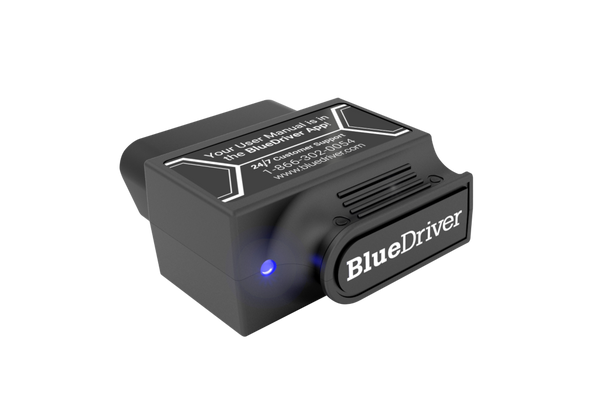 |
BlueDriver Pro Best if you want a phone-based scanner that feels guided instead of technical. The app helps turn codes into plain-language repair direction, which is useful when you do not want to guess what a warning light means. Check BlueDriver Price |
A phone alone cannot plug into the diagnostic port. You need three compatible parts working together.
- An OBD2-compatible vehicle: Confirm coverage for the vehicle’s year, make, model, engine, and market.
- A wireless OBD2 adapter: Choose Bluetooth, Bluetooth Low Energy, or Wi-Fi based on the supported phone and app.
- A diagnostic app: Check operating-system support, required permissions, included features, and optional purchases.
EPA information states that passenger vehicles from model year 1996 onward were required to use onboard diagnostic systems in the United States. Older vehicles may need an OBD1 connector or a manufacturer-specific tool. See the EPA overview of OBD requirements.
Check: Confirm the model year, diagnostic port, fuel type, phone operating system, adapter connection, app requirements, and supported modules. Limitations: Generic engine and emissions coverage does not guarantee access to ABS, airbags, transmission, body controls, hybrids, or electric-vehicle systems.
Our Bluetooth OBD2 adapter guides cover wireless tool options. You can also visit our OBD2 scanner guides for broader diagnostic information.
How the Phone Scanner Works
The vehicle stores diagnostic information in one or more electronic control modules. A basic OBD2 adapter requests supported data and sends it wirelessly to the phone app.
The app then displays information such as:
- Stored diagnostic trouble codes
- Pending and permanent codes
- Short code descriptions
- Freeze-frame information
- Emissions-readiness monitor status
- Supported live engine data
- Vehicle identification details when available
A diagnostic trouble code points to the system that detected a problem. It does not automatically identify the failed part. For example, a code related to an oxygen-sensor reading may also involve wiring, exhaust leaks, fuel delivery, or another cause.
| Task | Phone Scanner | Main Limit |
|---|---|---|
| Read engine codes | Commonly supported | Code is not a diagnosis |
| View live data | Often supported | Available sensors vary |
| Check readiness | Commonly supported | Does not guarantee inspection |
| Read ABS codes | Tool-specific | Enhanced coverage required |
| Read airbag codes | Tool-specific | Safety system access varies |
| Run active tests | Limited support | Vehicle-specific tool may be needed |
How to Connect Your Phone
Choose a safe, ventilated location. Shift into Park and apply the parking brake.
Use the app named in the adapter instructions. Review its phone requirements and requested permissions.
Look under the driver-side dashboard, often near the steering column. Check the owner’s manual if the port is hidden.
Insert it straight into the port without forcing or twisting the connector.
Use ignition-on, engine-off mode for a basic code scan unless the tool instructions state otherwise.
Some adapters pair in the phone settings. Others connect only through the app. Follow the adapter’s current instructions.
Record the codes, status, and freeze-frame information before clearing or changing anything.
Supported diagnostic app
Vehicle owner’s manual
Phone Scanner vs Handheld Scanner
 |
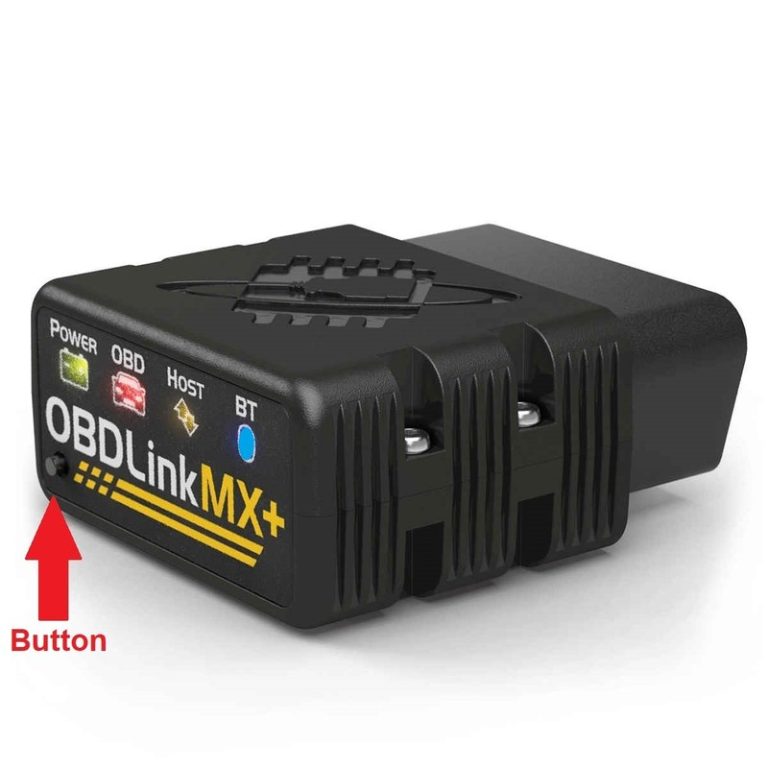
OBDLink MX+ Best if you care about connection speed, app flexibility, and live data. This is the adapter I would compare when the phone scanner will be used often, not just once for a check-engine light. Check OBDLink MX+ Price |
A phone-based scanner is not automatically better or worse than a handheld tool. The right choice depends on convenience, coverage, and how often you diagnose vehicles.
- Uses a screen you already own
- Easy to store and carry
- May graph or save live data
- App features may receive updates
- Depends on phone and app support
- May require optional purchases
- Notifications can interrupt use
- Module coverage varies widely
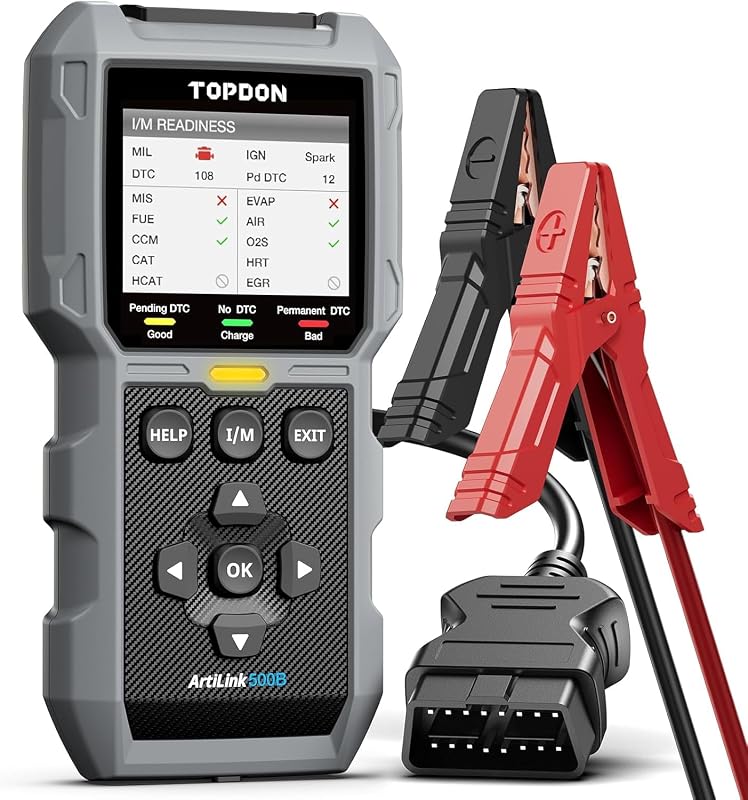
A handheld scanner can be simpler because the screen, cable, software, and controls come as one tool. It may also be more practical when you do not want to use your personal phone in a garage.
Common Connection Problems
If the app cannot find the adapter, check the setup in a safe order before assuming the hardware has failed.
- Confirm the ignition is ON rather than fully OFF.
- Check that the adapter is seated correctly.
- Use the pairing method listed by the manufacturer.
- Close other diagnostic apps that may be using the connection.
- Confirm Bluetooth, local-network, or location permissions as required.
- Check that the app has the correct adapter selected.
- Restart the app and power-cycle the adapter.
- Check the vehicle battery if dashboard power is weak.
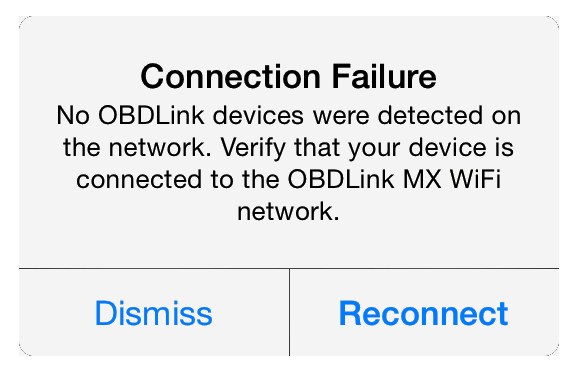
OBDLink notes that another diagnostic app can prevent a connection because an adapter may connect to only one app at a time. Its connection troubleshooting guidance also explains how to check pairing and communication settings.
Privacy and Phone Permissions
A diagnostic app may request access to Bluetooth, local networks, location, files, or an online account. Some apps can save vehicle identification details, trips, GPS data, or diagnostic reports.
Avoid unknown adapters that require unclear apps or unusual permissions. Check the manufacturer’s official app links rather than downloading a similarly named third-party app.
Use the Phone Only While Parked
Complete pairing, code reading, settings, and report review before driving. Watching gauges on a phone can take your eyes and attention away from the road.
NHTSA defines distracted driving as activity that diverts attention from safe vehicle operation, including phone use and adjusting electronic systems. Review the official NHTSA distracted-driving guidance.
What a Phone Scanner Cannot Prove
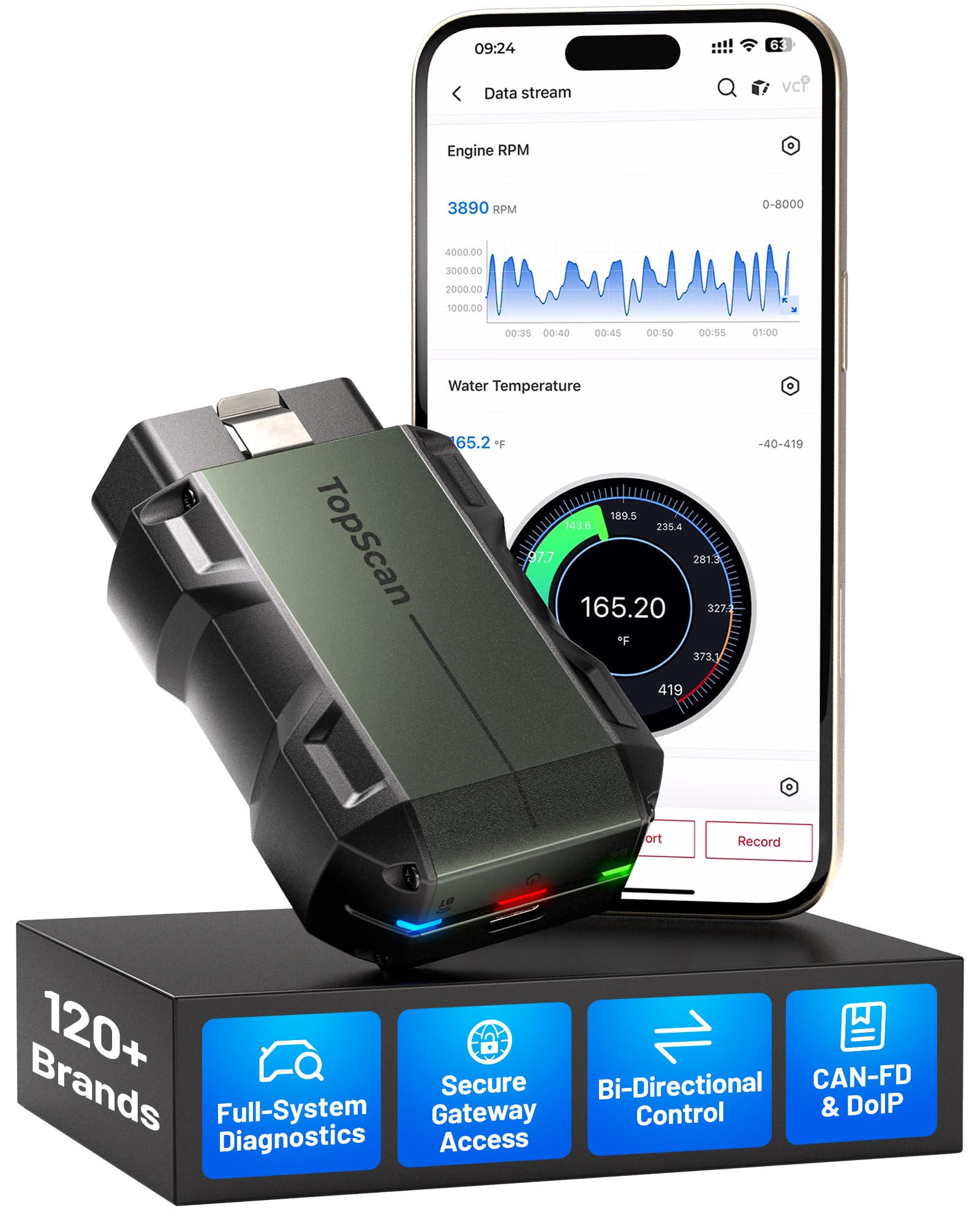 |
TOPDON TopScan Pro Best if you want the phone workflow but also want to move closer to full-system diagnostics, service resets, and more advanced functions than a basic adapter usually offers. Check TOPDON TopScan Price |
A phone scanner can show what the vehicle’s computer reports. It cannot confirm every mechanical, electrical, fuel, braking, steering, or safety-system failure.
Stop and seek qualified help when:
- The vehicle has a serious brake or steering warning.
- An oil-pressure or overheating warning appears.
- The engine misfires severely or loses power.
- The diagnostic port is damaged or overheats.
- You need to work near airbags or high-voltage components.
- The code returns after a basic repair.
Our car diagnostics guides explain more about codes, symptoms, and safe next steps.
- Confirm iPhone or Android support.
- Check coverage for your vehicle.
- Decide which modules you need to access.
- Review the app’s included and paid features.
- Check firmware and support information.
- Review account and data permissions.
- Confirm the adapter’s storage guidance.
- Best for: Owners who want portable access to basic engine codes, readiness status, and supported live data.
- Think twice if: You need deep access to ABS, airbags, transmission, body controls, or advanced service functions.
- Next step: Check your vehicle, phone, adapter, and app compatibility before buying or connecting the tool.
Frequently Asked Questions
Can a phone be used as an OBD 2 scanner?
Yes. A phone can be used as an OBD 2 scanner when it connects through a compatible OBD2 adapter and app. The phone displays the scan results, but the adapter reads the vehicle data from the OBD-II port.
No. The phone must support the adapter’s connection method and diagnostic app. Check the required iOS or Android version, Bluetooth or Wi-Fi support, app availability, and adapter documentation before buying.
No. You need an OBD2 adapter between the vehicle and phone. The adapter plugs into the diagnostic port and sends supported vehicle data to the app through Bluetooth or Wi-Fi.
Many apps can clear supported engine codes, but you should save the codes and freeze-frame data first. Clearing the light does not repair the fault, and it may reset emissions-readiness monitors.
Sometimes. Access depends on the adapter, app, vehicle, module, and any enhanced diagnostic package. Basic generic OBD2 support usually focuses on engine and emissions information.
Follow the adapter manufacturer’s guidance. Some models are designed for long-term connection and low-power sleep. Others may continue drawing power or create a security concern, so unplug them when their documentation is unclear.
Not usually. A phone scanner can handle useful basic tasks, but professional tools may provide broader module coverage, active tests, service functions, guided diagnostics, and manufacturer-specific information.
Conclusion
Can you use your phone as an OBD2 scanner? Yes, when you connect it to a compatible wireless adapter and supported diagnostic app.
This setup gives owners a portable way to read basic codes, check readiness monitors, and view supported live data. Drivers must complete setup while parked and avoid watching the phone on the road.
The main limitation is coverage. Check your vehicle, operating system, adapter, app, and required modules before choosing a tool. Treat every code as a diagnostic starting point rather than proof that one part has failed.




4 Comments