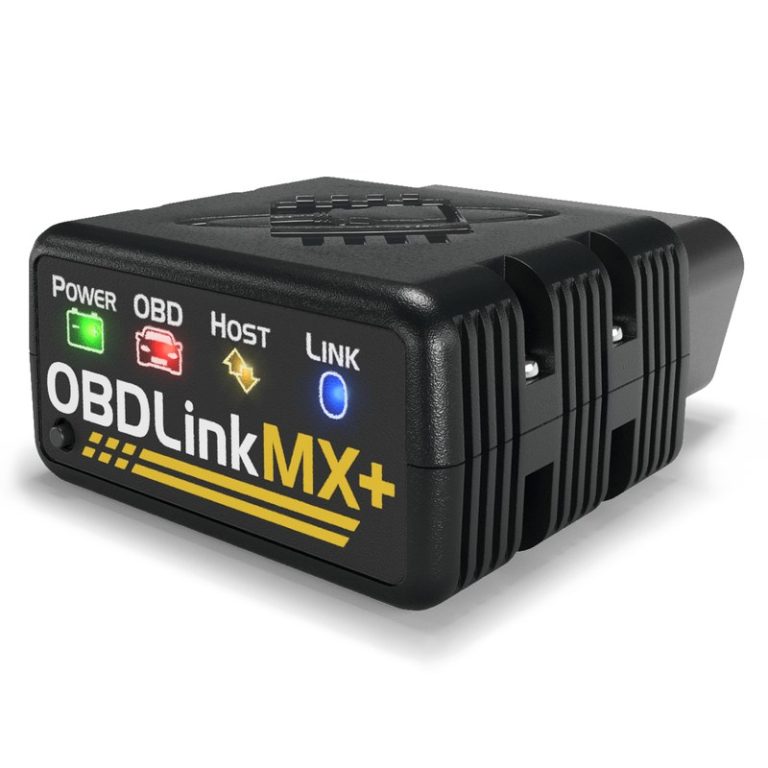
OBDLink MX+ for Windows: Best OBD2 Scanner for Cars
OBDLink MX+ for Windows is a good fit if you want dependable basic diagnostics, live data, and easier Windows-based setup than many cheap Bluetooth adapters. It is less useful if you need dealer-level programming or advanced bi-directional functions.
OBDLink MX+ for Windows is a strong pick for drivers who want a fast, easy way to read check engine codes, view live data, and monitor basic vehicle health from a Windows laptop. It is not a full shop-level scan tool, but for many U.S. owners it can be a practical middle ground between a cheap adapter and a much pricier professional system.
- Best use: Read codes, view live data, and check readiness on many 1996+ OBD2 vehicles.
- Main limit: It is not a full professional scan tool or factory programmer.
- Setup focus: Correct ignition mode, app compatibility, and Bluetooth pairing matter most.
- Value point: Better support and reliability can beat cheaper clone adapters over time.
- Safety note: Use it only while parked and follow the vehicle manual for battery or hybrid.
OBDLink MX+ for Windows: Is It the Best OBD2 Scanner for Cars in 2026?
For everyday diagnosis, the MX+ stands out because it combines broad OBD2 coverage with a cleaner software experience than many no-name Bluetooth adapters. Windows support matters because many owners still prefer a laptop for easier data viewing, longer session logs, and a more comfortable setup in the garage or driveway.
Quick verdict for U.S. drivers: who it fits, who should skip it, and why Windows support matters
This tool fits DIY owners, commuters, and used-car shoppers who want reliable code reading and live data without jumping into dealer-level equipment. Skip it if you need advanced bi-directional controls, module programming, or factory-only functions that depend on a brand-specific scan tool.
What OBDLink MX+ Actually Does on Windows: Codes, Live Data, and Real-World Limits
On Windows, the MX+ is mainly a diagnostic bridge between your vehicle and supported software. It can help you see what the car is reporting, but it does not magically unlock every hidden function in every make and model.
Check engine codes, freeze-frame data, readiness monitors, and sensor live data
For most OBD2-compliant vehicles, the MX+ can help you read diagnostic trouble codes, clear some emissions-related codes, view freeze-frame data, check readiness monitors, and watch live sensor data. That makes it useful after a warning light comes on, after repairs, or when you want to confirm whether a problem is intermittent.
Live data is especially helpful because it can show how the engine behaves in real time. That includes items like coolant temperature, fuel trim, oxygen sensor activity, and other values that may point toward a vacuum leak, misfire, or sensor issue.
What it cannot do: advanced bi-directional controls, module programming, and manufacturer-only functions
The MX+ is not a replacement for a factory scan tool or a high-end professional platform. In most cases, it will not perform full module programming, deep coding, or advanced bi-directional tests such as commanding every actuator on every vehicle.
That limitation matters because some problems cannot be solved by reading generic OBD2 data alone. If a vehicle needs airbag, transmission, ABS, or body-module work, the right tool may depend on the exact make, model, and software support.
When a professional diagnosis is still the smarter move
If the same code returns after a repair, if multiple warning lights appear together, or if the car has drivability symptoms like stalling, limp mode, or harsh shifting, a professional diagnosis is usually the safer next step. A scan tool can guide the process, but it cannot replace testing, wiring checks, or manufacturer procedures.
Compatibility Guide: Model Years, OBD2 Protocols, and Vehicle Types
Compatibility is one of the biggest reasons to buy a better adapter. The MX+ is aimed at standard OBD2 vehicles, but real-world support still depends on the vehicle’s year, protocol, and software app.
Gas cars and light trucks: 1996+ OBD2 coverage in the U.S.
In the United States, most gasoline cars and light trucks from 1996 and newer use OBD2. That makes them the most straightforward match for this type of scanner, especially for emissions-related diagnostics and basic live data.
Check: Verify make, model, year, trim, voltage, ports, mounting space, and OEM requirements. Limitations: Some vehicles support only basic generic OBD2 functions, while brand-specific features vary by app and model.
Protocol support, ignition mode, and why some older or imported vehicles need extra care
Not every car communicates the same way. Older imports, early OBD2 models, or vehicles with unusual regional specs may need extra attention because protocol support, ignition position, and app compatibility can affect whether the scanner connects correctly.
That is why it helps to confirm the exact vehicle before buying. A scanner can be technically compatible with OBD2 and still fail to deliver the functions you want if the software does not support your platform well.
Hybrid and EV cautions: what the adapter can read, what it should not be used for
On some hybrids and EVs, the MX+ may still read generic OBD2 data or certain supported modules through compatible software. But it should not be treated like a high-voltage service tool, and it should not be used to bypass safety procedures or inspect energized components without proper training.
Installation on Windows: Port Location, Pairing, and First-Use Setup
Setup is usually simple, but the order matters. A good connection starts with the right port, the right ignition mode, and the right Windows software.
Finding the OBD2 port, connecting in the correct order, and verifying ignition mode
Most U.S. vehicles place the OBD2 port under the dash near the steering column, but the exact location varies. Plug the adapter in firmly, then switch the ignition to the mode required by the vehicle and app before trying to connect.
Keep cords, hands, and devices away from pedals, steering parts, airbags, and moving seat tracks. Set up the scanner while parked with the parking brake applied.
Verify the vehicle, supported software, and the Windows version you plan to use.
Keep the adapter and laptop clear of pedals, airbags, and any moving parts.
Pair the device while parked, verify live data or code reading, and confirm the connection before driving.
Windows app setup, Bluetooth permissions, firmware updates, and driver checks
Windows users should confirm that the chosen diagnostic app supports the adapter and the operating system version. Bluetooth permissions, adapter firmware, and any required drivers or helper software can affect whether the device is visible and stable.
Firmware updates are worth doing when the manufacturer recommends them, because they may improve compatibility or fix communication issues. If the app cannot see the adapter, check Windows Bluetooth settings, the ignition state, and whether another device is already paired.
Common setup mistakes that block communication or cause inaccurate readings
The most common problems are simple: the car is not in the right ignition mode, the adapter is not fully seated, the wrong app is being used, or Bluetooth is paired to the wrong profile. Another common issue is trying to diagnose with a weak battery or a vehicle that is not awake enough for communication.
If the connection drops repeatedly, do not guess. Recheck the vehicle manual, the app instructions, and the adapter’s firmware notes before assuming the scanner is defective.
Battery and Electrical Diagnostics: Voltage, State of Charge, and Safety Limits
One useful reason to own an OBD2 adapter is that it can help you watch electrical behavior over time. That is helpful for battery questions, charging questions, and complaints that only happen after the car sits overnight.
System voltage basics and how to interpret charging vs resting readings
System voltage is not the same as battery health, but it can still tell you a lot. A resting reading, a running reading, and a reading with accessories on can each show different things about the charging system.
If voltage looks low at rest or unstable while running, that may point toward battery wear, alternator issues, or a parasitic draw. The scanner can help you observe the pattern, but it does not replace a battery load test or charging-system test.
State of charge versus battery health: why they are not the same
State of charge tells you how full the battery is right now. Battery health tells you how well it can still perform after age, heat, and repeated use. A battery can be charged and still be weak.
That distinction matters for owners who only see short trips, winter starts, or lots of accessory use. A scanner reading may look normal while the battery still struggles under load.
Correct connection order, damaged-battery stop conditions, and when to avoid testing
Always connect the tool as directed by the vehicle and app, and avoid repeated cranking or long accessory-on sessions if the battery is already weak. If the battery case is swollen, leaking, hot, or damaged, stop and follow safe service procedures.
Tire Pressure, TPMS, and Road Safety: What the MX+ Can and Cannot Help With
Some drivers buy a scanner hoping it will solve tire problems too. It can sometimes read TPMS-related information on supported vehicles, but it is not a substitute for a tire gauge, an air compressor, or a proper repair.
Using the door-jamb placard, cold pressure, and a gauge for accurate tire checks
The correct tire pressure comes from the vehicle’s door-jamb placard, not from the sidewall. Check pressure when the tires are cold, and use a reliable gauge to confirm the number before adding air.
That approach is more accurate than guessing based on the dashboard warning light alone. TPMS is a warning system, not a full diagnostic or repair system.
Inflator duty cycle, TPMS relearn limits, and why a scanner is not a tire repair tool
If you use an inflator, pay attention to its duty cycle and the manufacturer’s limits. A scanner cannot safely patch a tire, replace a valve stem, or guarantee that a TPMS relearn procedure will work on every vehicle.
Some cars require a relearn after tire service, but the exact steps vary by make and model. If the vehicle manual calls for a specific relearn process, follow that process rather than relying on generic advice.
Puncture location, temporary-repair limits, and professional-repair thresholds
A tire may be repairable or unsafe depending on where it was punctured, how long it was driven underinflated, and whether the damage is in the tread or sidewall. Temporary sealants and emergency kits are not permanent fixes.
If the tire has sidewall damage, a bulge, or repeated air loss, stop using it and get professional tire service. A scanner cannot make a damaged tire safe.
Roadside and Emergency Use: Safe Storage, Visibility, and Post-Use Inspection
Many owners keep a scanner in the car for roadside checks, but safe storage matters. The tool should be easy to find without becoming loose cargo or a distraction while driving.
Safe roadside location, traffic visibility, and how to keep the adapter accessible
If you need to use the adapter at the roadside, stay out of traffic and choose a safe spot first. Keep hazard lights on when appropriate, and do not reach under the dash while standing in a traffic lane.
Storage conditions, cable or pack condition, current limits, and tool completeness
Store the adapter where heat, moisture, and crushing are less likely. If your setup includes a laptop, cable, or power accessory, check that all parts are present and in good condition before you leave home.
Post-use inspection: heat, moisture, connector wear, and when to retire damaged gear
After use, inspect the connector for wear, bent pins, or looseness. If the unit has been exposed to moisture, unusual heat, or physical damage, stop using it until you can confirm it is safe and working correctly.
OBDLink MX+ vs Popular Windows Alternatives: Which Driver Needs Which Tool?
Choosing the right scanner is mostly about matching the tool to the job. Some drivers need simple code reading, while others want better software support, faster connection behavior, or more confidence in compatibility.
Side-by-side comparison by compatibility, app support, features, ease of use, and cost
| Option | Best for | Owner consideration | Driver consideration |
|---|---|---|---|
| OBDLink MX+ | Drivers who want a higher-quality Bluetooth adapter for Windows and mobile apps | Usually costs more than basic ELM327-style devices, but offers stronger software support | Cleaner setup and fewer connection headaches can reduce frustration |
| Cheap ELM327-style adapter | Very light use and basic code reading | Lower upfront cost, but quality and compatibility can vary a lot | More connection issues can mean more distraction and less trust in the reading |
| Brand-specific pro scan tool | Advanced diagnostics and service work | Higher cost, but deeper vehicle coverage and better service functions | More capable, but more complex than most casual drivers need |
Best fit for DIY owners, commuters, used-car buyers, and light-duty home mechanics
DIY owners who want reliable code reading and live data will likely get the most value from the MX+. Commuters and parents may like it because it can help them understand warning lights before a trip becomes a bigger problem.
Used-car buyers may also appreciate the ability to scan for stored codes and readiness status before purchase. Light-duty home mechanics can use it as a strong everyday diagnostic tool, even if they still need a separate tool for deeper service work.
Where cheaper ELM327-style adapters fall short and where a higher-end tool is worth it
Cheaper adapters can be fine for occasional use, but quality control is uneven. Some work well, while others have weak Bluetooth behavior, poor app support, or unreliable communication that makes diagnosis harder than it should be.
A higher-end adapter is worth it when you care about fewer connection problems, better software support, and more confidence that the tool will keep working across multiple vehicles. That is especially true if you plan to use it often.
- Strong fit for Windows-based DIY diagnostics
- Useful live data and code reading for many OBD2 vehicles
- Better support reputation than many low-cost adapters
- Not a full professional scan tool
- Compatibility still depends on vehicle and software
- Higher upfront cost than basic clones
Ownership Value, Privacy, Warranty, and Final Buying Verdict
Long-term value depends on how often you will actually use the adapter and how much you care about dependable software support. A tool that saves you one or two unnecessary shop visits may justify a higher purchase price for some owners.
Upfront cost, long-term value, firmware support, and warranty/support expectations
The MX+ sits above the cheapest Bluetooth adapters, but that usually buys you better usability and more confidence in the connection. Before buying, check the current warranty terms, firmware update policy, and retailer return rules so you know what support looks like if something goes wrong.
App permissions, data privacy concerns, and safe device-management habits
Connected diagnostic tools can access vehicle data, and some apps may request Bluetooth, location, account, or storage permissions. Read the app privacy policy, keep firmware updated, and use a secure account password if the software requires sign-in.
Review what data the app stores locally or in the cloud, and whether VIN, trouble codes, or trip data may be tied to your account. Limit permissions to what the app actually needs.
Transparent verdict: ideal user, main drawbacks, and the best next step before buying
For most U.S. drivers who want a dependable Windows-friendly OBD2 adapter, the MX+ is a sensible choice. Its biggest strengths are ease of use, broad everyday diagnostic value, and stronger confidence than bargain adapters, but its limits are still real.
- Best for: DIY owners and commuters who want a reliable Windows OBD2 scanner for codes, live data, and basic diagnostics.
- Think twice if: You need deep factory programming, advanced bi-directional control, or the lowest possible price.
- Next step: Confirm your vehicle’s model year, the app you plan to use, and the exact return and support terms before buying.
Frequently Asked Questions
It usually works on 1996+ OBD2 gas cars and light trucks in the U.S., but app support and features vary by vehicle. Check your exact year, make, model, and software before buying.
You may need compatible diagnostic software, Bluetooth permissions, and sometimes firmware updates. Follow the adapter and app instructions while the car is parked.
It can clear some emissions-related codes on supported vehicles, but you should record the code first and fix the cause. Clearing a code does not repair the problem.
That depends on the vehicle and how much power the adapter draws when parked. If you are unsure, follow the product manual and your vehicle manual, especially if the battery is weak.
Connected apps may collect VIN, code history, live data, or account details depending on the software. Review app permissions and privacy settings before signing in.
Check compatibility, app support, warranty, firmware updates, and whether you need only basic diagnostics or deeper service functions. That will tell you if the MX+ is the right value for your use case.