How to Reset the ANCEL BD310: A Step-by-Step Guide
Resetting the ANCEL BD310 can clear connection issues and restore normal scanner operation. You can usually reset it by unplugging the adapter, closing the app, restarting your phone, and reconnecting the BD310.
A factory reset may be needed if problems continue, but it can erase saved settings or data. I’ll explain how to prepare the scanner, reset it safely, pair it again, and check that it works correctly.
Key Takeaways
- Use a soft reset for common connection problems.
- Use a factory reset only when needed.
- Pair the BD310 again and verify its operation.
Identify the Reset Method
I first decide whether I need to clear a connection problem or erase stored settings. The app can handle a soft reset, while the device button may provide a factory reset when the manual supports that function.
Soft Reset Through the App
I use a soft reset when the ANCEL BD310 stops communicating, fails to connect, or shows temporary errors. This process normally does not erase vehicle data or change the scanner’s stored settings.
I begin by turning off the vehicle and closing the ANCEL app. I then disconnect the BD310 from the OBD-II port, wait about 30 seconds, and reconnect it with the ignition switched on. After that, I reopen the app and select ANCEL BD310 from the Bluetooth device list.
On an iPhone running iOS 13 or later, I check Settings > Privacy & Security > Bluetooth and allow Bluetooth access for the app. If pairing fails, I remove the saved BD310 connection from the phone, restart Bluetooth, and pair again. The manual lists 0000 or 1234 as possible pairing PINs.
Factory Reset With the Device Button
I use a factory reset only when I need to remove saved settings or return the scanner to its default state. A reset may erase customized options, so I record important settings and diagnostic information first.
I turn off the ignition, unplug the BD310, and inspect the device for a button labeled Reset, if the unit has one. I hold that button while reconnecting the scanner and follow the screen prompts. I release it only when the display confirms the reset or shows the startup screen.
The BD310 manual does not clearly document one universal button sequence for every version. I do not press random buttons or interrupt power during the process. If the device has no labeled reset button or gives no reset prompt, I use the app’s soft reset instead and check the exact manual for that model.
Prepare the ANCEL BD310
I make sure the scanner has stable power and can connect to the vehicle before resetting it. I also record any settings or diagnostic information that I may need after the reset.
Check Battery and Power
I check the vehicle battery before connecting the BD310. A weak battery can interrupt communication with the scanner or stop a reset in progress. I turn off the engine and switch off accessories such as the radio, lights, and climate control.
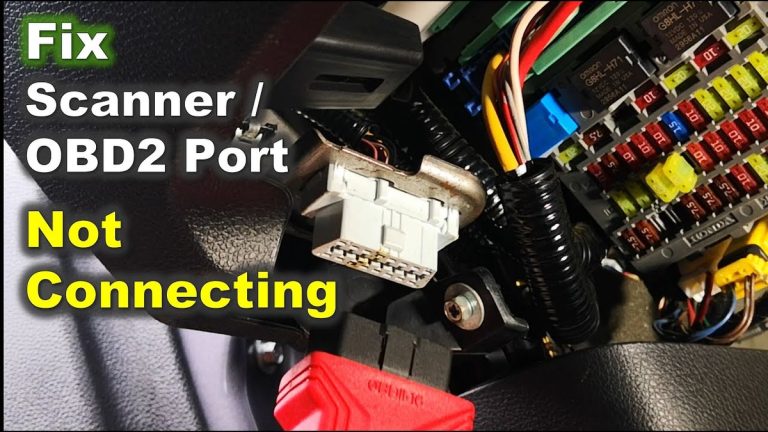
I plug the BD310 firmly into the vehicle’s 16-pin OBD-II port. The port usually sits below the dashboard near the steering column. The scanner should power on through this connection. If it does not, I check the plug, the vehicle ignition position, and the OBD-II fuse.
If I use the BD310 with a phone, I charge the phone and turn on Bluetooth. On iOS 13 or later, I also allow Bluetooth access in the phone’s privacy settings. I keep the phone near the scanner during setup to avoid a lost connection.
Save Current Settings
Before I reset the BD310, I record any custom settings that I want to restore. These may include measurement units, display preferences, connection details, or saved vehicle information. I also note the current firmware or app version if it appears in the device or app menu.
I read and save any stored trouble codes and freeze-frame data before clearing information. I can write the codes down or take clear photos of the scan results. A reset may remove saved data from the scanner or app, but it does not repair the vehicle or fix the cause of a fault.
I disconnect the BD310 only after I finish recording the information. This prevents me from losing details needed for later diagnosis.
Perform a Soft Reset
I can often restore normal operation by reconnecting the BD310 and restarting its companion app. These steps refresh the Bluetooth connection and app session without changing vehicle settings or clearing diagnostic data.
Reconnect Bluetooth
I first turn off the vehicle’s ignition and unplug the ANCEL BD310 from the OBD-II port. I wait about 30 seconds, then plug it back in securely. I turn the ignition to the ON position without starting the engine.
On my phone, I open Settings > Bluetooth and select ANCEL BD310. If it appears as a saved device but will not connect, I choose Forget This Device or Unpair, then scan again. I use the pairing code shown in the BD310 manual or try 0000 or 1234 if the phone requests a code.
I keep the phone near the scanner during pairing. On iPhone models running iOS 13 or later, I also check Settings > Privacy & Security > Bluetooth and allow Bluetooth access for the companion app. I avoid pairing the scanner with another phone at the same time.
Restart the Companion App
I close the companion app completely instead of leaving it running in the background. On Android, I open recent apps and swipe the app away. On iPhone, I open the app switcher and swipe the app upward.
I wait a few seconds, then reopen the app and allow it to search for the BD310. I select the scanner from the app’s device list, rather than starting a new connection from another app.
If the app still does not connect, I restart my phone and repeat the Bluetooth steps. I also confirm that the ignition remains on and that the BD310 has power through the OBD-II port.
Complete a Factory Reset
I can restore the BD310 to its default settings through its setup menu. This removes personal configuration choices, but it does not repair a vehicle fault or erase information stored in the vehicle’s control modules.
Locate the Reset Control
I first connect the BD310 to the vehicle’s OBD-II port and switch on the ignition without starting the engine. The scanner needs power to open its menus. I then use the arrow keys and OK button to open Setup or System Setup.
I look for an option named Restore Factory Settings, Factory Reset, or Default Settings. The exact wording can vary by software version. I select that option and read the on-screen warning before continuing.
If the scanner does not show a factory-reset option, I do not remove the vehicle battery or unplug the unit during an update. I check the BD310 manual or contact ANCEL support instead. A reset should change scanner preferences, not interrupt vehicle power or data communication.
Confirm Default Settings Restoration
I select Yes, OK, or Confirm when the BD310 asks whether I want to restore its defaults. The device may restart or return to its setup screen. I wait until the process finishes before disconnecting it from the OBD-II port.
Afterward, I check settings such as language, measurement units, date, time, and Bluetooth preferences. I may need to pair the scanner with my phone again. On iPhones running iOS 13 or later, I also make sure Bluetooth access is enabled in the phone’s privacy settings.
A factory reset does not automatically clear diagnostic trouble codes from the vehicle. I use the BD310’s Erase Codes function only after recording the codes and completing the needed repairs.
Pair the Scanner Again
I first remove the old Bluetooth connection from my phone or tablet. Then I pair the ANCEL BD310 through its app, not through a normal Bluetooth audio menu, and confirm that the scanner has power from the vehicle’s OBD-II port.
Remove the Previous Bluetooth Connection
I park the vehicle safely, switch off the ignition, and unplug the BD310 from the OBD-II port. On my phone, I open Settings > Bluetooth and find ANCEL BD310 under saved or paired devices. I select it and choose Forget, Unpair, or Remove This Device, depending on the phone.
I also close the ANCEL app completely. If the scanner still appears as connected, I turn Bluetooth off for a few seconds and turn it back on. On an iPhone using iOS 13 or later, I check Settings > Privacy & Security > Bluetooth and allow the ANCEL app to use Bluetooth.
I do not try to reset the vehicle’s trouble codes just to fix pairing. Clearing codes does not remove a phone’s saved Bluetooth connection.
Connect to a Mobile Device
I plug the BD310 into the vehicle’s 16-pin OBD-II port, then turn the ignition to ON without starting the engine unless the app instructs me otherwise. I open the compatible ANCEL app and allow Bluetooth access, location access if requested, and any required nearby-device permission.
I use the app’s device-search or connection option and select ANCEL BD310. I wait for the connection message before opening diagnostic functions. If the app cannot find the scanner, I keep the phone close to the vehicle, close other apps that may use Bluetooth, and restart the app.
I connect only one mobile device at a time. After pairing succeeds, I test the connection by opening live data or reading diagnostic information.
Verify Normal Operation
I confirm the reset worked by checking that the BD310 connects normally, reads vehicle data, and communicates with its companion app. I also install a firmware update only when the app offers one for my device.
Run a Basic Diagnostic Scan
I first turn off the vehicle, plug the BD310 into the OBD-II port, and switch the ignition to ON without starting the engine. I then open the ANCEL app and connect to the scanner through the app’s device list. If I use an iPhone with iOS 13 or later, I make sure Bluetooth access is enabled in the phone’s privacy settings.
I select the vehicle’s diagnostic function and allow the scan to finish. The tool should identify the vehicle system and display stored fault codes, live data, or a message showing that no codes were found. I record any codes before clearing them.
If the scanner cannot connect, I check that the connector is fully seated, Bluetooth is enabled, and no other phone is connected to the BD310. I can also turn the ignition off, wait briefly, and repeat the connection process.
Update Firmware if Needed
I check the ANCEL app for a firmware update after confirming that the BD310 connects. I keep the scanner plugged into the vehicle, set the ignition to ON, and keep my phone close to the device during the update.
Before starting, I ensure my phone has enough battery and a stable internet connection. I do not unplug the BD310, close the app, or turn off the ignition while the update runs. Interrupting the process may prevent the scanner from working correctly.
After the update finishes, I restart the app and reconnect to the BD310. I run another basic scan and confirm that the app displays vehicle data without connection errors.
Resolve Reset Problems
I first check power, connections, and Bluetooth status before repeating a reset. I also avoid changing vehicle settings or disconnecting power while the BD310 communicates with the car.
Address an Unresponsive Unit
I unplug the BD310 from the vehicle’s OBD-II port and wait several minutes. I then turn the ignition off, reconnect the scanner firmly, and turn the ignition to the ON position without starting the engine. The vehicle must supply power through the diagnostic port.
If the unit still does not respond, I test it in another compatible vehicle. This helps me determine whether the problem comes from the scanner or the vehicle’s OBD-II port. I also check the BD310 app, enable Bluetooth, and keep the phone close to the scanner. I close and reopen the app before trying to connect again.
I do not force a reset by removing fuses or disconnecting the vehicle battery. Those steps can erase vehicle settings and may create new electrical problems. If the scanner powers on but freezes, I disconnect it, restart the phone, and install the latest available app or firmware update before reconnecting.
Contact ANCEL Support
I contact ANCEL support when the BD310 remains unresponsive after I test its connection, power, app, and another vehicle. I provide the scanner’s model, purchase date, phone model, operating system, and app version.
I also include a clear description of the failed reset. For example, I state whether the scanner has no lights, fails to pair, disconnects during use, or freezes after starting. Photos or a short video can help show the problem.
Before contacting support, I record any error message and confirm that the vehicle uses a standard OBD-II port. I keep my purchase receipt and serial number available because ANCEL may request them for warranty service or replacement instructions.
Frequently asked questions
How do I reset the ANCEL BD310?
I reset the BD310 by unplugging it from the vehicle’s OBD-II port. I then close the app, wait a few seconds, reconnect the scanner, and start a new connection.
Does unplugging the scanner clear trouble codes?
No. Unplugging the BD310 only restarts the device. I clear diagnostic trouble codes through the scanner or its mobile app after reading and saving the fault information.
How do I reset the Bluetooth connection?
I turn off Bluetooth, close the ANCEL app, and remove the BD310 from my phone’s saved Bluetooth devices. I restart Bluetooth, open the app, and pair with the scanner again. If the app requests a PIN, I check the manual for the correct code.
What should I do if the BD310 will not connect?
I make sure the vehicle’s ignition is on and the scanner sits firmly in the OBD-II port. I also check that another phone is not connected to the BD310. Restarting the phone and app can restore the connection.
Will a reset fix a check-engine light?
A reset does not repair the cause of a fault. I use the BD310 to read the trouble code, address the vehicle problem, and then clear the code. The warning light may return if the issue remains.
Conclusion
I reset the ANCEL BD310 by disconnecting it from the vehicle, closing the companion app, and reconnecting the scanner. This clears the active connection and lets the device start a fresh Bluetooth session.
If the BD310 still does not work, I check these points:
- The vehicle ignition is switched on.
- The scanner fits firmly into the OBD2 port.
- Bluetooth is enabled on my phone.
- The app has the required permissions.
- The scanner has enough power from the vehicle.
I avoid unplugging the scanner while it reads or clears fault codes. I also save any diagnostic information before clearing codes because a reset can remove stored data from the scanner or app.
If the problem continues, I use the ANCEL BD310 manual to confirm the correct connection and reset steps for my device version.



One Comment