Foxwell NT301 vs BlueDriver: Which OBD2 Scanner Is Better?
Choosing between the Foxwell NT301 and BlueDriver depends on how you plan to diagnose your vehicle. I compare their coverage, live data tools, setup, portability, and long-term value so you can choose with confidence.
Choose the Foxwell NT301 for simple wired diagnostics and a dedicated screen; choose BlueDriver for wireless access, app-based reports, and a broader set of advanced vehicle-specific tests. I also examine how each scanner performs during everyday troubleshooting and which option better fits your budget and skill level.
Key Takeaways
- Foxwell offers simple plug-in use without a phone.
- BlueDriver adds wireless access and app-based features.
- Your vehicle coverage and diagnostic needs should guide your choice.
Scanner Types And Core Purpose
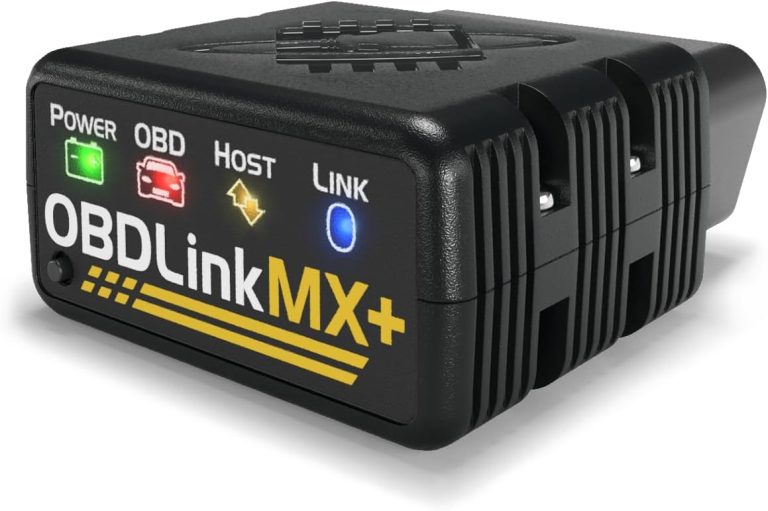
I see the main difference in how each scanner connects to the vehicle and presents diagnostic data. The Foxwell NT301 uses a wired handheld design, while BlueDriver sends information through a Bluetooth adapter and a mobile app.
Handheld Diagnostic Tool Design
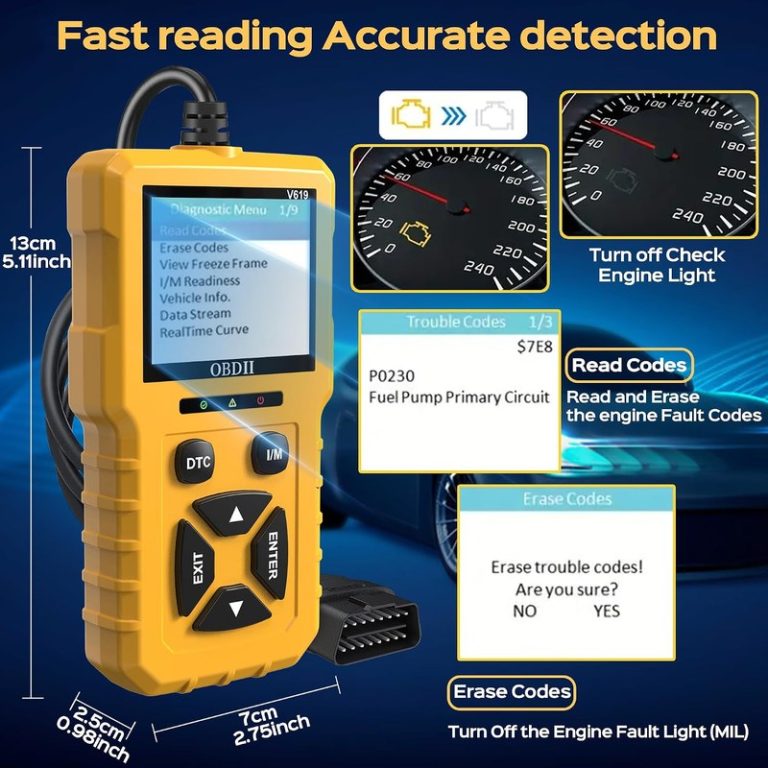
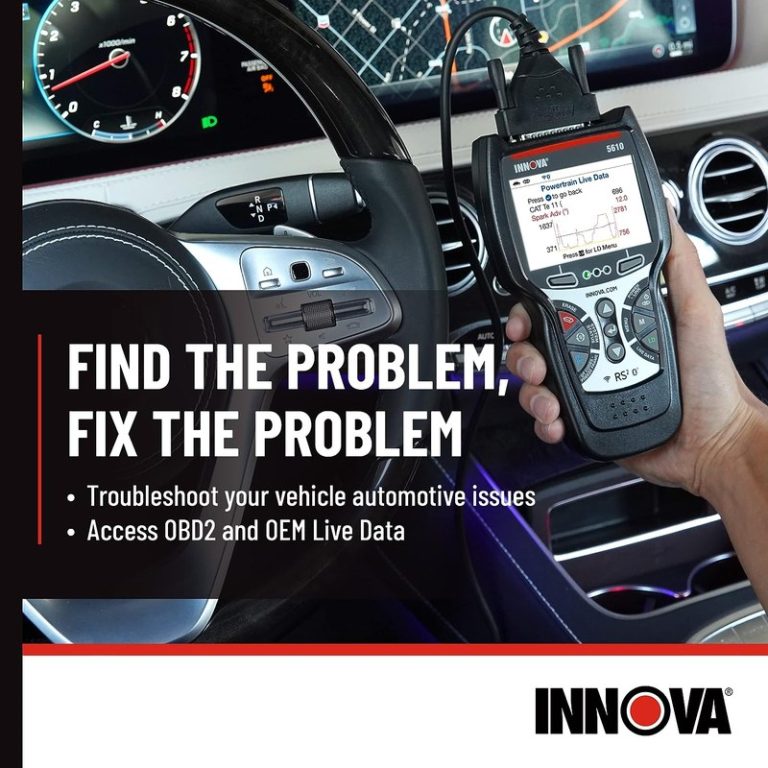
I use the Foxwell NT301 by plugging its cable directly into the vehicle’s OBD-II port. Its built-in screen and buttons let me scan for engine fault codes without a phone, separate app, or wireless connection.
The NT301 focuses on core engine diagnostics. I can read and clear check-engine codes, view freeze-frame data, check emissions readiness monitors, and review live data. Its live-data graphing can help me watch sensor changes while the engine runs.
The wired design also reduces setup steps. I do not need to pair a device or keep a phone charged, and the cable avoids Bluetooth connection problems. However, the NT301 has a smaller display and narrower system coverage than advanced scan tools. It mainly targets OBD-II engine functions rather than extensive body, airbag, or transmission diagnostics.
Bluetooth Adapter Design
I connect the BlueDriver adapter to the OBD-II port and use a compatible smartphone or tablet to control the scan. The app provides a larger display than the NT301 and can show multiple live-data readings at once.
BlueDriver focuses on wireless convenience and guided information. I can read and clear codes, view live data, access freeze-frame details, and review repair information within the app. Its reports can also explain possible causes and suggest common fixes, although I still need to confirm each diagnosis with testing.
The phone-based design makes updates and data storage easier, but it adds more dependencies. I need a charged mobile device, the BlueDriver app, and a reliable Bluetooth connection. Coverage also depends on the vehicle and the functions supported by the app; it does not turn every car into a full professional diagnostic system.
Vehicle Coverage And Compatibility
Both tools work with many vehicles that use the standard OBD-II system, but their compatibility has important limits. I would check the exact year, make, model, engine, and market before buying, especially for imported, diesel, or older vehicles.
Supported OBD-II Vehicles
The Foxwell NT301 supports standard OBD-II functions such as reading and clearing check-engine codes, viewing live data, checking readiness monitors, and performing an emissions test check. It uses a wired connection, so it does not rely on a phone, app, or wireless signal.
BlueDriver also connects through the vehicle’s OBD-II port, but it sends data to a mobile app through Bluetooth. I find its compatibility information easier to review because the app and online checker identify supported vehicles and available functions by year, make, and model. Both tools may work for basic engine codes on a compatible vehicle, while some functions depend on the vehicle’s protocol and model year.
Before purchase, I would use the manufacturer’s vehicle coverage checker. OBD-II compliance does not guarantee that every scanner can access every system.
Brand-Specific Diagnostic Access
The main difference appears when I need manufacturer-specific information. The NT301 focuses mainly on the engine and emissions system. It can read manufacturer-specific powertrain codes on some vehicles, but it does not provide the same broad system coverage as a professional scanner.
BlueDriver can show enhanced codes and reports for supported makes through its app. Depending on the vehicle, this may include systems such as ABS, airbags, transmission, or body control modules. Coverage varies by brand and model, so I would confirm the exact functions before relying on it for repairs.
BlueDriver also requires a compatible smartphone and app connection. I would choose the NT301 if I want a simple wired reader for engine diagnostics. I would choose BlueDriver when its vehicle database lists the specific manufacturer systems I need to scan.
Diagnostic Functions
I compare the Foxwell NT301 and BlueDriver by looking at their core OBD2 functions, live-data tools, and system coverage. Both can help identify engine-related faults, but they differ in how much information they provide and how they present it.
Engine Code Reading And Clearing
I can use either scanner to read and clear standard powertrain trouble codes on vehicles that support OBD2. The Foxwell NT301 connects directly to the diagnostic port and displays codes on its built-in color screen. It does not need a phone, app, or internal battery.
BlueDriver sends data to a mobile app through a Bluetooth adapter. Its app usually gives me clearer code descriptions and may show likely causes, reported fixes, and repair information. That extra guidance can make the first diagnosis easier, especially for less experienced users.
Both tools can turn off a check-engine light after I record the codes. Clearing a code does not fix the fault, however. It also resets emissions readiness monitors, so I may need to drive through a complete cycle before the vehicle becomes ready for an inspection.
Live Data And Freeze Frame
The NT301 displays live data from supported engine sensors, including engine speed, coolant temperature, oxygen-sensor readings, fuel trims, throttle position, and airflow. I can view several values as numbers and graph selected parameters. This helps me watch a sensor while the engine runs.
BlueDriver also displays live data through its app and gives me more screen space for dashboards and multiple readings. I find that useful when comparing related values, such as short-term and long-term fuel trim, during a test drive.
Both scanners can show freeze-frame data, which records conditions when a fault occurred. This may include vehicle speed, engine load, temperature, and RPM. I use that information to recreate the problem instead of testing parts without evidence.
Enhanced System Diagnostics
The NT301 mainly focuses on standard OBD2 engine and emissions diagnostics. It can access generic codes and data, but it should not be treated as a full vehicle scan tool. It may not reach manufacturer-specific systems such as airbag, ABS, body control, or transmission modules.
BlueDriver can provide enhanced information for some vehicle makes through its app. Depending on the vehicle, it may read manufacturer-specific codes and offer additional system data beyond basic engine diagnostics. Coverage varies by brand, model, year, and adapter support.
I check compatibility before buying either tool. For advanced functions such as service resets, active tests, coding, or broad module access, I would choose a dedicated, brand-specific scanner rather than assume the NT301 or BlueDriver supports them.
Performance Testing And Data Displays
I compare both tools by checking emissions readiness, viewing live sensor values, and judging how easily each device presents useful data. The NT301 uses a wired handheld design, while BlueDriver sends readings to a phone through its Bluetooth adapter.
Readiness Monitor Checks
The Foxwell NT301 includes an emissions readiness test and displays monitor status directly on its screen. I can check whether systems such as the oxygen sensor, catalyst, and evaporative emissions monitor show ready, not ready, or not supported. Its one-press smog check makes this useful before an inspection.
BlueDriver also reports readiness monitors through its mobile app. The phone screen gives me more space for the monitor list and related fault information. However, I must pair the adapter, open the app, and keep my phone available during the test.
Neither scanner can force a monitor to become ready. The vehicle must complete its required drive cycle after repairs or code clearing. I would use either tool before an emissions test, but I would not clear codes shortly beforehand because doing so resets the monitors to incomplete.
Graphing And Sensor Data
The NT301 supports live data in text and graph formats. I can watch values such as engine coolant temperature, engine speed, fuel trims, oxygen-sensor readings, and vehicle speed. Its wired connection avoids Bluetooth pairing problems, but the handheld display offers less room for multiple data points.
BlueDriver uses the phone’s larger screen to show live data and multi-parameter dashboards. I can select several PIDs, compare their changes, and review readings while operating the vehicle safely with a passenger. The app also makes stored data easier to view than the NT301’s smaller screen.
Data availability depends on the vehicle’s control modules. Neither scanner automatically provides every manufacturer-specific value, and displayed readings do not prove that a part has failed. I use trends, fault codes, and service information together before replacing components.
Setup And Everyday Usability
The Foxwell NT301 offers simple, stand-alone operation with a built-in screen and physical buttons. BlueDriver requires a phone or tablet, but its app provides clearer reports and easier access to stored diagnostic information.
Display And Controls
I can use the Foxwell NT301 without pairing, charging, or installing an app. I plug its cable into the vehicle’s OBD-II port, switch on the ignition, and follow the on-screen menus. Its color display shows trouble codes, code definitions, readiness monitors, and basic live data.
The physical buttons make menu navigation direct, especially when I work in a garage or driveway. The wired design also keeps the scanner powered through the vehicle, so I do not need to manage a separate battery.
The main limitation involves data viewing. The screen is compact, and scrolling through live values can take more time than using a phone. The cable may also restrict where I can place the scanner while I test the vehicle.
Mobile App Experience
I connect the BlueDriver adapter to the OBD-II port and pair it with the BlueDriver app on a compatible iOS or Android device. The app guides me through code reading and displays live data in a larger, easier-to-read format.
I can save diagnostic reports, view code explanations, and check repair information within the app. BlueDriver also supports enhanced diagnostics for selected vehicle brands, but coverage varies by make, model, and system.
The phone-based setup adds a few steps. I must keep my device charged, enable Bluetooth, and use the app during testing. BlueDriver does not provide the same stand-alone operation as the NT301, but the app makes reviewing and sharing results more convenient.
Wireless Connectivity And Software Updates
I see a clear split between the NT301’s wired design and BlueDriver’s phone-based connection. The NT301 favors a direct, dependable link, while BlueDriver offers easier wireless use but depends on Bluetooth, a mobile device, and its app.
Connection Reliability
The Foxwell NT301 connects directly to the vehicle’s OBD2 port with a cable. I do not need a phone, Bluetooth pairing, or a separate battery for the scanner. This setup reduces connection problems caused by wireless interference or a phone switching to another device.
BlueDriver uses a Bluetooth adapter that stays plugged into the OBD2 port and communicates with a smartphone or tablet. I gain a larger screen, dashboard views, and easier report sharing. However, I must keep the device’s Bluetooth enabled and use a compatible mobile app. Connection quality can also depend on the phone, operating system, and adapter placement.
For basic driveway testing, I prefer the NT301 when I want a simple plug-in tool. I prefer BlueDriver when I value wireless access and a larger display more than a direct cable connection.
Update Process And Subscription Requirements
I update the NT301 through a Windows computer and the supplied USB cable. Foxwell’s instructions require the scanner to enter Update Mode, after which the update program can install the latest available software. Foxwell lists lifetime free updates for the NT301, but Mac users may need access to a Windows computer because the update process does not support macOS.
BlueDriver receives software and vehicle-coverage changes through its mobile app. I do not need to connect the adapter to a computer. The scanner does not require an annual subscription for its standard functions, but app availability and update access depend on the phone’s operating system and the developer’s support.
Key difference: NT301 updates require a Windows computer, while BlueDriver updates through a mobile device.
Build Quality And Portability
I see a clear trade-off between a wired handheld design and a compact Bluetooth adapter. The NT301 favors direct operation and a built-in screen, while BlueDriver favors small size and easy storage with a phone.
Durability
The Foxwell NT301 uses a handheld scanner with a fixed OBD2 cable, physical buttons, and a built-in display. This design removes Bluetooth pairing and reduces dependence on a phone during testing. The cable remains attached, so I cannot replace it separately if it becomes damaged. I would store the unit carefully to avoid pulling or sharply bending the cable.
The BlueDriver adapter has fewer moving parts because it plugs directly into the vehicle’s OBD2 port. Its small plastic body works well for normal home diagnostics, but I would avoid leaving it connected while entering or exiting the vehicle. The adapter can receive more force if a driver’s leg or another object hits it.
For frequent use, I prefer the NT301’s dedicated controls and screen. For occasional use, BlueDriver’s simpler adapter design is easier to handle, provided I protect it from impact and moisture.
Storage And Travel Convenience
BlueDriver has the advantage for storage and travel. The adapter fits easily in a glove box, center console, or small tool pouch. I only need to carry the adapter and my phone, although I must keep the BlueDriver app installed and ensure my phone has enough battery.
The NT301 takes more space because it includes the display, buttons, and attached cable. I would store it in a padded case or a compartment with other tools. Its wired setup also means I do not need to pack a phone, charge a separate display, or manage Bluetooth connections.
| Tool | Storage benefit | Travel limitation |
|---|---|---|
| Foxwell NT301 | Ready to use without a phone | Larger and less compact |
| BlueDriver | Very small and easy to pack | Depends on a compatible phone and app |
Pricing And Long-Term Value
I compare the purchase price with update policies, required accessories, and the diagnostic features I will actually use. The NT301 usually costs less at checkout, while BlueDriver can offer stronger long-term value for drivers who want wireless access and app-based reports.
Upfront Cost
The Foxwell NT301 typically sells for about $50–$65. It connects directly to the vehicle through a wired OBD2 cable, so I do not need a phone, Bluetooth adapter, or separate app subscription. Its built-in screen also lets me read and clear engine codes, view live data, and check emissions readiness without relying on another device.
BlueDriver usually costs more because the package includes a Bluetooth adapter and mobile-app features. I must also have a compatible iPhone or Android phone. That higher starting price makes sense if I want guided repair information, saved reports, and a more convenient wireless setup.
I would choose the NT301 when I need a simple, dedicated code reader at the lowest initial cost. I would pay extra for BlueDriver if its app-based features and supported enhanced diagnostics match my vehicle and repair needs.
Ongoing Ownership Costs
The NT301 does not require a phone or paid app plan for its basic functions. However, I may need to pay for software updates to maintain coverage for newer vehicles. I should check Foxwell’s update policy and current pricing before buying, especially if I plan to keep the scanner for many years.
BlueDriver includes app updates and ongoing database expansions without a separate subscription, based on the available product information. I still need to provide a charged phone and keep the app compatible with my device. The adapter also occupies the vehicle’s diagnostic port while connected, although I can remove it after use.
For occasional engine-code checks, I value the NT301’s simple ownership model. For frequent troubleshooting, I may recover BlueDriver’s higher purchase price through its reports, live data tools, and broader app features.
Which Driver Should Choose Each Option
I choose the Foxwell NT301 when I want a dedicated, wired tool with no app setup. I choose BlueDriver when I prefer wireless access, smartphone features, and repair information presented through an app.
Best Fit For DIY Troubleshooting
I recommend the Foxwell NT301 for drivers who want quick checks without relying on a phone. I plug it into the vehicle’s OBD2 port, turn on the ignition, and read engine fault codes, live sensor data, the VIN, and emissions readiness status. Its live-data graphs can help me track changes in RPM, fuel trim, and other sensor readings while the engine runs.
The NT301 also suits drivers who work on several compatible cars or light trucks. Its wired design avoids Bluetooth pairing, app updates, and phone battery limits. However, I should confirm vehicle compatibility before buying, especially for imported vehicles, diesel models, or functions beyond standard engine diagnostics.
It fits me best if I value:
- A standalone screen
- Live-data graphs
- Emissions checks
- Wired reliability
- Simple code clearing
Best Fit For App-Based Diagnostics
I recommend BlueDriver when I want to use my phone as the display and review diagnostic information in an app. The wireless connection makes it easier for me to sit outside the vehicle while monitoring data, and the app can provide code definitions and repair guidance that help me understand possible causes.
BlueDriver works well for routine troubleshooting, especially when I want more context than a basic code number provides. I still need to check whether my vehicle supports the systems and functions I want to scan. A phone, the BlueDriver app, and a charged device remain necessary, and advanced features may vary by vehicle make and model.
It fits me best if I value:
- Wireless phone access
- Detailed code explanations
- Guided repair information
- Easy data review
- Convenience during routine checks
Final Recommendation
I recommend the Foxwell NT301 for drivers who want a simple, wired tool for checking engine fault codes. Its built-in screen, live data support, graphing, and one-button emissions readiness check make it practical for home diagnosis. It also avoids phone pairing, app accounts, and Bluetooth connection issues.
I recommend BlueDriver for users who prefer a phone-based system and want clearer data on a larger screen. Its app offers live data, code explanations, repair reports, and some vehicle-specific information. Coverage can vary by make, model, year, and system, so I would check compatibility before buying.
| Choose | Best fit |
|---|---|
| Foxwell NT301 | Fast, direct code reading and basic live-data checks |
| BlueDriver | App-based diagnosis, reports, and more guided information |
Neither tool replaces a professional scan tool for every ABS, airbag, transmission, or body-system fault. I would choose the NT301 for dependable basic engine diagnostics and BlueDriver for a more detailed app experience.
Frequently asked questions
Which scanner is easier to use?
I find the Foxwell NT301 simpler for quick checks because it uses a built-in screen and wired connection. BlueDriver requires a phone or tablet, but its app gives clearer code descriptions and repair information.
Can both scanners read engine codes?
Yes. Both tools can read and clear standard OBD2 engine and emissions codes on compatible vehicles. I would check the vehicle’s model year and regional requirements before buying.
Does the Foxwell NT301 need a battery?
No. The vehicle’s OBD2 port powers the NT301, so I do not need to charge it or install batteries. Its cable also avoids Bluetooth pairing problems.
Does BlueDriver read ABS and airbag codes?
BlueDriver can access some enhanced systems, including ABS and airbag modules, but coverage depends on the vehicle. The NT301 mainly focuses on standard engine and emissions diagnostics, so I would not choose it for advanced module testing.
Which scanner provides live data?
Both can display live engine data. BlueDriver presents more information through its app, while the NT301 offers a simpler display that works well for basic checks.
Which one should I buy for occasional use?
I would choose the NT301 for low-cost, straightforward code reading. I would choose BlueDriver if I want wireless use, detailed reports, and broader vehicle-specific information.
Conclusion
I would choose the Foxwell NT301 if I want a simple, wired scanner with its own screen. It supports standard OBD2 functions, live data, freeze-frame information, and emissions readiness checks without relying on a phone or Bluetooth connection.
I would choose BlueDriver if I prefer wireless use and detailed app-based reports. Its larger phone display makes live data easier to view, while app updates can add convenience and support features. However, it depends on a compatible phone and a stable Bluetooth connection.
| My priority | Better fit |
|---|---|
| Lower cost and wired reliability | Foxwell NT301 |
| Phone-based reports and larger displays | BlueDriver |
| Basic engine-code diagnosis | Either |
| Manufacturer-specific systems | Check vehicle support first |
Neither tool can diagnose every ABS, airbag, or transmission problem on every vehicle. I would confirm vehicle compatibility before buying, especially for imported cars or models with enhanced manufacturer systems.