foxwell nt301 not connecting to vehicle: quick fixes and checks
Most Foxwell NT301 connection problems come from ignition mode, a dead OBD2 port, low battery voltage, or a vehicle the scanner does not fully support. Start with power and compatibility checks before you assume the tool is defective.
foxwell nt301 not connecting to vehicle issues usually come down to a dead OBD2 port, low battery voltage, a loose plug, or a car that the scanner cannot fully support. The good news is that most no-connection problems can be narrowed down with a few safe checks before you replace the tool or assume the car is at fault.
- Start with power: Check ignition mode, OBD2 port power, and battery voltage first.
- Inspect the connection: Re-seat the plug, look for bent pins, and check for cable damage.
- Know the limits: The NT301 is mainly for OBD2 emissions data, not every module or bidirectional test.
- Watch safety: Stop troubleshooting if the battery is damaged, the car is in traffic, or high-voltage.
- Verify before buying: Match the scanner to your vehicle’s year, protocol, and diagnostic needs.
foxwell nt301 not connecting to vehicle: the fastest checks that solve most cases
Start with the simplest causes first. If the scanner will not power up or the screen stays stuck on a connection message, the problem is often the vehicle side, not the NT301 itself. If you want a broader setup refresher, see how to use the Foxwell NT301 OBD2 scanner.
Confirm the OBD2 port is powered and the ignition is in the correct mode
Most passenger vehicles need the ignition in the correct position for the scan tool to talk to the car. That usually means key on, engine off, or the push-button equivalent in accessory or ignition mode, depending on the vehicle. If the port has no power, the scanner may not light up or may fail before it can read anything.
Check whether the OBD2 connector is fully seated. A plug that feels “close enough” is often not enough. The tool needs a firm connection to the DLC, and the vehicle must be awake enough to communicate.
Check the scanner cable, connector pins, and vehicle battery voltage first
Look at the cable for cuts, crushed sections, or a bent strain relief near the connector. Inspect the vehicle-side pins for damage, corrosion, or debris. A single bent pin can stop communication even if the scanner itself is fine.
Battery voltage matters more than many drivers expect. A weak 12V battery can let lights and accessories work while still causing scan-tool communication problems. If the car has been sitting, or if it cranks slowly, low system voltage is a likely suspect.
Match the scanner to the vehicle’s model year, protocol, and emissions system
The NT301 is an OBD2 scanner, so it is meant for emissions-related diagnostics on compatible vehicles. That does not mean every vehicle will communicate the same way. Older cars, non-OBD2 systems, and some special-duty vehicles may not respond at all.
For buyers still comparing options, CarValleyNJ also has a guide on what vehicles are compatible with the Foxwell NT301. That compatibility step is worth checking before you assume the scanner is broken.
why the NT301 may fail to connect: power, protocol, and vehicle-side causes
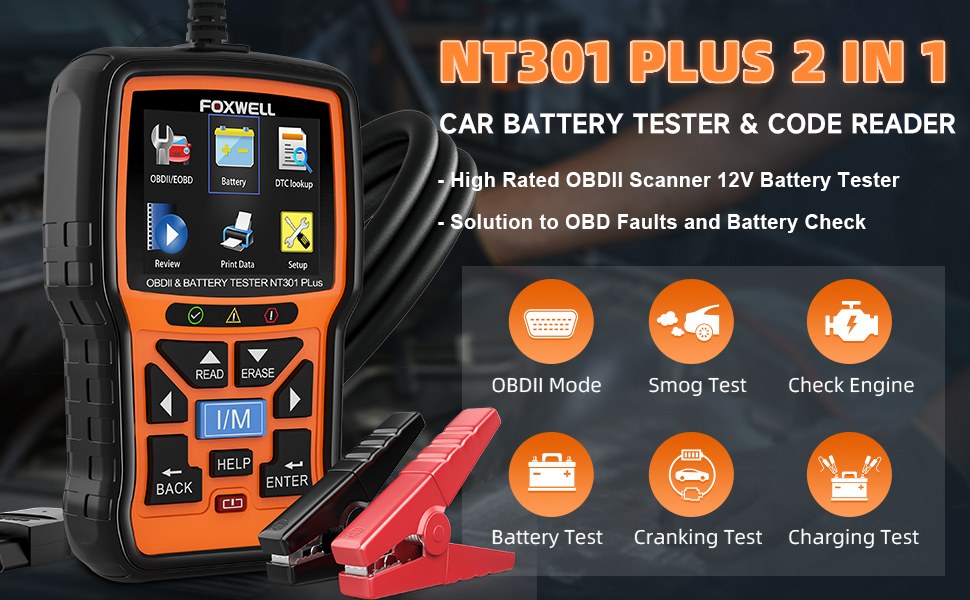
No-connection problems usually fall into three buckets: power problems, communication protocol mismatches, or a fault in the vehicle itself. Understanding which bucket you are in saves time and prevents unnecessary parts swapping.
OBD2 port location, blown fuse, and poor ground issues
The OBD2 port is often under the dash, but the exact location varies by vehicle. If the port appears dead, the fuse that feeds it may be blown. Some cars also rely on a good ground path for the diagnostic connector to work properly.
That is why a scanner can fail even when the rest of the car seems normal. A fuse issue may affect only the diagnostic port, not the whole vehicle. If the port has no power, the next step is often checking the fuse panel and the owner’s manual, not forcing the scanner harder.
12V system voltage, battery state of charge, and when low voltage blocks communication
A battery can show enough voltage to turn on dash lights and still not be healthy enough for stable data exchange. State of charge and battery health are not the same thing. A tired battery may sag under load and interrupt communication between modules and the scan tool.
If the vehicle has been jump-started recently, driven only short trips, or left in cold weather, low voltage becomes even more likely. In that case, charge the battery properly before troubleshooting the scanner further.
Hybrid and EV cautions before plugging in any scan tool
Hybrids and EVs add extra safety concerns because they combine low-voltage electronics with high-voltage systems. The NT301 may still be used for certain OBD2 functions on some vehicles, but the driver should be careful about what system is being accessed and when.
step-by-step troubleshooting for a no-connection issue on the Foxwell NT301
Use a calm, parked setup and work from the vehicle outward. If you are checking the car on the shoulder, make safety the first priority and keep traffic visibility in mind.
Use a safe parking setup and verify traffic visibility before testing roadside
Pull completely off the travel lane if possible. Set the parking brake, keep the vehicle in Park or Neutral as appropriate, and turn on hazard lights only if conditions and local rules allow. Do not lean into the driver footwell while traffic is moving close by.
Roadside diagnostics should be short and simple. If the car is in a live lane, a tow or safer parking spot is better than a long troubleshooting session.
Try a correct connection order and re-seat the DLC plug firmly
Disconnect the scanner, wait a moment, then plug it back in firmly. Make sure the connector is straight and fully inserted. If the plug is angled, it may look connected while missing one or more contacts.
Then cycle the ignition to the correct mode for that vehicle. Some cars communicate better with the engine off. Others need the key on long enough for modules to wake up before the scanner can read data.
Test with the engine off, key on, and engine running only when appropriate
Start with engine off and key on. That is the safest baseline for most OBD2 checks and is usually enough for code reading and readiness information. If the scanner still cannot connect, then try the next ignition state only if the vehicle instructions support it.
Do not assume the engine must be running. In some cases, cranking or running the engine can add electrical noise or complicate the diagnosis. The right sequence depends on the vehicle and the symptom.
Inspect for damaged cables, bent pins, worn ports, or moisture contamination
Look closely at the connector shell and the vehicle port. A worn DLC can feel loose, and moisture or spilled liquid can interfere with contact. If the port looks dirty, let it dry completely before trying again.
If the cable is damaged, stop using it until it is replaced. A broken connector can create intermittent faults that are harder to diagnose than a complete no-connect condition.
vehicle compatibility and OBD2 coverage: what the NT301 can and cannot read
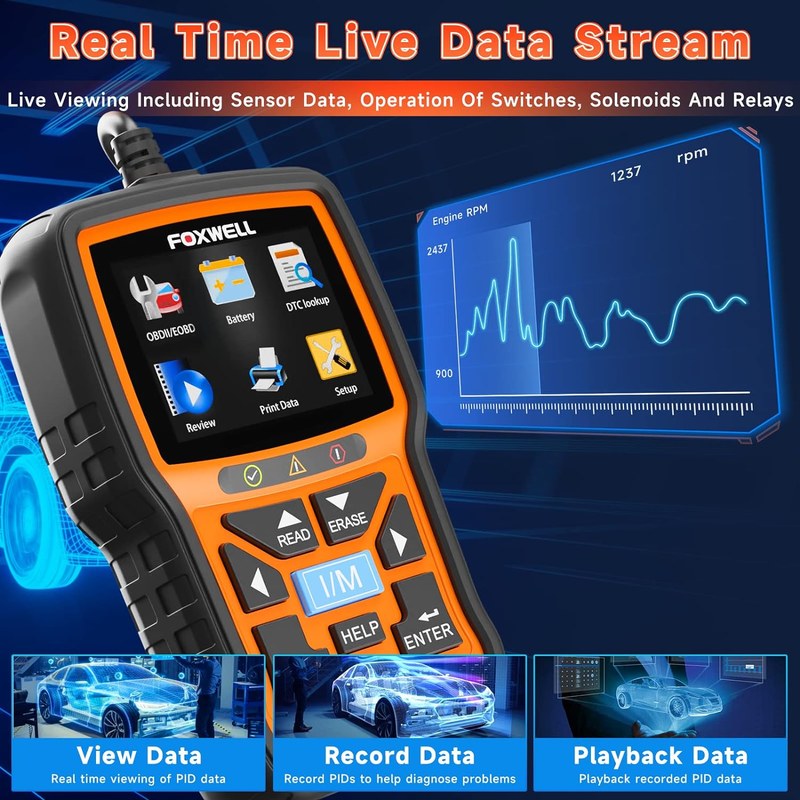
Compatibility is one of the biggest reasons a scanner appears to “not connect.” The NT301 is useful for many OBD2 jobs, but it is not a full dealer-level diagnostic platform.
Model-year coverage by region and the limits on older non-OBD2 vehicles
OBD2 adoption depends on region and model year. In the United States, most gasoline vehicles from the mid-1990s forward use OBD2, but there are exceptions. Some older vehicles and certain specialty models simply do not speak the protocol the scanner expects.
That is why a no-connection report is not always a defect. Sometimes the scanner is working as designed, but the vehicle is outside its support range.
Protocol support, emissions-related codes, and readiness monitor expectations
The NT301 is mainly aimed at emissions-related diagnostics. It can help with check-engine light codes and readiness monitors on supported vehicles, but it will not read every module in the car. If you are expecting airbag, ABS, or body-module access, that may be beyond its scope.
Readiness monitors can also confuse new users. If the scanner connects but shows incomplete monitors, that does not always mean a new failure. It may reflect recent battery disconnects, repairs, or incomplete drive cycles.
Code reading, live data, and reset limitations compared with bidirectional tools
The NT301 can be helpful for reading codes and viewing certain live data, but it is not a bidirectional tool. That means it cannot command components on and off the way a more advanced scanner can. It also has reset limits compared with higher-end units.
If you are deciding whether to keep this scanner or move up, our Foxwell NT301 code clearing guide explains what it can typically reset and where the limits start to matter.
Check: Verify make, model, year, trim, voltage, ports, mounting space, and OEM requirements. Limitations: Older non-OBD2 vehicles, unsupported modules, and some specialty systems may not connect.
battery and electrical checks that protect both the scanner and the vehicle
Electrical health affects both diagnosis and safety. A weak battery can make the scanner look bad when the real issue is the vehicle power supply.
State of charge versus battery health: why a charged battery is not always a good battery
A battery may be charged but still unhealthy. Internal wear, sulfation, or a failing cell can cause voltage drop when the ignition is turned on. That drop can interrupt scan-tool communication or cause the vehicle to reset modules during testing.
If the battery keeps going flat, do not keep retrying the scanner without addressing the battery problem. The root cause may be the electrical system, not the NT301.
Correct jump-start and charger precautions, including damaged-battery stop conditions
Use the vehicle and charger instructions if you need to recover a low battery. Avoid making repeated jump-start attempts if the battery is swollen, leaking, hot, or smells strongly of sulfur. Those are signs to stop and get professional help.
Current limits, cable condition, and post-use inspection after any roadside power issue
After a low-voltage event, inspect the scanner cable and the vehicle port again. Electrical problems can expose weak contacts that were not obvious before. If the tool worked earlier and now fails, the power event may have revealed a separate wiring or port issue.
Store the scanner with the cable loosely coiled and the connector protected. That helps prevent wear that can turn an occasional no-connect problem into a permanent one.
tire, TPMS, and roadside safety checks to pair with a no-start or no-connect diagnosis
If you are already dealing with a no-start or electrical issue, it is smart to check the basics that affect roadside safety too. Tires and TPMS do not fix the scanner problem, but they can affect whether it is safe to keep troubleshooting.
Use the door-jamb placard and a reliable gauge to confirm cold pressure
Check tire pressure against the door-jamb placard, not the sidewall. Measure when the tires are cold for the most accurate reading. A low tire can make a roadside stop more stressful and less safe while you work on the vehicle.
Inflator duty cycle, temporary-repair limits, and puncture location red flags
If you use a portable inflator, respect its duty cycle and do not run it continuously beyond its limits. A temporary plug or sealant is not always a permanent repair. Sidewall damage, large punctures, or repeated air loss usually need professional attention.
If you also carry a compact inflator, our portable tire inflator guide covers the safer basics for roadside use.
TPMS relearn limits and when tire damage needs professional repair or replacement
TPMS warnings can appear after tire service, battery issues, or wheel changes. A scanner like the NT301 is not a TPMS relearn tool, so do not expect it to solve tire sensor problems. If the tire is damaged or the warning stays on, a tire shop may need to inspect it.
app permissions, firmware, privacy, and ownership costs: what buyers should know in 2026
Even a simple scan tool can carry long-term ownership issues. Firmware support, privacy, and replacement costs matter if you plan to keep the NT301 in the glove box for years.
Firmware updates, support expectations, and how they affect compatibility
Firmware updates can improve compatibility, but support varies by product revision and manufacturer policy. Before buying or troubleshooting, check the current Foxwell support documentation for your exact unit. A scanner that is not updated may miss newer vehicle behavior or fixable communication issues.
Privacy considerations when using scan tools, companion apps, or shared vehicles
If a diagnostic tool stores vehicle data, code history, or app-linked account information, treat that data carefully. Shared family vehicles, fleet vehicles, and rideshare cars can create privacy questions if the tool or app saves VINs, fault history, or usage logs.
Warranty, accessory replacement, and long-term ownership cost versus cheaper scanners
Ownership cost is more than the sticker price. You may also need a replacement cable, updated accessory, or support contact if the unit stops communicating. Cheaper scanners can be fine for basic code reading, but a more reliable unit may save time if you use it often.
If you are weighing value, see whether the Foxwell NT301 is worth buying for a clearer cost-versus-feature picture.
NT301 vs alternatives: which diagnostic path fits your vehicle and budget
If the NT301 is not connecting, the next best step may be a different scanner class rather than more retries. The right tool depends on how deep you want to diagnose.
NT301 vs basic code readers: ease of use, live data, and emissions-readiness value
Compared with a very basic code reader, the NT301 usually offers a better mix of live data and emissions-readiness information. That makes it more useful for drivers who want to understand a check-engine light instead of just erase it.
Basic readers can cost less, but they often give less context. If your priority is simple code lookup only, a cheaper tool may be enough.
NT301 vs midrange bidirectional scanners: reset limits, special functions, and repair depth
Midrange bidirectional scanners cost more, but they can do more than read codes. They may offer active tests, module resets, and deeper system access. That matters if you work on several vehicles or need to diagnose more than emissions faults.
| Option | Best for | Owner consideration | Driver consideration |
|---|---|---|---|
| Foxwell NT301 | Basic OBD2 code reading and live data | Lower ownership burden than advanced tools | Simple controls and quick parked use |
| Bidirectional scanner | Deeper diagnosis and active tests | Higher cost and more features to learn | More setup time, but broader repair insight |
Which drivers should keep the NT301, upgrade, or call a professional technician
Keep the NT301 if you mainly want check-engine support, readiness checks, and occasional DIY diagnosis. Upgrade if you regularly need module access or active tests. Call a professional if the car still will not communicate after the basic power and compatibility checks.
when to stop troubleshooting and hand the car to a professional
There is a point where continued testing can waste time or raise risk. If the scanner still will not connect after the basics, the vehicle may have a wiring, module, or safety issue that needs deeper diagnosis.
Symptoms that point to wiring faults, module communication failures, or safety risks
If multiple warning lights appear at once, the port is intermittent, or the car loses power during testing, suspect a larger electrical problem. Communication faults across several systems can point to wiring or module issues that are not safe to guess through.
Situations involving airbag, hybrid, EV, or repeated no-communication conditions
Do not keep experimenting around airbags, steering-column wiring, or high-voltage hybrid and EV systems. Repeated no-communication after correct setup can also mean the vehicle needs professional electrical diagnosis rather than another scan attempt.
Final verdict for CarValleyNJ readers: who the Foxwell NT301 is best for and next steps
The Foxwell NT301 is best for drivers who want a straightforward OBD2 reader for emissions codes, readiness checks, and basic live data. If it is not connecting, the fastest fix is usually a power, ignition, or compatibility check rather than a complicated repair.
If the vehicle still refuses to communicate after the safe basics, stop and move to a deeper electrical diagnosis or a shop visit. That is often the most efficient and safest next step.
- Best for: US drivers who want a simple OBD2 scanner for basic code reading, readiness checks, and occasional DIY troubleshooting.
- Think twice if: You need full module access, bidirectional tests, or a scanner that can solve a true vehicle-side communication fault on its own.
- Next step: Verify ignition mode, OBD2 port power, battery health, and vehicle compatibility before assuming the NT301 is defective.
Frequently Asked Questions
The most common causes are a dead OBD2 port, low battery voltage, a loose plug, or an unsupported vehicle. Start with ignition mode, port power, and compatibility before assuming the scanner is bad.
Yes. A battery can still power lights while dropping too low for stable scanner communication. Charge or test the battery first if the car cranks slowly or has been sitting.
No. It is mainly for OBD2 emissions-related codes, readiness monitors, and some live data. It is not a full bidirectional scanner or dealer-level module tool.
Only if the vehicle is fully off the travel lane and you can work safely. If traffic is close, stop troubleshooting and move the car or call for help.
They can. Updates may improve compatibility or fix communication behavior, but support depends on the exact unit and Foxwell policy. Check the current manufacturer instructions for your model.
Stop if the port is damaged, the battery is swollen or leaking, the car has hybrid or EV high-voltage warnings, or the scanner still will not communicate after basic checks. Those cases can involve wiring or safety issues.


2 Comments