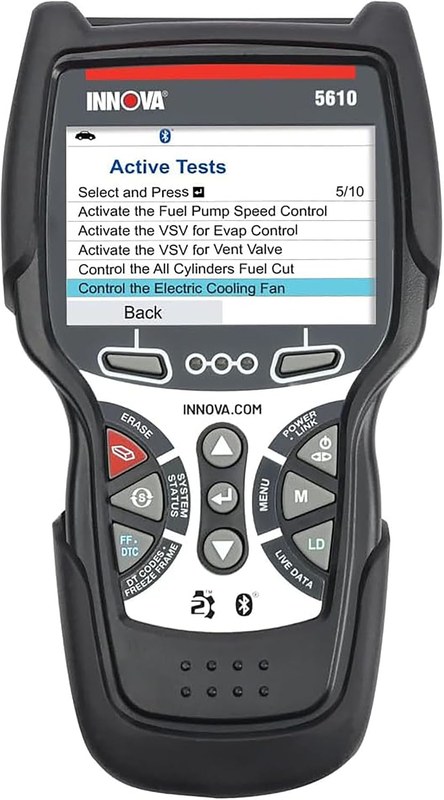
Innova 5610 Manual: Setup, Modes, and Safe Use Guide
The Innova 5610 manual helps you set up the scanner safely, read useful diagnostic data, and avoid common mistakes like clearing codes too early. It is best for everyday U.S. drivers who want more detail than a basic reader, but not full shop-level control.
The Innova 5610 manual is most useful when you want to scan a vehicle safely, understand what the code reader is telling you, and avoid clearing information too early. This guide explains setup, supported modes, battery and tire safety, and the limits you should know before relying on the tool.
- Compatibility first: Check year, port access, and supported modules before you buy.
- Read before clearing: Save codes and freeze frame data first so you do not lose clues.
- Safety matters: Weak, damaged, or hot batteries can make scanner use unreliable or unsafe.
- Know the limits: The 5610 may not access every system or perform every service function.
- Maintenance pays off: Clean connectors, careful storage, and firmware checks help the tool last.
Innova 5610 Manual: What It Covers, Who It’s For, and the Fastest Way to Get Value
Quick answer: what the manual helps you do safely and what it cannot do
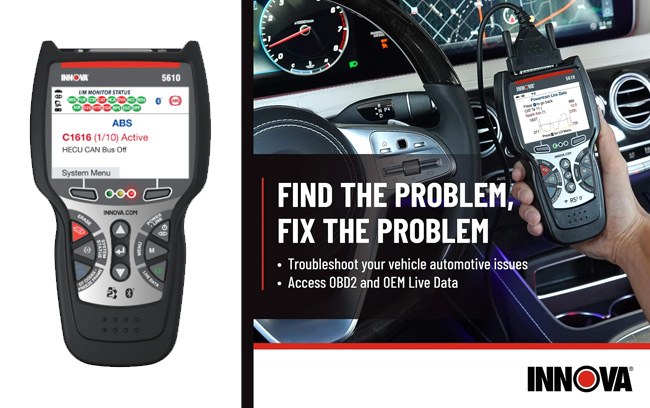
The manual is there to help you connect the scanner correctly, identify the right vehicle mode, read and save diagnostic trouble codes, and use live data without guessing. It can help you confirm a fault pattern, but it cannot prove the exact failed part on its own.
That matters because an OBD2 scanner is a diagnostic starting point, not a complete repair answer. If you want a deeper tire-side example of how a manual should be used before operating roadside equipment, see our Viair 88P manual guide for the same safety-first approach.
Best-fit drivers, DIY skill level, and vehicle types for U.S. owners in 2026
The 5610 is a better fit for drivers who want more than a basic code pull but do not need a full shop-level scan tool. That usually includes commuters, parents, rideshare drivers, and DIY owners who want emissions readiness, freeze frame, and live data for common engine and emissions issues.
It is also a practical choice for owners who want to keep records before visiting a repair shop. If you plan to compare scanner features against tire and emergency tools in the same garage kit, our Viair 88P manual article is a useful companion because it shows how “manual first” habits reduce mistakes.
Setup Basics: Powering the Scanner, Finding the OBD2 Port, and Starting in the Right Ignition Mode
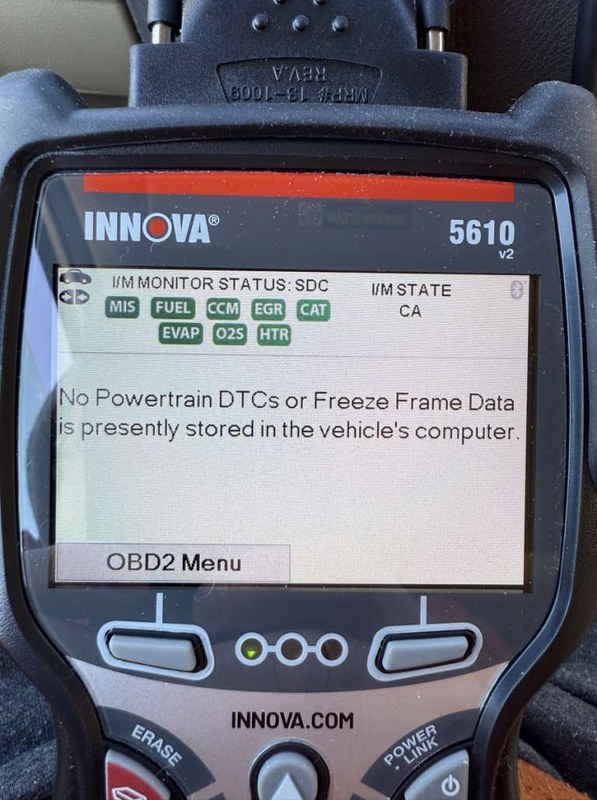
OBD2 port location, cable fit, and common under-dash placement issues
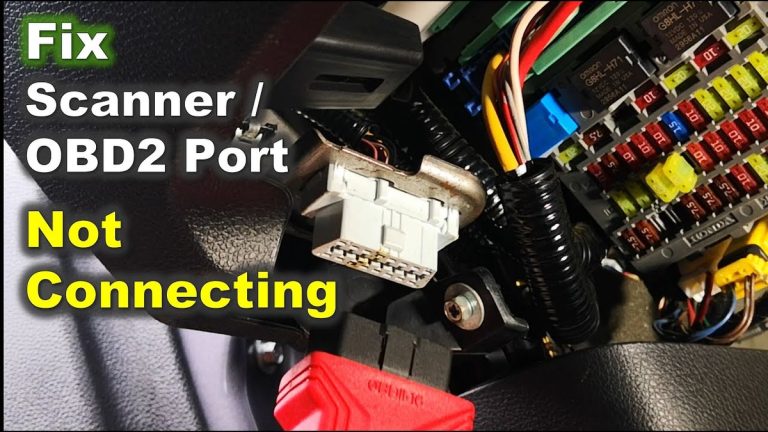
Most U.S. vehicles place the OBD2 port under the dash on the driver’s side, but the exact spot varies. It may sit near the steering column, above the pedals, or behind a small cover, so do not force the connector if it does not seat cleanly.
A proper fit should feel firm, not loose. If the plug hangs at an angle or the cable presses into the pedals, stop and reposition it before turning the key on.
Ignition on vs. engine running: when each mode is appropriate
For many scanner functions, ignition on with the engine off is enough. That is often the safest starting point for reading codes, checking readiness, and reviewing stored freeze frame data.
Live data that depends on running sensors may require the engine to be started after the scan tool is connected. If the manual or vehicle instructions say otherwise, follow the vehicle first.
Initial setup checks: screen, language, update status, and accessory inspection
Before you use the tool, check that the screen is readable, the buttons respond, and the cable insulation is intact. If the unit supports firmware updates, confirm whether it is current before you rely on it for a real diagnosis.
Vehicle Compatibility, Model-Year Coverage, and Protocol Limits
Gas, diesel, hybrid, and EV cautions: what the 5610 can and cannot safely support
Check: Verify make, model, year, trim, voltage, ports, mounting space, and OEM requirements. Limitations: State verified exclusions.
OBD2 scanners are built mainly for vehicles that use the standard diagnostic port and protocol set. Many gasoline vehicles fit that pattern, while diesel, hybrid, and EV coverage can vary widely by model and system.
For hybrids and EVs, the scanner may still read some standard diagnostic data, but it should not be treated as a tool for high-voltage service. Orange high-voltage cables, battery packs, and inverter systems require the vehicle manual and proper training.
Model-year coverage, OBD2 protocol support, and why some older vehicles are limited
In the U.S., most 1996-and-newer light-duty vehicles use OBD2, but coverage is not identical across every make and model. Some older vehicles may communicate only partially, and some special functions may not be available even when the port works.
That is why the manual matters: it helps you separate “scanner powers up” from “scanner can fully diagnose this vehicle.” Those are not the same thing.
When a scan tool reads the car but still cannot access all modules or functions
A scanner can read engine codes yet still miss body, transmission, ABS, airbag, or manufacturer-specific modules. That is normal for many midrange tools and is not a failure of the vehicle.
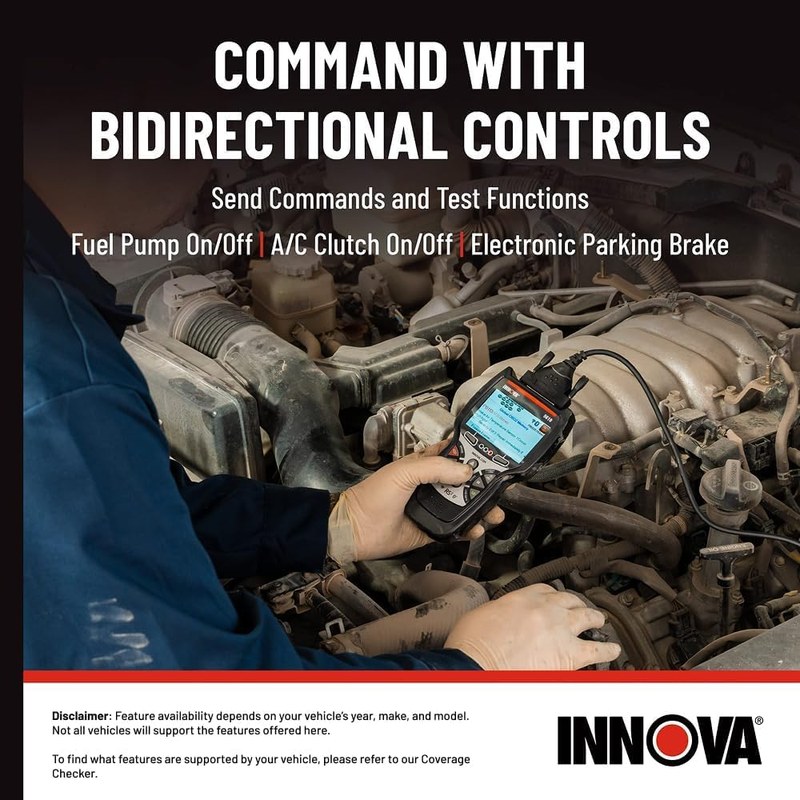
It simply means the tool’s coverage is limited. If you need full system access, bidirectional control, or advanced relearn procedures, you may need a higher-level tool or a dealer-capable scan platform.
Using the Main Diagnostic Modes Without Overreaching
Reading and clearing codes: what a code scan can confirm and what it cannot diagnose
Reading codes tells you what the vehicle computer detected, not always what part is bad. A code may point to a circuit, sensor signal, fuel trim problem, or emissions fault, but the root cause still needs testing.
Clearing a code can turn off a warning light for a while, but it does not repair the issue. If the fault returns, the scanner did its job by helping you confirm that the problem is still present.
Live data, freeze frame, readiness monitors, and emissions test prep
Live data is useful because it shows sensor values while the engine is running. Freeze frame is a snapshot of conditions when the fault was set, and readiness monitors show whether the vehicle has completed its self-checks.
For emissions preparation, readiness matters as much as the code itself. A cleared code may erase useful information and may also reset monitors, which can delay an inspection if the vehicle has not completed enough drive cycles.
Reset limitations: why clearing codes is not the same as fixing the fault
Many owners clear a code and expect the repair to be done. In reality, the scanner only removes the stored warning and may reset some learned data, depending on the vehicle and function used.
If the engine runs rough, the battery keeps dropping voltage, or the same code returns quickly, the underlying problem still needs diagnosis. The manual should be used to guide the scan, not to guess at a repair.
When the problem needs a professional shop, dealer-level tool, or deeper electrical testing
Some symptoms point beyond a handheld scanner. Intermittent no-starts, module communication faults, CAN network issues, charging-system problems, or repeated hybrid warnings often need a multimeter, service information, and shop-grade diagnosis.
At that point, the best move is to save the code data, note the symptoms, and let a qualified technician continue. That approach usually saves time and avoids replacing parts blindly.
Battery and Electrical Safety: Voltage, State of Charge, and Damage Stop Conditions
System voltage basics and why battery chemistry matters
Most OBD2 scanners draw low power from the vehicle, but the vehicle’s battery still matters because low voltage can cause false readings or communication dropouts. A weak 12-volt battery may make the scan tool appear unreliable when the real issue is the car’s electrical state.
Battery chemistry also matters because lead-acid, AGM, and hybrid support batteries behave differently under load and heat. If the vehicle battery is damaged or unstable, do not assume the scanner can safely “work through” the problem.
State of charge vs. battery health: how to avoid misreading a weak battery
State of charge is how full the battery is right now. Battery health is whether it can still hold and deliver power properly over time.
A battery can show some charge and still be too weak to support a scan session or vehicle start. If the tool keeps resetting, check the battery condition before blaming the scanner.
Correct connection order, safe disconnect habits, and spark-risk reduction
Connect the scanner with the ignition in the recommended position, then confirm the tool powers on before starting any diagnostic work. When disconnecting, turn the ignition off first and remove the tool gently without twisting the port.
Do not plug or unplug diagnostic equipment near fuel vapors, visible damage, or wet connectors. That simple habit reduces spark risk and protects the port pins.
Stop conditions: swollen, leaking, hot, frozen, or physically damaged batteries
Those are not normal conditions. A diagnostic tool should never be used as a reason to keep working around a damaged battery.
Hybrid and EV cautions: high-voltage systems, orange cabling, and when not to proceed
High-voltage hybrid and EV systems are not the place for casual experimentation. The scanner may read standard diagnostics, but it should not be used to inspect, disconnect, or probe orange-cabled components unless you are trained and following the proper service procedure.
If the issue involves propulsion battery warnings, charging faults, or insulation faults, the safest next step is often a professional inspection.
Tire, TPMS, and Inflator Guidance: What the Manual Should Tell You to Check First
Door-jamb placard pressure, cold inflation, and gauge accuracy
For tire work, start with the vehicle’s door-jamb placard, not the number molded into the tire sidewall. The placard gives the recommended cold inflation pressure for that exact vehicle configuration.
Use a known-good gauge when possible. Even a good inflator setup can be misleading if the gauge is off or the tire is warm from driving.
Inflator duty cycle, cable condition, and safe roadside use limits
If your kit includes an inflator or accessory power lead, check the duty cycle and cable condition before use. Small portable compressors can overheat if run too long, especially in hot weather or on a low tire.
That is where a manual helps: it should tell you when to pause, how to store the unit, and what not to do if the hose, plug, or connector looks worn. For a separate example of safe compressor guidance, the Viair 88P manual article covers the same kind of pre-use discipline.
TPMS relearn limits and why a scanner cannot solve every sensor issue
TPMS warnings are not always caused by low pressure alone. A dead sensor battery, relearn issue, damaged valve stem, or module fault can keep the light on even after the tire is filled correctly.
A scanner may help with some relearn or data functions, but it cannot replace a sensor that has failed or a tire that is physically unsafe.
Puncture location, temporary-repair limits, and when a tire must be professionally repaired or replaced
Small punctures in the tread area may be repairable if they meet industry and shop standards, but sidewall damage is a different story. If the puncture is near the shoulder or sidewall, or the tire has been driven flat, replacement may be the safer choice.
Temporary sealant products and roadside inflation can get you off the shoulder, but they are not always a permanent fix. Follow the tire manufacturer and repair shop guidance before returning to highway speeds.
Roadside and Emergency Use: Safe Placement, Visibility, Storage, and Post-Use Inspection
Choosing a safe location away from traffic and improving visibility with hazards, triangles, and lighting
When using any diagnostic or tire tool roadside, the first goal is to get away from moving traffic. Pull as far off the lane as possible, set the parking brake, and use hazards or reflective warning devices if the situation calls for them.
Visibility matters because a distracted driver can turn a small repair into a serious hazard. Keep yourself and the vehicle as visible as you can while you work.
Storage conditions for the tool, cables, and any included pack or accessories
Store the scanner and accessories in a dry place away from direct heat and sharp objects. Extreme cabin heat, frozen storage, or crushed cables can shorten the life of the unit.
If the kit includes a carrying case or battery-powered accessory, keep the contacts protected and the cords loosely coiled. Tight bends and pinched connectors are common causes of early wear.
Current limits, tool completeness, and what to verify before relying on the kit
- Confirm vehicle, model-year, voltage, port, tire, battery, or system compatibility
- Check included accessories, required apps, adapters, hoses, cables, and power needs
- Review warranty, returns, support, firmware, and update policy
- Count replacement parts, batteries, subscriptions, storage, and maintenance costs
- Confirm the tool can be used safely in the intended roadside, garage, or diagnostic task
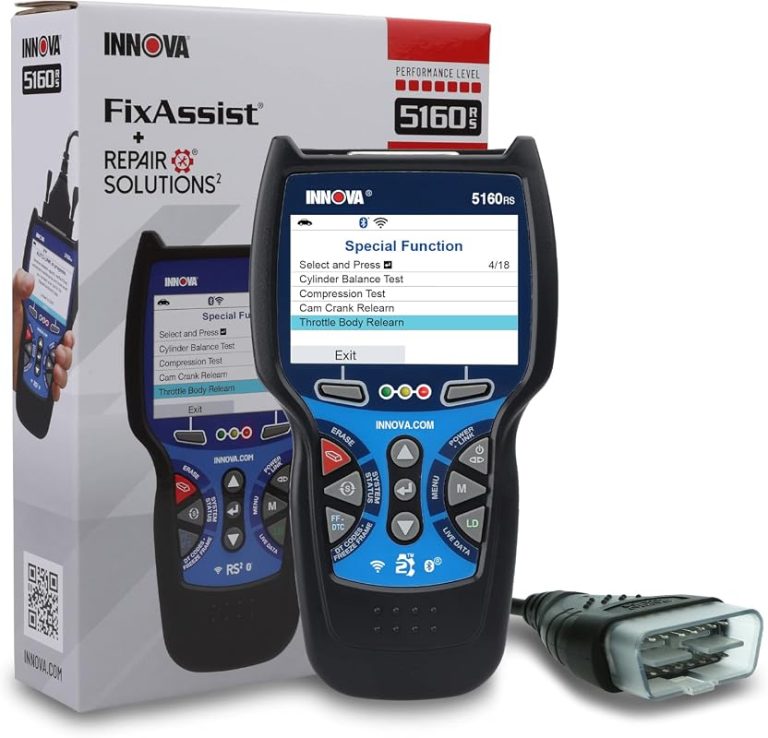
Before you rely on the 5610 or any related kit, verify what is included in the box and what requires a separate purchase. Some ownership problems begin when the tool is fine but the needed adapter, cable, or app support is missing.
Post-use inspection: heat, wear, connector damage, and readiness for the next emergency
After use, check the connector pins, cable jacket, and screen for heat marks or damage. If anything smells burnt or feels unusually hot, stop using it until you know why.
A quick inspection after each event keeps the tool ready for the next trip and helps you catch problems before they become roadside failures.
Privacy, Firmware, Maintenance, and Ownership Cost: What CarValleyNJ Readers Should Expect
App permissions, data storage, and privacy questions for connected features
Explain VIN, diagnostic trouble code, live-data, location, app-permission, account-security, cloud-retention, or data-sharing considerations for connected diagnostic tools.
If the scanner pairs with an app, review what data it can collect and store. VIN history, trouble codes, live data, and account details may be saved locally or in the cloud depending on the platform.
That does not mean the tool is unsafe, but it does mean you should understand permissions, account security, and any sharing settings before you connect your vehicle.
Firmware updates, compatibility improvements, and update-related risks
Firmware updates can improve vehicle coverage or fix bugs, but they can also introduce temporary issues if interrupted. Update the tool only when you have a stable power source and a clear reason to do it.
If the manufacturer notes compatibility improvements, read those notes before assuming every update is necessary. Not every owner needs to update immediately, but stale software can limit coverage.
Routine maintenance: cleaning connectors, protecting the screen, and cable care
Maintenance is simple but important. Clean the tool gently, keep liquids away from the port, and inspect the cable before each use.
Ownership cost over time: updates, accessories, replacement parts, and support value
Long-term value comes from support, updates, and whether the tool stays useful on your current and future vehicles. A scanner that keeps reading the right data is often worth more than a cheaper unit that quickly becomes limited.
Side-by-Side Comparison, Alternatives, and Transparent Verdict
Innova 5610 vs. basic code readers: live data, readiness, and reset capability
| Option | Best for | Owner consideration | Driver consideration |
|---|---|---|---|
| Basic code reader | Simple check-engine light scans | Lower cost, fewer features | Fast, but limited diagnostic detail |
| Innova 5610 | Owners who want more scan detail | More capability, more to learn | Useful if used while parked and set up correctly |
A basic reader is fine for quick code checks, but it often stops there. The 5610 is more useful when you want live data, readiness information, and a clearer picture before you buy parts or visit a shop.
Innova 5610 vs. higher-end scan tools: coverage, bi-directional limits, and price/value tradeoffs
Higher-end scan tools usually add more module coverage, bidirectional tests, and service functions. That can matter for advanced DIY users, but it also raises cost and complexity.
The 5610 sits in a middle zone for many owners: more capable than a basic reader, easier to live with than a full pro-grade platform. If you need dealer-level functions often, a higher-tier tool may be the better long-term buy.
Ideal user and ideal vehicle profile, key drawbacks, warranty/support considerations, and final buying recommendation
- Useful diagnostic depth for everyday U.S. drivers
- Better than a basic reader for readiness and live data
- Good fit for parked, repeatable DIY checks
- May not access every module or service function
- Compatibility can vary by vehicle and system
- Not a substitute for electrical testing or shop diagnosis
- Best for: U.S. drivers who want a safer, smarter step up from a basic code reader.
- Think twice if: You need full-module coverage, advanced relearns, or dealer-level bidirectional control.
- Next step: Verify your vehicle year, port access, and the exact functions you need before you buy.
Common Questions
Yes, many functions work with ignition on and engine off. Some live-data checks may need the engine running.
No. It can help identify the fault, but it does not repair the vehicle.
Yes, readiness monitors and freeze frame data are useful for inspection prep. Clearing codes too early can delay monitor completion.
No. Coverage varies by vehicle and system, and some advanced functions may be unavailable.
That depends on the exact version and features. Check the current product listing and manual before buying.
Frequently Asked Questions
Check your vehicle’s model year, diagnostic port access, and the supported systems listed by the manufacturer. Most U.S. 1996-and-newer OBD2 vehicles are more likely to work, but module access can still vary.
Use the vehicle with the correct ignition mode, then connect the scanner firmly without forcing the plug. Keep the cable away from pedals, steering movement, and hot or sharp edges.
Normal OBD2 use draws very little power, but a weak or damaged battery can make the tool act erratically. Stop if the battery is swollen, leaking, hot, frozen, or physically damaged.
No. Clearing a code only removes the warning and may reset some data. If the fault comes back, the root cause is still there.
Review what data the app can store, such as VIN, code history, and live data. Also check account security, permissions, and whether any cloud storage is involved.
Ongoing costs are usually limited unless a specific app, accessory, or update service is required. Before buying, confirm the warranty, support policy, and any extra parts you may need.