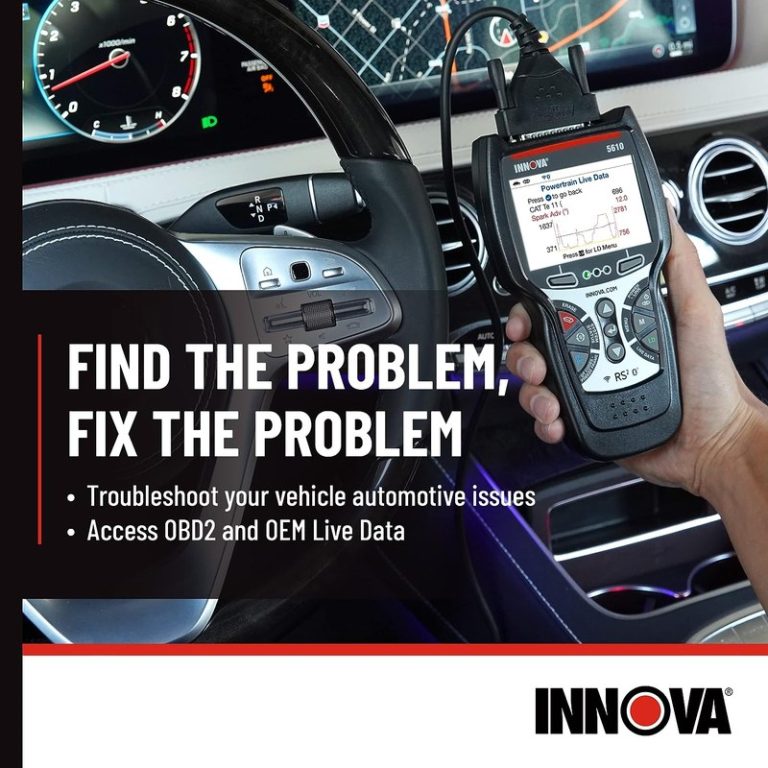
Innova 5610 OBD2 Update Download: Safer Install Guide
The Innova 5610 is worth updating if you want better vehicle coverage, clearer code definitions, and more reliable everyday scan results. It is still a mid-level handheld scanner, so updates improve usefulness, but they do not turn it into a dealer tool.
Innova 5610 OBD2 update download is the first thing many owners should check before a big scan, because update files can improve coverage, code definitions, and reset support without changing the scanner’s basic hardware. If you use the 5610 for a daily driver, a family car, or a light DIY repair workflow, the safest path is to update it carefully, confirm vehicle compatibility, and know exactly what the tool can and cannot do.
- Update value: Best when you want newer coverage and cleaner code descriptions.
- Safety first: Use stable power and the official update path only.
- Compatibility: Most standard U.S. OBD2 vehicles are the easiest match, but not all modules behave.
- Limits: Basic resets and live data are useful, but advanced coding needs a stronger tool.
Innova 5610 OBD2 Update Download: What It Does and Whether You Need It in 2026
Quick answer: when a firmware/database update is worth downloading before your next scan
For most owners, an update is worth considering if the scanner is newly purchased, has been sitting unused for a while, or is being used on a newer vehicle than before. Updates can help the tool recognize more vehicles, translate codes more clearly, and keep its internal data closer to current manufacturer changes.
If your 5610 already reads basic OBD2 codes on your car and you only need a quick emissions check, you may not notice a dramatic change. But if you rely on live data, service resets, or broader model-year coverage, downloading the latest update is a smart maintenance step.
What the update can improve: vehicle coverage, code definitions, live-data accuracy, and reset support
Scanner updates usually focus on software, not the physical device. That means the main gains are often in database coverage, code wording, menu behavior, and support for newer vehicles or revised modules.
In practice, that can make the difference between a vague fault description and a more useful starting point. It can also reduce confusion when a vehicle uses a slightly different naming convention or when a newer model year needs updated lookup tables.
For readers comparing scanner behavior more broadly, our guide on the difference between Bluetooth and wired OBD2 scanners is useful if you are deciding whether handheld simplicity or app-based flexibility fits your routine better.
What it cannot fix: hardware limits, unsupported modules, and repair decisions that still need a pro
An update cannot turn a basic scanner into a dealer-level diagnostic system. If the 5610 does not support a module, a bidirectional command, or a deep manufacturer-specific function, software alone will not add that capability.
It also cannot diagnose every drivability problem by itself. A scanner may point you toward a direction, but symptoms like misfires, fuel pressure problems, intermittent wiring faults, or hybrid-system issues often still require a professional shop or OEM-level software.
Check: Verify make, model, year, trim, voltage, ports, mounting space, and OEM requirements. Limitations: Some older, diesel, hybrid, imported, or module-specific vehicles may not respond the same way as standard U.S. gasoline OBD2 cars.
How to Download and Install the Innova 5610 Update Safely
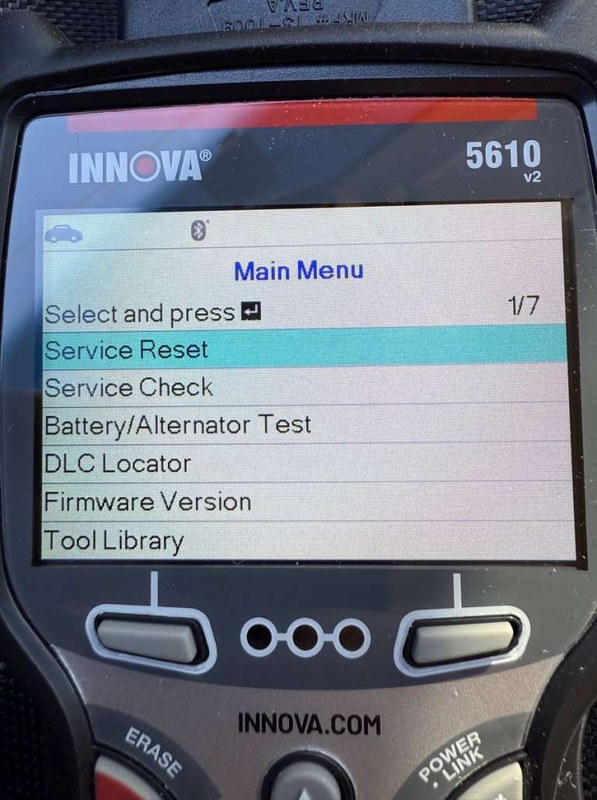
Prepare the scanner, USB/cable, and PC before starting
Before you begin, confirm that you have the correct scanner model, the right cable, and a stable computer connection. Most update problems come from simple setup mistakes: the wrong USB port, a loose cable, a weak battery, or interrupted power during the process.
Close other programs on the PC, disable sleep mode if needed, and keep the scanner nearby so you can verify prompts as they appear. If the manufacturer provides update software, follow that exact workflow instead of guessing based on another Innova model.
- Confirm the exact scanner model before downloading anything
- Use the manufacturer’s update tool and current instructions
- Keep the PC and scanner connected until the process finishes
- Use random firmware files from unknown websites
- Disconnect the cable if the screen pauses briefly
- Update while the vehicle battery is weak or unstable
Correct connection order, ignition mode, and stable power during installation
For a safe install, use the connection order listed by the manufacturer. If the update is done through a computer, the scanner usually needs a clean USB data connection and a stable power state. If the scanner is connected to a vehicle during any step, follow the instructions for ignition position carefully.
Never assume “on” means the same thing in every car. Some vehicles have accessory, run, and start positions that behave differently, and some modules wake up only in a specific key state. Stable power matters because a partial update can leave the tool unusable until it is recovered.
Signs the update is complete and when to stop if the process fails
A completed update usually ends with a clear success message, a reboot, or a version number change inside the scanner menu or update software. After that, confirm the tool still powers on normally and can enter its main diagnostic menus.
If the process freezes, throws an error, or repeatedly fails at the same step, stop and document the message. That information helps support staff tell the difference between a cable issue, a PC issue, and a corrupted file.
Keep the USB cable, connector pins, and scanner body clean and dry. Store the tool where the cable will not kink, and check for wear before the next update or scan.
Compatibility Guide: Model Years, OBD2 Protocols, and Vehicle Coverage
Which U.S. vehicles are most likely to be supported by the 5610 in 2026
In general, U.S. gasoline vehicles that follow standard OBD2 rules are the easiest match for a handheld scanner like the 5610. That usually means most 1996-and-newer cars and light trucks sold for the U.S. market, though exact support still depends on the vehicle and the scanner’s current software.
If you are shopping the broader category, our comparison of cheap vs expensive OBD2 scanners can help you decide whether you need a basic code reader or a more capable tool with stronger update support.
Protocol coverage and why some older, diesel, hybrid, or imported vehicles may behave differently
OBD2 is a standard, but not every vehicle talks to a scanner the same way. Older vehicles may use different communication behavior, and some diesel, hybrid, plug-in hybrid, or imported models may expose fewer functions through a generic handheld scanner.
That does not always mean the scanner is bad. It often means the vehicle’s module layout, software version, or region-specific design limits what a universal tool can see.
Port location, ignition state, and model-year quirks that affect scan results
Most vehicles place the diagnostic port under the dash, but the exact location varies. If the port is damaged, blocked, or difficult to reach, the scanner may not communicate reliably even if the software is current.
Ignition state also matters. Some vehicles need the key on without the engine running for a full module scan, while others may report limited data until the engine is started. Model-year quirks are common, so a scanner that works perfectly on one trim may behave differently on another.
What the Innova 5610 Can and Cannot Diagnose on Modern Cars
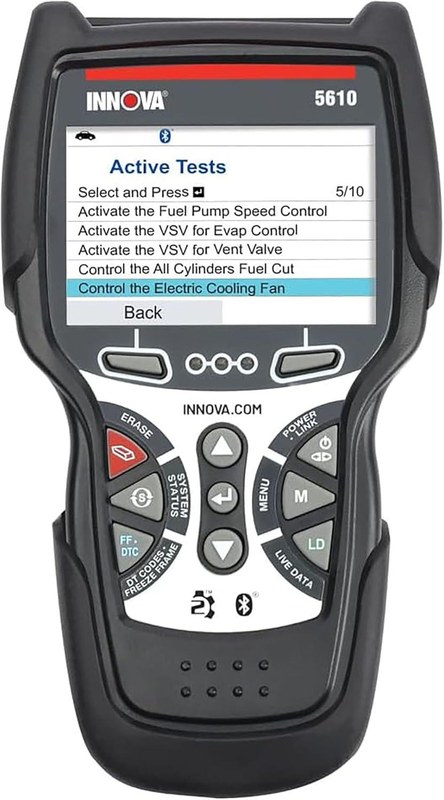
Code reading, live data, emissions readiness, and basic reset capabilities
The 5610 is most useful when you want a clear look at stored trouble codes, live sensor data, and emissions readiness information. That is enough for many driveway checks, pre-inspection reviews, and early troubleshooting steps.
Basic reset support can also help after small repairs, but only when the vehicle and the scanner support that function. If you need a quick refresher on scanner use, our article on how to use a handheld OBD2 scanner covers the general workflow that many drivers follow before clearing anything.
Reset limitations: when service lights return and why some procedures need OEM software
A reset may clear a light temporarily, but that does not mean the underlying issue is fixed. If the fault is still present, the light can return after the vehicle completes a self-check cycle or sees the same problem again.
Some service functions, module relearns, and electronic parking brake or steering-angle procedures may require OEM software, a bidirectional scan tool, or a shop-level process. That is one of the most important limits to understand before buying any handheld scanner.
When diagnosis requires a professional shop instead of a handheld scanner
Go to a professional when the problem affects safety, drivability, charging, braking, airbag systems, or high-voltage hybrid components. A scanner can narrow the search, but it should not replace a trained inspection when symptoms are serious or intermittent.
If the car stalls, misfires heavily, loses brake assist, or shows multiple warning lights, do not keep clearing codes and hoping the issue disappears. Record the data, note the symptoms, and let a technician inspect it before the problem gets worse.
Battery, Power, and Electrical Safety Before You Update or Scan
System voltage checks, battery chemistry, and state of charge versus battery health
A scanner update is only part of the picture. If the vehicle battery is weak, unstable, or near failure, the scanner may lose communication, and the vehicle itself may behave unpredictably during diagnostics.
State of charge is not the same as battery health. A battery can show enough voltage to start the car and still be too weak to support a long scan or update without dropping below a safe level.
Correct connection order for chargers, jump packs, and scanner power stability
If you use a charger or support pack, connect it according to the manufacturer’s sequence and make sure the equipment is designed for the vehicle’s battery type. Keep the tool and the charging setup stable before you start any update or long diagnostic session.
Do not stack multiple unknown accessories together just to keep the voltage up. Clean power is better than a complicated setup that introduces more failure points.
Damaged-battery stop conditions, hybrid/EV cautions, and electrical red flags
Stop immediately if you see swelling, leaking, excessive heat, a strong sulfur smell, or visible damage at the battery. Those are signs to step back and get professional help.
Hybrid and EV systems add another layer of risk because high-voltage components are not the same as a standard 12-volt battery. Use the vehicle manual and a qualified technician whenever the issue involves orange-cabled systems, charging hardware, or battery service beyond basic low-voltage checks.
TPMS and Tire Checks: What the 5610 Can Help With and Where It Stops
Using the door-jamb placard and cold pressure to verify inflation targets
Some drivers use a scanner visit as a reminder to check tire pressure too. The correct target comes from the door-jamb placard, not the number molded into the tire sidewall.
Measure pressure when the tires are cold for the most accurate reading. If you drive several miles first, heat from the road can raise the number and make the tire look more inflated than it really is.
Gauge accuracy, inflator duty cycle, and safe top-off practices
Any tire gauge or inflator should be treated as a measuring tool, not a guess. Compare readings if you are unsure, and avoid overinflating just because the TPMS light is on.
If you are using an inflator, watch the duty cycle and let it cool when needed. Small compressors can overheat if they are run too long, especially in hot weather or when topping off multiple tires.
TPMS relearn limits, puncture location, temporary-repair limits, and repair thresholds
A scanner may help you understand tire-related codes on some vehicles, but it does not replace a full TPMS service tool or a proper relearn procedure when required. Some vehicles need a specific order or trigger method after tire service.
Do not treat a plug, sealant, or temporary roadside fix as a permanent repair unless a tire professional confirms it is safe and repairable. Sidewall damage, large punctures, and damage near the shoulder often call for replacement instead of a patch.
Roadside and Emergency Use: Safe Storage, Readiness, and Post-Use Inspection
Choosing a safe location with traffic visibility before using any scan or emergency tool
If you are using the 5610 on the roadside, pull off in a visible, stable location first. Keep distance from traffic, use hazard lights only when appropriate, and avoid standing in a lane or near moving vehicles.
This is also a good place to review general scanner selection. Our guide to whether OBD2 scanners work on all cars explains why roadside success still depends on vehicle compatibility and power stability.
Storage conditions, cable or pack condition, current limits, and tool completeness
Store the scanner in a dry place away from extreme heat and direct sun. Check the cable, connectors, and any accessories before keeping the tool in the car, because a damaged lead is often the reason a scan fails at the worst time.
If your setup includes a power accessory or adapter, confirm that it is rated for the intended use. A tool that is missing parts, has worn pins, or uses the wrong cable can create false communication problems.
Post-use inspection: heat, damage, loose connectors, and when to retire a tool
After use, feel for unusual heat, inspect the housing for cracks, and make sure the connector still seats firmly. Loose fit or intermittent communication usually gets worse over time, not better.
If the scanner has repeated failures, damaged ports, or a screen that no longer responds normally after an update attempt, contact support before using it again. In some cases, replacement is safer than repeated recovery attempts.
Innova 5610 vs Similar OBD2 Scanners: Which Driver Should Choose Which Option?
Side-by-side comparison criteria: coverage, update support, ease of use, reset depth, and cost
When comparing the 5610 with other scanners, focus on the features that actually matter in your driveway. Look at vehicle coverage, update support, menu clarity, live-data access, reset depth, and whether the tool needs a phone app or subscription.
| Option | Best for | Owner consideration | Driver consideration |
|---|---|---|---|
| Innova 5610 | DIY code reading, live data, and basic resets | Update support may improve coverage over time | Handheld use is simple and less distracting than phone-based setup |
| Bluetooth app scanner | Phone-friendly diagnostics and portability | May involve app permissions or subscriptions | Needs careful phone handling to avoid distraction |
| Shop-level scan tool | Advanced module access and deeper service work | Higher cost and more training needed | Better for complex faults, not casual roadside use |
Best fit for daily drivers, DIY owners, older vehicles, and light fleet use
The 5610 is often a good fit for drivers who want a handheld tool that stays simple. It also suits DIY owners who need code reading, readiness checks, and a few reset functions without diving into advanced programming.
For older vehicles or vehicles with unusual module behavior, the value depends on whether the scanner can still communicate cleanly and whether the update keeps the database current enough for your use case.
Alternatives if you need bi-directional controls, advanced coding, or EV-specific diagnostics
If your repair work goes beyond code reading and basic resets, consider a more advanced scanner category. Bi-directional controls, coding, battery registration, and EV-specific diagnostics usually sit above the level of a general handheld tool.
That is where a shopper should compare features carefully instead of assuming one scanner can do everything. If you want a broader category guide, see our page on the best OBD2 scanners for a wider look at tool types and use cases.
Owner Value, Privacy, Warranty, and Long-Term Maintenance Considerations
App permissions, data collection, and what owners should review before installing updates
If the update workflow uses a companion app or account login, review the permissions before connecting your vehicle data. Diagnostic apps may request access to device storage, Bluetooth, location, or account information, and owners should know what is being shared.
Ownership cost in 2026: update cadence, accessory replacement, and support expectations
The real cost of ownership is not just the purchase price. You should also think about update frequency, cable wear, possible accessory replacement, and whether support is easy to reach when the scanner needs recovery help.
For readers comparing update-dependent tools, our Foxwell NT301 software update guide is a helpful reference for the kind of maintenance many handheld scanners require over time.
Transparent verdict: ideal user, main drawbacks, and the smartest next step after updating
The Innova 5610 makes the most sense for a driver who wants a dependable handheld scanner, basic reset help, and a better chance of staying current through updates. Its biggest drawback is that it still sits in the mid-level diagnostic range, so advanced service work may outgrow it.
After updating, the smartest next step is to verify the scanner on a vehicle you know well, record the version information, and keep the update instructions with your tool. That way, when a warning light appears later, you are starting from a known-good setup instead of guessing.
- Best for: US drivers who want a simple handheld OBD2 scanner with update support for routine code checks, live data, and basic resets.
- Think twice if: You need dealer-level coding, bi-directional controls, or deep EV and hybrid diagnostics.
- Next step: Confirm the exact 5610 model, use the official update path, and verify vehicle compatibility before clearing any codes.
Common Questions
If the scanner is new to you, has been stored for a long time, or is being used on a newer vehicle, an update is usually worth checking.
That depends on the exact model workflow and current manufacturer instructions. Follow the official update method for your scanner version.
No. It can improve the scanner, but it cannot repair the vehicle.
No. Record the codes and data first so you do not erase useful diagnostic clues.
Usually yes, because a handheld tool can reduce screen handling and app distractions while parked.
Frequently Asked Questions
Most standard U.S. gasoline OBD2 vehicles are the easiest match, especially 1996-and-newer models. Diesel, hybrid, imported, and module-specific vehicles may have different coverage or fewer available functions.
Confirm the exact scanner model, the correct cable, a stable PC connection, and the official update instructions. Also make sure the scanner and vehicle battery are not in a weak or unstable state.
It can clear some codes and service reminders, but lights often return if the problem is still present. Some reset procedures also require OEM software or a more advanced scan tool.
Yes. Review account permissions, Bluetooth or app access, and whether VIN or diagnostic data is stored in the cloud. Only allow the access needed for the tool to work.
Keep the cable, connectors, and housing clean and dry, and store the tool where the cord will not kink. Check for wear before the next use so communication problems are easier to spot.
Verify the tool on a vehicle you already know well and confirm the menus, version number, and basic scan functions. If anything behaves oddly, contact support before using it on a real repair.