How to Use the Innova 5610 OBD2 Bidirectional Scan Tool
The Innova 5610 is best used by connecting it safely, reading codes and live data first, and then running only the bidirectional tests your vehicle supports. It is a strong middle-ground scan tool for DIY owners, but it cannot replace OEM-level programming or brand-specific procedures.
How to use the Innova 5610 OBD2 bidirectional scan tool starts with a simple idea: connect it safely, read the vehicle data first, and only then use the control features that help narrow down a fault. For most drivers, that means a faster diagnosis without jumping straight to parts replacement.
The Innova 5610 is aimed at people who want more than a basic code reader but do not need a full shop-level tablet. It can help with codes, live data, certain active tests, and some reset functions, but its value depends on the vehicle, the system you are checking, and how carefully you follow the manual.
- Compatibility first: Confirm your exact vehicle, year, and system support before relying on bidirectional features.
- Read before clearing: Save codes and freeze-frame data first so you do not erase the diagnosis.
- Use live data wisely: Focus on a few relevant PIDs instead of trying to watch everything at once.
- Know the limits: Some resets, relearns, and programming tasks still require a shop-level tool.
- Keep it safe: Test with the vehicle parked, battery stable, and cables routed away from pedals and.
How to Use the Innova 5610 OBD2 Bidirectional Scan Tool: What It Does and Who It’s For
The basic workflow is straightforward: plug the tool into the OBD2 port, turn the ignition to the correct position, let the scanner identify the vehicle, read stored and pending codes, review live data, and then use bidirectional controls only when the fault path is clear enough to justify a command test. If you skip the first steps, you can erase useful clues before you ever find the cause.
Quick answer: the basic workflow from plug-in to bidirectional test
Start by connecting the scanner with the vehicle parked and secure. Check for codes and freeze-frame data first, then review live data for the system involved, and only after that try an output or active test if the tool and vehicle support it. If the scanner shows a function is unavailable, stop and confirm compatibility instead of forcing the test.
Best fit for DIY owners, home mechanics, and light professional use
The Innova 5610 makes the most sense for DIY owners who want more than a simple emissions reader, home mechanics who work on a few vehicles, and light professional users who need a portable second tool. It is less ideal if you need deep OEM-level programming, module coding, or advanced relearn procedures that are specific to one brand.
- Use the tool to confirm symptoms before clearing anything
- Keep the vehicle parked and in a safe power state while testing
- Check the manual for each supported bidirectional function
- Assume every vehicle supports every active test
- Use a code clear as a repair
- Rely on live data alone when a mechanical inspection is needed
Before You Start: Vehicle Compatibility, Model-Year Coverage, and OBD2 Protocol Limits
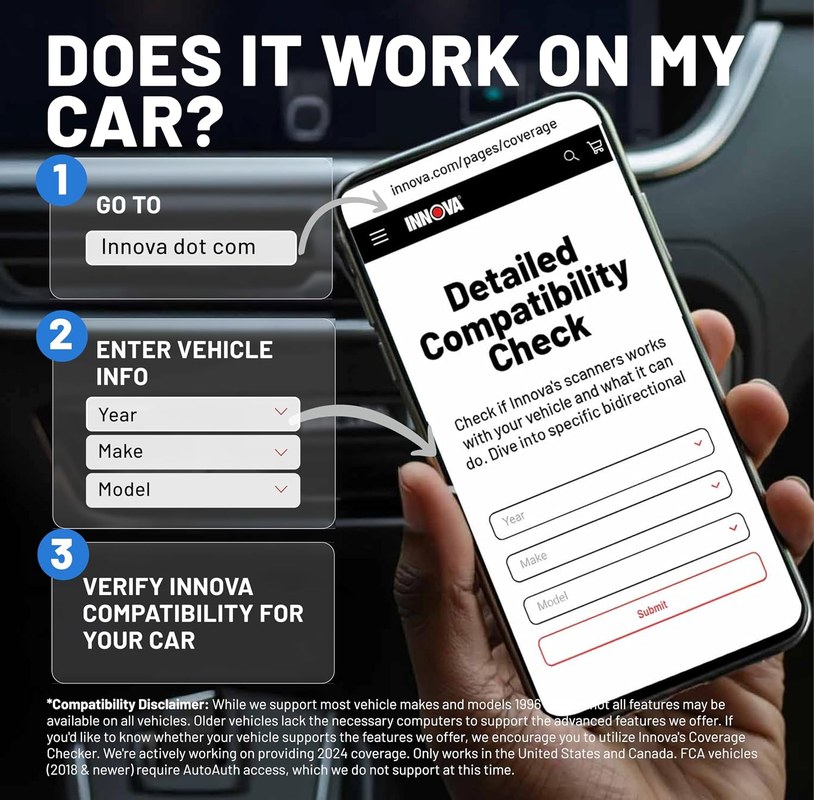
Compatibility matters more than most shoppers expect. The Innova 5610 is built for OBD2-equipped vehicles, which in the U.S. usually means 1996 and newer gas vehicles, while diesel, hybrid, and newer specialty platforms can vary by system and support level. Always confirm coverage by make, model, year, and engine before counting on a function.
Check: Verify make, model, year, trim, voltage, ports, mounting space, and OEM requirements. Limitations: Some bidirectional, reset, and service functions may not be available on every vehicle or module.
Gas vs. diesel, 1996+ U.S. OBD2 vehicles, and protocol support
Most gasoline vehicles sold in the United States from 1996 on support standard OBD2 emissions diagnostics. Diesel vehicles may support OBD2 as well, but function depth can vary more widely. Some systems may read engine codes but not support the same level of live data or bidirectional control for ABS, body, airbag, or transmission modules.
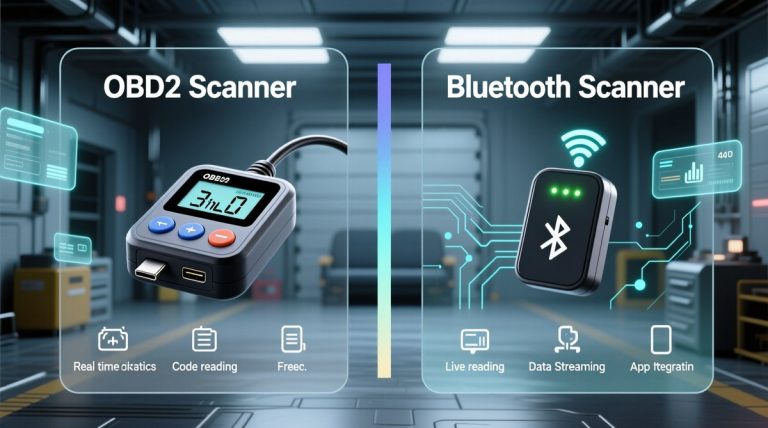
For a broader look at scanner classes, see our guide on whether OBD2 scanners work on all cars and our wired vs. Bluetooth scanner comparison.
Where the OBD2 port is usually located and how to confirm ignition mode
On most vehicles, the OBD2 port sits under the dash near the steering column, knee panel, or lower center area. If you cannot find it quickly, check the owner’s manual rather than probing around near pedals, steering parts, or wiring harnesses.
Ignition mode also matters. Some vehicles need key-on, engine-off for scan functions, while others may require the engine running for certain live-data checks. If the scanner fails to communicate, confirm the ignition position before assuming the tool is faulty.
When the Innova 5610 can read codes, live data, and emissions readiness—and where it cannot
The Innova 5610 can help with common OBD2 jobs such as reading and clearing engine-related codes, checking readiness monitors, and viewing selected live data streams. That said, emissions readiness is only one part of diagnosis, and clearing codes too early can reset monitor history and remove clues from the fault.
It may not cover every manufacturer-specific function, every module, or every special procedure. If you need a deeper scan on a particular platform, compare it with a more advanced tool such as our Topdon Topscan guide or our OBDLink MX guide.
Step-by-Step Setup: Powering the Tool, Connecting Safely, and Updating Firmware
Setup is mostly about order and caution. A scanner is low-risk compared with many car tools, but you still want to protect the vehicle’s electronics, avoid loose cable routing, and verify the tool has the latest firmware before depending on it for diagnosis.
Correct connection order, system voltage checks, and low-voltage warnings
Connect the scanner only when the vehicle is parked and the transmission is in Park or Neutral with the parking brake set. Plug the connector firmly into the OBD2 port, then turn the ignition to the required position and wait for the tool to power up and identify the vehicle.
If the battery is already weak, a scan session can become unreliable. Low voltage may cause communication errors, false faults, or incomplete tests. If the dash lights dim heavily or the battery seems unstable, solve the power issue first instead of pressing ahead with diagnostics.
Do not diagnose near a damaged battery, loose terminals, or visible wiring damage without first stabilizing the vehicle. Electrical faults can create misleading scan results, and a weak power supply can interrupt the tool mid-test.
App permissions, firmware updates, and account/privacy considerations
If your setup uses an app or online account, update the firmware and app before you start a serious diagnosis. Firmware updates can improve vehicle coverage, fix communication bugs, and add support for newer systems. Read the update notes so you know whether the change affects your vehicle or function list.
Check app permissions carefully. A diagnostic app may ask for Bluetooth, location, or account access depending on the platform. That does not always mean anything is wrong, but it does mean you should review what is collected and why before creating an account or syncing vehicle history.
Storage, cable condition, and post-use inspection before and after roadside use
After use, unplug the tool by the connector, not the cable. Inspect the plug for bent pins, dirt, or loose fit, and keep the cable away from sharp edges and heat. If you carry the scanner in a roadside kit, store it where it will not get crushed under cargo or exposed to water.
Using the Innova 5610 for Diagnostics: Codes, Live Data, Bidirectional Controls, and Reset Limits
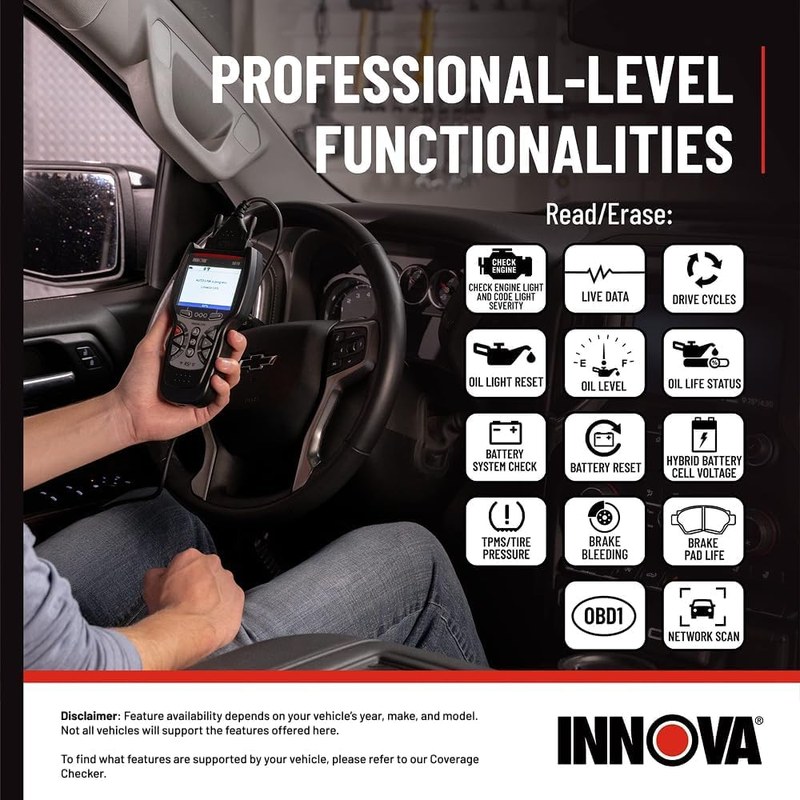
This is where the tool earns its keep. The strongest diagnostic habit is to gather enough information to explain the fault before you clear anything, reset anything, or command a component to move. That keeps you from losing evidence that could point to the real cause.
Reading and clearing codes without losing the real diagnosis
Read stored, pending, and history codes first. Write down the code numbers, the conditions when they appeared, and any freeze-frame data if the tool provides it. Then look at the likely system and ask whether the code matches the symptom, not just the warning light.
Clearing codes can be useful after a repair, but it should not be the first move. If a fault returns immediately, that is a clue. If it takes a drive cycle to return, that is another clue. Either way, the scanner should help you preserve the diagnostic trail, not erase it too soon.
Live-data viewing limits, graphing basics, and when data is not enough
Live data helps you compare what the vehicle should be doing with what it is actually doing. Common examples include engine load, coolant temperature, fuel trims, oxygen sensor behavior, and throttle position. The trick is to use a few relevant data points instead of staring at a screen full of numbers.
Graphing can make patterns easier to see, especially when a sensor is slow, erratic, or stuck. Still, live data has limits. A sensor may report a believable number even when a mechanical problem is still present, so data should support the diagnosis, not replace inspection.
Bidirectional tests: what the tool can command and what still requires a professional
Bidirectional functions let the scanner send a command to a vehicle system, such as activating a component or requesting a response from a module. That can help confirm whether a part, circuit, or actuator is behaving as expected. It is especially useful when a code alone does not tell you whether the issue is electrical, mechanical, or control-related.
But bidirectional tests are not magic. If the vehicle does not support the command, the tool cannot force it. And if the problem involves programming, security access, module replacement, or brand-specific relearns, a shop with OEM-level equipment may still be the safer choice.
Reset limitations for monitors, service lights, and adaptation procedures
Some reset functions are straightforward, while others are not. Emissions readiness monitors may clear after repairs or battery disconnects, but that does not mean the underlying issue is fixed. Service lights, oil reminders, and certain maintenance prompts can often be reset, but adaptation or relearn procedures may require a specific drive cycle or a more advanced scan tool.
If you are comparing reset depth across scanners, the difference between a basic reader and a bidirectional tool matters a lot. Our Foxwell NT301 setup guide is useful for basic code work, while a bidirectional tool is for users who need more than simple reads and clears.
Battery and Electrical Checks: Health, State of Charge, and Safe Testing Rules
Some Innova 5610 users want the scanner mainly for battery-related checks. That is a smart use case, but it helps to separate battery voltage from battery health. Voltage can tell you what the battery is doing right now, while health depends on how well it can hold up under load and over time.
State of charge vs. battery health and how to interpret voltage readings
A battery at rest may show a reasonable voltage and still be weak under load. That is why a quick voltage check is only part of the picture. If the reading is low, the battery may need charging, testing, or replacement, but the scanner alone cannot always tell you which one.
Use the result as a clue, not a verdict. If the vehicle has repeated low-voltage events, check charging behavior, parasitic drain, terminal condition, and battery age before assuming the battery itself is the only problem.
Battery chemistry differences, damaged-battery stop conditions, and connection safety
Not every battery behaves the same way. Conventional flooded lead-acid, AGM, and some newer system designs can require different charging and testing care. If the battery is swollen, leaking, cracked, or hot, stop and follow the vehicle and battery manufacturer instructions instead of continuing with a diagnostic session.
Stop testing immediately if you see swelling, leakage, strong odor, or heat from the battery area. Move away from the vehicle and use the manufacturer’s guidance or professional service, because damaged batteries can fail without warning.
Hybrid and EV cautions: high-voltage systems, when not to test, and professional thresholds
Hybrid and electric vehicles add a different level of caution. The OBD2 port may still support some standard diagnostics, but high-voltage systems are safety-sensitive and should not be treated like a normal 12-volt check. If a fault appears related to the traction battery, inverter, or charging system, the safest next step is often a qualified technician.
Tire, TPMS, and Roadside Use: What the Innova 5610 Can Help With and What It Cannot
Drivers often want a scanner that helps during roadside trouble, and that is reasonable. The Innova 5610 can support some tire-related diagnosis when the issue is really a sensor, monitor, or system fault, but it is not a substitute for a proper tire inspection, a pressure gauge, or a safe repair.
Using the door-jamb placard, cold pressure targets, and gauge accuracy checks
For tire pressure, always start with the vehicle’s door-jamb placard, not the number on the tire sidewall. Check pressure when the tires are cold, then compare your gauge to a known good gauge if the reading looks suspicious. A scanner may help explain a TPMS warning, but it does not replace a physical pressure check.
If you also carry an inflator, our portable tire inflator guide explains the safe basics of topping off a tire without overinflating it.
Inflator duty cycle, puncture location, temporary-repair limits, and when to stop driving
If the tire is losing air quickly, has sidewall damage, or shows a large puncture, do not keep adding air and hoping for the best. Temporary repairs have limits, and some damage is not repairable at all. A scanner cannot make an unsafe tire safe.
Use the tool for diagnosis, but use common sense for the tire itself. If the tire will not hold air or the vehicle pulls hard after a puncture, stop driving and get the tire inspected in person.
TPMS relearn limits, sensor issues, and when tire service must be handled by a shop
Some vehicles need a TPMS relearn after tire rotation, sensor replacement, or battery service. The Innova 5610 may help identify a TPMS-related fault on supported vehicles, but relearn procedures vary widely by make and model. If the vehicle requires a brand-specific relearn tool or a shop procedure, do not guess.
Comparison Guide: Innova 5610 vs. Basic Code Readers vs. Higher-End Bidirectional Scanners
Choosing the right tool depends on how often you diagnose problems and how deep you need to go. A basic reader is fine for quick emissions checks, while a higher-end bidirectional scanner may be better for frequent repairs, multi-system work, or more advanced relearn needs.
| Option | Best for | Owner consideration | Driver consideration |
|---|---|---|---|
| Basic code reader | Simple check-engine light reads and clears | Lower cost, fewer functions, less learning curve | Fast and simple, but limited when the fault is not engine-related |
| Innova 5610 | DIY diagnosis with live data and selected bidirectional control | Middle ground on cost, support, and function depth | Useful without being overly complex, but still requires careful setup |
| Advanced bidirectional scanner | Frequent repairs, deeper system access, and more special functions | Higher cost and more features to learn | More capable, but can be more distracting and more tool than a casual driver needs |
Side-by-side comparison of code reading, live data, special functions, and reset depth
Basic readers usually handle engine codes and readiness checks. The Innova 5610 adds more diagnostic depth with live data and selected active tests. Higher-end scanners often go further with module access, service resets, and special functions, but that extra depth is only useful if your vehicle actually supports it.
Which option fits budget DIYers, frequent commuters, and multi-vehicle households
Budget DIYers may prefer a simpler tool if they only want to check warning lights. Frequent commuters who want a stronger diagnosis tool without jumping to pro pricing may find the Innova 5610 more practical. Multi-vehicle households should focus on coverage, because one tool that works well across several cars is usually better than a flashy scanner that only fits one platform.
Ownership cost, warranty/support expectations, and long-term value
Ownership cost is more than the sticker price. Consider firmware support, return policy, cable durability, and whether the tool will still be useful when you change vehicles. If the scanner receives updates and stays compatible with your fleet, it offers better long-term value than a cheaper tool that ages out quickly.
Verdict, Limitations, and Best Next Steps for CarValleyNJ Readers
The Innova 5610 is most useful for drivers who want a practical step up from a basic code reader without moving into full shop-tool complexity. It can help you read codes, study live data, and run selected bidirectional checks, but only when the vehicle supports the function and you use the tool in the right order.
- More capable than a basic reader for diagnosis
- Useful for code checks, live data, and selected active tests
- Good fit for DIY owners who want a middle-ground tool
- Bidirectional coverage varies by vehicle and module
- Not a replacement for OEM-level programming or deep relearns
- Requires careful setup, updates, and diagnostic discipline
Transparent product-review style verdict based on features, evidence limits, and real-world use cases
Based on the verified feature set and the usual limits of OBD2 tools, the Innova 5610 looks best for people who want a dependable diagnostic helper rather than a full dealership substitute. Its value comes from giving you more information before you spend money on parts, and more confidence before you clear a code or call a shop.
Maintenance habits, safe storage, and when to hand the job to a professional technician
Keep the scanner clean, dry, and updated, and inspect the cable before each use. If the vehicle has high-voltage components, repeated module communication failures, airbag-related faults, or a problem that returns after a proper test, hand it to a qualified technician. That is often the safest and cheapest next step.
Common Questions
Yes, if you want more than a basic code reader and are willing to follow the instructions carefully. It is still important to learn the difference between reading data and actually fixing the fault.
It can support selected bidirectional tests on compatible vehicles. The exact commands vary by vehicle and module, so not every function will be available everywhere.
Many 1996-and-newer U.S. vehicles are OBD2 compatible, but coverage still depends on the exact model and engine. Check the product documentation for your vehicle before buying.
Only after you have confirmed the repair and saved the useful diagnostic information. Clearing too early can hide the trail you need if the problem comes back.
That depends on the exact version and features you are using. Review the current manual and product listing so you know whether app access, firmware updates, or account setup is required.
Frequently Asked Questions
Check exact vehicle coverage, supported systems, firmware update support, and warranty terms. Also confirm whether any app, account, or accessory is needed for the functions you want.
Sometimes, but diesel support can be less uniform than gasoline OBD2 coverage. Verify your exact year, engine, and module support before depending on it for diagnosis.
No, diagnostic setup and active testing should be done while parked. Keeping the vehicle stationary reduces distraction and lowers the risk of cable or control mistakes.
Keep the connector clean, inspect the cable, and update the firmware when needed. Store it dry and protected so the pins and cable do not wear out early.
No. It can help you find the cause, but the repair still has to be made. Clearing the light without fixing the fault usually just brings the problem back.
Ongoing cost is often low if the tool does not require a paid service, but accessories or replacement cables can add expense. The best value comes from a scanner that stays compatible with your vehicles for years.