How to Use TOPDON TopScan: Setup, Scan Codes & App Tips
The TOPDON TopScan Bluetooth OBD2 scanner connects to a smartphone and helps identify vehicle faults, view trouble codes, and perform supported service functions. Its mobile app guides users through setup and vehicle testing.
To use TopScan, plug the adapter into the vehicle’s OBD2 port, connect it to the TOPDON app through Bluetooth, and select the correct vehicle before starting a scan. The app can run an automatic system scan or access specific modules, depending on the vehicle and subscription plan.
This guide explains how to prepare the vehicle, maintain a reliable connection, read diagnostic codes, and use supported advanced functions safely.
TOPDON TopScan is easiest to use when the app, Bluetooth permissions, and vehicle profile are ready before you plug in. If you are still deciding whether to buy one, check vehicle compatibility and subscription terms first, because advanced system scans and service functions can vary by model and plan.
- Need the adapter? Compare current TopScan listings and bundles before choosing a model.
- Not sure which TOPDON to buy? Compare TopScan with other TOPDON scanners first.
- Want deeper features? Check whether full-system scans, active tests, and service resets are supported for your vehicle.
Key Takeaways
- Connect the adapter through the TOPDON app.
- Run scans to find stored vehicle codes.
- Use advanced functions only when supported.
What You Need Before Getting Started
The vehicle must use a compatible OBD-II system, and the phone or tablet must meet the app’s connection requirements. The user also needs the TopScan app, a registered account, Bluetooth access, and the correct vehicle software.
Compatible Vehicles And Devices
TOPDON TopScan connects through the vehicle’s 16-pin OBD-II diagnostic port. Most vehicles sold in the United States from 1996 onward support standard OBD-II. Other markets may use different model years, so the user should check the vehicle’s manual or TOPDON’s compatibility information before starting.
The scanner works with Android and iOS mobile devices that support Bluetooth. The device should have enough battery power, an active internet connection, and current system software. The user should also confirm that the phone supports nearby-device access and, where required by the operating system, location access.
The vehicle must have enough power to turn on the diagnostic port. The TopScan can receive power from the vehicle’s OBD-II port or through its USB Type-C port. The user should not connect or remove it while the vehicle is moving.
Required Apps And Account Access
The user must install the official TopScan app from the Apple App Store or Google Play. After opening the app, it may request permission to use Bluetooth, connect to nearby devices, and access location services. These permissions allow the phone to find and communicate with the scanner.
The user needs a TOPDON account to register and activate the device. The scanner’s serial number and activation code may be required during setup. After activation, the user must download the diagnostic software for the vehicle’s manufacturer. A stable Wi-Fi or mobile-data connection helps prevent interrupted downloads.
The app may offer free and paid functions, depending on the TopScan version and subscription. The user should review the available plan before selecting advanced tests or service functions.
Setting Up The TopScan Adapter
The TopScan adapter connects to the vehicle’s OBD2 port and communicates with a phone through the TopScan app. The user must identify the port, install the app, enable required permissions, and activate the adapter before running diagnostics.
Locating The OBD2 Port
The OBD2 port usually sits beneath the dashboard on the driver’s side. Common locations include below the steering wheel, near the fuse box, or beside the center console. The port has a 16-pin shape and may have a protective cover.
The vehicle should remain parked with the ignition switched off while the adapter is connected. The user should push the TopScan firmly into the port without forcing it. If the connector does not fit easily, they should check its position and avoid using tools or adapters.
After connecting the adapter, the user can switch the ignition to the ON position. The engine usually does not need to run for basic scanning, but the app may provide vehicle-specific instructions.
Pairing Through The TopScan App
The user should install the official TopScan app on an Android or iOS phone, then open an account or sign in as requested. The app guides the user through device activation and software downloads.
The app may request the adapter’s serial number and activation code. These details are normally found on the adapter, its label, or its packaging. After activation, the user should select the connected TopScan device in the app and follow the on-screen pairing steps.
The phone should stay near the adapter during pairing. The user should avoid connecting the adapter through the phone’s normal Bluetooth settings unless the app specifically instructs them to do so.
Granting Bluetooth And Location Permissions
The app needs permission to use Bluetooth or nearby-device access so it can communicate with the adapter. On newer Android phones, the user may also need to allow Nearby devices access. The user should enable Bluetooth before starting the connection process.
Some phones require location access for Bluetooth device discovery. If the app requests it, the user should allow location access while using the app and turn on the phone’s location service. iOS and Android permission names can differ by version.
If the adapter does not appear, the user should check that Bluetooth, nearby-device access, and any requested location setting remain enabled. They can then close and reopen the app, reconnect the adapter, and repeat the pairing process.
Running Basic Vehicle Diagnostics
The TopScan app connects the Bluetooth dongle to the vehicle’s control modules. It can read fault codes, display sensor data, and clear codes after a repair has been checked.
Reading Diagnostic Trouble Codes
The user should park safely, switch off the ignition, and plug the TopScan dongle into the vehicle’s OBD2 port. The port usually sits below the dashboard near the steering column. After turning on the ignition, the user opens the TopScan app, selects Diagnostics, chooses the vehicle make, and downloads the required vehicle software if prompted.
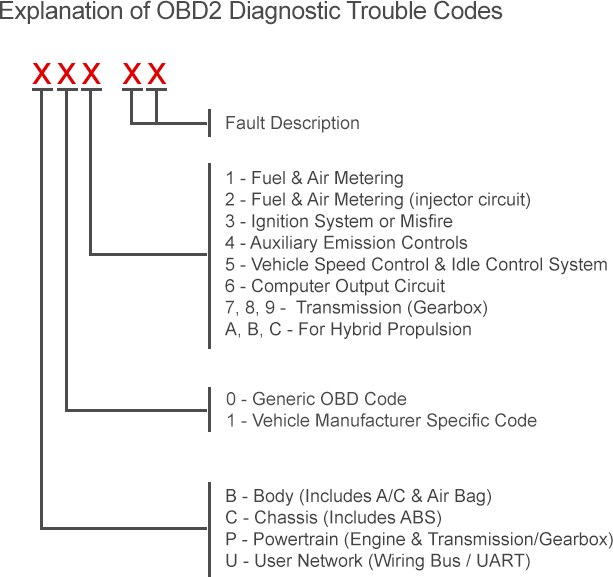
The app can run an Auto Scan to check supported control modules for Diagnostic Trouble Codes (DTCs). A manual system scan can focus on areas such as the engine, transmission, ABS, or airbag system. The user should record each code and its description before clearing anything.
A code identifies a detected fault, but it does not always identify the failed part. Loose connectors, damaged wiring, low battery voltage, and failing sensors can produce similar codes. The user should review the code details and test the related circuit before replacing a component.
Viewing Live Data Streams
The user can open the vehicle’s data stream after selecting a supported control module. This screen shows changing readings from sensors and switches while the engine runs. Available items depend on the vehicle and may include engine speed, coolant temperature, throttle position, fuel trims, oxygen sensor readings, vehicle speed, and battery voltage.
The user should start with the engine off when the app requests key-on data, then start the engine and let it reach normal operating temperature. Readings should be compared with the vehicle’s service information because normal values vary by engine and operating condition.
The app may allow the user to select specific data items, view them as a graph, or record changes during a road test. The driver should not operate the phone while driving. A passenger should monitor the screen, or the user should test the vehicle while parked.
Clearing Codes After Repairs
The user should clear DTCs only after inspecting the cause and completing the repair. With the ignition on and the engine off, the user selects the relevant control module, opens the fault-code screen, and chooses Clear Codes or the equivalent command in the app.
The TopScan may display a warning because clearing codes erases stored fault information. The user should save or write down the codes and freeze-frame data first. Clearing codes may also reset readiness monitors, adaptive values, and emissions-test status.
After clearing, the user should switch the ignition off and back on, then scan the vehicle again. If a code returns immediately, the fault remains active. If no code returns, the vehicle still needs a drive cycle so its monitors can run and confirm whether the repair fixed the problem.
Using Advanced Diagnostic Features
The TopScan app can scan supported vehicle systems, show battery readings, and provide repair guidance. These features help the user connect fault codes with vehicle symptoms, test system status, and save useful diagnostic reports.
Performing System Scans
The user should connect the TopScan dongle to the vehicle’s OBD2 port and switch the ignition on. The engine can remain off unless the app requests that it run. After opening the app, the user selects the vehicle make and downloads the matching diagnostic software if needed.
The Auto Scan function checks supported electronic control units (ECUs) and searches for diagnostic trouble codes (DTCs). The scan may include systems such as the engine, transmission, airbag, and antilock braking system, depending on the vehicle.
After the scan ends, the app lists each system and shows stored, pending, or permanent codes when supported. The user should open each code to view its description and record the code before clearing it. Clearing codes does not repair the cause, and some systems may require a repair followed by another scan.
Checking Battery Voltage And Health
The user can select the battery or voltage test from the TopScan app when the vehicle and dongle support that feature. The vehicle should remain safely parked, with electrical loads such as the headlights and climate control turned off unless the app gives different instructions.
A voltage reading near 12.6 volts often indicates a fully charged 12-volt battery with the engine off. A much lower reading may indicate a low charge or a battery problem, but the reading alone cannot confirm battery condition.
With the engine running, charging voltage commonly rises above the engine-off reading. The exact value depends on the vehicle and its charging system. If the voltage changes sharply, remains unusually low, or rises too high, the user should inspect the battery, cables, and charging system or seek professional testing.
Accessing Repair Information And Reports
When the app displays a DTC, the user can open the DTC Repair Guide or related repair information when that content is available for the selected vehicle. The guide may explain likely causes, inspection steps, and suggested repairs. It should support diagnosis rather than replace the vehicle service manual.
The user should compare the code description with the vehicle’s symptoms and check basic items first, such as wiring, connectors, fuses, fluid levels, and battery voltage. A code identifies a detected condition, not always the failed part.
The app can also provide scan results or diagnostic reports for review. The user should save or share the report before clearing codes. A report should include the vehicle details, scanned systems, fault codes, and test results so a repair technician can use it during further diagnosis.
Maintaining Reliable Connections
A stable Bluetooth link depends on correct phone settings, a charged vehicle battery, and current TopScan software. Safe storage also helps protect the adapter from damage that could interrupt future scans.
Resolving Pairing Problems
The user should first turn on the vehicle’s ignition without starting the engine, then plug the TopScan adapter firmly into the OBD-II port. The adapter needs power before the phone can detect it.
The user should enable Bluetooth, open the TopScan app, and select the adapter’s serial number from the available device list. The app may connect automatically after the first successful pairing. If it does not, the user should close other diagnostic apps and retry.
If pairing fails, the user should check these points:
- Keep the phone close to the adapter.
- Turn Bluetooth off and on again.
- Restart the TopScan app.
- Remove an old TopScan pairing from the phone and pair again.
- Confirm that the adapter’s indicator shows power.
- Check that the vehicle battery has enough charge.
The user should avoid unplugging the adapter during an active scan or service function. They should also keep the phone screen awake when the app requires a continuous connection.
Updating The App And Firmware
The user should install the official TopScan app from the appropriate iOS or Android app store. Updates can improve vehicle coverage, repair information, diagnostic functions, and connection performance.
Before updating, the user should connect the phone to a reliable Wi-Fi network and make sure it has sufficient battery power. The adapter should remain connected to the vehicle if the app requests a firmware update. The user should not switch off the ignition, close the app, or remove the adapter during that process.
The app may require separate diagnostic software for different vehicle makes or functions. The user should download the required package through the app before starting a scan. They should also sign in to the correct account so purchased features and downloaded software remain available.
After an update, the user should reconnect the adapter and test a basic diagnostic scan. If the app shows an update error, restarting the phone and adapter usually provides a safe first troubleshooting step.
Storing The Adapter Safely
The user should unplug the TopScan from the OBD-II port after each session unless the vehicle manufacturer permits continuous connection. Leaving an adapter installed can drain the battery in some vehicles, especially during long periods of parking.
The adapter should be stored in a dry, clean place away from direct sunlight, water, and extreme heat. A small protective case can prevent damage to the connector and housing. The user should avoid placing heavy objects on the adapter or bending its plug.
Before storage, the user should check the connector for dirt, moisture, or bent pins. They should clean the exterior with a dry, soft cloth and avoid sprays or solvents. The adapter should remain disconnected while the vehicle undergoes electrical repairs or battery service.
The user should keep the adapter with its phone or service records so its serial number remains easy to find when Bluetooth pairing is needed again.
Frequently asked questions
How does the TopScan connect to a phone?
The user plugs the TopScan into the vehicle’s OBD2 port, turns on the vehicle, and opens the TopScan app. The phone then connects to the scanner through Bluetooth. The app supports iPhone and Android devices.
Does the scanner need a separate Bluetooth pairing step?
The scanner must receive power from the vehicle before pairing. The user should enable Bluetooth, select the scanner’s serial number, and then complete the connection in the TopScan app.
What can the TopScan diagnose?
It can read and clear diagnostic trouble codes, display vehicle data, and perform available system tests. Supported features depend on the vehicle, software version, and scanner model.
What maintenance functions does it support?
Available functions may include oil reset, battery registration, electronic parking brake reset, throttle adaptation, ABS bleeding, steering-angle reset, DPF regeneration, and airbag reset. The app shows which functions each vehicle supports.
What is the difference between TopScan Lite and Pro?
TopScan Pro includes additional reset functions and immobilizer-related features that Lite does not provide. The exact functions depend on the vehicle and the current app version.
Why can’t it access a function?
The vehicle may not support that function, or the app may need an update. The user should check the vehicle profile, keep the phone connected, and follow all on-screen safety instructions.
Conclusion
The TOPDON TopScan gives a phone or tablet access to vehicle diagnostic functions through the TOPDON app. The user plugs the scanner into the vehicle’s OBD2 port, connects it through Bluetooth, and selects the required test.
An Auto Scan checks supported vehicle systems and retrieves stored diagnostic trouble codes. Users should record the codes before clearing them, then use the app’s repair information and live data to support further testing.
The scanner may also provide functions such as maintenance resets and bi-directional controls, depending on the vehicle, software plan, and device model. Users should confirm compatibility before starting a service procedure.
For safe operation, the vehicle should remain stationary during testing, and the user should follow the app’s instructions. Clearing a code does not repair the cause, so recurring faults require further diagnosis and repair.




3 Comments