Best Apps for OBDLink Mx: Read Codes and Clear Them Fast
The official OBDLink app is the best all-around choice for most drivers. Pick OBD Fusion, Torque Pro, or DashCommand only when you need extra features like enhanced codes, custom dashboards, or trip logging.
The best apps for obdlink mx do more than turn off a check engine light. They help you understand what the code means, decide whether the vehicle is safe to drive, and track live data while you drive. This guide compares the top app options and explains what each one can and cannot do.
- Start official: The OBDLink app pairs fastest and handles firmware updates.
- Multi-car homes: OBD Fusion keeps separate profiles and offers enhanced data packs.
- Android budget pick: Torque Pro gives deep live data for a low one-time cost.
- Safety first: Record codes before clearing; clearing is not a repair.
- Check privacy: Review app permissions and data sharing before pairing.
Best Apps for OBDLink MX: The Short Answer
Four apps come up most often for the OBDLink MX. They all read and clear generic powertrain codes. They differ in interface, live data depth, extra features, and cost.
OBDLink (Official) — Best Overall for Most Drivers
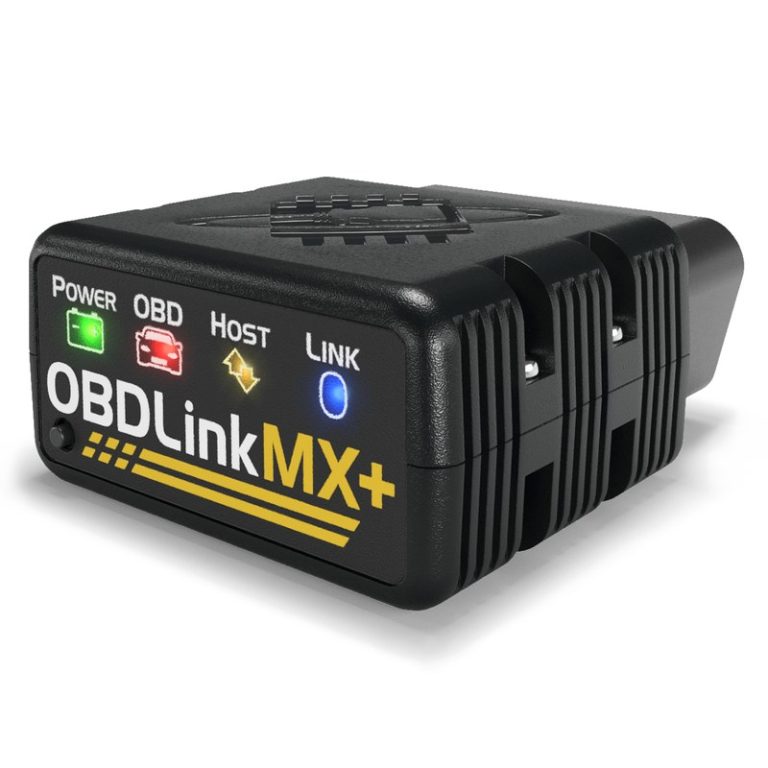
The official OBDLink app is made by the same company as the MX adapter. It pairs fast, reads codes quickly, and includes live data, emissions readiness, and firmware updates in one clean layout. For most drivers, this is the first app to try.
OBD Fusion — Best for Multi-Vehicle Households
OBD Fusion keeps separate profiles for each car in a household. Switch from a commuter sedan to a family SUV without rebuilding your dashboard. The app also offers enhanced data packs for certain brands that unlock body, ABS, and transmission codes beyond basic OBD2.
Torque Pro — Best Budget Pick for Android Live Data
Torque Pro is a long-running Android favorite. It offers custom dashboards, data logging, and a deep list of live parameters at a low one-time price. The interface feels dated, but the raw feature set is hard to beat for the money.
DashCommand — Best for Gauges and Trip Logs
DashCommand turns your phone into a digital gauge cluster. It supports trip logging, fuel economy tracking, and performance-style displays. Code reading works, but the menu path is slower than the official app. Pick this one when you want a dashboard experience more than a quick code reader.
OBDLink MX Compatibility: What to Check Before You Pick an App
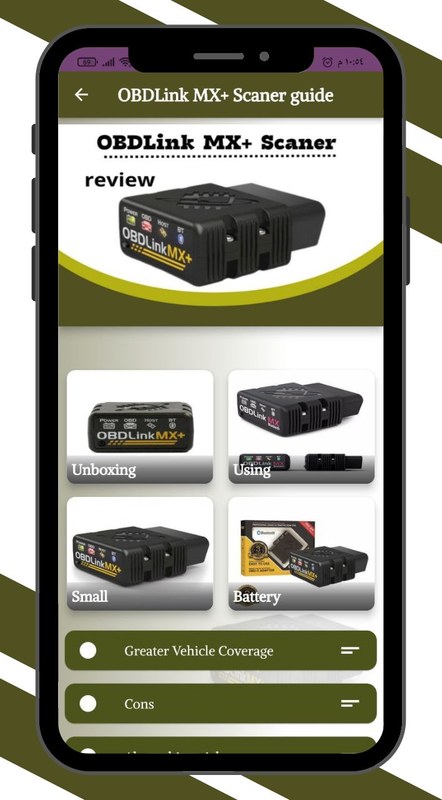
Compatibility comes first. The MX adapter and the app both need to match your vehicle and your phone.
Model-Year, Protocol Coverage, Port Location, and Ignition Mode
Most gasoline vehicles sold in the US from 1996 onward support OBD2. The MX handles all five standard OBD2 protocols, so it covers most of those vehicles. Some diesels, hybrids, and newer imports behave differently. Check the compatible vehicle list before you buy.
Check: Confirm model year, engine type, OBD port location, and whether your phone supports the MX pairing method. Limitations: Some 1990s vehicles send partial data, and certain manufacturer codes appear only with enhanced add-ons.
The OBD port usually sits under the dash near the steering column. Make sure the adapter fits without touching your knee, the brake pedal, or the hood release. Turn the key to the on position without starting the engine to power the adapter.
Side-by-Side App Comparison: Same Criteria, Same Vehicles
Comparing all four apps on the same points makes the right choice clearer.
Code Reading Speed, Live Data Depth, and Graphing
The official OBDLink app connects fastest because it is designed alongside the MX hardware. OBD Fusion matches that speed and adds stronger graphing tools. Torque Pro offers deep live data with many customizable PIDs. DashCommand delivers the best-looking gauges but takes longer to set up.
| App | Best for | Owner consideration | Driver consideration |
|---|---|---|---|
| OBDLink (Official) | Most drivers | Free companion app with firmware updates | Fast pairing and clean dashboard |
| OBD Fusion | Multi-vehicle households | Separate vehicle profiles; paid data packs | Enhanced codes and custom screens |
| Torque Pro | Android budget users | Low one-time cost, no subscription | Deep dashboard customization |
| DashCommand | Gauge and trip fans | One-time purchase, steeper learning curve | Digital gauges and trip logging |
Emissions Readiness, App Permissions, and Privacy
All four apps can show emissions readiness, but the layout differs. The official app shows each monitor on one screen. OBD Fusion puts it deeper in a menu. Torque Pro needs certain PIDs active, and DashCommand keeps it inside the monitoring screens.
Reading and Clearing Codes Fast: What the Apps Can Actually Do
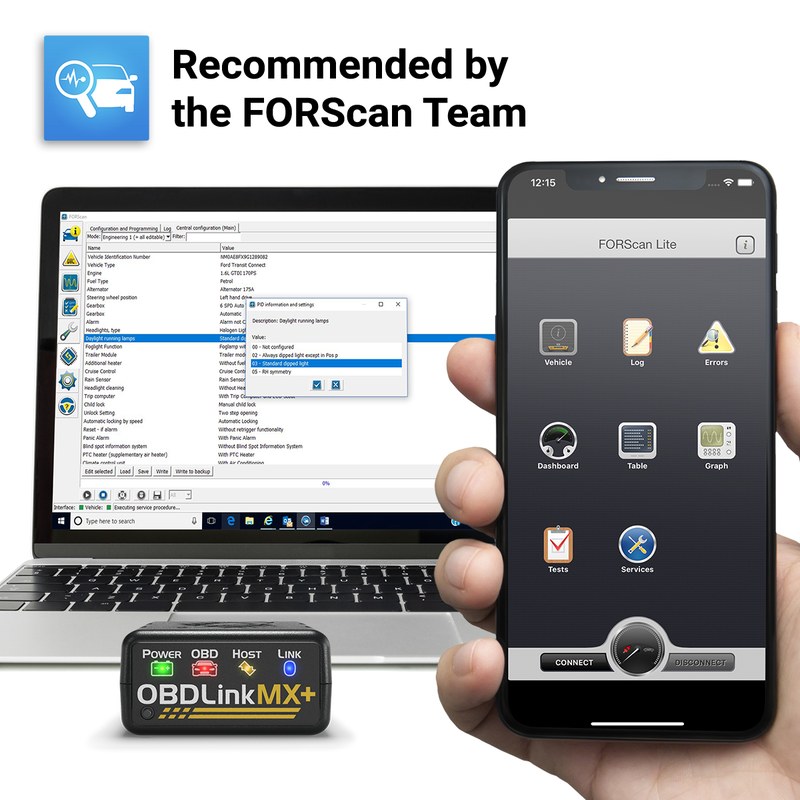
This is the reason most people buy the MX. The process is simple, but the rules about clearing codes matter.
Generic vs Manufacturer-Specific Codes and Reset Limitations
Generic powertrain codes, such as P0420 or P0301, appear in every app listed. Manufacturer-specific codes for body modules, ABS, or transmission need enhanced data. The official OBDLink app and OBD Fusion offer enhanced support in different ways; Torque Pro and DashCommand depend on available PIDs.
Clearing a code works in all four apps. Clear codes only after you record the code and the freeze-frame data. Freeze-frame data captures the engine speed, coolant temperature, and other conditions at the moment the code set. That snapshot helps a technician find the root cause.
When a Professional Diagnosis Is Required
Diagnostic codes name a system, not always a bad part. A P0301 misfire can come from a spark plug, an ignition coil, a vacuum leak, or low compression. If the vehicle idles rough, stalls, or loses power, stop driving. The MX and its apps are support tools, not substitute mechanics. Take the recorded data to a qualified shop.
Battery and Electrical System Checks Through the App
The MX can read system voltage through the OBD2 port. That gives you a quick electrical snapshot, but it is not the whole story.
System Voltage, State of Charge vs Battery Health
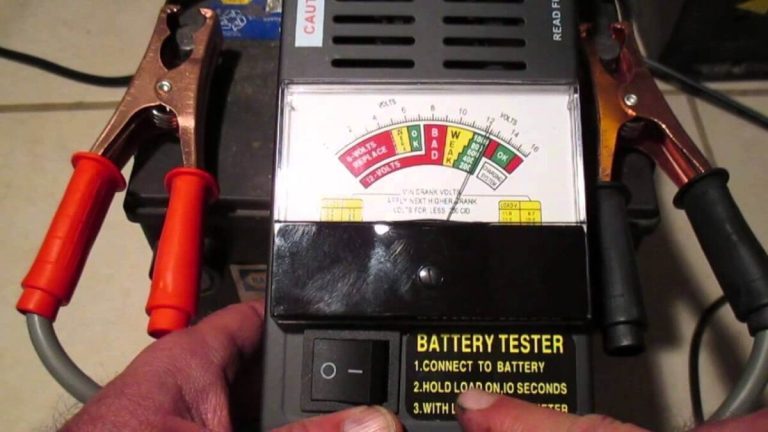
With the engine off, voltage can indicate state of charge. With the engine running, voltage should rise because the alternator is charging. The MX tracks this as live data. Voltage alone does not measure battery health. A battery can show healthy resting voltage and still fail under load. A battery load tester applies real demand and reveals the truth.
Connection Order, Damaged-Battery Stop Conditions, and EV Cautions
Plug the MX in before turning the ignition on. Unplug it after the ignition is off. If the battery case is swollen, leaking, or smells like sulfur, stop. Do not connect any diagnostic tool to a damaged battery. Work in a ventilated area and follow both the vehicle and adapter manuals.
On electric and hybrid vehicles, the MX reads the 12-volt accessory system and some vehicle data over OBD2. It does not service the high-voltage traction battery. High-voltage work needs certified training and special tools.
TPMS, Tire Pressure, and Emissions Readiness
The MX can display tire pressure on some vehicles that broadcast TPMS data over OBD2. On many cars it only shows a warning light. The app cannot relearn sensors, and it cannot fix a puncture.
Door-Jamb Placard, Cold Pressure, and Gauge Accuracy
Use the pressure printed on the driver’s door jamb, not the number on the tire sidewall. Check pressure when tires are cold, after the vehicle has sat for about three hours. App-reported TPMS values can lag behind real pressure changes. A good handheld gauge or an inflator with a built-in gauge gives the most accurate reading.
Inflator Duty Cycle, TPMS Relearn Limits, and Puncture Repairs
The MX does not run an inflator or control its duty cycle. TPMS relearns after tire rotation or sensor replacement need a dedicated TPMS tool. If you use a plug kit for a puncture, follow the kit’s speed and distance limits. Treat any plug as temporary until a tire shop inspects the tire.
Emissions Readiness Monitors and Inspection Timing
Emissions monitors are self-tests the vehicle runs to catch problems before inspection. Clearing codes resets those monitors to not ready. Completing them requires a drive cycle with a mix of city and highway driving. If your state needs ready monitors for inspection, do not clear codes right before the test.
Roadside and Emergency Use: Getting the Most From the MX
The MX can be a roadside lifesaver, but only when you use it in a safe spot.
Safe Location, Traffic Visibility, and Storage Conditions
If a warning light forces a stop, pull fully off the roadway and turn on the hazard lights. Read the code in a parking lot rather than a narrow shoulder. Store the MX in a glovebox or console, away from direct sun and cabin heat. Pair it with a winter roadside emergency kit for cold-weather trips.
Cable Condition, Current Limits, and Post-Use Inspection
The MX draws power from the OBD2 port, so it needs no separate battery. Check the pins and cable before each use. A bent pin can damage the port. A frayed cable should stop you from plugging in. Unplug the adapter after each session and replace the port cover if your vehicle has one.
Firmware, Ownership Cost, and the Final Verdict
Two final checks decide whether the MX stays useful or becomes a drawer ornament.
Firmware Updates and App Permission Settings
OBDLink releases firmware updates through the official app. Updates improve compatibility with newer vehicles and fix bugs. If the adapter stops connecting, restart the phone, check Bluetooth settings, and update the firmware. Connection problems often trace back to stale firmware or phone permission changes.
Ownership Cost vs Dealer Diagnostic Fees
The MX plus a low-cost app can still cost less than one dealer diagnostic visit. Subscriptions spread cost over time, while one-time app purchases stay cheap for years. Most owners recover the expense after their first successful code read. Check whether the app you choose needs a subscription before buying.
The Transparent Verdict: Which App Fits Which Driver
There is no single best app for every owner. The official OBDLink app is the safest starting point. OBD Fusion earns its place in multi-car homes. Torque Pro wins Android budget users. DashCommand suits drivers who love gauges and trip logs.
- Best for: Most owners should start with the official OBDLink app and add OBD Fusion later if they need enhanced codes for multiple vehicles.
- Think twice if: You are an Android user who wants deep PID customization and one-time pricing; Torque Pro may serve you better than the official app.
- Next step: Confirm your vehicle’s model year and port access, read the app privacy policy, then pair the adapter while parked.
Frequently Asked Questions
The official OBDLink app is the best starting point for most drivers. It pairs fast with the MX adapter and includes code reading, live data, emissions readiness, and firmware updates at no extra cost.
The official OBDLink app has no subscription for core features. OBD Fusion, Torque Pro, and DashCommand are one-time purchases, though OBD Fusion offers optional paid data packs. Check current pricing in the app store before buying.
Most 1996 and newer gasoline vehicles sold in the US support OBD2. Vehicles older than 1996 may lack a standard OBD2 port, so the MX will not connect.
Clearing codes resets the emissions monitors to not ready. Most states require ready monitors to pass inspection, so do not clear codes right before the test. Check the rules in your state and county.
Many owners leave it plugged in, but the adapter draws a small amount of power and can drain a battery during long-term storage. Unplug it when the vehicle will sit for an extended period and inspect the connector regularly.
The official OBDLink app and OBD Fusion both display system voltage and can show TPMS data when the vehicle broadcasts it over OBD2. Not every vehicle transmits individual tire pressures.