OBDLink Mx Compatible Vehicles: Check Compatibility Before You Buy
Before you buy, the OBDLink MX’s real value is confirming it will actually plug into and communicate with your specific car, saving you from a useless purchase. However, keep in mind that it won’t work with every vehicle—some diesel trucks, hybrids, and older models with non-standard OBD2 protocols are unsupported, and leaving it plugged in while parked can drain your battery.
If you are researching obdlink mx compatible vehicles before you buy, the short answer is encouraging: the original OBDLink MX is a genuine, FCC-compliant OBD-II adapter that communicates with essentially every 1996-and-newer gasoline-powered light-duty car, truck, and SUV sold in the United States. But “essentially every” is not “every single one,” and the fine print matters when you are sitting in your driveway with a phone in your hand and a dashboard light staring back at you.
This guide explains which vehicles work with the OBDLink MX, which ones do not, and how to verify compatibility in about five minutes before you spend any money. You will also learn why the original MX is an Android-and-Windows tool, why iPhone users need a different model, and where the common “it won’t connect” problems actually start.
- Compatibility Check: The OBDLink MX isn’t universal for enhanced features; ensure your car’s make and model—especially.
- Easy Installation: Just plug it into the OBD-II port under the dashboard; low-energy Bluetooth pairs quickly.
- Smart Investment: It costs more than generic $10 ELM327 clones, but the build quality, stable firmware.
- Deeper Maintenance: It unlocks manufacturer-specific PIDs for transmission temperature, ABS, and airbag modules, allowing precise home.
- Safe & Private: It auto-sleeps in under 2 minutes to prevent battery drain; however, unplug it for.
Why Compatibility Is the First Question to Ask
Every car sold in the US for model year 1996 and newer is required to include an OBD-II diagnostic port and to speak at least one of the standardized OBD-II protocols. The catch is that different manufacturers used different protocols, especially in the late 1990s and early 2000s. Ford used one protocol, GM used another, Chrysler used a third, and imports leaned on several more. Cheap ELM327-based adapters often support only the newer CAN protocol, which is why those $15 adapters work on a 2015 Honda but go silent on a 1999 Ford.
The OBDLink MX avoids that problem because it is built around the STN1170 chip, a full-featured OBD-II interpreter that supports all five OBD-II protocol families. That is the single biggest reason the compatibility list is so broad.
The Five OBD-II Protocols the OBDLink MX Supports
Here is what “all five protocols” actually means in plain English, because this is the core of vehicle compatibility:
- SAE J1850 PWM — used primarily by Ford vehicles from the mid-1990s to the early 2000s.
- SAE J1850 VPW — used primarily by General Motors vehicles in the same era.
- ISO 9141-2 — used by many Chrysler products and a wide range of Asian and European imports.
- ISO 14230-4 (KWP2000) — used by certain Asian and European manufacturers through the mid-2000s.
- ISO 15765-4 (CAN) — the modern standard required on all 2008-and-newer light-duty vehicles sold in the US.
If your vehicle is a 1996-or-newer light-duty gasoline model with a standard 16-pin diagnostic connector under the dash, the OBDLink MX will almost certainly establish a connection and read generic OBD-II data. That includes engine RPM, coolant temperature, fuel trims, oxygen sensor readings, and manufacturer-independent diagnostic trouble codes.
Check: Verify your vehicle is model year 1996 or newer, light-duty, gasoline-powered, and fitted with the standard 16-pin OBD-II connector under the dashboard. Limitations: The original OBDLink MX does not work with iPhone because it uses Bluetooth Classic; it pairs with Android phones and Windows PCs. Heavy-duty diesel trucks, pre-1996 vehicles, and some commercial chassis may not use standard OBD-II protocols.
Vehicles That May Still Give You Trouble
The MX is broad, but it is not universal. Here are the realistic exceptions you should check before ordering.
Pre-1996 Vehicles (OBD-I)
Vehicles built before model year 1996 generally use manufacturer-specific OBD-I systems with different connectors and signals. The OBDLink MX is not designed for those vehicles. If your daily driver is a 1994 pickup with an OBD-I system, this is not the tool for you.
Heavy-Duty Diesel Trucks and Commercial Chassis
Heavy-duty trucks do not always comply with the same light-duty OBD-II rules. Some use a different pinout, a non-standard connector, or heavy-duty diagnostic standards that a consumer adapter cannot read. If you drive a Class 7 or Class 8 commercial truck, verify the exact diagnostic standard before buying any consumer OBD scanner. The same caution applies to some medium-duty diesel vans and chassis-cab trucks.
iPhone Owners Using the Original MX
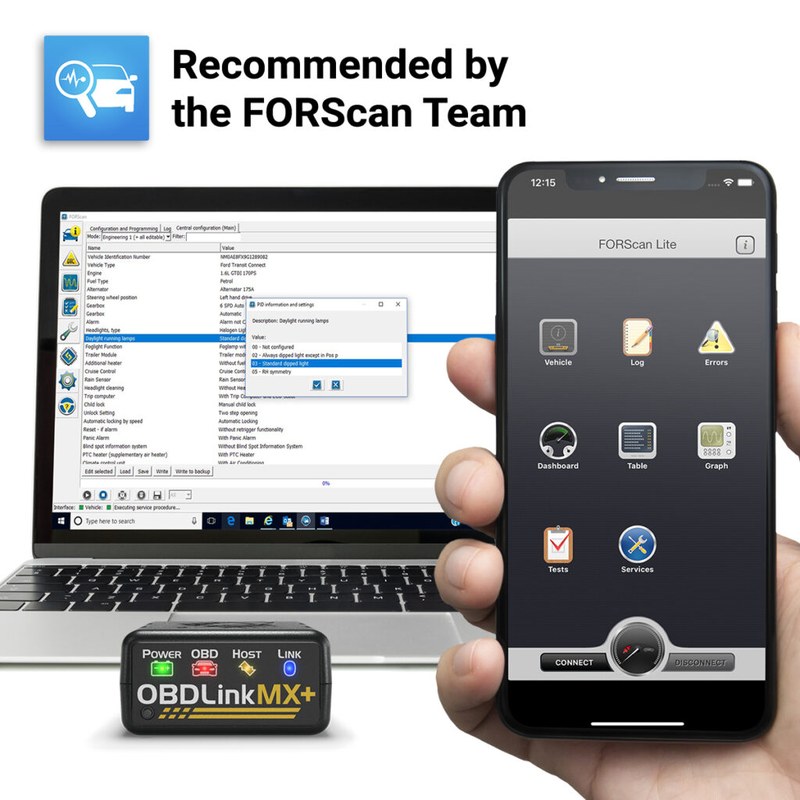
The original OBDLink MX uses Bluetooth Classic, which is not supported by iOS for this type of serial communication. In practical terms, a stock iPhone will not pair with the original MX in a way that the OBDLink app can use. OBD Solutions solved this in the newer OBDLink MX+ by adding Bluetooth Low Energy (BLE) support. If you run an iPhone-only household, consider the MX+ rather than the original MX.
OBDLink MX vs. Newer Models: Does the Compatibility Story Change?
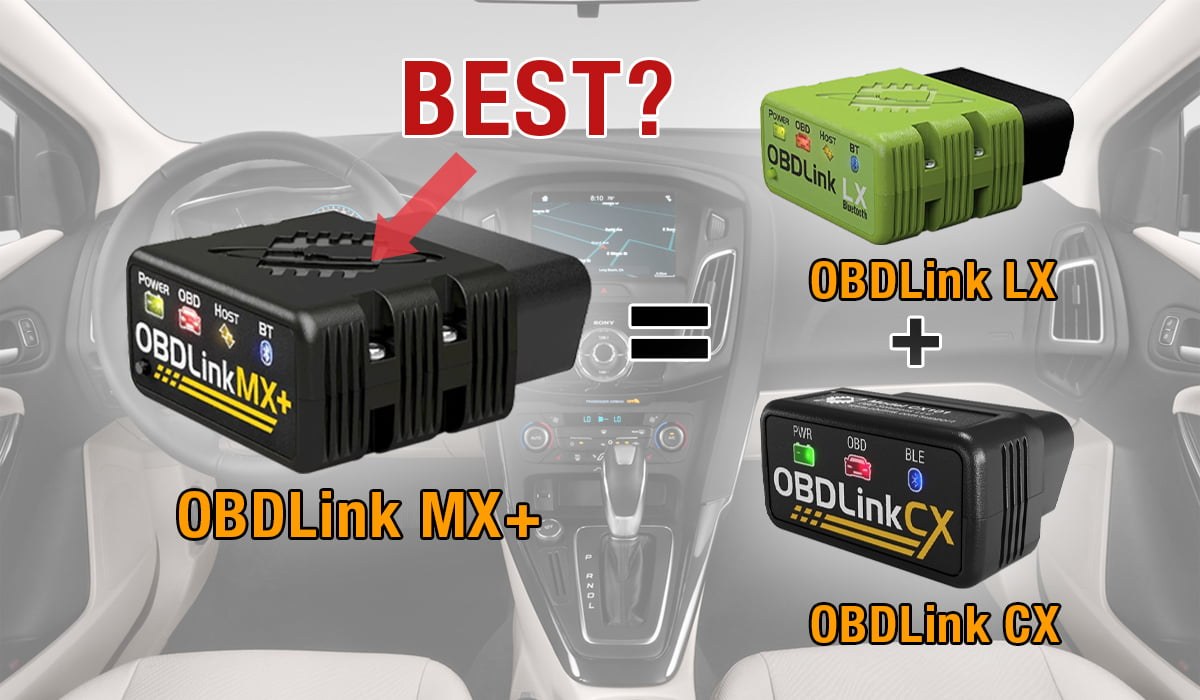
OBD Solutions has since released the OBDLink MX+, which is the direct successor to the original MX, and the OBDLink CX, a Bluetooth-only adapter designed for the same broad protocol coverage. If you are shopping today, you will often see the original MX listed as discontinued or sold by third-party sellers at fluctuating prices. The compatibility principles for all three models are similar, but the original MX has three limits you should know about: no iOS support, no GPS logging, and an older firmware ecosystem.
If you want to understand the practical differences between the newer models, our guide on the OBDLink CX vs MX comparison breaks down the feature differences and which owner each one suits best.
| Option | Best for | Owner consideration | Driver consideration |
|---|---|---|---|
| Original OBDLink MX | Android and Windows users with 1996-and-newer gasoline vehicles | Discontinued; verify seller and firmware status | Not compatible with iPhone; pairs using Bluetooth Classic |
| OBDLink MX+ | Mixed Android and iPhone households | Adds BLE support, GPS logging, and current firmware updates | Same broad five-protocol coverage |
| OBDLink CX | Budget-conscious Android users who only need core diagnostics | Lower price point; fewer premium logging features | Same protocol support for most 1996-and-newer vehicles |
Enhanced Data: Which Makes Get Extra Coverage?
Beyond generic OBD-II data, the OBDLink app can read enhanced manufacturer-specific data on select Ford, General Motors, and Chrysler vehicles. That means you may see transmission temperature, ABS codes, tire pressure system status, and other module-level data that a generic scanner cannot reach. This is a genuine advantage over cheap adapters, but it only applies to those three makes, it requires the OBDLink app, and it depends on your specific vehicle model and year. If you drive a Ford, GM, or Chrysler product, this enhanced coverage is worth researching for your exact vehicle before you buy.
How to Check Compatibility Before You Buy
You can complete this checklist in the time it takes to drink a coffee. No special tools required.
Check your VIN, registration, or driver-side door tag. Model year 1996 and newer is the general threshold for light-duty gasoline vehicles.
The 16-pin DLC is usually under the driver’s side dash near the hood release or steering column. If the port is missing or uses a non-standard shape, stop and verify the vehicle’s diagnostic standard.
Use the compatibility look-up tool on the OBD Solutions website with your exact make, model, and year. Bookmark the result or screenshot it.
Original MX users need Android or Windows. If you own an iPhone, plan on the MX+ instead so the Bluetooth connection actually works.
After pairing, update the adapter firmware through the OBDLink app while parked, then test a live-data screen before you need the tool on the road.
Easy: Plug the adapter into the DLC, start the engine, pair via Bluetooth, and launch the app. The only real risks are plugging it into the wrong port, dislodging it with your knee, or leaving it wedged against a kick panel. Estimated setup time is about five minutes including the firmware update.
What to Do When the OBDLink MX Won’t Connect
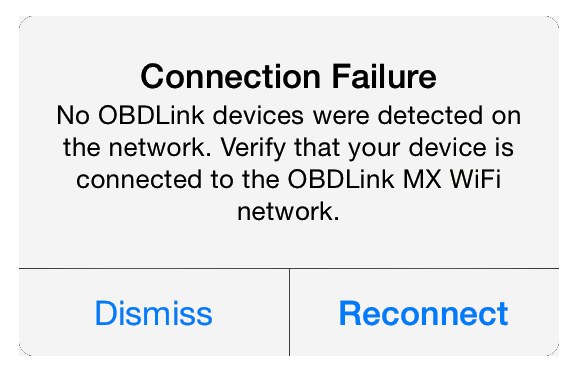
Compatibility is decided before the adapter ever arrives, but connection problems often get blamed on the vehicle when the real issue is pairing, permissions, or firmware. If the app says “no connection” and your vehicle is a normal 1996-and-newer light-duty model, work through the basics: delete the old Bluetooth pairing, give the app permission to access location if the app requests it, and confirm the adapter LED is active.
Blown fuses also cause a surprising number of “dead port” complaints, because in many vehicles the DLC shares a fuse with the cigarette lighter or a convenience outlet. If the port has no power at all, check the related fuses before assuming the adapter is faulty.
For a step-by-step walkthrough of the most common fixes, including app permission issues and firmware problems, our OBDLink MX not connecting guide covers each failure mode in order.
- Broad five-protocol coverage for 1996-and-newer US light-duty vehicles
- Enhanced data support for select Ford, GM, and Chrysler models
- No subscription required for the core OBDLink app
- Reliable STN1170 chipset compared with cheap ELM327 clones
- Original MX does not work with iPhone
- Original model is discontinued; buyers must check seller and firmware status
- Heavy-duty diesel and pre-1996 vehicles may be unsupported
- Enhanced data is limited to specific makes, trims, and app versions
Apps, Subscriptions, and Data Privacy
The OBDLink MX works with the OBDLink app as well as popular third-party apps such as Torque Pro on Android. Before you install anything, check the app’s requested permissions, because diagnostic apps commonly ask for location access even when they do not appear to use it, and some store your VIN, diagnostic trouble codes, and vehicle data in the cloud.
The good news for your wallet: the OBDLink app does not require a paid subscription for its core diagnostic features. If you are deciding between a connected scanner with recurring fees and one that works offline, our detailed breakdown of whether the OBDLink MX requires a subscription explains what stays free and which extras may cost money.
Can You Leave It Plugged In?
One of the most common compatibility-adjacent questions is whether the adapter can stay parked in the DLC between drives. The MX is designed with a low-power sleep mode, and many owners leave it plugged in for months without issue. However, vehicle behavior varies: some newer cars wake the diagnostic bus periodically, and a weak or aging battery may drop faster with any accessory drawing current.
If you park for more than a few days, or if your vehicle sits in cold weather, unplugging the adapter is the safer habit. For the longer version of that reasoning, read our article on whether you can leave the OBDLink MX plugged in before you decide.
- Confirm your vehicle is model year 1996 or newer, light-duty, and gasoline-powered
- Verify the exact make, model, and year on the official OBDLink fitment guide
- Confirm your phone: original MX works with Android and Windows, not iPhone
- Check whether enhanced Ford, GM, or Chrysler data is available for your specific vehicle
- Review the seller’s return policy and check whether the adapter is new or refurbished
- Plan for a firmware update after the first pairing
Final Verdict
- Best for: Android and Windows users who own one or more 1996-and-newer gasoline light-duty vehicles and want reliable five-protocol coverage without a subscription.
- Think twice if: You rely on an iPhone, own a pre-1996 vehicle, or drive a heavy-duty diesel truck with a non-standard diagnostic system. In those cases, look at the OBDLink MX+ or verify the heavy-duty diagnostic standard first.
- Next step: Pull your VIN, confirm your model year on the official compatibility tool, and check your phone’s operating system before you add the adapter to your cart.
Compatibility is rarely a mystery once you know what to check. The OBDLink MX covers most of the US vehicle population because it speaks every OBD-II protocol, but model year, phone platform, and vehicle class still decide whether it will work for you. Spend five minutes verifying those three details, and you will know exactly what to expect when the adapter arrives.
Frequently Asked Questions
The OBDLink MX works with any OBD-II compliant vehicle, typically gasoline cars from 1996 onward and diesel models from 2004 onward in the US. It supports all five OBD-II protocols, covering most domestic, Asian, and European makes. Always verify your exact year and model on the official compatibility chart before purchasing.
Plug the adapter into the OBD-II port, usually located under the dashboard near the steering wheel, with the ignition off. Turn the ignition to “ON” without starting the engine, then pair the device via Bluetooth using the OBDLink app. If pairing fails, confirm the car is fully awake and the port has power.
It reads and clears generic powertrain, emission, and engine-related codes across all compatible vehicles. However, it cannot access manufacturer-specific systems like ABS, airbags, or advanced body modules without enhanced add-ons. For deep dealer-level diagnostics, you may need the OBDLink MX+ or a professional scan tool.
The device has a low-power sleep mode, but leaving it plugged in for weeks can still drain a weak battery, so remove it if parking long-term. It does not directly measure tire pressure; TPMS data requires a separate sensor tool or a vehicle with digital tire pressure readouts. Always ensure the port is clean and the connector is firmly seated to avoid electrical shorts.
The OBDLink MX is a one-time purchase with no subscription fees for the core OBDLink app, though advanced features may require a paid upgrade. Firmware updates are free and delivered via the app, keeping the tool current with new vehicles. Its durable build typically lasts many years, making it a low-cost long-term investment for DIYers.
Data stays on your phone and is only shared if you choose to upload it to cloud services or third-party apps, so review app permissions carefully. The OBDLink MX is great for basic codes, but if you see severe misfires, transmission faults, or airbag warnings, stop diagnosing yourself and visit a professional mechanic. Use the tool as a first step, not a replacement for expert judgment on safety-critical issues.