FOXWELL NT301 Software Update: Why It Fixes Connection Issues
Updating the FOXWELL NT301 firmware can restore stable communication with your vehicle and fix frustrating link errors. Check your current firmware version, download the official update tool, and verify your OBD2 port basics before you start.
If your FOXWELL NT301 scanner suddenly refuses to link with your car, a foxwell nt301 software update is often the fix that restores stable communication. Outdated firmware can break the handshake between the scanner and the vehicle’s computer, causing frustrating “Link Error” messages on the screen.
- Update first: A foxwell nt301 software update resolves many link errors caused by outdated protocol handshaking.
- Check hardware: Damaged OBD2 pins, low battery voltage, and blown fuses cause connection failures that firmware.
- Know its limits: The NT301 reads engine and emissions codes but cannot reprogram modules or read ABS.
- Free updates: FOXWELL typically offers free software updates, but older hardware revisions may lose support over.
- Verify before testing: Confirm your vehicle’s ignition mode and port location before assuming the scanner is faulty.
Why the FOXWELL NT301 Software Update Fixes Connection Issues
How Firmware Revisions Change OBD2 Handshaking and Link Stability
Every OBD2 scanner uses firmware to talk to your vehicle’s computer. The NT301 sends a signal when you plug it in, and the vehicle’s ECU responds if the protocols match. When FOXWELL releases a software update, it usually refines these handshaking routines.
Newer vehicles may use updated versions of the CAN protocol. Older firmware may not recognize them. An update adds the latest protocol definitions, so the scanner can establish a link instead of timing out.
What a “Connection Issue” Actually Means on the NT301 Screen
When the NT301 cannot communicate, it usually shows “Link Error” or “Connection Error.” This message means the scanner powered on but received no valid response from the vehicle’s ECU.
Several things can cause this: the wrong protocol, a wiring problem, or outdated firmware. The update addresses the firmware side. If the problem is wiring, no software change will help.
Before You Update: Confirming Your NT301 Model and Current Firmware Version
Where to Find the Firmware Revision on the Device
Turn on the NT301 while it is unplugged from the vehicle. The screen will show the current software version during startup. Write it down before you begin.
You can also check the firmware version through the device’s menu. The exact path may vary by hardware revision, so keep the user manual nearby.
Which NT301 Hardware Revisions Accept the Latest Software
FOXWELL has produced multiple hardware revisions of the NT301. Not every revision supports the newest firmware. The update tool will usually tell you whether your unit is compatible.
Check: Verify your NT301 hardware revision and current firmware before downloading. Limitations: Older hardware revisions may not support the latest firmware release, and FOXWELL may discontinue updates for legacy units.
Step-by-Step: How to Update the FOXWELL NT301 Software Safely
Downloading the FOXWELL Update Tool on Windows and Registering the Device
FOXWELL provides a Windows-based update tool for the NT301. You need a Windows PC with an internet connection and a USB cable compatible with the scanner.
Download the tool from FOXWELL’s official website. Create an account and register your scanner using its serial number. Registration links the device to your account and allows firmware downloads.
Connecting the NT301 to Your PC, Flashing the Firmware, and Verifying the Installation
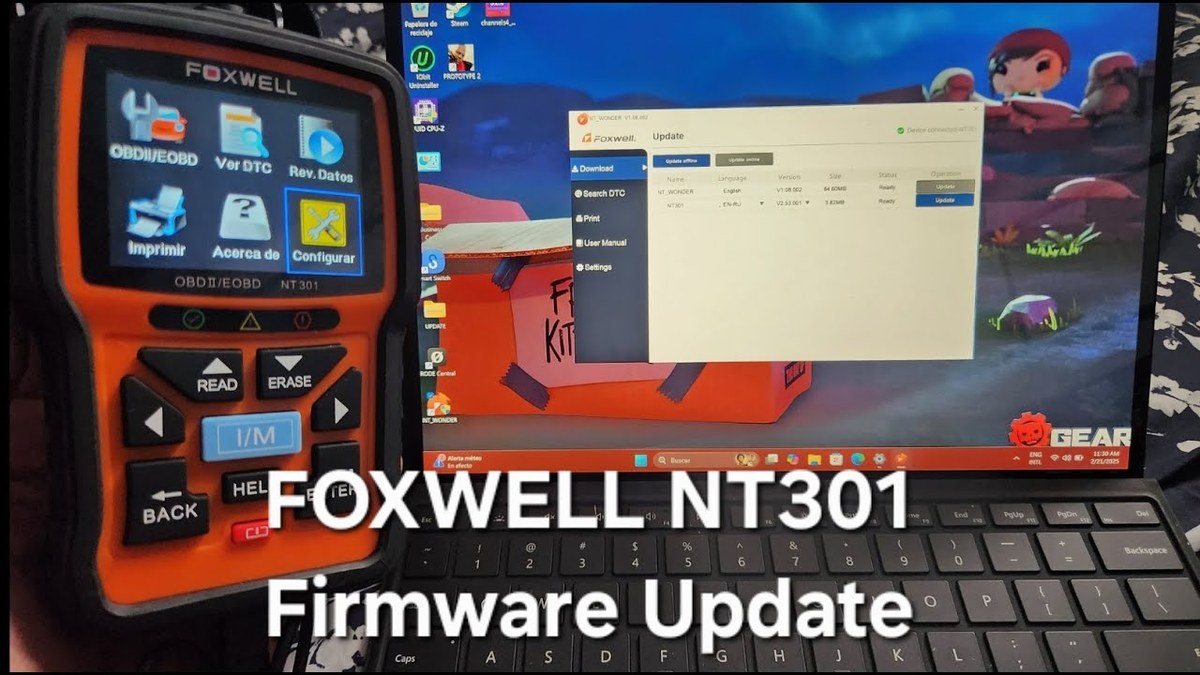
Connect the NT301 to your PC with the USB cable. The update tool should detect the scanner and show the current firmware version. Follow the on-screen prompts to download and install the latest software.
Do not unplug the scanner during the flashing process. Interrupting a firmware update can leave the device unusable. After the update finishes, verify the new version number on the scanner’s screen.
Use a Windows PC and the USB cable that came with the scanner or a compatible replacement.
Create a FOXWELL account, register the device, and download the update tool from the official site.
Connect the scanner, start the update, keep the cable secure, and confirm the new firmware version afterward.
What Data the Update Tool Collects and How Permissions Work
The FOXWELL update tool asks for account registration and device serial numbers. It may also collect diagnostic information to validate the update. This data is generally used for product support and firmware delivery.
OBD2 Protocol and Vehicle Compatibility After the Update
Model-Year and Protocol Coverage: What the NT301 Supports and What It Skips
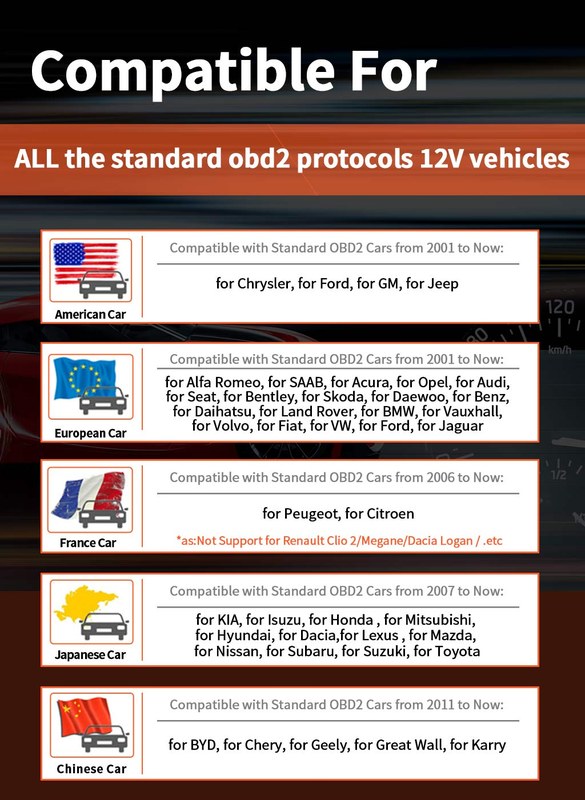
The NT301 supports the standard OBD2 protocols found on most gasoline vehicles sold in the United States since 1996. That includes CAN, ISO 9141, and others. The update improves compatibility with newer CAN implementations.
It does not cover every system. The NT301 reads engine and emissions-related codes. It does not read ABS, airbag, or transmission codes on most vehicles. If you need those systems, you need a different scanner.
For a full breakdown of which vehicles work with the NT301, check our vehicle compatibility guide for the FOXWELL NT301.
Port Location, Ignition Mode, and Why the “Link” Failure Appears on Certain Vehicles
The OBD2 port is usually under the dashboard on the driver’s side. Some vehicles hide it behind a panel or near the center console. If the scanner cannot reach the port or the connector is loose, you will get a link error.
Most vehicles require the ignition to be in the “ON” position with the engine off. If the ignition is off, the ECU may not respond. Some European and newer vehicles use a gateway module that delays communication, which can look like a connection failure.
What the NT301 Can and Cannot Do After the Update
Code Reading, Live Data, and Emissions Readiness Limits
After the update, the NT301 can read and clear engine-related diagnostic trouble codes (DTCs). It also displays live data such as RPM, coolant temperature, and fuel trim. These features work best when the firmware matches the vehicle’s protocol.
Emissions readiness status is another key function. The NT301 shows whether your vehicle’s monitors are ready for an emissions test. However, readiness status depends on the vehicle completing its drive cycle, not just the scanner.
Reset and Reprogramming Limitations: When the Scanner Is Not Enough
The NT301 can clear codes, but it cannot perform bidirectional controls, reprogram modules, or reset service lights on most vehicles. It is a code reader, not a full diagnostic scan tool.
If you clear a code and it returns immediately, the underlying problem is still present. The scanner helps you find the issue, but it does not fix it. For reset functions, you may need a higher-tier scanner. Read more in our article on whether the FOXWELL NT301 can clear codes.
Legal and Inspection Considerations for Emissions Testing in the United States
Clearing codes before an emissions test can actually cause you to fail. When you clear codes, the vehicle’s readiness monitors reset to “not ready.” Most states require a certain number of monitors to be ready before the test can pass.
Connection Issues That a Software Update Will Not Fix
Damaged OBD2 Port, Blown Cigarette Fuse, or Bad Ground: Checking the Hardware First
Before blaming the firmware, check the basics. A damaged OBD2 port with bent pins will not connect properly. A blown cigarette lighter fuse can cut power to the port on some vehicles.
Use a multimeter to check for voltage at the OBD2 port. Pin 16 should have battery voltage, and pins 4 and 5 should be grounds. If any pin is dead, the scanner cannot power on or communicate.
If the scanner will not connect at all, our guide on FOXWELL NT301 not connecting to vehicle walks through the common checks.
Gateway Modules, Aftermarket Accessories, and CAN Bus Conflicts That Block Communication
Some modern vehicles use a gateway module that controls access to the OBD2 port. If the gateway is slow or faulty, the scanner may time out. Aftermarket alarms, remote starters, or poorly installed accessories can also interfere with the CAN bus.
Disconnect aftermarket accessories one at a time and retest the scanner. If the connection works after removing a device, that device is causing the conflict.
Electrical Safety: Voltage Checks, Battery Condition, and When to Stop Diagnosing
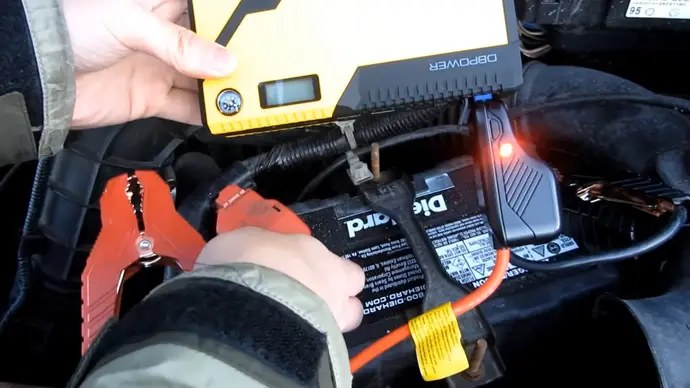
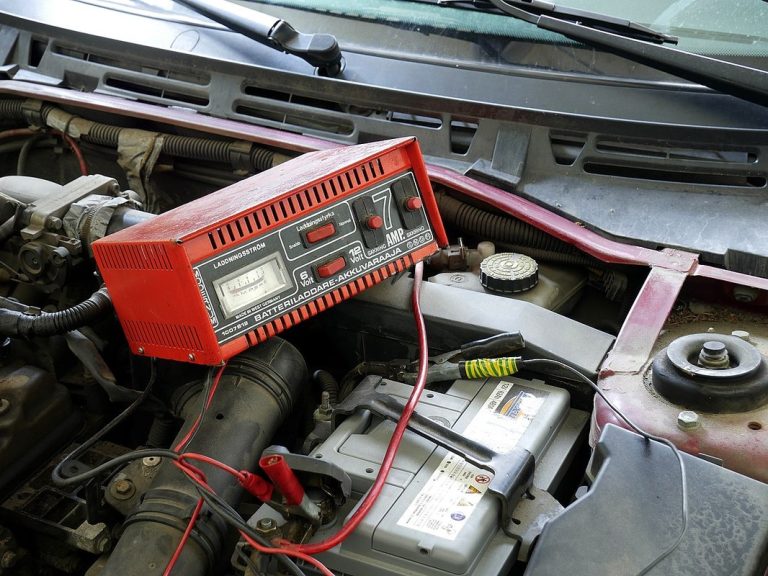
Low battery voltage is a common cause of connection failures. The scanner needs at least 12 volts to communicate reliably. If the battery is weak, charge it or jump-start the vehicle before testing.
Ownership Cost, Support, and When to Move to a Better Scanner
Update Cost, Warranty Coverage, and FOXWELL Support Realities
FOXWELL generally provides free software updates for the NT301. That is a significant advantage over some competitors that charge for updates. However, free updates may not continue forever for older hardware revisions.
Warranty coverage varies by seller and region. Check the warranty card included with your scanner and the retailer’s return policy. FOXWELL support is available by email and phone, but response times can vary.
Alternatives to the NT301 for DIYers Who Outgrow Code Reading
The NT301 is an entry-level code reader. If you need ABS, airbag, or transmission codes, consider a higher-tier FOXWELL model or a professional-grade scanner. Bluetooth scanners with smartphone apps offer more data and easier updates.
Compare the NT301 with other entry-level scanners to see which fits your needs. You can also read our FOXWELL NT301 vs Ancel AD410 comparison for a detailed look.
Next Steps: Verifying the Fix, Documenting Codes, and Knowing When a Professional Is Required
After updating the firmware, reconnect the scanner to your car and confirm the link. Record any codes and freeze-frame data before clearing them. This documentation helps you track the problem and shows a technician what you found.
If the connection still fails after the update and hardware checks, the issue may be deeper. A professional technician with a factory-level scanner can access the vehicle’s network and diagnose the fault.
- Best for: NT301 owners experiencing link errors on newer vehicles or wanting to keep their scanner current.
- Think twice if: Your connection problem comes from damaged wiring, low battery voltage, or a faulty vehicle module, because no firmware update will fix those.
- Next step: Check your current firmware version, download the official FOXWELL update tool, and verify your vehicle’s OBD2 port basics before updating.
Frequently Asked Questions
Download the FOXWELL update tool from the official website, register your scanner with its serial number, connect it to a Windows PC via USB, and follow the on-screen prompts to flash the latest firmware. Do not unplug the scanner during the update process.
A Link Error after updating usually means the scanner cannot establish communication with the vehicle’s ECU. Check the OBD2 port pins, battery voltage, ignition mode, and any aftermarket accessories that may interfere with the CAN bus.
FOXWELL generally provides free software updates for the NT301. However, older hardware revisions may not support the latest firmware, so check your device’s revision and the update tool for compatibility.
No. The NT301 is an entry-level code reader focused on engine and emissions-related systems. It does not read ABS, airbag, or transmission codes on most vehicles, regardless of firmware version.
Clearing codes resets the vehicle’s readiness monitors to not ready. Many states require a certain number of monitors to be ready before an emissions test can pass. Check your state’s inspection rules before clearing codes.
Check the OBD2 port for bent pins or damage, verify battery voltage at pin 16, confirm the ignition is in the ON position, and disconnect aftermarket accessories that may interfere with the CAN bus. If the problem persists, consult a professional technician.