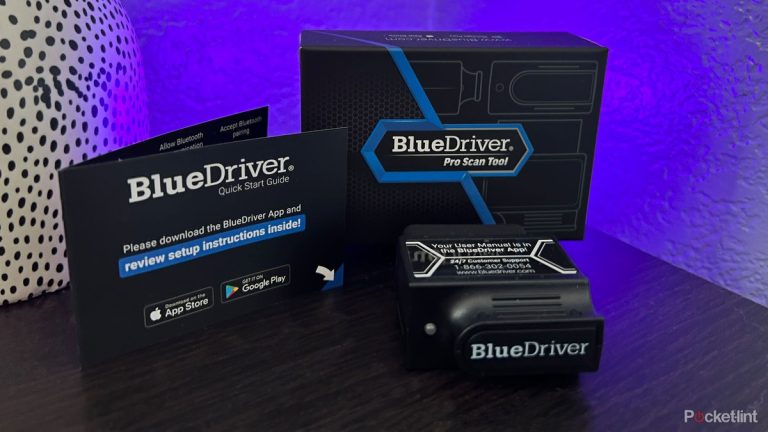
OBD2 Scanner Says Protocol Not Supported? Here’s How to Fix It
This guide helps you get your scanner talking to your car again so you can pull real diagnostic codes instead of paying for guesswork repairs, but the key limitation is compatibility—your scanner must support the specific protocol your vehicle uses (like CAN or ISO), and older or non-standard cars may still refuse to connect no matter what you try.
If your OBD2 scanner says protocol not supported, you’re not alone—and in most cases, it’s fixable without buying a new tool. This error means the scanner couldn’t establish communication with your vehicle’s computer using any of the communication methods it understands. It’s different from “no codes found,” which means the scanner connected fine but found no stored trouble codes. It’s also different from a blank screen or “link error,” which usually points to power, ground, or wiring problems. Here’s what’s going on behind that message and how to fix it.
For US drivers, this message can be especially confusing because your car is legally required to have OBD2 diagnostics. Every light-duty vehicle sold in the US since 1996 has a standardized diagnostic port, but “standardized” doesn’t mean “identical.” There are five different protocol families, and your scanner has to speak the same one as your car. Understanding this one concept will save you from needless panic, unnecessary shop visits, and wasted money on parts you don’t need.
- Protocol mismatch: Your scanner may lack support for your vehicle’s specific protocol (e.g., J1850, ISO 9141.
- Vehicle year: Pre-1996 models are often not fully OBD2-compliant, and some 1996-2003 vehicles use less-common protocols.
- Scanner quality: Inexpensive generic units often only support CAN; investing in a multi-protocol or ELM327-based scanner.
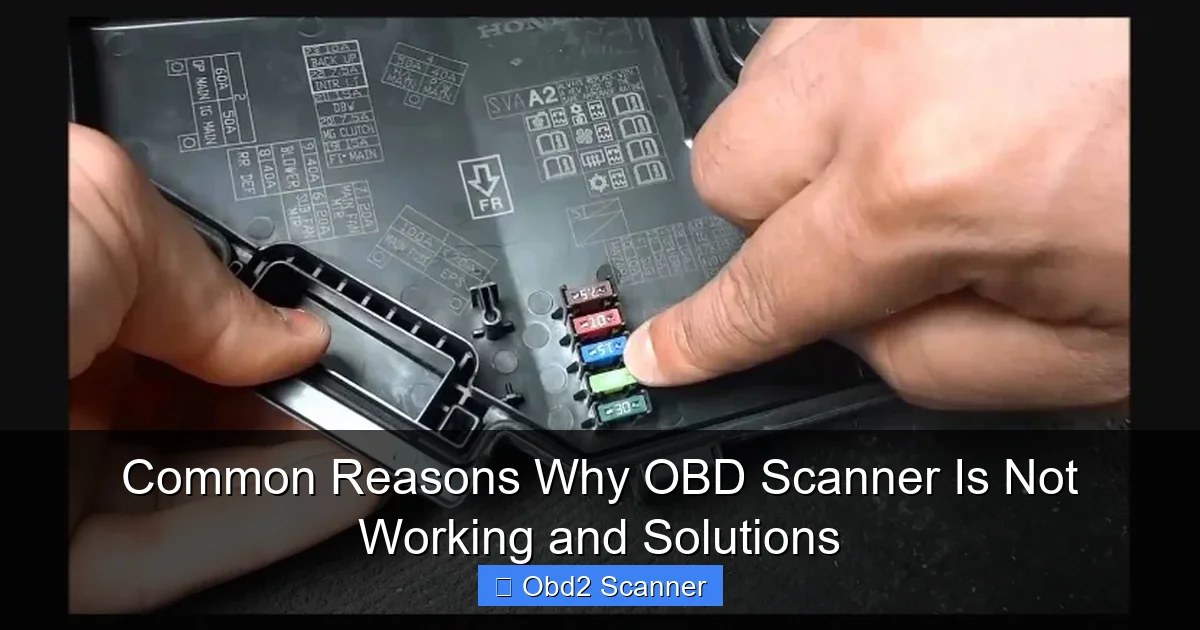
- Connection check: A dirty or loose OBD2 port, a blown cigarette-lighter fuse, or an unseated connector.
- Firmware update: Many scanners require periodic firmware updates to recognize newer or proprietary protocols; check the.
What Does “Protocol Not Supported” Actually Mean?
Every OBD2-compliant vehicle sold in the US since 1996 speaks at least one of five standard diagnostic protocols. The scanner sends a request and listens for a response using each protocol it knows. If it doesn’t hear a valid response, it reports that the protocol isn’t supported—even though the car’s computer is probably fine.
| Protocol | Commonly used by | Notes |
|---|---|---|
| SAE J1850 PWM | Ford vehicles | Uses two wires; high-speed pulse-width modulation |
| SAE J1850 VPW | GM vehicles | Variable pulse width on a single wire |
| ISO 9141-2 | Chrysler, many imports | Slower serial communication |
| ISO 14230-4 (KWP2000) | Hyundai, Kia, some imports | Keyword protocol 2000 |
| ISO 15765-4 (CAN) | All 2008-and-newer vehicles | Controller area network; required by EPA for 2008 model year |
If your car is from the 1996-2007 era, it may use any of the first four protocols. Many budget scanners only support CAN because that covers newer vehicles. That mismatch is the most common reason you’ll see “protocol not supported” on an older car.
Why Your Scanner Can’t Talk to Your Car
The Scanner Doesn’t Support Your Vehicle’s Protocol
This is the most straightforward cause. Check the scanner’s product page or manual for the protocol list. If it says “CAN only” and your vehicle is a 2002 Ford, you’ve found your problem. Similarly, some very inexpensive scanners support generic OBD2 modes but not manufacturer-specific enhanced protocols. They may connect to the engine computer but fail on other modules—or fail entirely on vehicles that expect a particular handshake.
Power or Wiring Problems at the DLC Port
The data link connector (DLC) under your dash has 16 pins. Pin 16 supplies battery power to the scanner, and pins 4 and 5 are ground. If the scanner can’t power up properly, it can’t complete the protocol handshake, even if the car’s computer is healthy. A blown fuse—often the cigarette lighter or accessory fuse—is a common culprit. Bent pins, corrosion, or debris in the port can also break communication. If you’re dealing with a complete failure to link up, our guide on why won’t my OBD2 scanner connect to my car walks through the other connection culprits in detail.
The Vehicle Isn’t in the Right Key Position
Most vehicles need the ignition in the “ON” position with the engine off for OBD2 communication. Some hybrids and newer vehicles, though, require the engine running or the vehicle in “READY” mode before certain modules will respond. If you try to scan with the key in “ACC” or with the engine running on a vehicle that expects key-on/engine-off, the scanner may time out and report a protocol failure. Check your vehicle owner’s manual for the correct ignition position before you dig deeper.
Bluetooth, App, or Firmware Issues
Wireless scanners add another layer of failure. If the Bluetooth pairing drops or the app doesn’t have permission to access location (which some apps require for Bluetooth scanning on Android), the scanner may never send the right protocol request. Outdated firmware on the scanner dongle can also cause protocol detection failures. If you’re weighing whether to stick with wireless or switch to a cable, our comparison of Bluetooth vs wired OBD2 scanners covers the tradeoffs.
The Vehicle Uses Enhanced Manufacturer-Specific Protocols
Even if the vehicle uses CAN, some modules communicate with manufacturer-specific messages. A generic scanner may connect to the engine control module but show “protocol not supported” when you try to access ABS, airbag, or transmission modules. This is common on European and some Asian brands, and on hybrids where the battery management system uses proprietary data. You may need a brand-specific or enhanced scanner for those systems.
How to Fix “Protocol Not Supported” Step by Step
Check the manual or product page for protocol support. If your car is 2007 or older, look for J1850, ISO 9141-2, or KWP2000 support, not just CAN.
With the ignition off, look for bent pins, dirt, or damage. Compare the port to a known-good pin layout. Clean debris carefully with compressed air or a plastic tool.
Check the fuses that feed the DLC (often labeled “CIGAR” or “OBD”). If possible, test pin 16 for battery voltage and pins 4/5 for ground with a multimeter or test light. Replace any blown fuse with the correct amperage.
Then Rule Out Digital and Connection Problems
- Check Bluetooth pairing and app permissions. Delete the pairing, re-pair the dongle, and make sure the app has location permission if required. Restart the phone and the car.
- Update firmware and the app. Many dongles require firmware updates through the manufacturer’s app. Outdated firmware can break protocol detection on newer or older vehicles.
- Test the scanner on another vehicle. If it works on a 2019 Honda but not your 2004 Ford, it’s a protocol compatibility issue. If it fails on both, the scanner or its connection is the problem.
If you’ve gone through all of this and the scanner still won’t connect, it’s time to decide whether the tool is worth keeping. On a 2008-or-newer vehicle with a healthy DLC port, a working CAN-only scanner should connect. If it doesn’t, the scanner may be defective. On an older vehicle, you may simply need a scanner with broader protocol support.
- Confirm the scanner’s protocol list before assuming your car is broken
- Check the DLC fuse and port pins early in troubleshooting
- Record any codes and freeze-frame data before clearing anything
- Clear codes before you know what they mean—you can lose useful diagnostic evidence
- Assume “protocol not supported” means your ECU is dead
- Force a connector or use metal tools to clean the DLC port
Vehicle Compatibility: Not All Scanners Cover Every Car
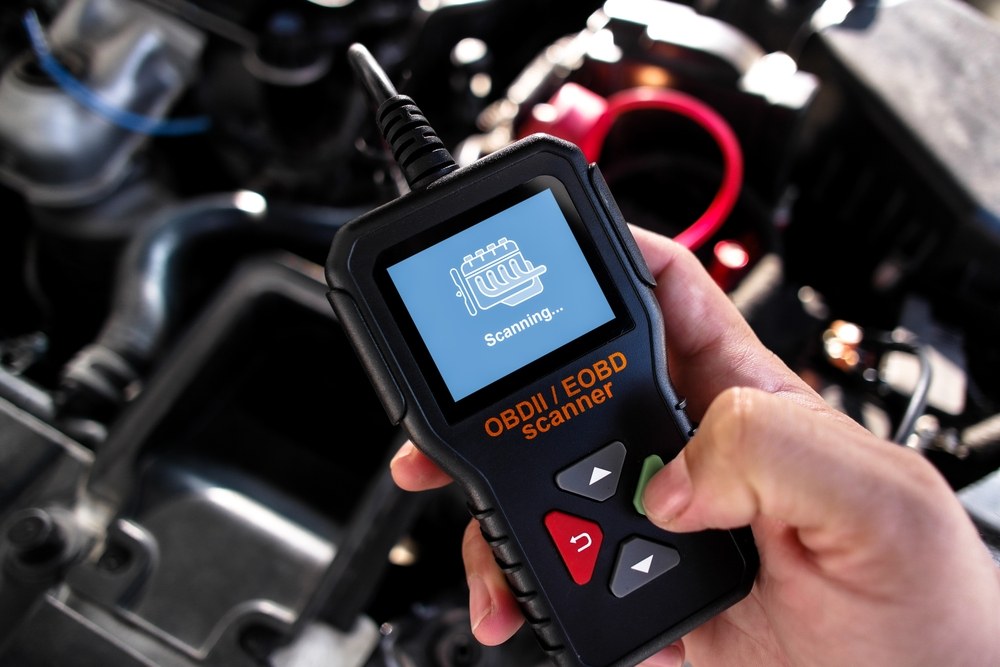
If you own multiple vehicles or plan to keep your car for years, protocol support is only half the story. A scanner that works fine on your 2015 Toyota may be useless on your 1999 Chevrolet, or on a friend’s Mercedes with enhanced modules. Hybrid and electric vehicles also often need special coverage for battery and inverter systems. Before upgrading, think about what you’ll actually scan.
Check: Verify the scanner covers your vehicle’s make, model, year, and protocol type. For 2008-and-newer, CAN coverage is usually sufficient for generic engine codes. Limitations: Generic scanners often cannot read manufacturer-specific codes or modules like ABS, airbags, or hybrid battery systems on many vehicles.
If you’ve confirmed your car uses a standard protocol and your scanner still won’t talk to it, you may need a better tool. A step up to a mid-range scanner with broader protocol and enhanced coverage can save hours of frustration. Our guide to the best OBD2 scanner for the money breaks down which upgrades actually matter for home mechanics.
Safety, Emissions, and Privacy Considerations
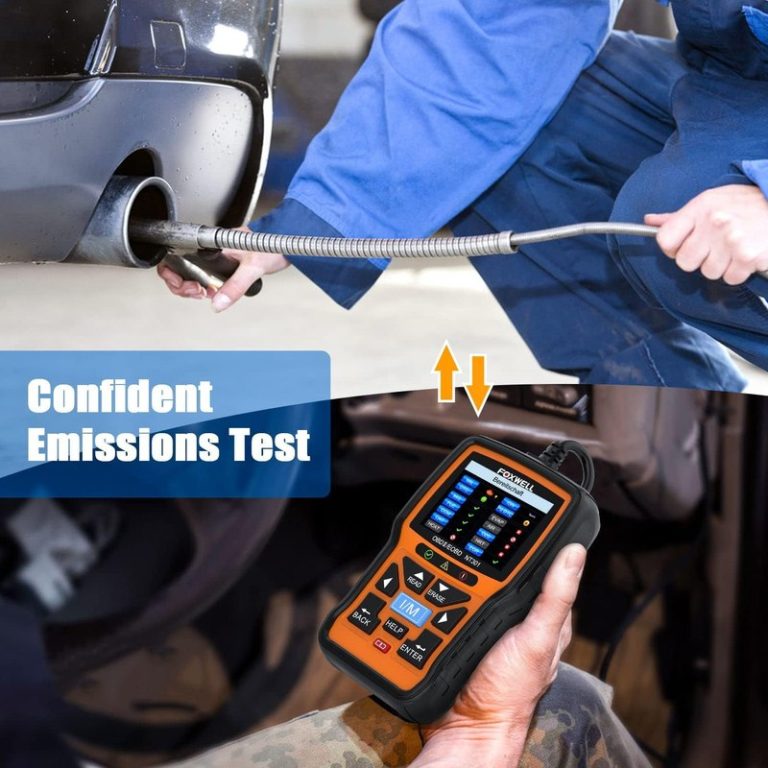
Once you get the scanner connected, resist the urge to immediately clear codes. On vehicles subject to emissions testing, clearing codes resets the readiness monitors. If you clear codes right before an inspection, themonitors may show “not ready,” and the vehicle can fail even if the underlying issue is fixed. Drive through a complete drive cycle first so themonitors run.
Final Verdict
- Best for: DIY owners with a 2008-or-newer vehicle who want to read and clear generic engine codes without a subscription.
- Think twice if: You need manufacturer-specific codes, ABS/airbag diagnostics, or you own a pre-2008 vehicle that may use an older protocol.
- Next step: Check your vehicle’s protocol support and inspect the DLC port before buying anything new. If the scanner still won’t connect, test it on another vehicle to isolate whether it’s the tool or the car.
Frequently Asked Questions
This usually means a mismatch between your vehicle’s communication protocol (like CAN, J1850, or ISO 9141) and the scanner’s supported protocols. Many budget or older tools only read a few protocols, so check your car’s protocol in the owner’s manual and verify it is listed on the scanner’s spec sheet. If it is listed, try manually selecting that protocol in the tool’s settings instead of using “Auto.”
First, confirm the ignition is in the “ON” position (engine off) and the OBD2 connector is fully seated into the port, usually under the dash on the driver’s side. Then check that the scanner’s firmware is updated and that you have selected the correct vehicle model and year in the menu. A loose connection or a blown OBD2 fuse is a common cause of false “protocol not supported” errors.
No, this error rarely indicates a failed ECU; it simply means the scanner cannot communicate using your vehicle’s protocol. It also does not mean your car is undiagnosable—many generic scanners only read engine codes, so transmission, ABS, or tire-pressure (TPMS) modules may appear “unsupported.” For those systems, you need a scanner with enhanced or manufacturer-specific coverage.
Yes, leaving the ignition on while troubleshooting can drain your battery, and rapid plugging/unplugging can blow the OBD2 fuse. Keep the engine running or use a battery maintainer if you need to test for more than 10 minutes, and inspect the port for bent pins before connecting. Also, check your tire pressure before a road test, as a TPMS-related protocol error should not be ignored if the warning light is on.
Not always—start with the cheapest fixes: clean the port, verify the fuse, and update your current scanner’s firmware. If your tool genuinely lacks the protocol, a mid-range Bluetooth or Wi-Fi adapter with a good app is often under $50 and covers more protocols. Only visit a professional if you need dealer-level coding or module programming, which is where ownership costs can rise.
Connected tools can transmit vehicle data, so choose a reputable app that offers local-only storage and never shares your VIN or location without consent. You should seek professional help if the scanner still fails after checking compatibility, fuses, and firmware, or if you see other warning lights like ABS or airbag alerts. A technician with a factory-level tool is the right threshold when safety systems are involved.