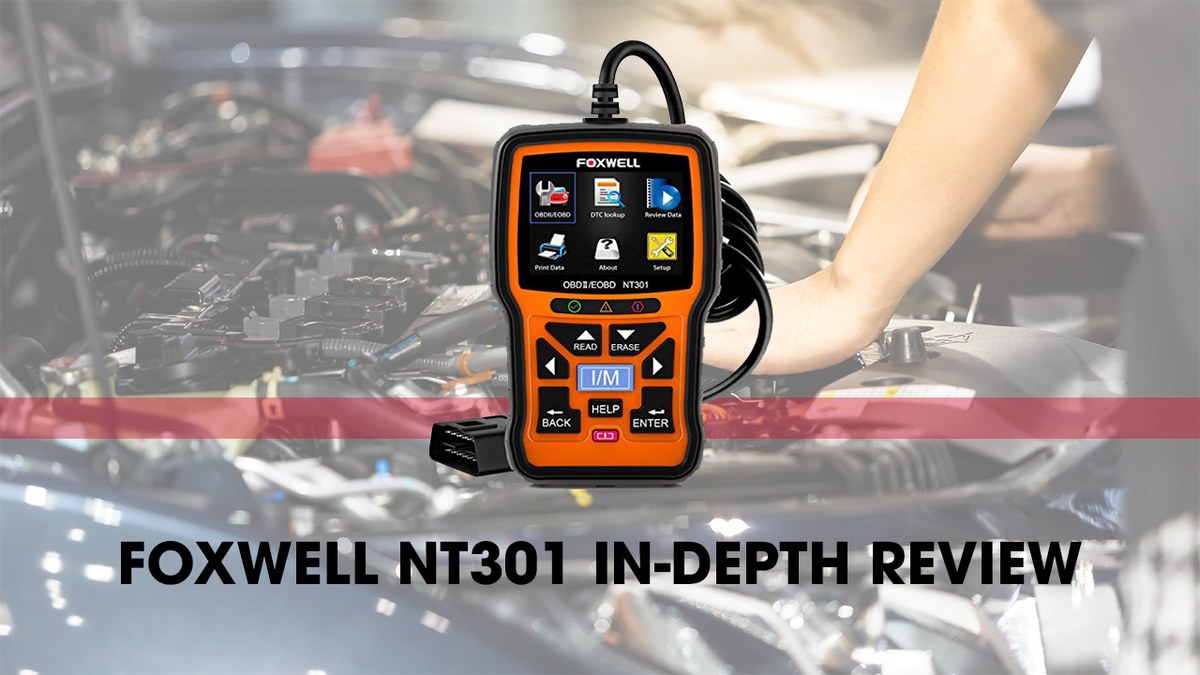
FOXWELL NT301 Not Connecting to Vehicle? Fix It in Minutes
Most Foxwell NT301 connection failures come from weak battery voltage, the wrong ignition mode, or a poor OBD2 port connection. Turn the key to Run, check Pin 16 power, and inspect the cable before assuming the scanner is broken.
If your foxwell nt301 not connecting to vehicle has you stuck, the fix is usually faster than you expect. Most connection failures come down to three simple causes: weak battery voltage, the wrong ignition mode, or a poor physical connection at the OBD2 port.
This guide walks through each step in order, from the quick checks to the deeper ones. You will learn how to confirm power at the port, which ignition mode the scanner needs, how to check protocol compatibility, and when to stop troubleshooting and call a professional.
- Connection order: Plug in the NT301 first, then turn the ignition to Run (KOEO) to wake.
- Power check: Test OBD2 Pin 16 for at least 12V; below 11.5V the ECU may not.
- Compatibility: The NT301 supports all five OBD2 protocols but skips ABS, SRS, and transmission codes.
- Maintenance: Update firmware yearly and inspect the cable connector for bent pins before each use.
- Upgrade path: Consider a higher-level scanner if you need live data graphing or bidirectional tests.
Why Your Foxwell NT301 Won’t Connect — The 30-Second Fix
Before pulling out any tools, try the most common fix: turn the key to the “Run” position (not Accessory, not Start), plug the scanner in firmly, and wait 10 seconds. Many NT301 connection issues disappear once the ignition is in the correct mode. The scanner needs power from the vehicle and a working data link, and KOEO (Key On, Engine Off) is the mode that provides both.
The Three Most Common Causes and How to Rule Them Out
Most NT301 connection failures trace back to one of these:
1. Low battery voltage. The OBD2 port shares power with the vehicle’s electrical system. If the battery is weak, the scanner may power on but fail to establish data communication.
2. Wrong ignition mode. Accessory mode often powers the radio and windows but not the ECU data bus. The scanner needs the ignition in Run mode to talk to the engine computer.
3. Poor connection at the port. A loose plug, bent pin, or dirty connector can interrupt both power and data. This is especially common on older vehicles with heavy use at the DLC (Data Link Connector).
What You Need Before You Start Troubleshooting
You don’t need a full toolset for most of these checks. Keep these items handy:
- The Foxwell NT301 scanner with its OBD2 cable
- The vehicle owner’s manual (to locate the port and fuse box)
- A multimeter if you want to test Pin 16 for voltage
- A flashlight for inspecting the connector
- Your phone or computer for checking Foxwell firmware updates
Step 1: Find the OBD2 Port and Confirm It Has Power
The OBD2 port, also called the Data Link Connector or DLC, is required on all US passenger vehicles and light trucks sold since 1996. It is usually located under the dashboard on the driver’s side, near the steering column, hood release, or center console area.
Where the Port Is on Common US Models (1996–2026)
Port location varies by make and model, but common spots include:
- Under the dash, left of the steering column (Ford, Chevrolet, Toyota, Honda)
- Above the pedals, clipped to the lower dash panel
- Behind a small plastic cover near the center console
- In the driver’s footwell, near the fuse panel
If you can’t find it, check the owner’s manual. Some vehicles hide the port behind a removable panel or ashtray assembly. On a few models, it sits under a labeled cover you must pry open gently.
Checking Pin 16 for 12V Power — and the Correct Connection Order
The OBD2 port has 16 pins. Pin 16 is the battery power pin, and Pin 4 is chassis ground, Pin 5 is signal ground. If the scanner won’t power on at all, Pin 16 likely has no voltage.
To test it safely with a multimeter:
- Set the multimeter to DC volts, 20V range.
- Touch the red probe to Pin 16 (the large pin on the top-right of the connector).
- Touch the black probe to Pin 4 or Pin 5 (ground pins on the bottom row).
- Turn the ignition to Run and check the reading.
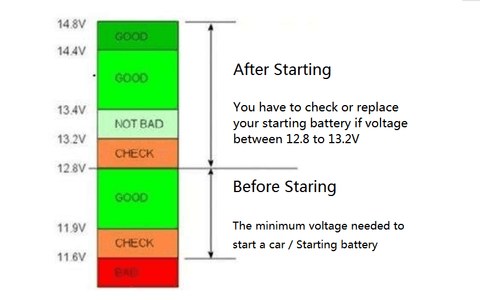
A healthy reading is around 12.6V with the engine off and 13.5V to 14.5V with the engine running. Below 11.5V, the ECU may not communicate reliably.
Step 2: Turn the Ignition to the Correct Mode
Even with good power at the port, the scanner needs the vehicle’s ECU to be awake. That requires the ignition in the right position.
Key On, Engine Off (KOEO) — Why It Matters for the NT301
KOEO means the key is turned to the Run position but the engine is not started. In this mode, the ECU powers up, the data bus becomes active, and the NT301 can establish communication. With the key in Accessory or Lock, the ECU stays asleep and the scanner cannot connect.
If the engine is running, the scanner can also communicate, but KOEO is the recommended mode for reading and clearing codes. It reduces electrical noise and makes live data readings more stable.
Push-to-Start Vehicles: What “Accessory” vs. “Run” Actually Does
On push-to-start vehicles, you don’t turn a key. Press the Start button once without your foot on the brake to enter Accessory mode. Press it again, still without the brake, to enter Run mode. Only in Run mode will the ECU wake up.
Some drivers press the button once and assume the scanner should work. It won’t. You need the second press, which illuminates the dashboard lights and primes the fuel pump. If the dashboard doesn’t light up, you’re still in Accessory.
Step 3: Check Model-Year and Protocol Compatibility
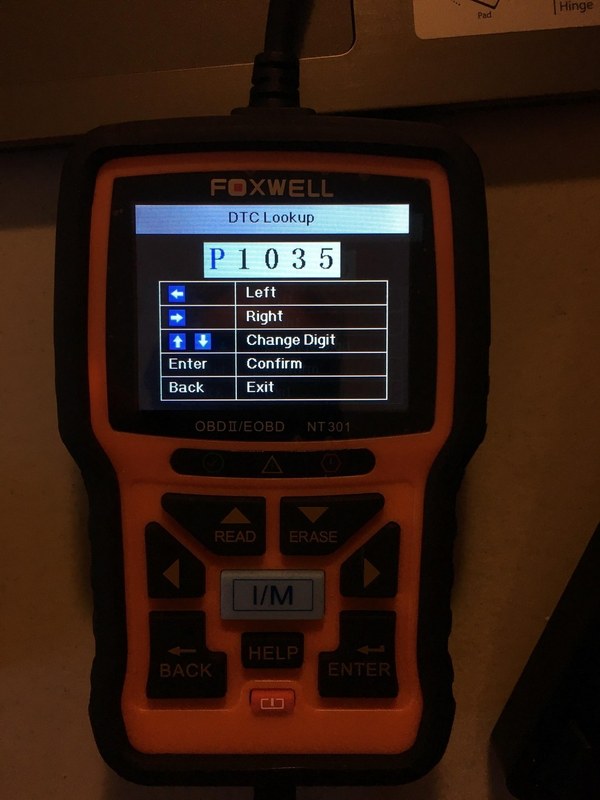
Not every vehicle speaks the same language. The NT301 supports the five standard OBD2 protocols, but some vehicles use proprietary or enhanced protocols that this budget scanner cannot read.
Which OBD2 Protocols the NT301 Supports and Which It Skips
According to Foxwell’s product documentation, the NT301 supports all five standard OBD2 protocols:
- SAE J1850 PWM (used by some Ford vehicles)
- SAE J1850 VPW (used by some GM vehicles)
- ISO 9141-2 (used by many Asian and European vehicles)
- ISO 14230-4 KWP2000 (used by some Asian vehicles)
- ISO 15765-4 CAN (used by most vehicles since 2008)
What it skips are the manufacturer-specific enhanced protocols for ABS, airbag, transmission, and body control modules. The NT301 is a code reader, not a full bidirectional scan tool. It will not read ABS codes or transmission codes, and it cannot perform actuator tests.
Pre-2008 vs. Post-2008 Vehicles — What Changed and How It Affects You
CAN (Controller Area Network) became mandatory on all US passenger vehicles starting with model year 2008. Vehicles built before 2008 may use any of the older protocols, and some use more than one. The NT301 handles all of them for generic powertrain codes, so most 1996 and newer gasoline vehicles should connect.
However, “should connect” doesn’t mean “will read everything.” On some post-2008 vehicles, especially hybrids and newer European models, the ECU may require enhanced protocols even for basic code reading. If you see a “Vehicle Not Supported” or “Protocol Not Supported” message, the issue is compatibility, not a faulty scanner. Check our guide on what “vehicle not supported” means on an OBD2 scanner for more detail.
Check: Verify your vehicle is OBD2-compliant (1996 or newer for most US cars and light trucks). Confirm it uses a standard 16-pin DLC and one of the five OBD2 protocols. Limitations: The NT301 does not read ABS, SRS, transmission, or body control module codes. It cannot perform bidirectional tests or key programming.
Step 4: Inspect the Cable, Firmware, and Scanner Power
If the port has power and the ignition is in Run mode, the next suspects are the scanner itself and its cable.
Cable and Connector Condition — A Bent Pin Stops Everything
Inspect the OBD2 connector on the NT301 cable. Look for bent, pushed-in, or corroded pins. A single damaged pin can break either power or data communication. Also check the cable for cuts, kinks, or stretched sections, especially near the connector ends.
If the cable looks fine but the scanner still won’t power on, try a different vehicle. If it works there, the problem is your vehicle’s port or power supply. If it fails on multiple vehicles, the scanner or cable likely needs replacement.
Firmware Updates and App Permissions on the NT301
The NT301 is a standalone scanner, so there’s no phone app to configure. But Foxwell does release firmware updates through its PC software. Outdated firmware can cause connection issues on newer vehicles, especially those with updated CAN protocols.
Check the Foxwell website for the latest NT301 firmware and update instructions. The process requires a Windows PC, the USB cable, and the Foxwell update software. If you’re unsure about the steps, read our guide on Foxwell NT301 software updates.
Step 5: Battery Voltage, State of Charge, and Hybrid/EV Cautions
Battery problems cause more OBD2 connection failures than most people realize. The scanner may light up, but the ECU won’t communicate if the battery voltage drops too low during the test.
State of Charge vs. Battery Health — Why a Weak Battery Breaks Communication
State of charge means how much energy the battery currently holds. Battery health means how well it can deliver that energy over time. A battery at 50% state of charge may show 12.2V at rest, which is enough to power the scanner but not enough to reliably wake the ECU.
If the battery is old or damaged, voltage can sag under load. The ECU needs stable voltage to run its diagnostic routines. If you see connection failures that come and go, or the scanner powers on but shows “Communication Error,” test the battery.
Hybrid and EV Safety Warnings: What Not to Do at the DLC
Hybrid and electric vehicles have high-voltage systems, but the OBD2 port itself operates at standard 12V. The danger is not the port; it’s what surrounds it. Never probe wires, remove covers, or touch high-voltage components while troubleshooting the DLC.
Also, some hybrids keep the 12V battery in the trunk or under a rear seat. If the 12V battery is dead, the OBD2 port may have no power even though the high-voltage battery is charged. In that case, jump-starting or charging the 12V battery may be necessary before the scanner can connect.
Step 6: The Scanner Connects But Shows No Codes — Now What?
Connection success doesn’t always mean the scanner will show codes. Sometimes the NT301 connects, but the display reads “No Codes” or shows a “Pass” on readiness monitors. That’s not a failure; it means the ECU has no stored trouble codes.
Emissions Readiness, Reset Limitations, and What the NT301 Can’t Do
The NT301 can check I/M readiness monitors, which tell you whether the vehicle’s emissions systems have completed their self-tests. This is useful before an emissions inspection. If you cleared codes recently, the monitors may show “Not Ready” until the vehicle completes a drive cycle.
But the NT301 cannot clear readiness monitors instantly, and it cannot reset oil life, TPMS, or service lights. It also can’t program keys or perform module coding. For those tasks, you need a higher-level scan tool or a professional. If you’re wondering about code clearing limits, our article on whether the Foxwell NT301 can clear codes covers the details.
Live Data Limits — When a $60 Scanner Isn’t Enough
The NT301 offers limited live data for generic PIDs like engine RPM, coolant temperature, and oxygen sensor voltage. But it doesn’t graph data, and it doesn’t show manufacturer-specific PIDs. If you’re chasing an intermittent misfire or a fuel trim issue, a scanner with more live data capability is worth considering.
For basic code reading and clearing, the NT301 is enough. For deeper diagnostics, you may need a tool with bidirectional controls, graphing, and enhanced coverage.
Step 7: When to Stop Troubleshooting and Call a Professional
Not every connection problem is a simple fix. If you’ve worked through all the steps above and the scanner still won’t connect, the issue may be deeper.
Signs of a Deeper Electrical or ECU Problem
- The OBD2 port has no power on Pin 16, and the fuse is good
- The scanner connects on other vehicles but never on yours
- You smell burning electronics near the dash
- The vehicle has other electrical issues, like flickering lights or a dead battery overnight
- The ECU was recently replaced, flashed, or damaged by water
Any of these signs point to a wiring, ground, or ECU problem that a code reader cannot diagnose. Continuing to poke at the port or the wiring could make things worse.
What a Professional Diagnosis Adds That the NT301 Can’t
A professional scan tool can read all modules, not just the powertrain ECU. It can perform bidirectional tests, view network traffic, and access manufacturer-specific data. A technician can also measure voltage drop, check grounds, and use a lab scope to trace communication faults.
If you suspect a deeper issue, a professional diagnosis is worth the cost. It’s cheaper than replacing an ECU or a wiring harness based on guesswork. For general connection problems, our guide on why your OBD2 scanner won’t connect covers additional causes.
Next Steps, Maintenance, and Ownership Cost
Once the NT301 connects reliably, a little care will keep it working for years.
Keeping the NT301 in Good Shape for the Next 10 Years
Store the scanner in a dry, cool place. The NT301 uses a USB cable for firmware updates; keep it with the scanner. Wipe the connector pins occasionally with a dry cloth. Avoid leaving the scanner plugged in for long periods, as it draws power from the vehicle and can drain the battery.
Check for firmware updates at least once a year. New vehicles and updated protocols can affect compatibility, and Foxwell occasionally releases improvements.
Is the NT301 the Right Tool for You — or Should You Upgrade?
The NT301 is a solid entry-level code reader for DIYers who own one or two vehicles and need to read and clear check-engine codes. It’s simple, reliable, and doesn’t require a subscription. If that’s your situation, it’s a good fit.
But if you need ABS or airbag codes, live data graphing, bidirectional controls, or coverage for multiple brands with enhanced diagnostics, you should consider a step-up tool. The NT301’s limitations are real, and knowing them before you buy saves frustration.
- Confirm your vehicle is OBD2-compliant and uses a standard 16-pin port
- Turn the ignition to Run (KOEO) before connecting the scanner
- Check battery voltage if the scanner powers on but won’t communicate
- Update the NT301 firmware periodically
- Don’t force the connector into the port
- Don’t clear codes before recording the code numbers and freeze frame data
- Don’t probe high-voltage components on hybrid or EV vehicles
- Don’t assume the scanner is broken if it won’t read ABS or airbag codes
- Best for: DIY owners who need to read and clear check-engine codes on 1996 and newer US vehicles without a subscription.
- Think twice if: You need ABS, airbag, transmission, or bidirectional diagnostic functions, or you own a newer vehicle with enhanced protocol requirements.
- Next step: Confirm your vehicle’s compatibility, test the OBD2 port with the ignition in Run mode, and update the firmware before assuming the scanner is faulty.
Frequently Asked Questions
Most connection failures come from a weak battery, the wrong ignition mode, or a poor physical connection at the OBD2 port. Turn the key to Run (not Accessory), plug the scanner in firmly, and check that the vehicle battery has at least 12V at rest.
No. The NT301 should connect with the ignition in the Run position and the engine off, which is called KOEO. Starting the engine is not required and can actually make live data readings less stable.
Yes. The OBD2 port shares power with the vehicle’s electrical system. If the battery voltage drops below about 11.5V, the ECU may not wake up or communicate reliably, even though the scanner itself lights up.
It should work for generic powertrain codes on most 1996 and newer US gasoline vehicles, including 2020 models, because they use the standard CAN protocol. However, some newer hybrids and European models require enhanced protocols that the NT301 does not support.
Download the Foxwell update software on a Windows PC, connect the NT301 with its USB cable, and follow the on-screen instructions. Check the Foxwell website for the latest firmware version for the NT301.
That usually means the ECU has no stored trouble codes, which is a good sign. If you recently cleared codes, the emissions readiness monitors may show “Not Ready” until the vehicle completes a drive cycle.