What Does Vehicle Not Supported Mean on an OBD2 Scanner? How to Fix
The “vehicle not supported” error means your OBD2 scanner can’t talk to your car’s computer. This is usually a compatibility or power issue, not a sign of major engine damage.
If you’ve ever plugged in a code reader and seen the message “vehicle not supported,” you know the frustration. Understanding what does vehicle not supported mean on an OBD2 scanner is the first step to clearing codes, reading live data, and passing an emissions test.
- Protocol mismatch: Your car and scanner must use the same communication language, like CAN or J1850.
- Power check: A blown fuse or low battery can stop the scanner from connecting.
- Ignition state: Most scanners need the key in the “ON” position with the engine off.
- Tool quality: Cheap clone adapters often fail; a certified scanner is more reliable.
- Know the difference: “Not supported” is not the same as a monitor being “not ready” for emissions.
What Does “Vehicle Not Supported” Mean on an OBD2 Scanner? The Short Answer
This error means the scanner cannot establish a data link with your vehicle’s computer. It does not necessarily mean your car is broken or that the scanner is defective. It usually means the tool lacks the correct software, wiring protocol, or power to communicate with your specific make and model.
Why the Error Message Appears and What It Does Not Mean
Your car’s engine computer uses a specific communication language called a protocol. The scanner needs to match that language to read data. When they do not match, the scanner shows “vehicle not supported” or a similar “no communication” error. This is not a sign that your engine is damaged; it is a sign that the diagnostic link is broken or incompatible.
How This Affects Your Ability to Read Codes, Live Data, and Emissions Readiness
When the link fails, you cannot read diagnostic trouble codes (DTCs), view live sensor data, or check if your emissions monitors are ready. Without this access, you are essentially driving blind. You will not know why the check engine light is on, and you cannot prepare your car for a state inspection.
OBD2 Protocol and Model-Year Compatibility: The Root Cause of Most “Not Supported” Errors
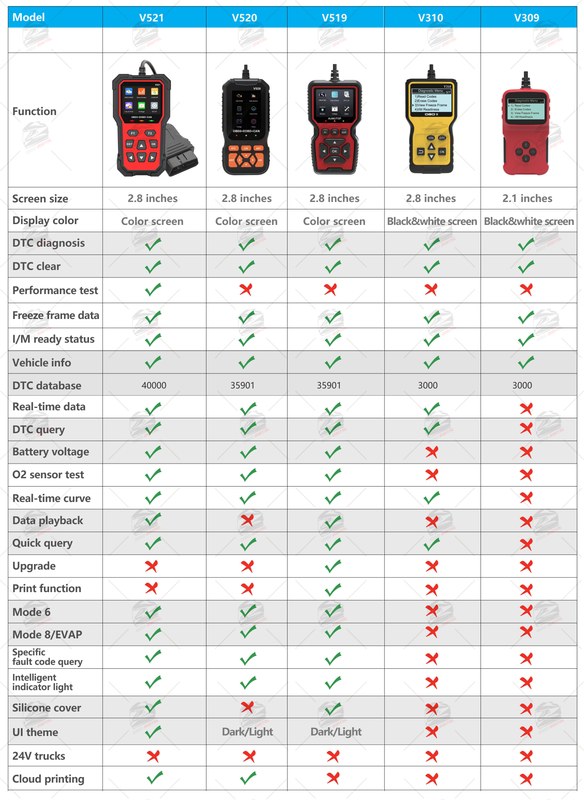
The most common cause is a mismatch between your vehicle’s communication protocol and the scanner’s capability. All 1996 and newer cars sold in the US must support OBD2, but they do not all use the same protocol.
Pre-1996 Vehicles and the OBD1/OBD2 Divide
Cars built before 1996 use an older system called OBD1. These systems have different connectors and communication methods. A standard OBD2 scanner will not work on them. If you own a 1995 or older vehicle, you need a manufacturer-specific adapter or a dedicated OBD1 scanner.
Partial OBD2 Compliance (1994–1995) and Early Adapter Quirks
Some 1994 and 1995 vehicles were built with OBD2 features before the mandate took full effect. These “transitional” cars may have an OBD2 port but use an older protocol. This can confuse a generic scanner. You may need to check the vehicle emissions label under the hood to see which protocol it lists.
Protocol Types: SAE J1850 PWM, VPW, ISO 9141-2, ISO 14230 (KWP2000), and CAN
There are five main OBD2 protocols. Older Ford and Mazda vehicles often use J1850 PWM. General Motors vehicles commonly use J1850 VPW. Many European and Asian cars use ISO 9141-2 or KWP2000. Most 2008 and newer vehicles use the Controller Area Network (CAN) protocol. A scanner that only supports CAN will fail on a 2001 vehicle using KWP2000.
Why Some 2008+ Vehicles Still Fail to Communicate with Generic Scanners
Even with CAN, some newer cars use enhanced diagnostics that go beyond the generic OBD2 standard. While they should respond to a basic emissions check, they may lock out generic tools from reading manufacturer-specific codes (like ABS or airbag data). This is why a cheap scanner might read the engine but fail on other modules.
Check: Verify your vehicle’s model year and protocol before buying. Look for the emissions label under the hood or in the owner’s manual. Limitations: A scanner that works on one car may not work on another, even from the same brand.
Beyond the Protocol: Connector, Pinout, and Power Issues That Trigger the Error
Sometimes the problem is not the protocol but the physical connection. A loose connector, a blown fuse, or a lack of power can all cause the same error message.
Locating the OBD2 Port and Verifying Pin 16 Power and Ground
The OBD2 port is usually under the dashboard on the driver’s side. Pin 16 should provide 12 volts of power, and pins 4 and 5 are ground. If the scanner does not power on, check these pins with a multimeter. A blown fuse in the cigarette lighter or diagnostic port circuit is a common culprit.
Fused Cigarette Lighter vs. Dedicated OBD2 Port: Voltage and Signaling Differences
Some drivers use an extension cable that plugs into a 12V socket. This can work, but it is not the same as a direct connection. The OBD2 port is wired for stable data communication. A cigarette lighter socket may have voltage drops or interference that prevents a stable link.
Damaged or Bent Pins and the Need for a Properly Seated Connector
Inspect the pins on both the car’s port and the scanner’s cable. A bent or corroded pin can break the data link. Make sure the connector clicks into place. A loose connection can cause intermittent failures that look like a compatibility issue.
Ignition Mode, Key Position, and Vehicle State: Are You Scanning the Right Way?
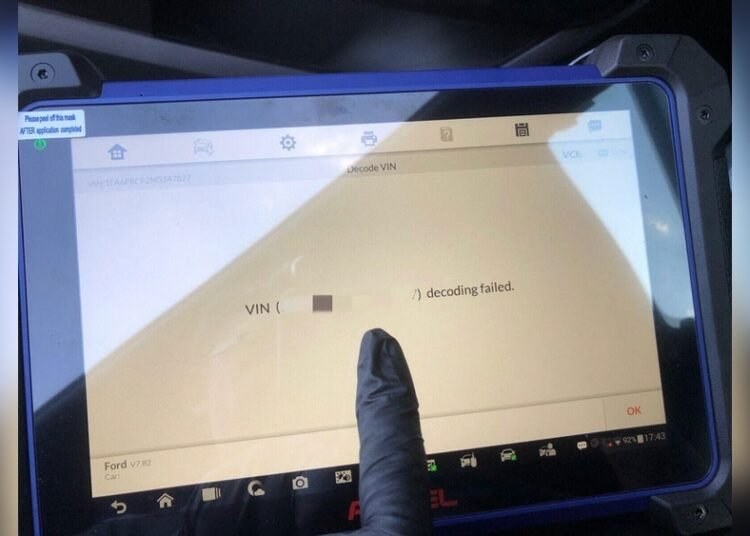
The scanner needs the car to be in the right state to communicate. A common mistake is trying to scan with the engine running or with the key in the wrong position.
Ignition On vs. Engine Running: When the Scanner Can and Cannot Connect
Most scanners require the ignition to be in the “ON” position with the engine off. This powers up the computer and allows communication. Some advanced tools can read live data with the engine running, but a basic code reader may not. Check your tool’s manual for the correct procedure. For more details, see our guide on whether you need the engine running to use an OBD2 scanner.
Hybrid and EV-Specific Cautions: High-Voltage Systems and Safe Scanning Practices
Hybrid and electric vehicles have high-voltage systems that can be dangerous. The OBD2 port is safe to use, but you should never probe high-voltage cables. Follow the vehicle’s manual for the correct ignition state. Some hybrids require the system to be “ready” rather than simply in accessory mode.
Battery Voltage and State of Charge: Why a Low Battery Can Cause a “Not Supported” Readout
A weak car battery can cause communication failures. The computer needs a stable voltage to operate. If the battery is low, the scanner may not receive a clear signal. Try jump-starting the car or charging the battery before you scan. For related battery issues, you can learn what a battery tester tells you.
What “Not Supported” Means for Live Data, Code Reading, and Emissions Readiness
When a scanner says “not supported,” it affects more than just the check engine light. It limits your access to the vehicle’s entire diagnostic system.
Generic OBD2 PIDs vs. Manufacturer-Specific PIDs and Enhanced Diagnostics
Generic scanners read standard data, like engine RPM and coolant temperature. Manufacturer-specific data, like transmission temperature or fuel trims, may be “not supported” on a generic tool. You need a scanner with enhanced software for your car’s brand to access this information.
Emissions Readiness Monitors: Why Some Vehicles Report “Not Ready” or “Not Supported”
Emissions readiness monitors run self-tests on systems like the catalytic converter and oxygen sensors. If these tests have not run, the monitor will show “not ready.” This is different from “not supported.” “Not ready” means the car needs to be driven through a specific drive cycle. “Not supported” means the scanner cannot see the monitor at all. See our article on what readiness monitor incomplete means for more detail.
Reset Limitations: Clearing Codes and the Risk of Failing State Inspection
Clearing a code with a scanner also resets the readiness monitors. If you clear a code right before an emissions test, the monitors will be “not ready,” and you will fail. Some states also have rules about clearing codes. Check your local regulations before you reset anything.
App Permissions, Firmware, and Scanner Hardware: When the Problem Is the Tool, Not the Car
If you are using a Bluetooth adapter and a phone app, the problem may be in the app or the adapter itself.
Bluetooth Pairing and App Permissions on iOS and Android
Make sure the adapter is paired with your phone and that the app has permission to access Bluetooth and location services. On some phones, the app needs location permission to scan for nearby Bluetooth devices. A permission issue can prevent the app from seeing the adapter, leading to a “no connection” error.
Firmware Updates for ELM327, OBDLink, and Other Adapters
Many cheap adapters use a generic ELM327 chip. These chips may have bugs or outdated firmware that cause compatibility issues. Some apps allow you to update the adapter’s firmware. A firmware update can fix communication errors and improve compatibility with newer vehicles.
Cheap Clone Adapters vs. Certified Scanners: Reliability and Data Accuracy
Cheap clone adapters are often unreliable. They may not have the correct circuitry to handle all protocols. They can also produce inaccurate data. A certified scanner, like an OBDLink or a professional tool, has better hardware and software support. For a more in-depth look, read our comparison of cheap vs. expensive OBD2 scanners.
Step-by-Step Troubleshooting: From Port Location to Professional Diagnosis
Follow these steps in order to isolate the problem. Do not skip ahead, as each step rules out a common cause.
Locate the OBD2 port under the dash. Turn the ignition to the “ON” position with the engine off. Ensure the car is in park or neutral.
Inspect the port for bent pins or debris. Plug the scanner in firmly and make sure it clicks into place. Check that the scanner powers on.
Try a different scanner or a phone app with a known-good adapter. This tells you if the problem is your tool or the car.
Quick Checks: Port Location, Ignition State, and Cable Condition
Start with the basics. Is the scanner plugged into the correct port? Is the ignition on? Is the cable damaged? These simple checks resolve many issues. If you are still stuck, our guide on why your OBD2 scanner won’t connect can help.
Testing with a Known-Good Generic Scanner or a Vehicle-Specific Diagnostic Tool
Borrow a scanner from a friend or auto parts store. If the borrowed scanner works, your original tool is the problem. If the borrowed scanner also fails, the issue is in the vehicle. A vehicle-specific tool may be needed for European or Asian cars with proprietary protocols.
When the Error Persists: Checking for Aftermarket Alarms, Immobilizers, or Modified Wiring
Aftermarket alarms or remote starters can interfere with the OBD2 data link. Modified wiring or a damaged wiring harness can also cause issues. If you have a non-standard setup, this could be the source of the problem.
When to Stop and Call a Professional: Dealer-Level Diagnostics and Scan Tools
If you have tried multiple scanners and checked the basics, it is time to call a professional. A dealer or an independent shop with a high-end scan tool can communicate with all modules in your car. They have the software to diagnose complex wiring and module failures.
Choosing the Right OBD2 Scanner for Your Vehicle: A Practical Buying Guide
If your scanner is the problem, you need to choose a replacement that fits your car and your needs. This is not a one-size-fits-all purchase.
Match the Scanner to Your Vehicle’s Protocol and Model Year
First, identify your car’s protocol. Most modern scanners support all five protocols, but some budget models do not. If you own an older car, verify that the scanner explicitly lists support for your vehicle’s protocol. For example, a scanner for a 2005 Chevy Silverado may need J1850 VPW support.
Features That Matter: Live Data, ABS/SRS, Battery Health, and TPMS Support
Think about what you want to do. Do you need to see live data? Do you want to read airbag codes? Do you need to check battery health? These features add cost but provide more value. A basic code reader is fine for clearing the check engine light, but a prosumer scanner is better for diagnostics. See if an OBD2 scanner can read airbag codes or ABS codes before you buy.
Budget vs. Prosumer vs. Professional Scanners: What Each Tier Can and Cannot Do
Budget scanners (under $50) can read and clear generic engine codes. Prosumer scanners ($100-$300) add live data, ABS/SRS, and some manufacturer-specific codes. Professional scanners ($500+) offer bidirectional controls, coding, and full system coverage. Choose the tier that matches your skill level and vehicle needs.
Warranty, Support, and Firmware Updates: Protecting Your Purchase
Check the warranty and the manufacturer’s update policy. Some scanners require a paid subscription for updates. Others offer free updates for a limited time. A good warranty and responsive support can save you money if the tool fails or needs a software fix.
- Confirm your vehicle’s model year and OBD2 protocol
- Decide which systems you need to scan (engine, ABS, SRS, etc.)
- Check if the scanner requires a paid subscription for updates
- Review the warranty and return policy
- Read reviews from other owners of your vehicle make
Bottom Line: What “Vehicle Not Supported” Means for Your Ownership Experience and Next Steps
The “vehicle not supported” error is a communication failure, not a death sentence for your car. It is a solvable problem that usually comes down to compatibility, power, or procedure.
When You Can Safely Diagnose Yourself and When You Need a Shop
You can safely diagnose the issue yourself if you have a multimeter, a basic understanding of car electronics, and a second scanner to test with. If you are not comfortable working with electrical systems, or if the problem persists after basic checks, take the car to a professional.
Cost Implications: DIY vs. Professional Diagnostics and the Value of a Compatible Scanner
A new compatible scanner can cost anywhere from $20 to over $500. A professional diagnostic session typically costs between $50 and $150. If you plan on owning your car for years, a good scanner pays for itself. If you only need one code read, a shop visit may be cheaper.
Final Takeaway: Turn the Error into a Clear Path Forward
Do not let a “not supported” message confuse you. Use it as a signal to check your tool, your procedure, and your vehicle’s specific needs. With the right approach, you can turn this error into a clear path forward for your next repair or inspection.
- Best for: Drivers who want to understand and fix the communication error themselves.
- Think twice if: You have a pre-1996 vehicle or a complex European car that may need a dealer-level tool.
- Next step: Verify your car’s protocol and model year, then test your scanner with a known-good tool before buying a replacement.
Frequently Asked Questions
It means the scanner cannot communicate with your car’s computer. This is usually due to a protocol mismatch, a power issue, or a faulty connection, not a broken car.
No. Vehicles made before 1996 use the OBD1 system, which has different connectors and communication protocols. You will need a manufacturer-specific or OBD1-compatible scanner.
The scanner cannot establish a data link with the engine computer. This could be due to a blown fuse, a damaged OBD2 port, or a protocol mismatch between the scanner and the vehicle.
Yes. A weak battery can cause unstable voltage, which prevents the scanner and the car’s computer from communicating clearly. Try charging the battery or jump-starting the car before scanning.
“Not supported” means the scanner cannot see the data or system. “Not ready” means the car’s emissions monitors have not run their self-tests yet, often after a battery disconnect or code clear.
Yes. Generic OBD2 scanners usually only read engine codes. To read ABS or airbag codes, you need a scanner that supports enhanced diagnostics for your vehicle’s make and model.




7 Comments