How Does BlueDriver Work? a Plain-English Guide for DIY Drivers
BlueDriver is a Bluetooth OBD2 adapter that turns your smartphone into a code reader, live-data monitor, and battery-checking tool. It explains check-engine codes in plain English and requires no subscription for core features.
So, how does bluedriver work? In plain English, it’s a small Bluetooth adapter that plugs into your car’s diagnostic port and turns your smartphone into a code reader, live-data monitor, and battery-checking tool. It reads the same check-engine codes a repair shop sees, explains them in the app, and helps you decide whether the fix is a DIY job or a trip to the mechanic.
- Compatibility: Works with most 1996 and newer US gasoline vehicles through the standard OBD2 port.
- No subscription: Core code reading, live data, and the free app have no recurring fee.
- Real limits: No bidirectional controls, TPMS relearn, or deep module access on all vehicles.
- Battery check: Measures voltage and charging output, but true battery health needs a conductance tester.
- Safety first: Stop if the battery is damaged, and never probe high-voltage hybrid or EV components.
What BlueDriver Actually Does (and How It Works)
The Short Answer: A Smartphone-Powered OBD2 Scanner
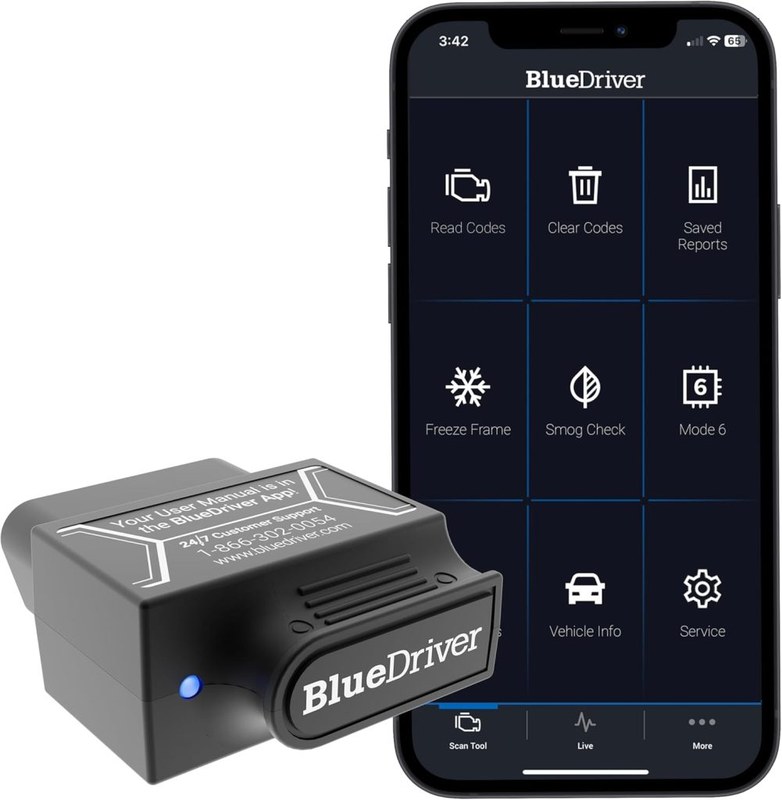
BlueDriver is a small dongle, roughly the size of a matchbox, that connects to your car’s OBD2 port. That port has been required on all US passenger cars and light trucks since 1996, so coverage is broad.
The dongle has no screen. Instead, it talks to the free BlueDriver app on your iPhone or Android phone over Bluetooth. Your phone becomes the display, the keyboard, and the code library all in one.
Once paired, the scanner can read diagnostic trouble codes (DTCs), show live sensor data, capture freeze-frame data, and run a basic battery and charging system check. The exact features depend on your vehicle and the app version.
How the BlueDriver App Turns Diagnostic Codes Into Plain English
Raw codes like P0301 mean nothing to most drivers. The BlueDriver app translates that code into “Cylinder 1 Misfire Detected” and adds a plain-language explanation of what that usually means.
BlueDriver also offers enhanced diagnostics for certain makes, including Ford, GM, Toyota, Chrysler, Honda, and Nissan in many model years. These deeper tests can pull manufacturer-specific codes that a generic scanner would miss. Coverage varies, so check the app’s compatibility list before assuming your vehicle is included.
Before You Plug In: Compatibility and Vehicle Coverage
OBD2 Protocol and Model-Year Coverage (1996 and Newer)
In the United States, the OBD2 standard applies to 1996 and newer gasoline vehicles. BlueDriver is built around that standard, so it will physically connect to nearly any car or light truck from that era.
Check: Confirm your vehicle is OBD2-compliant (1996 or newer in the US), runs the BlueDriver app on a supported phone, and uses a standard 16-pin OBD2 port. Limitations: Some hybrid, EV, diesel, and high-end European models may have limited enhanced-data coverage even though basic code reading works.
If your vehicle is older than 1996, or uses an older connector, BlueDriver will not work. The same applies to heavy-duty trucks that use a different diagnostic standard.
App Requirements, Bluetooth Pairing, and Firmware Updates
The BlueDriver app is free and available for iOS and Android. You will need a phone that supports the required Bluetooth version, which is standard on virtually all modern smartphones.
Pairing is straightforward: plug the dongle into the port, turn the ignition to the “on” position without starting the engine, and follow the app’s pairing prompts. The first connection can take a minute or two.
Firmware updates arrive through the app. Keeping the firmware current matters because updates can improve vehicle coverage and fix connection bugs. If your scanner keeps dropping its Bluetooth link, check the phone’s power-saving settings and the dongle’s connection before assuming the device is faulty.
How to Use BlueDriver Step by Step
Finding the OBD2 Port and Plugging In Safely
The OBD2 port is almost always under the dashboard on the driver’s side, near the steering column. Some vehicles hide it behind a small cover or fuse-box panel.
Look under the dash near the steering column, or check your owner’s manual for the exact position.
Make sure the engine is off. The connector is keyed, so it only fits one way. Push it in firmly until it clicks.
Turn the key to the “on” position or press the start button without touching the brake. Do not start the engine.
Never force the connector. If it does not slide in easily, you may have the wrong angle, or an object may be blocking the port.
Ignition Mode, Pairing, and Reading Codes
With the dongle plugged in and the ignition on, open the BlueDriver app. It will search for the adapter, pair with it, and ask you to confirm your vehicle’s make, model, and year.
Once connected, tap the scan button. The app reads all stored and pending codes, then displays each one with its plain-English description. You can also see freeze-frame data, which is a snapshot of engine conditions at the moment the code was set.
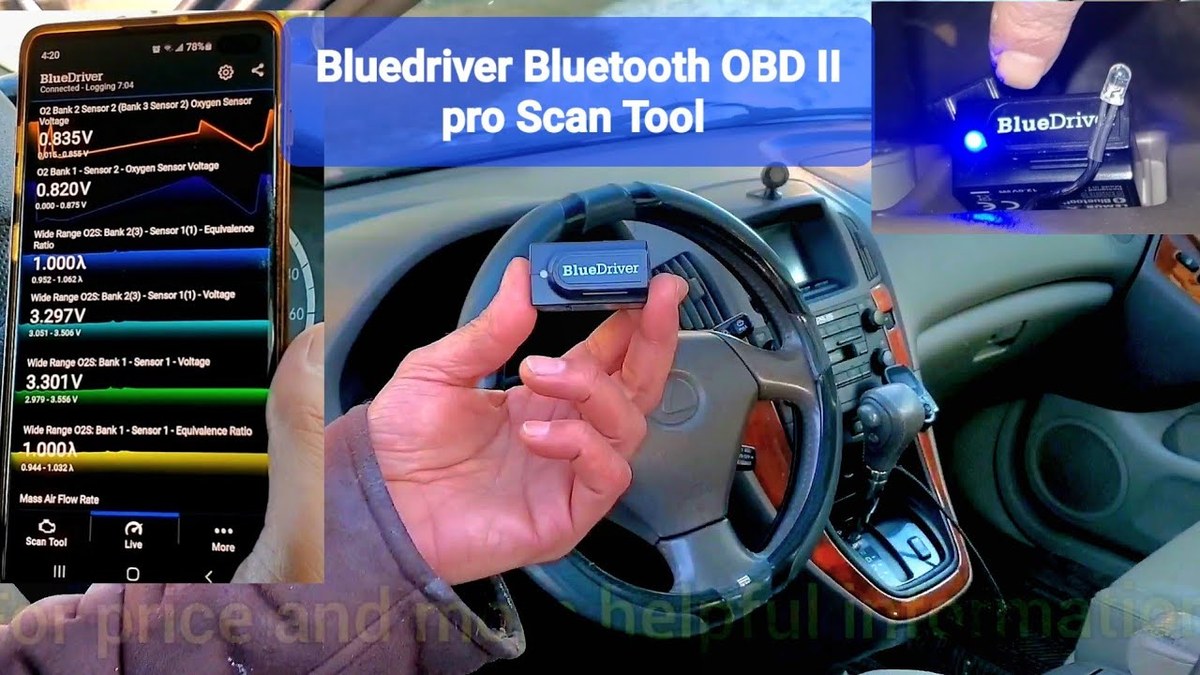
For a more detailed walkthrough of the scanning process, our guide on how to use the BlueDriver Pro scan tool breaks down each screen and menu option.
Live Data, Freeze-Frame, and Clearing Codes (With Limits)
Live data mode shows real-time sensor readings like engine RPM, coolant temperature, oxygen sensor voltage, and calculated engine load. Watching these values while the engine runs can help you spot a failing sensor or a vacuum leak.
Freeze-frame data is especially useful. It records the RPM, speed, coolant temp, and fuel trim at the exact moment the code appeared. That snapshot often tells you whether the problem happens at idle, under load, or at highway speed.
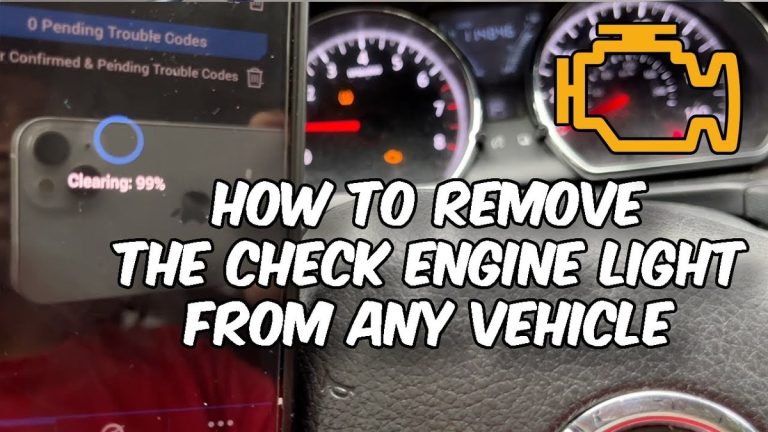
Clearing codes is easy, but do it with care. Write down every code and freeze-frame value first. Once cleared, the diagnostic information is gone, and emissions readiness monitors reset to “not ready.”
Clearing a code does not fix the underlying problem. If the fault is still active, the check-engine light will come back, often within a few drive cycles. Use the app only when parked; scrolling through data while driving is a distraction you do not need.
Battery and Electrical System Checks With BlueDriver
System Voltage, State of Charge vs. Battery Health, and Battery Chemistry
BlueDriver can read the vehicle’s system voltage through the OBD2 port and run a basic charging system test. With the engine off, voltage gives you a rough idea of the battery’s state of charge. With the engine running, voltage tells you whether the alternator is charging.
There is an important limit here. Voltage-based checks can suggest a weak battery, but they cannot measure battery health the way a dedicated conductance tester can. A battery can show 12.6 volts at rest and still fail under load.
If you want a true health reading, you need a battery tester that measures cold cranking amps and internal resistance. Our guide on how the Topdon battery tester works explains the difference between voltage, state of charge, and actual battery condition.
Connection Order, Damaged-Battery Stop Conditions, and Hybrid/EV Cautions
When running a battery or charging test, connect the scanner first, then turn the ignition on. Follow the app’s instructions in order. Do not skip steps or start the engine during a test that requires the engine off.
Hybrid and electric vehicles deserve extra caution. The OBD2 port itself is low voltage, so plugging in a scanner is safe. But never probe high-voltage orange cables, battery packs, or motor connections. Leave those systems to trained technicians.
Tire Pressure and TPMS Help From the BlueDriver App
Cold Pressure, the Door-Jamb Placard, Gauge Accuracy, and Inflator Duty Cycle
On many vehicles with direct TPMS, BlueDriver can display each tire’s pressure and temperature through the OBD2 port. That saves you from kneeling at all four wheels with a gauge.
Always compare the readings to the pressure listed on the driver’s door-jamb placard, not the number molded into the tire sidewall. The sidewall number is the maximum pressure, not the recommended pressure.
Check pressures when the tires are cold, ideally before driving. Driving heats the tires and raises pressure, which makes the reading misleading. If you are adding air, remember that portable inflators have duty cycles. Most need to rest after several minutes of continuous running to avoid overheating.
TPMS Relearn Limits, Puncture Location, and When a Tire Shop Is Required
BlueDriver can read TPMS data on supported vehicles, but it typically cannot perform a TPMS relearn. Relearn procedures often require a dedicated TPMS tool that triggers each sensor, or a dealer-level scanner.
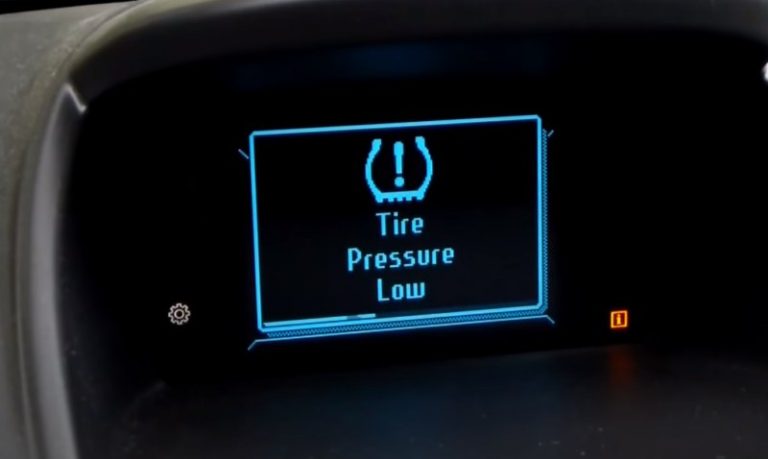
After a tire rotation or sensor replacement, the system may need a relearn to match each sensor to its new corner. If your TPMS light flashes and then stays on, that is the system telling you it has a problem, not just low pressure.
Also remember that TPMS tells you pressure is low, not where the leak is. A nail in the tread and a cracked wheel both trigger the same warning. If you find a puncture, the location matters. Tread-area punctures are often repairable; sidewall damage usually means replacement.
BlueDriver vs. Other OBD2 Scanners: A Side-by-Side Comparison
BlueDriver sits in a specific spot in the scanner market. It costs more than a basic Bluetooth dongle but far less than a professional handheld. Here is how it stacks up.
| Option | Best for | Owner consideration | Driver consideration |
|---|---|---|---|
| BlueDriver | DIY drivers who want code explanations and live data without a subscription | One-time device cost; free app; no subscription for core features | Requires a smartphone; no bidirectional controls |
| Cheap Bluetooth dongles | Budget users who just want raw codes | Very low cost, but no built-in code library or enhanced diagnostics | App quality varies; many lack plain-English explanations |
| Subscription scanners (FIXD) | Drivers who want a polished app with maintenance reminders | Ongoing subscription cost after the first year | Features disappear if you cancel the subscription |
| Professional handhelds (Autel, Launch) | Shops and serious DIYers who need bidirectional controls | Much higher upfront cost; steeper learning curve | Can command actuators, run tests, and access more modules |
BlueDriver vs. Cheap Bluetooth Dongles
A $20 dongle can read and clear codes, but most come with bare-bones apps that show raw numbers and nothing else. BlueDriver’s advantage is the app: plain-English code descriptions, enhanced diagnostics on supported makes, and a battery test built in.
If you only need to read a code once a year, a cheap dongle may be enough. If you want to understand the problem and track live data, BlueDriver earns its higher price. Our comparison of BlueDriver vs. Veepeak looks at this budget-versus-features trade-off in more detail.
BlueDriver vs. Subscription-Based Scanners (FIXD)
FIXD sells a similar dongle but pairs it with a subscription service. The first year is often included, then you pay a recurring fee for full features. BlueDriver’s core functions do not require a subscription, which makes its long-term cost more predictable.
That difference matters if you plan to keep the scanner for several years. A one-time purchase can cost less over time than a subscription, even if the upfront price is similar.
BlueDriver vs. Professional-Grade Handheld Scanners (Autel, Launch)
Professional handhelds cost several times more than BlueDriver, but they add bidirectional controls. That means you can command a fuel pump to run, cycle an ABS pump, or actuate a cooling fan to test it. BlueDriver cannot do that.
For most DIY drivers, that capability is overkill. For serious hobbyists or small shops, it can be the difference between diagnosing a problem and guessing at it.
Limitations, Privacy, and Knowing When to Call a Professional
Code and Live-Data Limits, Emissions Readiness, and Reset Limitations
BlueDriver reads generic OBD2 codes on every compliant vehicle. Enhanced codes and module-level data only work on supported makes and model years. If your car is not in the compatibility list, you will still see basic codes, but not the deeper manufacturer data.
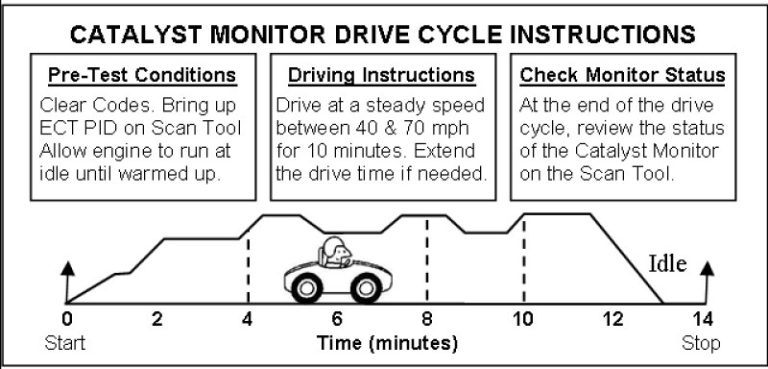
Emissions readiness is another limit. The app can display readiness monitor status, which tells you whether your vehicle is ready for an emissions test. But if you clear codes before an inspection, the monitors reset to “not ready,” and you will need to drive through a specific cycle to set them again. Our guide on what readiness monitor incomplete means explains why that happens.
BlueDriver also cannot perform most reset or programming procedures. It will not relearn a TPMS system, reset an oil-life monitor on every make, or program a new key fob. Those tasks need specialized tools.
App Permissions, Data Privacy, and Firmware Update Policy
The BlueDriver app requests certain phone permissions to function, including Bluetooth and, in some cases, location access. Review those permissions and deny anything that does not make sense for a diagnostic tool.
Firmware updates are free and delivered through the app. The catch is that you need a working phone, a charged battery, and a stable Bluetooth connection to install them. If the phone is lost or the app stops being updated, the scanner may become less useful over time.
When a Professional Diagnosis Is Still Required
A code tells you where to look, not always what to fix. Intermittent problems, wiring shorts, failing modules, and airbag or ABS faults often need a professional scan tool and a trained technician.
If the check-engine light is flashing, that signals a severe misfire that can damage the catalytic converter. Stop driving and get the vehicle to a shop. If you are unsure about any high-voltage, airbag, or brake system fault, professional help is the safer choice.
Ownership Cost, Support, and the Final Verdict
What BlueDriver Costs Over Time (Device, App, and Warranty/Support)
BlueDriver is a one-time purchase. The app is free, and the core features do not require a subscription — a question we answer in detail in our guide on whether BlueDriver needs a subscription.
Warranty terms and support policies change, so check the manufacturer’s current documentation before buying. Keep your purchase receipt and register the product if the manufacturer offers it.
Keeping BlueDriver in Your Emergency Kit: Storage, Cable Condition, and Post-Use Inspection
BlueDriver is small enough to live in a glove box or a center-console cubby. That makes it a practical emergency tool for a sudden check-engine light on a road trip.
Inspect the connector before each use. Bent pins, cracked plastic, or a loose fit can cause poor communication or no connection at all. Wipe the contacts with a dry cloth if they look dirty, and never use water or solvent on the connector.
After use, unplug the dongle if you will not drive for a while. Leaving it plugged in can draw a small amount of power from the battery, which matters on vehicles that are parked for weeks at a time.
Ideal User, Drawbacks, Alternatives, and a Transparent Verdict
BlueDriver is best for a DIY driver who wants to understand check-engine codes without paying a subscription or learning a professional scan tool. It is also a strong choice for anyone who wants live data and a basic battery check in one small device.
Think twice if you need bidirectional controls, TPMS relearn capability, or deep module access on an unsupported vehicle. In those cases, a professional handheld or a shop visit is the better path.
Alternatives include cheap Bluetooth dongles for budget-only code reading, subscription scanners like FIXD for a polished app experience, and Autel or Launch handhelds for serious diagnostic work. Before you buy, confirm your vehicle is OBD2-compliant, your phone is supported, and the features you need are included in the app version you plan to use.
- Best for: DIY drivers who want plain-English code explanations, live data, and a battery check without a subscription.
- Think twice if: You need bidirectional controls, TPMS relearn, or deep module access on an unsupported vehicle.
- Next step: Confirm your vehicle’s OBD2 compatibility and phone support, then compare current prices at a reputable US retailer.
Frequently Asked Questions
BlueDriver works with any vehicle that has a standard OBD2 port, which means most 1996 and newer cars and light trucks in the US. Basic code reading works broadly, but enhanced diagnostics only cover certain makes and model years.
No. The BlueDriver app is free, and core features like reading codes, viewing live data, and running a battery check do not require a subscription. Some competing scanners, like FIXD, charge a recurring fee after the first year.
Yes, the app can clear diagnostic trouble codes. But clearing a code does not fix the underlying problem, and it resets emissions readiness monitors to “not ready.” Record the codes and freeze-frame data before clearing.
BlueDriver can read system voltage and run a basic charging system test through the OBD2 port. It can suggest a weak battery, but it cannot measure battery health the way a dedicated conductance tester can.
BlueDriver can display TPMS sensor data on many supported vehicles, but it usually cannot perform a TPMS relearn. Relearn procedures typically require a dedicated TPMS tool or a dealer-level scanner.
BlueDriver is worth it if you want plain-English code explanations, live data, and a battery check without a subscription. It is not the right tool if you need bidirectional controls or TPMS relearn capability.