How to Use FOXWELL NT301 Scanner to Diagnose Engine Issues Fast
The FOXWELL NT301 is a standalone OBD2 code reader that plugs into your car’s diagnostic port to read engine codes, freeze frame data, and emissions readiness. It is best for DIY engine diagnosis on 1996 and newer gasoline vehicles, but it cannot read ABS, airbag, or transmission codes.
If you want to know how to use foxwell nt301 scanner to diagnose engine issues fast, start with the basics: this is a standalone OBD2 code reader, not a full shop scanner. It plugs into the diagnostic port under your dashboard and talks directly to the engine control module. In a few minutes, you can read codes, check freeze frame data, review emissions readiness, and decide whether the problem needs a repair shop.
- Coverage: The NT301 reads engine codes, freeze frame data, and I/M readiness on 1996 and.
- Limits: It does not cover ABS, airbags, transmission, or bi-directional controls.
- Setup: Plug into the OBD2 port and turn the ignition to Key On, Engine Off.
- Safe resets: Record codes and freeze frame data before clearing anything.
- Privacy: No app, no account, and no subscription means your vehicle data stays local.
What the FOXWELL NT301 Can and Cannot Diagnose
The NT301 has a focused job. It reads engine and emissions faults on OBD2-compliant vehicles. Understanding its limits before you plug it in is the fastest way to avoid wasted time.
Covered Systems: Engine Codes, Freeze Frame Data, and Emissions Monitors
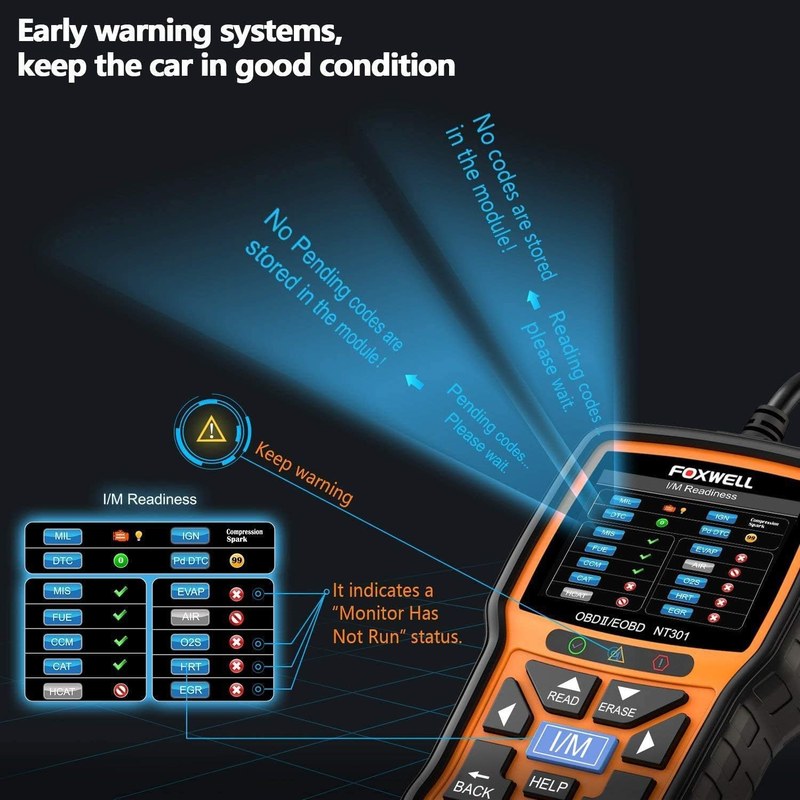
The NT301 reads diagnostic trouble codes (DTCs) from the engine control module. It displays the code, a short description, and freeze frame data from the moment the fault was recorded. That data includes engine RPM, coolant temperature, vehicle speed, and fuel system status. The scanner also checks I/M readiness, which shows whether your emissions monitors have completed their self-tests. That is the same basic information many state emissions programs use.
Not Covered: ABS, Airbags, Transmission, and Bi-Directional Controls
The NT301 does not read ABS or airbag (SRS) codes. It also does not access transmission, body control, or other advanced modules. There are no bi-directional controls, so you cannot command a component to turn on or off for testing. If your check engine light is on for an engine or emissions fault, the NT301 is likely enough. If you need brake or airbag diagnostics, you need a different class of tool.
Before You Start: OBD2 Port Location and Vehicle Compatibility
Model-Year and Protocol Coverage: 1996 and Newer Gasoline Vehicles
The NT301 is built for OBD2-compliant vehicles. In the US, that means most gasoline cars and light trucks from model year 1996 onward. It supports the common OBD2 communication protocols used on those vehicles. Diesel, hybrid, and some newer models may behave differently. The NT301 is marketed mainly for gasoline engine diagnostics, so verify your specific vehicle before relying on it. For a detailed breakdown, see our guide to FOXWELL NT301 vehicle compatibility.
Check: Confirm your vehicle is OBD2-compliant, which in the US generally means a 1996 or newer gasoline car or light truck. Limitations: The NT301 focuses on engine and emissions systems. It does not cover ABS, airbags, transmission, or body control modules.
Where to Find the Port and How to Reach It Safely
The OBD2 port is usually under the driver’s side dashboard, near the steering column or hood release. It is a 16-pin trapezoid connector, often behind a small plastic cover. Some vehicles place it near the center console or behind a removable panel. If you cannot find it, check the owner’s manual. Move the seat back, use a flashlight, and do not pull hard on panels or wiring.
Connecting the NT301 and Setting the Correct Ignition Mode
Powering the Scanner Through the OBD2 Port
The NT301 gets power from the OBD2 port itself. There is no battery to charge and no separate power cord. Push the connector in firmly until it seats fully. If the scanner does not power on, check the vehicle’s OBD2 port fuse or the cigarette lighter fuse, depending on the vehicle. Some ports are protected by a dedicated fuse.
Key On, Engine Off: The Right Ignition Position for Diagnostics
For reading codes and freeze frame data, set the ignition to Key On, Engine Off. That means the dashboard lights come on but the engine stays off. This position powers the control modules without the noise and heat of a running engine. Some live data readings need the engine running, but you do not need it for basic code reading. If you do start the engine, set the parking brake and put the transmission in Park.
Look under the driver’s side dashboard near the steering column or hood release.
Push the connector in firmly until it seats. The scanner powers on automatically.
Dashboard lights on, engine off. Then use the menu to select Read Codes.
Reading Engine Fault Codes: Step-by-Step
How to Read Codes, Pending Codes, and Freeze Frame Data
With the scanner connected and the ignition on, select Read Codes from the menu. The NT301 communicates with the engine control module and displays any stored codes. Pending codes are faults that have occurred once but have not yet met the conditions to turn on the check engine light. Freeze frame data appears with confirmed codes and shows the vehicle conditions at the moment the fault was recorded. Write down every code and the freeze frame values before you clear anything. For a closer look at how to pull and interpret that data, see our walkthrough of FOXWELL NT301 freeze frame data.
Interpreting Confirmed Codes vs. Pending Codes
A confirmed code means the control module has seen the fault enough times to store it and usually illuminate the check engine light. A pending code means the fault happened once but has not repeated enough to confirm it. Do not ignore pending codes. They can be the first sign of a failing sensor, a vacuum leak, or a loose connection.
Live Data Limits: What the NT301 Shows and What It Hides
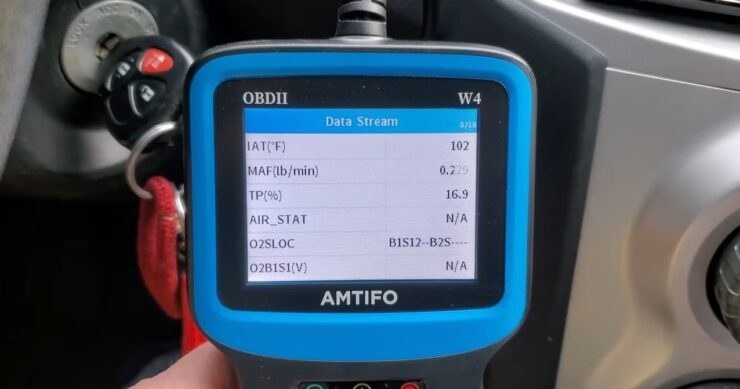
The NT301 can display live data such as engine RPM, coolant temperature, and oxygen sensor readings. That is useful for watching a sensor respond in real time. But the live data view is limited compared to professional scanners. You cannot command actuators, run system tests, or access every manufacturer-specific parameter. For deeper sensor analysis, you may need a more advanced tool.
Using the I/M Readiness Monitor for Emissions Testing
How the Emissions Readiness Test Works on the NT301
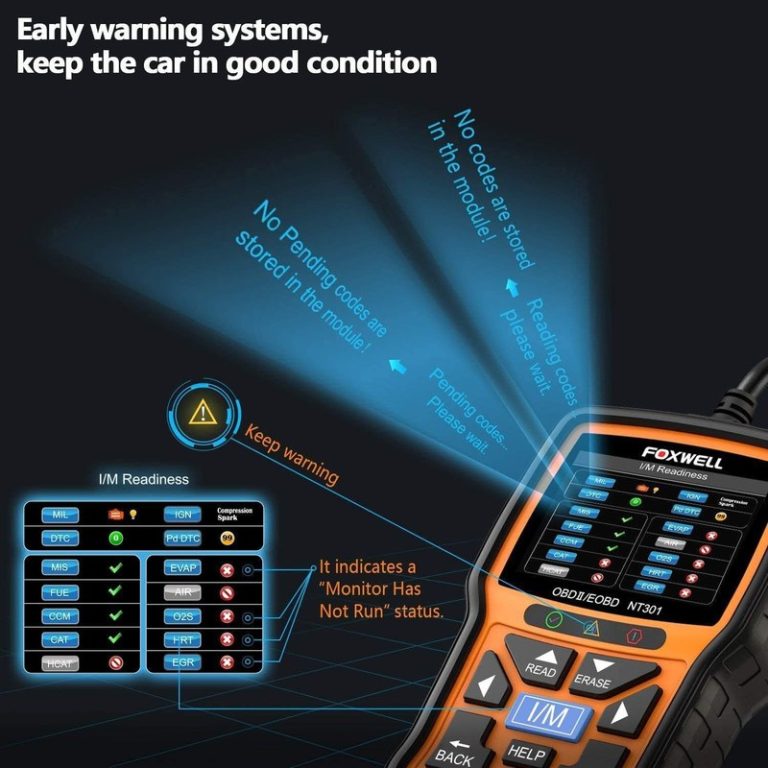
Select I/M Readiness from the menu to see the status of your emissions monitors. Monitors include the catalytic converter, oxygen sensors, the evaporative system, and others. Each monitor shows as OK, INC (incomplete), or NA (not applicable). If monitors are incomplete, you may need to drive through a specific drive cycle so the vehicle can finish its self-tests. The NT301 gives you the readiness data, but it cannot make the monitors complete faster. For a deeper explanation of what the readiness screen can and cannot tell you, see our article on whether the FOXWELL NT301 can check emissions.
State-by-State Legal Variation and Pass/Fail Criteria
Emissions testing rules vary by state and even by county. Some states require a full OBD2 scan; others use a tailpipe test or no test at all. The NT301 shows readiness data, but it cannot tell you whether your vehicle will pass a specific state inspection. Check your state’s current requirements before you schedule a test. If you cleared codes recently, the monitors may reset to incomplete, and you will need to drive for a while before testing.
Clearing Codes: Reset Limitations and What Happens Next
When Clearing Codes Is Safe and When It Can Mask a Real Problem
Clearing codes is the right move after a repair is complete. It resets the check engine light and clears stored freeze frame data. But clearing codes before you understand the root cause is a common mistake. If the fault is still present, the light will return, often within a drive cycle. That is not a scanner failure. It is the vehicle telling you the problem is still there. For details on what the reset does and does not do, see our guide to whether the FOXWELL NT301 can clear codes.
Why the Check Engine Light May Return Immediately After a Reset
The engine control module re-tests its systems constantly. If the underlying fault remains, the same code will come back quickly. Some faults appear immediately; others need specific driving conditions to trigger. Do not clear codes repeatedly to hide a problem or prepare for an inspection. In many states, clearing codes right before an emissions test results in an automatic fail because the monitors have been reset to incomplete.
Firmware Updates, App Permissions, and Privacy
Updating the NT301 Firmware and Why It Matters
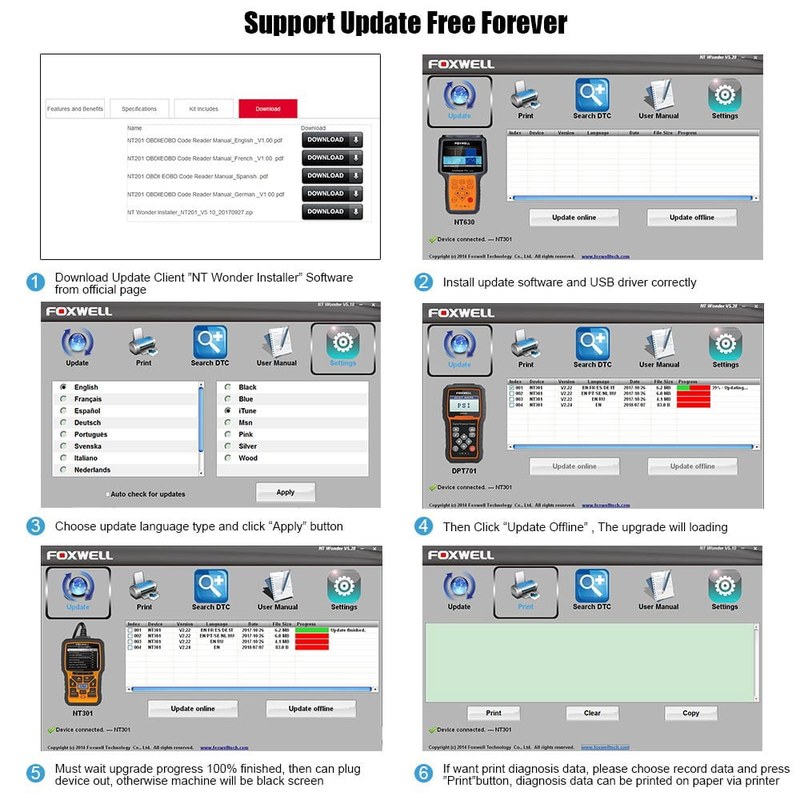
FOXWELL releases firmware updates through its PC-based diagnostic software. Updates can improve code coverage, fix bugs, and add support for newer vehicles. You will need a Windows PC and a USB cable. Check the FOXWELL website for the latest software and follow the manufacturer’s update instructions. Do not disconnect the scanner during an update. An interrupted update can leave the scanner in a non-working state.
No App, No Permissions: What Standalone Operation Means for Your Data
The NT301 is a standalone tool. It does not need a smartphone app, Bluetooth, or an online account. That means no app permissions, no location tracking, and no cloud upload of your vehicle data. For drivers who care about data privacy, that is a real advantage over connected scanners that sync diagnostic data to a phone or cloud service.
When the NT301 Isn’t Enough: Professional Diagnostic Thresholds
Manufacturer-Specific Codes and Advanced Module Access
The NT301 reads generic and many manufacturer-specific powertrain codes. But it cannot access every module or every proprietary function. Some European and Asian vehicles need deeper manufacturer-level software for full diagnostics. If the scanner returns a code you cannot interpret, or the code points to a system the scanner cannot reach, you likely need a professional scan tool.
Safety-Critical Repairs and Repairs That Require a Professional Scan Tool
Some repairs involve safety-critical systems. If a code relates to brakes, steering, airbags, or fuel delivery, treat it seriously. A code reader can confirm that a fault exists, but it cannot tell you whether the vehicle is safe to drive. When in doubt, have a qualified technician inspect the vehicle. A professional diagnosis often costs less than a failed repair or a roadside breakdown.
Ownership Cost, Maintenance, and Next Steps After Diagnosis
What the NT301 Costs to Own and Maintain Over Time
The NT301 is a budget-friendly code reader with no subscription fees for core functions. The main ongoing task is firmware updates, which FOXWELL provides through its PC software. There are no replacement parts to buy under normal use, but inspect the cable and connector periodically for damage. Keep the scanner in a dry place when it is not in use.
Turning a Code Into a Repair Plan: Driver Impact and Next Steps
Once you have a code and freeze frame data, research the code before buying parts. A code like P0420 (catalytic converter efficiency) can come from a failing converter, an oxygen sensor, or an exhaust leak. Replacing parts without diagnosis wastes money. Use the freeze frame data to understand when the fault occurs. Cold starts, highway speeds, and refueling can all point to different causes. If the repair is beyond your skill level, bring the code and freeze frame data to a technician. That information can save diagnostic time and labor cost.
- Best for: DIY owners who want a fast, standalone way to read engine codes, freeze frame data, and emissions readiness on 1996 and newer gasoline vehicles.
- Think twice if: You need ABS, airbag, transmission, or bi-directional diagnostics, or you want a phone-connected tool with cloud features.
- Next step: Confirm your vehicle’s OBD2 compatibility, then practice reading and recording codes before you clear anything.
Frequently Asked Questions
The NT301 works on most OBD2-compliant gasoline vehicles from model year 1996 and newer in the US. It focuses on engine and emissions systems, so it will not read ABS, airbag, or transmission codes. Check your owner’s manual or the FOXWELL compatibility information for your specific make and model.
No. For reading codes, freeze frame data, and I/M readiness, turn the ignition to Key On, Engine Off. The scanner powers through the OBD2 port, so the engine does not need to run. Some live data values require the engine to be running, but basic diagnostics do not.
No. The NT301 is designed for engine and emissions diagnostics. ABS, airbag (SRS), transmission, and body control modules are not covered. You would need a different scan tool with those system-specific functions.
Yes, the NT301 can clear codes and reset the check engine light. But if the underlying fault is still present, the light will return, often within a drive cycle. Clear codes only after you have recorded the code and freeze frame data and completed the repair.
No. The NT301 is a standalone code reader. It does not need an app, Bluetooth, or an account, and there is no subscription for core functions. Firmware updates are done through FOXWELL’s PC software with a USB cable.
Download FOXWELL’s PC diagnostic software from the official FOXWELL website, connect the NT301 with a USB cable, and follow the update prompts. Updates can improve code coverage and add vehicle support. Do not disconnect the scanner during an update.