How to Use BlueDriver Pro Scan Tool to Diagnose Check Engine Light
The BlueDriver Pro turns your phone into a full check engine light diagnostic tool: plug it into the OBD2 port, pair with the free app, and read codes, live data, and emissions readiness. It clears codes after repairs, but it cannot do bidirectional testing or full TPMS relearns.
Learning how to use BlueDriver Pro scan tool is mostly about setup and reading the app correctly, because the adapter itself has no screen or buttons. This guide walks through pairing, connecting to the OBD2 port, reading check engine codes, checking emissions readiness, and clearing codes safely.
- Setup: Install the free app, create an account, and update firmware before the first scan.
- Connection: Plug into the OBD2 port and use key-on-engine-off mode for most diagnostics.
- Emissions: Check readiness monitors before a smog test; clearing codes resets them.
- Limits: No bidirectional controls, no full TPMS relearn, and no substitute for a professional on.
- Ownership: No subscription for core features; verify vehicle and phone compatibility first.
What Is the BlueDriver Pro Scan Tool and How Does It Diagnose a Check Engine Light?
The BlueDriver Pro is a Bluetooth OBD2 scanner that plugs into your car’s diagnostic port and sends data to a smartphone app. It reads the same information a mechanic sees: diagnostic trouble codes (DTCs), live sensor values, freeze frame data, and emissions readiness status. Because the hardware has no display, the app becomes the screen, which keeps the adapter small and makes software updates simple.
For a closer look at the technology behind the adapter, see our guide on how does BlueDriver work.
How the BlueDriver Works in Three Simple Steps
Locate the port under the dashboard on the driver’s side, insert the adapter, and turn the ignition to the “on” position with the engine off.
Open the BlueDriver app, allow Bluetooth and location permissions, and follow the pairing prompts. The app checks for firmware updates during setup.
The app shows the check engine code, a plain-English description, and repair information. From there you can view live data or clear the code after the repair.
Before You Plug In: App Setup, Firmware, and Compatibility
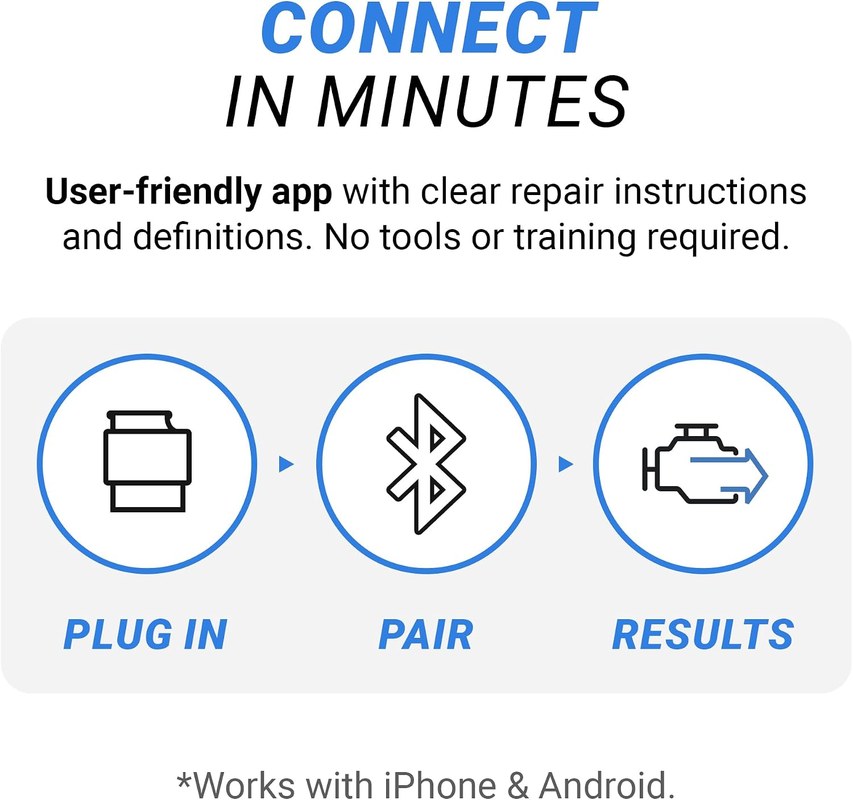
Download the BlueDriver app from the Apple App Store or Google Play before you touch the car. Create an account, log in, and let the app guide you through the initial setup. The app is free, and the core diagnostic functions do not require a subscription.
Check: The BlueDriver Pro works with OBD2-compliant vehicles sold in the US from 1996 onward. The app lists supported makes and models, and some manufacturer-specific features require newer vehicles. Limitations: Enhanced diagnostics, such as manufacturer-specific codes and some TPMS data, vary by make, model, and model year.
Vehicle and Smartphone Compatibility
On the vehicle side, the BlueDriver needs an OBD2 port, which is required on US gasoline vehicles from 1996 and most diesel vehicles from 1997. On the phone side, the app requires a compatible iOS or Android device with Bluetooth 4.0 or newer. Older phones may struggle with live data views.
App Permissions and Account Requirements
The app asks for Bluetooth access and, on Android, location permission. This is standard for Bluetooth Low Energy scanning, not necessarily GPS tracking. You will also create an account with an email address, and the account links your vehicle’s VIN to your diagnostic history. Review the privacy policy before agreeing.
Updating Firmware Before First Use
BlueDriver pushes firmware updates through the app. Before the first scan, open the app with the adapter plugged in and follow the update prompt. A firmware update can take several minutes, so do it while parked and with the phone charged.
Step-by-Step: Connecting the BlueDriver to Your Vehicle
Finding the OBD2 Port
The OBD2 port is usually under the dashboard on the driver’s side, near the steering column or hood release. Some vehicles hide it behind a small cover or fuse panel door. If you cannot find it, check the owner’s manual because the exact location varies widely.
Correct Connection Order and Ignition Mode
With the engine off, plug the adapter into the port. Then turn the ignition to the “on” position without starting the engine, often called key-on-engine-off (KOEO). Most code reading and emissions checks work in this mode. Live data like RPM or coolant temperature may require the engine running. For more detail, read our guide on whether you need the engine running to use an OBD2 scanner.
Battery Health vs. State of Charge
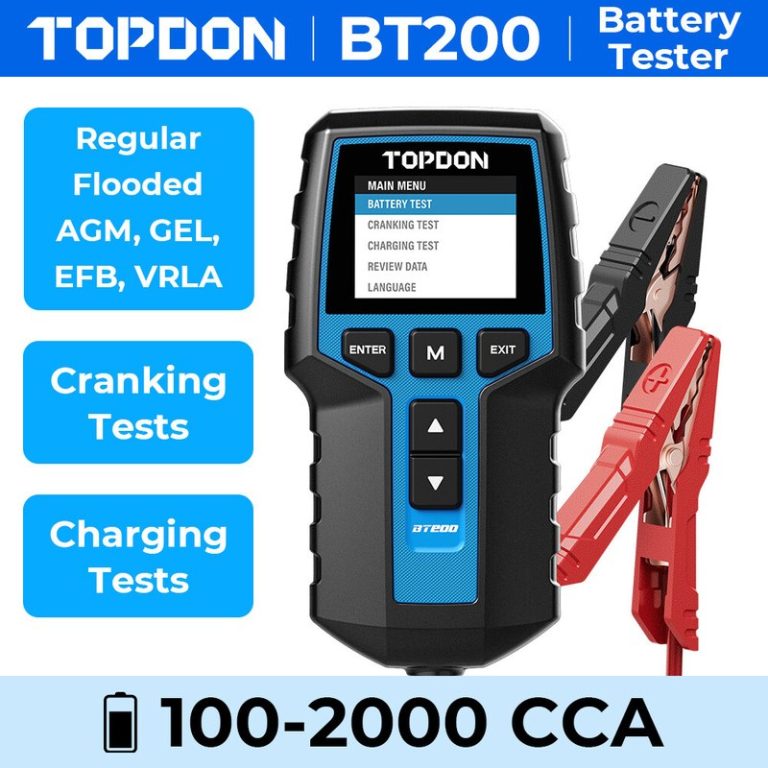
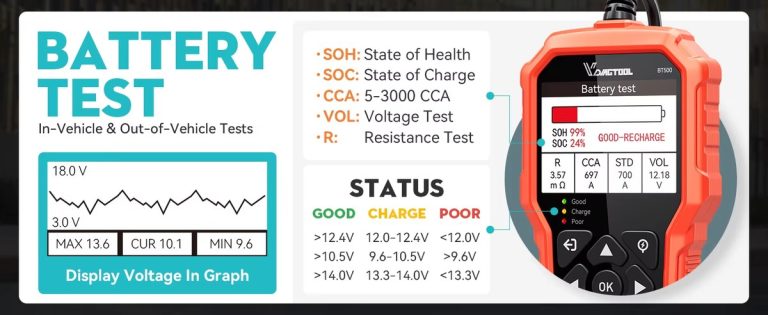
A weak battery can interrupt communication between the scanner and the vehicle’s computer. The adapter draws power from the OBD2 port, so a nearly dead battery may cause connection failures or false codes. If the scanner drops connection repeatedly, test the battery before blaming the tool.
Hybrid and EV Cautions
Reading and Interpreting Check Engine Light Codes
Generic vs. Manufacturer-Specific Codes
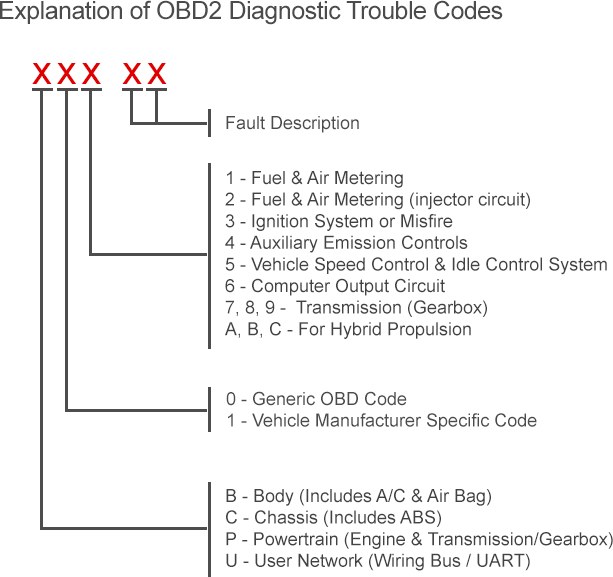
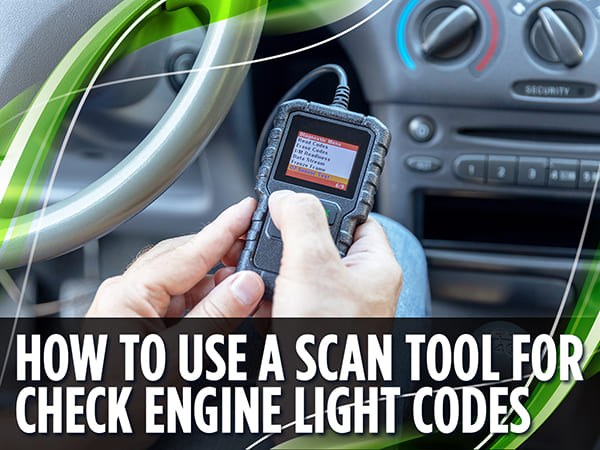
Generic codes follow a standard format. P0301, for example, means cylinder 1 misfire on any OBD2 vehicle. Manufacturer-specific codes, often starting with P1, P2, or U, require the automaker’s data. The BlueDriver app includes an enhanced database that decodes many of these for supported vehicles.
Freeze Frame and Live Data Limits
Freeze frame captures the engine conditions at the moment the code was stored, such as engine speed, coolant temperature, and fuel trim. Live data streams these values in real time while the engine runs. The BlueDriver shows both, but the number of live data parameters depends on the vehicle and app version. For a broader look, see our guide on finding live data on an OBD2 scanner.
Emissions Readiness Monitors
Emissions readiness tells you whether the vehicle’s self-tests have completed. A car can have no check engine light but still fail an emissions test if the monitors are incomplete. The BlueDriver app displays monitor status, which is useful before a smog check. The practical payoff is avoiding a wasted trip to the inspection station.
Using BlueDriver for TPMS and Other System Diagnostics
TPMS Data and Relearn Limits
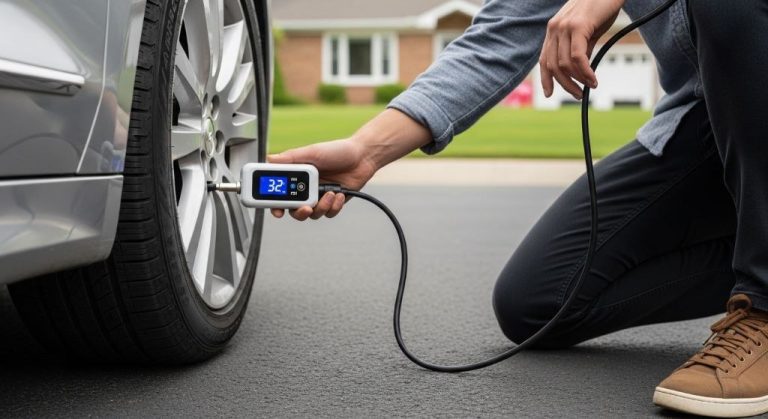
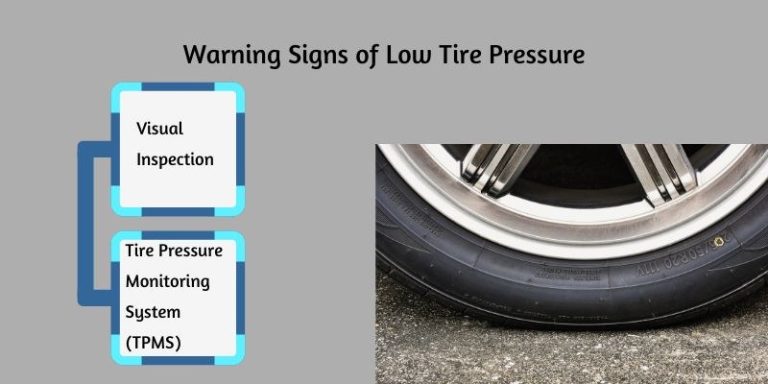
The BlueDriver can read tire pressure sensor data on many vehicles, showing individual tire pressures and sensor IDs. However, it is not a full TPMS service tool. Relearn procedures vary by automaker, and the BlueDriver does not replace a dedicated TPMS reset tool. After a tire rotation, you may still need a separate tool, so see our guide on how to reset the TPMS light after a tire rotation.
Using BlueDriver Safely at the Roadside
If you scan at the roadside, pull completely off the road, turn on hazard lights, and set the parking brake. Do not sit in traffic to diagnose. The app can be distracting, so have a passenger watch the screen or move to a parking lot before scanning.
What BlueDriver Cannot Do
The BlueDriver is a diagnostic tool, not a repair tool. It cannot command actuators, cycle ABS pumps, perform throttle relearns, or program modules. Those tasks require a bidirectional scan tool. If your goal is active testing, look at a bidirectional scanner instead.
Clearing Codes and Reset Limitations
When Clearing a Code Is Safe
Clear a code only after the underlying problem is fixed. Clearing a code without a repair turns the check engine light back on, often within one drive cycle, and it resets the emissions monitors. That can cause a smog check failure. Our guide on how to pass emissions after clearing codes explains the drive-cycle requirements.
What Resets Are Supported
The BlueDriver can clear diagnostic trouble codes and, on many vehicles, reset certain service lights through the app. Supported resets vary by make and model. The app shows which functions are available after it reads the vehicle.
When You Need a Professional
If the same code returns after a repair, if the check engine light flashes, or if the problem involves brakes, airbags, or steering, stop and see a professional. A flashing check engine light means a severe misfire that can damage the catalytic converter, so drive gently and get help quickly.
BlueDriver Pro vs. Other OBD2 Scan Tools
Side-by-Side Comparison: Price, Coverage, and Capabilities
| Option | Best for | Owner consideration | Driver consideration |
|---|---|---|---|
| BlueDriver Pro | Smartphone-based code reading and live data | No subscription; app handles updates | Requires a phone while driving; plan a safe mount |
| OBDLink MX+ | Advanced live data and custom dashboards | Higher upfront cost; strong app ecosystem | Fast data refresh; good for monitoring |
| Innova 5610 | Bidirectional testing for home mechanics | Higher cost; more buttons and menus | Built-in screen; no phone needed |
Which Tool Fits Your Driving Style
For most daily drivers, the BlueDriver Pro is enough: it reads and clears codes, shows live data, and checks emissions readiness without a subscription. If you do serious DIY repairs, a bidirectional tool like the Innova 5610 adds active testing. If you want the fastest live data for monitoring, the OBDLink MX+ is a strong alternative.
Privacy, Firmware, and Ownership Costs
App Permissions and Data Privacy
Firmware Updates and Long-Term Support
The adapter receives firmware updates through the app, which keeps it compatible with newer phones and vehicle protocols. The app itself is updated regularly. Long-term support depends on the manufacturer, so check the current product page for update history and support policy.
Warranty and Replacement Costs
Verdict: Who Should Buy the BlueDriver Pro Scan Tool?
Evaluation Criteria and Evidence Limits
This assessment is based on the manufacturer’s product documentation, standard OBD2 principles, and owner-reported patterns. CarValleyNJ has not independently tested the BlueDriver Pro, so treat performance claims as unverified. Focus on the features that matter for your vehicle and driving habits.
Ideal User, Drawbacks, and Alternatives
The ideal user is a daily driver who wants to read and clear check engine codes, check emissions readiness, and view live data without paying a subscription. The main drawbacks are the lack of bidirectional controls, limited TPMS relearn support, and the need to keep a phone handy. Alternatives include the OBDLink MX+ for faster live data and the Innova 5610 for active testing.
- Best for: Daily drivers who want a subscription-free way to diagnose check engine lights, check emissions readiness, and view live data from a phone.
- Think twice if: You need bidirectional controls, full TPMS service, or a scanner with a built-in screen.
- Next step: Confirm that your vehicle and phone are on the BlueDriver compatibility list before buying.
Frequently Asked Questions
The BlueDriver Pro works with OBD2-compliant vehicles sold in the US from 1996 onward. Manufacturer-specific features vary by make, model, and model year, so check the app’s compatibility list before buying.
For reading and clearing codes, turn the ignition to the “on” position with the engine off. Some live data functions, such as RPM and coolant temperature, require the engine to be running.
Yes, the BlueDriver app can clear diagnostic trouble codes and turn off the check engine light. Only clear a code after the underlying problem is fixed, because clearing resets the emissions monitors.
No. Clearing codes resets the emissions readiness monitors to “not ready,” which can cause an automatic failure at a smog station. You must complete a full drive cycle so the monitors can run before testing.
The BlueDriver can read tire pressure data on many vehicles, but it is not a full TPMS service tool. Relearn procedures vary by automaker and may require a dedicated TPMS reset tool.
The core BlueDriver app is free with no subscription for reading codes, live data, freeze frame, and emissions readiness. Check the current app store listing for any premium features.